
howtosimply.com/guides/how-to-turn-on-data-saving-on-a-oneplus/ · Checked October 2026 · OnePlus Nord 5 (CPH2709), OxygenOS 16.0.5.1201, Android 16
In this guide
Go to Settings, Mobile network, Data usage, Data saving, turn on the Data saving switch and tap Turn On. OnePlus calls it Data saving, not Data Saver, and it turns off your personal hotspot while it is on.
5 of 5 steps with real screenshots · 2 official sources below
- Device
- Android
- Shown on
- OnePlus Nord 5 (CPH2709), OxygenOS 16.0.5.1201, Android 16
- App
- Settings
- Path
- Settings › Mobile network › Data usage
- Real screenshots
- 5 of 5 steps
- Checked
- October 2026
- Sources
- 2 official, linked below
Step by step
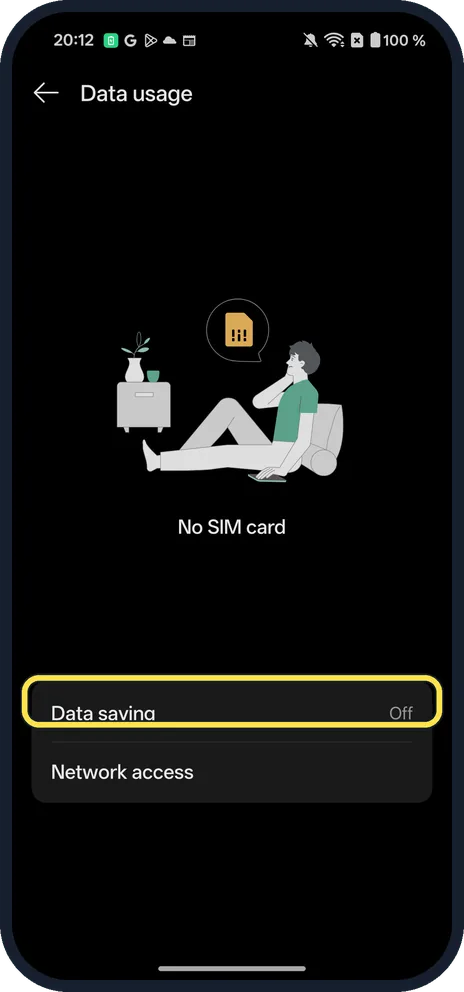
Open Data usage
Open Settings, tap Mobile network, then Data usage. Data saving is near the bottom; ours showed Off. (Ours had no SIM, so the page showed No SIM card instead of data figures.)
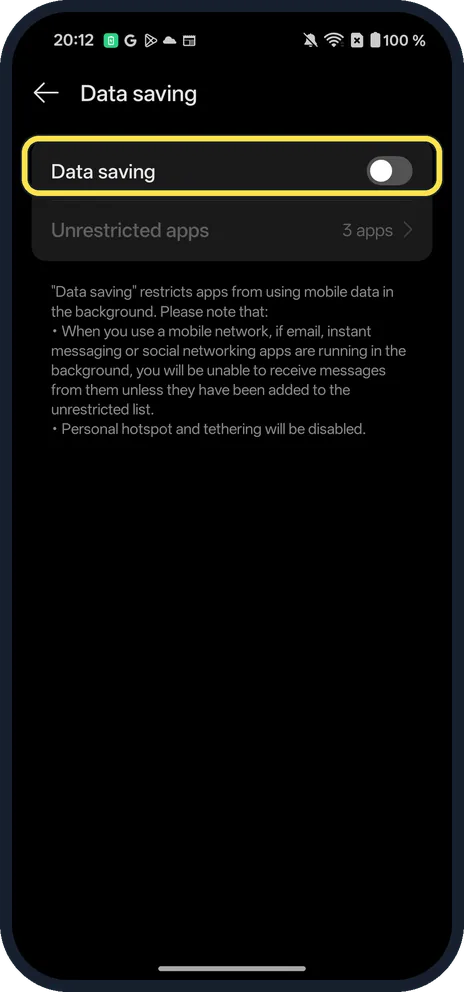
Tap the Data saving switch
Tap Data saving, then the switch at the top. The page says Data saving restricts apps from using mobile data in the background, and that Personal hotspot and tethering will be disabled. Ours had 3 apps in Unrestricted apps already.
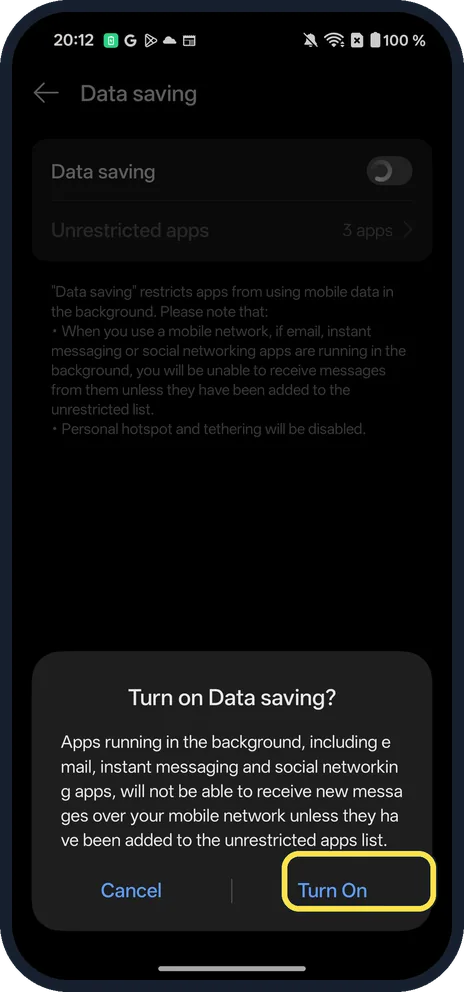
Tap Turn On
Ours asked Turn on Data saving? Apps running in the background, including email, instant messaging and social networking apps, will not be able to receive new messages over your mobile network unless they have been added to the unrestricted apps list. Tap Turn On.
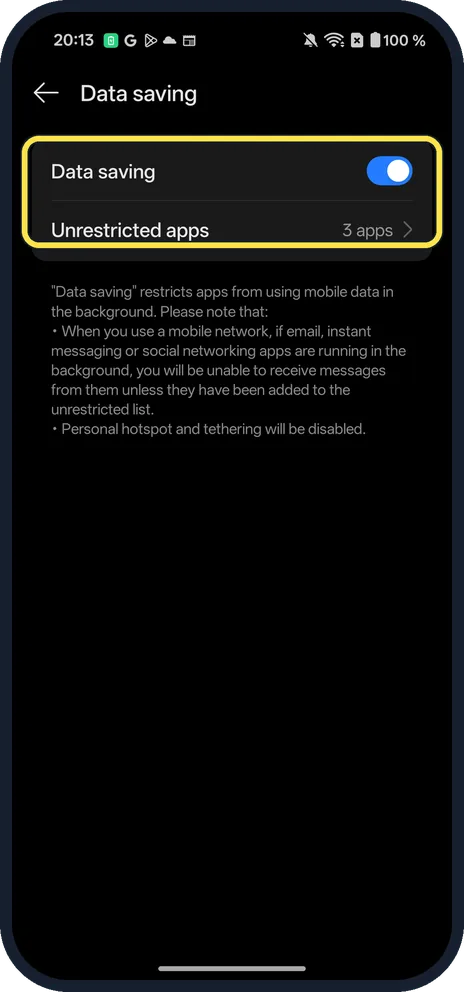
Check that it is on
The switch turns blue. To let one app keep using data in the background, tap Unrestricted apps under the switch and turn that app on.
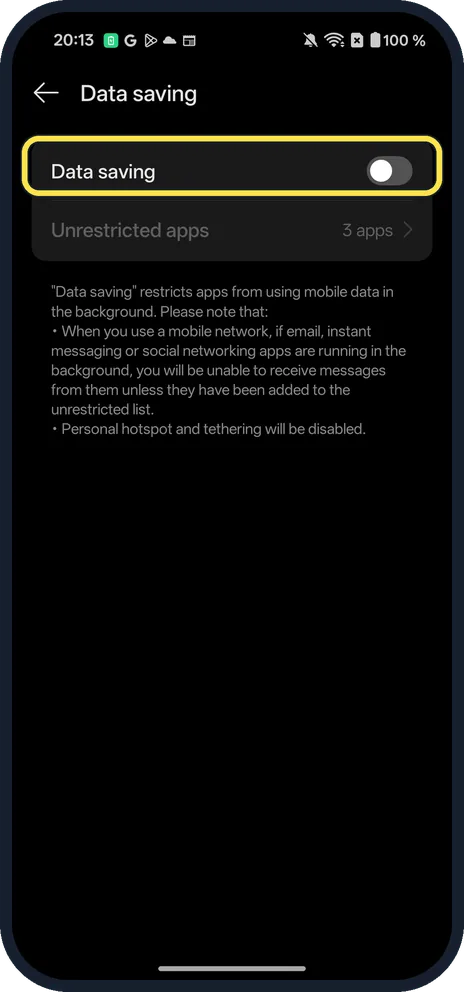
Turn it off again
Tap the switch again when you no longer need it. Ours turned off straight away, with no second question.
If you do not see this option
- Searching Settings finds nothing? Searching Settings for data saver did not list Data saving on ours. Go the long way: Settings, Mobile network, Data usage, Data saving. OnePlus gives the same route for Android 12. Source: Android 12 system introduction
- Is there an icon when it is on? OnePlus says the status bar shows a data-saving icon while it is on. You can choose which icons appear in Settings, Notifications & status bar, Status bar. Source: Android 12 system introduction
- No SIM card in the phone? Our Nord 5 had no SIM card, and the Data saving switch still worked. It only makes a difference while you use mobile data.
If this does not work
- Hotspot stopped working? The Data saving page says Personal hotspot and tethering will be disabled. Turn Data saving off, then see how to turn on a hotspot on a OnePlus.
- WhatsApp or email messages arrive late? OnePlus says that with Data saving on, apps in the background cannot receive new messages over mobile data unless they are unrestricted. Add the app to Unrestricted apps. Source: OnePlus Nord 3 5G User Manual
- Want to block one app only? See how to stop an app using mobile data or Wi-Fi on a OnePlus.
About this guide
Data saving stops apps using mobile data in the background. Apps you add to Unrestricted apps keep working as normal.
The screenshots are from our OnePlus Nord 5 with OxygenOS 16.0.5 and Android 16, in Dark mode, taken on 24 October 2026. Our phone had no SIM card in it; Data saving still switched on and off normally. We turned it on for the pictures and off again.
Good to know
See which apps use the most data on Wi-Fi: how to see Wi-Fi data usage by app on a OnePlus.
In short: Settings, Mobile network, Data usage, Data saving on, Turn On. Unrestricted apps lets chosen apps through. Hotspot is disabled while it is on.
Links checked in October 2026. Menus and features can change after software updates. These steps match the version named at the top.
📷 See real photos from the OnePlus Nord 5 in our Camera Lab, next to 10 other phones.
Did this guide work for you?
Sorry about that. What happened?