ONEPLUS
How to turn on Always-On Display on a OnePlus (OxygenOS 16)

In short
Go to Settings, Home screen, Lock screen & style, tap the Always-On Display tile at the bottom and turn on Always-On Display. Under Display settings, Display mode sets when it shows: Power saving, Scheduled or All day.
7 of 7 steps show a real screenshot from our Nord 5. Each step was checked against the maker's own instructions, linked at the end.
Steps
- 1
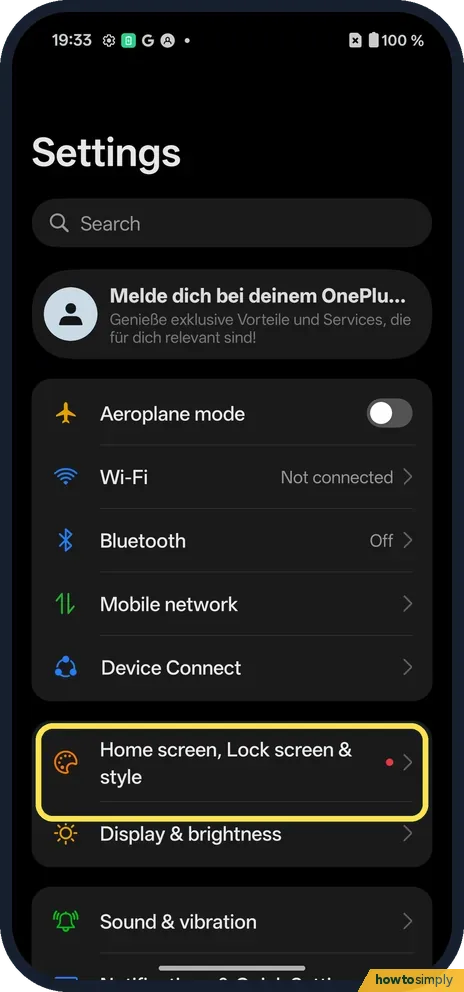
Open Home screen, Lock screen & style
Open Settings and tap Home screen, Lock screen & style, below Device Connect.
- 2
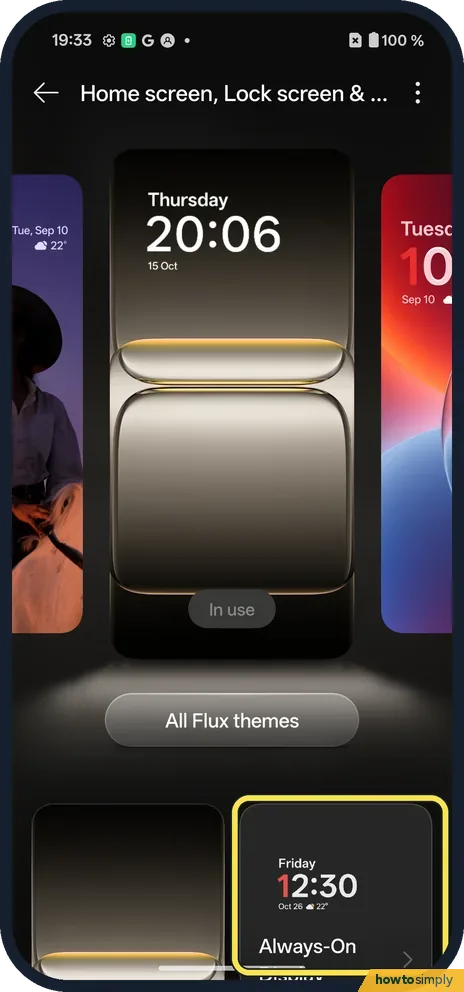
Tap the Always-On Display tile
Scroll to the bottom of the page. The Always-On Display tile is on the right, under the wallpapers.
- 3
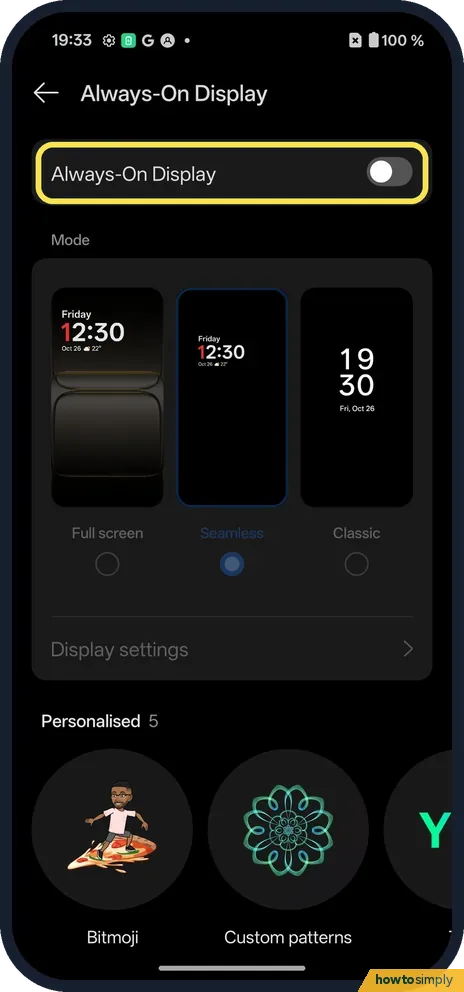
Turn on Always-On Display
Tap the Always-On Display switch at the top. It was off on ours.
- 4
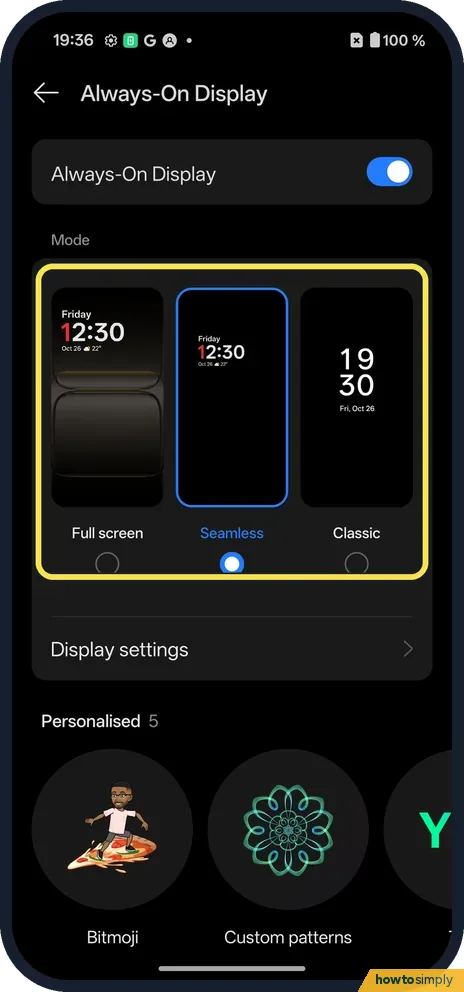
Pick a mode
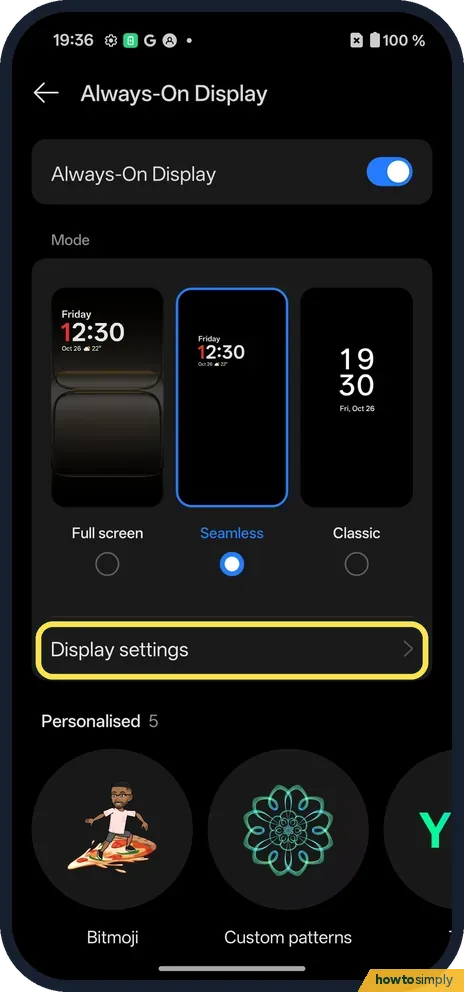
Mode has three looks: Full screen, Seamless and Classic. Seamless was picked on ours.
- 5
Open Display settings
Tap Display settings, under the modes.
- 6
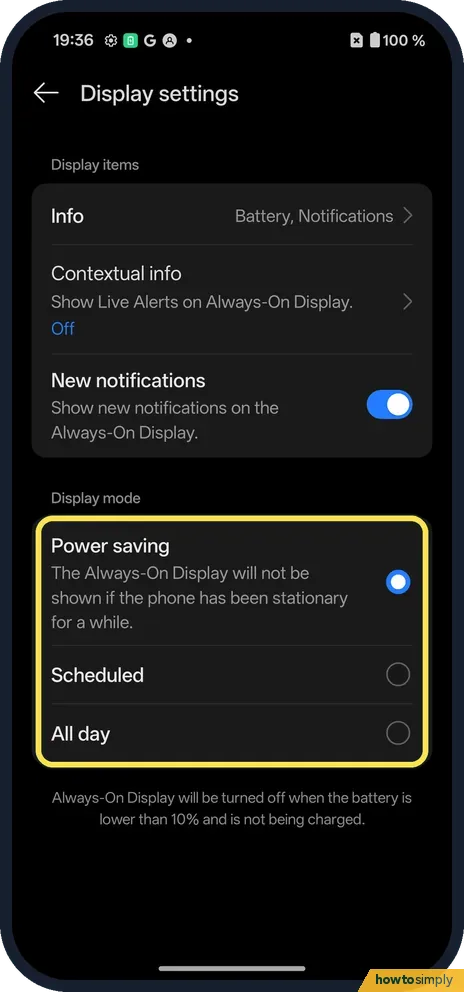
Choose when it shows
Display mode has Power saving, Scheduled and All day. Power saving was picked: the screen notes it is not shown if the phone has been stationary for a while. The page also says it turns off below 10% battery when not charging.
- 7
Lock the phone and check
Press the power button. Ours showed the day, a large clock, the date, weather, 100 % battery and small notification icons.

If you do not see this option
- Want a different style? Scroll down the Always-On Display page: there are Personalised styles (Bitmoji, Custom patterns and more) and System styles. We did not change ours.
- Older OxygenOS? OnePlus's OxygenOS 14 manual puts it under Settings, Wallpapers & style, Always-On Display. On our OxygenOS 16 phone it is Home screen, Lock screen & style. Source: OxygenOS 14.0 User Manual
- Can't find the tile? Search Settings for Always-on and tap the Always-On Display result.
If this does not work
- Screen still goes fully dark? With Power saving, it does not show if the phone has been still for a while. Choose All day in Display settings.
- It stopped at low battery? It turns off when the battery is below 10% and the phone is not charging.
- Uses too much battery? Pick Scheduled so it shows only at set times, or turn it off.
- Disappears when power saving is on? Turning off Always-On Display is one of the items Power saving mode can change. Check its Customise list: see power saving mode on a OnePlus.
- Notifications not showing on it? The OxygenOS 14 manual describes a New notifications option in the Always-On Display settings, alongside an Info choice for what is shown, such as date and battery level. Check those in Display settings.
- Option missing on another OnePlus? The OxygenOS 14 manual says Always-On Display needs hardware support and is not available on some models, such as those with an LCD screen.
Good to know
Set how long the screen stays on: screen timeout on a OnePlus.
On other phones: Always-On Display on a Google Pixel or on a Xiaomi phone.
To undo, return to the Always-On Display tile and switch it off. Bedtime mode also has a Keep the screen dark option, which keeps the display dark at night without switching Always-On Display off for the day.
About this guide
- Device
- Android
- Shown on
- OnePlus Nord 5 (CPH2709), OxygenOS 16.0.5.1201, Android 16
- App
- Settings
- Path
- Settings › Home screen, Lock screen & style › Always-On Display
- Real screenshots
- 7 of 7 steps
- Checked
- October 2026
- Sources
- 1 official, linked below
Sources
Links checked October 2026. Menus and features can change with updates.Spotted a mistake? Menus change with updates, and we want every step to match your screen. Email us about this page or use the contact form. We read every report, and fixes are listed on What changed.
Liked this guide?
Follow us for new guides and short how-to videos.
Did this guide work for you?
Sorry about that. What happened?