
howtosimply.com/guides/how-to-turn-on-data-saver-on-a-xiaomi-phone/ · Checked October 2026 · Xiaomi Redmi Note 15 Pro 5G (25080RABDG), HyperOS 3.0.308.0, Android 16
In this guide
Search Settings for Data Saver, tap Data Saver on the Network and Internet page and turn on Use Data Saver. Apps you add under Unrestricted mobile data keep working in the background.
5 of 5 steps with real screenshots · 1 official source below
- Device
- Android
- Shown on
- Xiaomi Redmi Note 15 Pro 5G (25080RABDG), HyperOS 3.0.308.0, Android 16
- App
- Settings
- Real screenshots
- 5 of 5 steps
- Checked
- October 2026
- Sources
- 1 official, linked below
Step by step
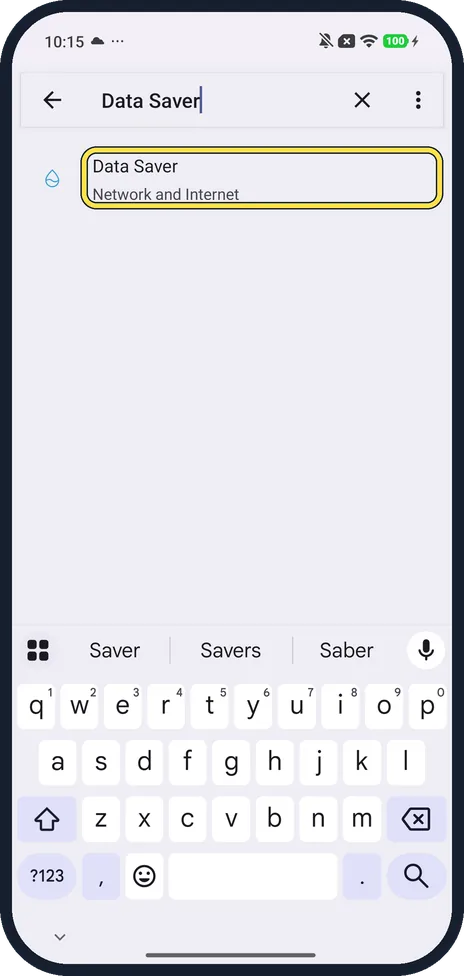
Search Settings for Data Saver
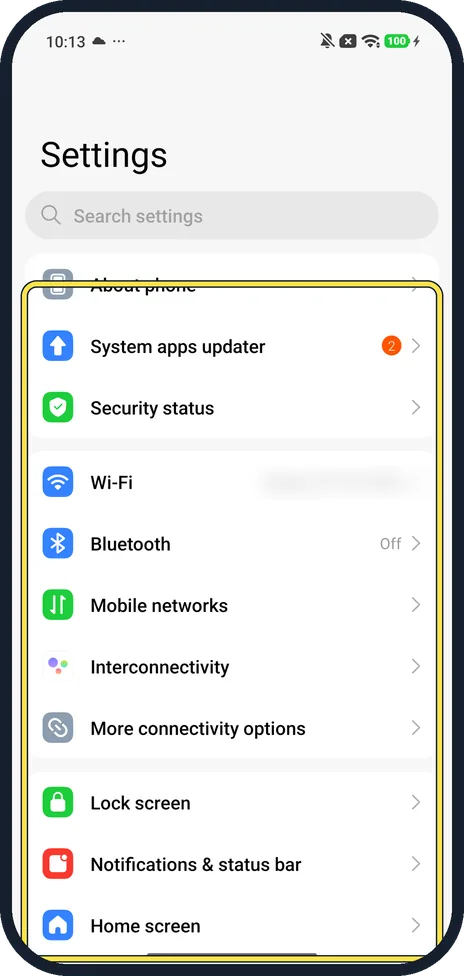
Our Redmi has no Data Saver or Network and Internet row on the main Settings page. Type Data Saver in the search box at the top: ours showed Data Saver with the path Network and Internet. Tap it.
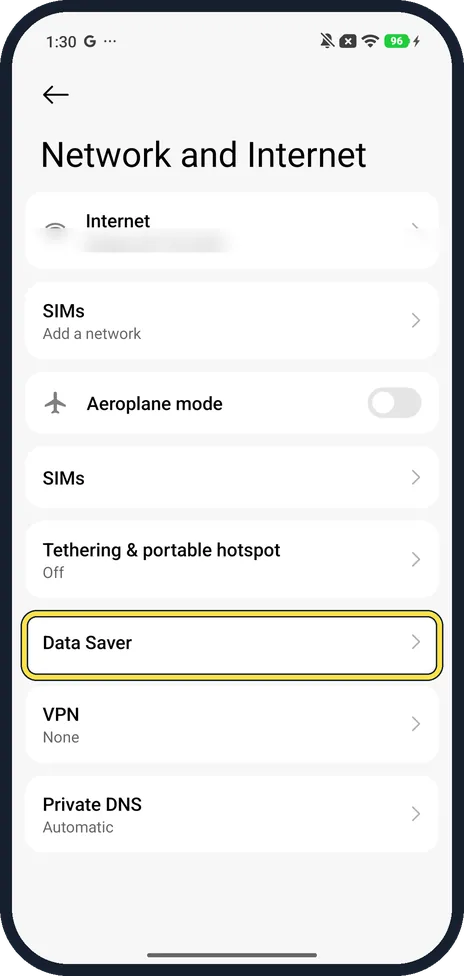
Tap Data Saver
The Network and Internet page opens: Internet, SIMs, Aeroplane mode, a second SIMs row, Tethering & portable hotspot, Data Saver, VPN and Private DNS. Tap Data Saver.
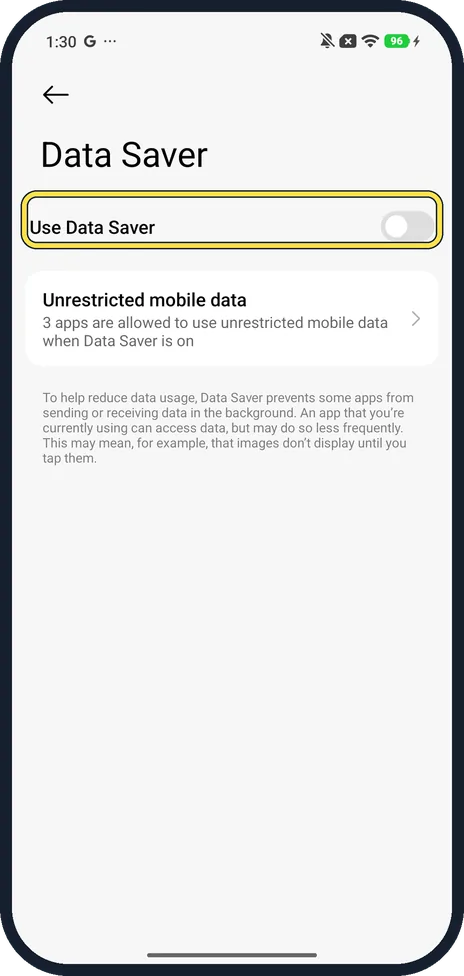
Read what it does
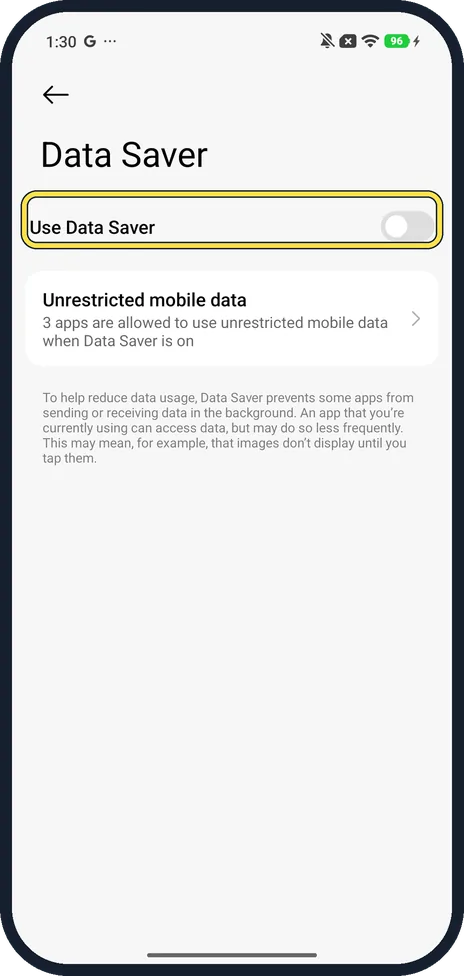
The page has one switch, Use Data Saver, and a note: Data Saver prevents some apps from sending or receiving data in the background, so images may not show until you tap them.
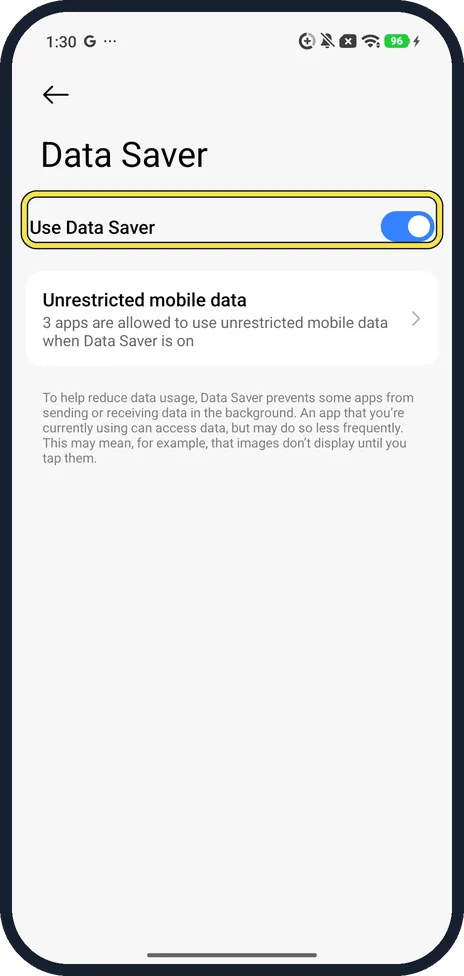
Turn on Use Data Saver
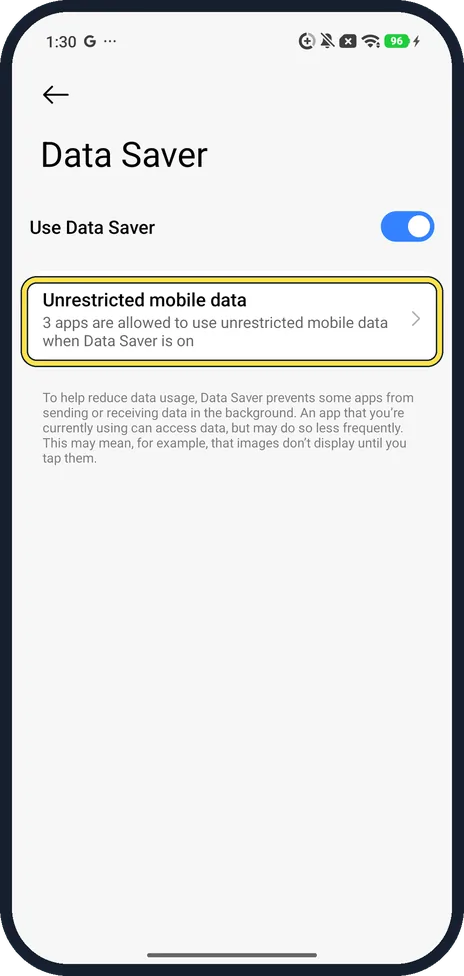
Tap the switch. It turns blue.
Turn it off again
Tap the same switch when you are back on Wi-Fi or no longer need it. We left ours off.
If you do not see this option
- Not on the main Settings list? Ours has no Data Saver row on the main Settings page. Use the search box at the top instead.
- Two SIMs rows? Ours showed SIMs twice on the Network and Internet page, even with no SIM inserted. Data Saver is the row under Tethering & portable hotspot.
- Need one app to keep syncing? Tap Unrestricted mobile data under the switch. Ours said 3 apps were already allowed to use unrestricted mobile data when Data Saver is on. Source: Use less mobile data with Data Saver
If this does not work
- Pictures in a chat app don't load? That is Data Saver working: the note says images may not show until you tap them. Tap the image, or add the app to Unrestricted mobile data.
- Want to block one app instead of all of them? See how to stop an app using mobile data or Wi-Fi on a Xiaomi phone.
- No mobile data at all? Data Saver only limits background use. See Xiaomi mobile data not working? What to check.
About this guide
Data Saver stops most apps using mobile data in the background. On HyperOS 3 it is not on the main Settings list, so search for it.
The screenshots are from our Redmi Note 15 Pro 5G with Xiaomi HyperOS 3 and Android 16, in Light mode, taken on 23 October 2026. We turned Data Saver on for a picture and off again; Wi-Fi stayed connected the whole time.
Good to know
Stop one app using data: how to stop an app using mobile data or Wi-Fi.
In short: Settings, search Data Saver, Network and Internet, Data Saver, Use Data Saver on. Unrestricted mobile data lets chosen apps through.
Links checked in October 2026. Menus and features can change after software updates. These steps match the version named at the top.
Did this guide work for you?
Sorry about that. What happened?