XIAOMI REDMI
How to change the torch brightness on a Xiaomi phone (HyperOS 3)

In short
Swipe down from the top right to open Control centre, then touch and hold the Torch tile. A tall brightness slider opens above a round torch button. On our phone the long press did not turn the torch on. A single tap on the tile turns it on or off.
4 of 4 steps show a real screenshot from our Redmi Note 15 Pro 5G. Each step was checked against the maker's own instructions, linked at the end.
Steps
- 1
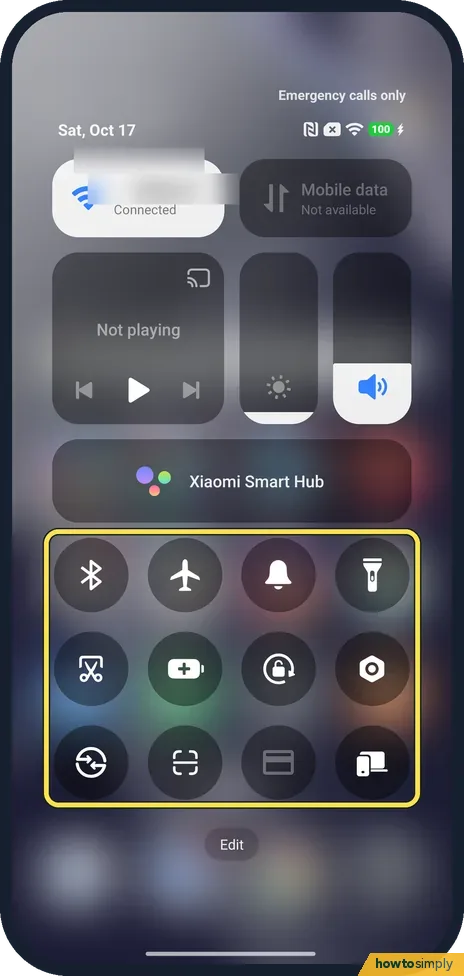
Open Control centre
Swipe down from the top right of the screen. The round tiles sit below Xiaomi Smart Hub.
- 2
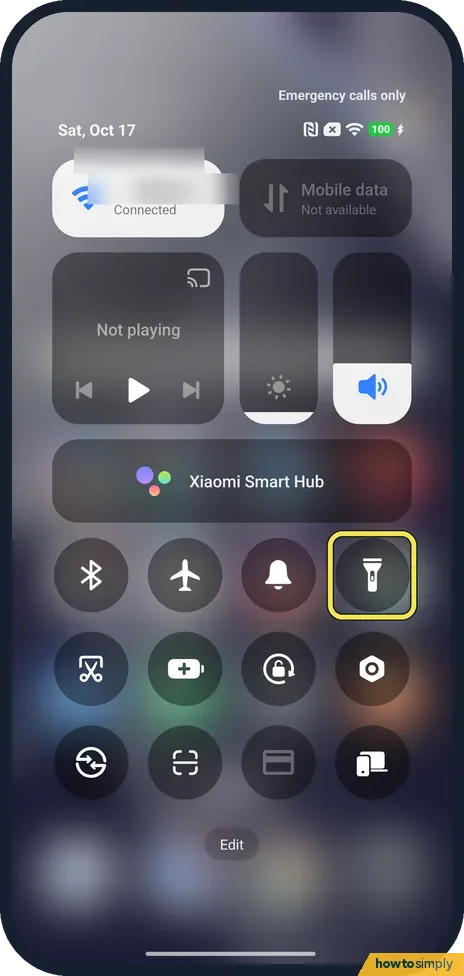
Find the Torch tile
On ours Torch was the last tile in the first row. Xiaomi's HyperOS 3 guide says a tap turns a tile on or off, and touch and hold opens its settings.
- 3
Touch and hold Torch
Press and hold the tile. The screen dims and a slider opens above a round torch button. The torch stayed off on ours.

- 4
Set the brightness
The tall slider sets how bright the torch is. Ours was empty, with the torch off. We did not move it, so we can't say whether dragging it also turns the torch on.

If you do not see this option
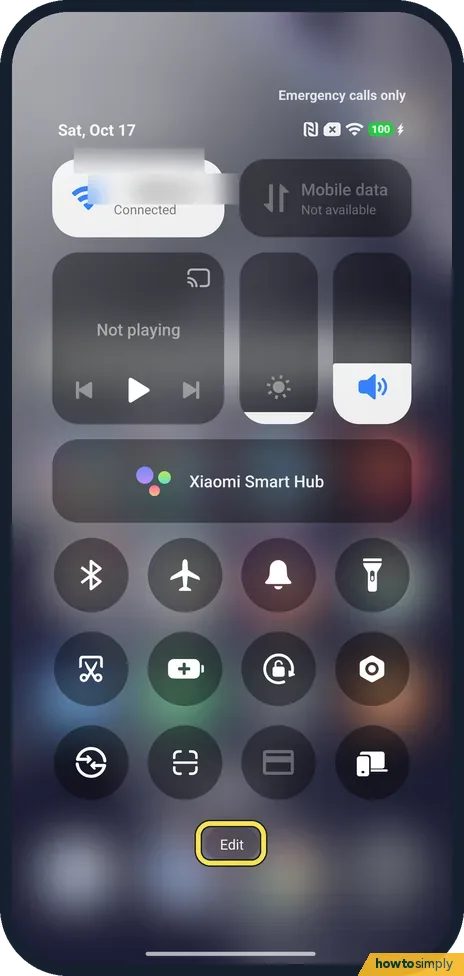
- No Torch tile? Tap Edit at the bottom of Control centre and add it from the list.
- Expected the long press to switch it on? On our Redmi it only opened the slider. Tap the tile once to turn the torch on.
- Called Flashlight in the manual? Xiaomi's HyperOS 3 guide calls the tile Flashlight. On our phone it is Torch. Source: Generic User Guide for HyperOS 3.0
If this does not work
- Torch tile missing? Add it in Edit: how to edit the Control Centre.
- Want the torch without unlocking? Set Torch as a lock screen shortcut: how to change the lock screen shortcuts.
- Torch will not turn on? Close any app that may be using the camera, then try again. If it still fails, restart the phone.
- Need light while scanning a code? Xiaomi's user guide says you can turn on the flash inside the Scanner app in the dark, so there is no need to use the Torch tile first.
- Torch light in photos is wrong? The torch tile does not control photos. Xiaomi's user guide sets the camera flash inside the Camera app, with automatic flash, flash on when you take the shot, or always on.
Good to know
More Control centre tiles: how to edit the Control Centre on a Xiaomi phone.
The brightness you set only affects the torch. It does not change the screen brightness, the camera flash or the light used for photos, and nothing else in Settings moves. To switch it off quickly, tap the Torch tile again in Control centre. To check whether your phone offers Flash notifications, search Settings for flash.
On our Redmi, Flash notifications has another name: Beam for notifications, in Settings, Accessibility. Its note reads: Use camera flash or show colour beams on the screen as notifications arrive. We saw it on 25 October 2026.
About this guide
- Device
- Android
- Shown on
- Xiaomi Redmi Note 15 Pro 5G (25080RABDG), HyperOS 3.0.308.0, Android 16
- Starts in
- Quick Settings
- Real screenshots
- 4 of 4 steps
- Checked
- October 2026
- Sources
- 2 official, linked below
Sources
Links checked October 2026. Menus and features can change with updates.Spotted a mistake? Menus change with updates, and we want every step to match your screen. Email us about this page or use the contact form. We read every report, and fixes are listed on What changed.
Liked this guide?
Follow us for new guides and short how-to videos.
Did this guide work for you?
Sorry about that. What happened?