
howtosimply.com/guides/how-to-turn-off-edge-panels-on-a-samsung-galaxy/ · Checked October 2026 · Samsung Galaxy A57 5G (SM-A576B), One UI 8.5, Android 16
In this guide
Open Settings, Display, Edge panels and switch it off at the top. The small handle at the side of the screen disappears. To keep it but move it out of the way, open Handle instead.
4 of 5 steps with real screenshots · 1 official source below
- Device
- Android
- Shown on
- Samsung Galaxy A57 5G (SM-A576B), One UI 8.5, Android 16
- App
- Settings
- Path
- Settings › Display › Edge panels
- Real screenshots
- 4 of 5 steps
- What we did
- Observed: looked at each screen, changed nothing
- Our phone
- Shown on Galaxy A57, One UI 8.5
- Checked
- October 2026
- Sources
- 1 official, linked below
Step by step
Open Edge panels
Settings, Display, then scroll down to Edge panels.
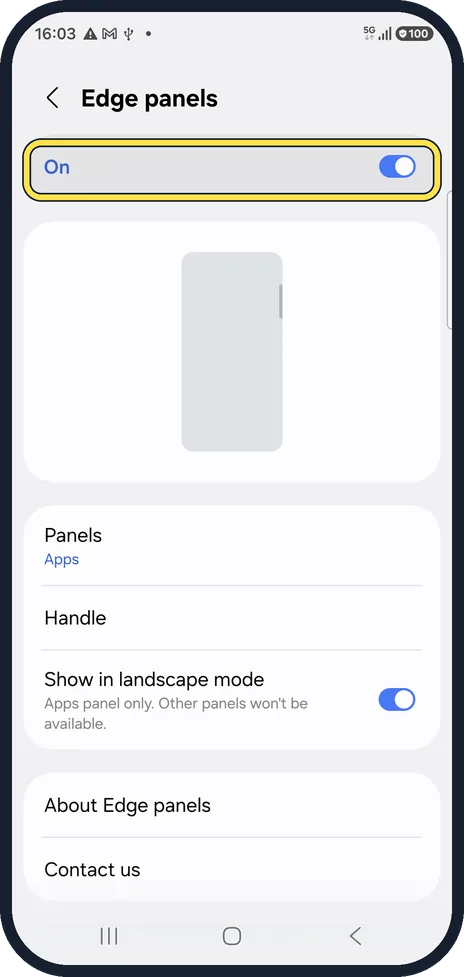
Switch it off
The switch at the top turns Edge panels on and off. Ours was on.
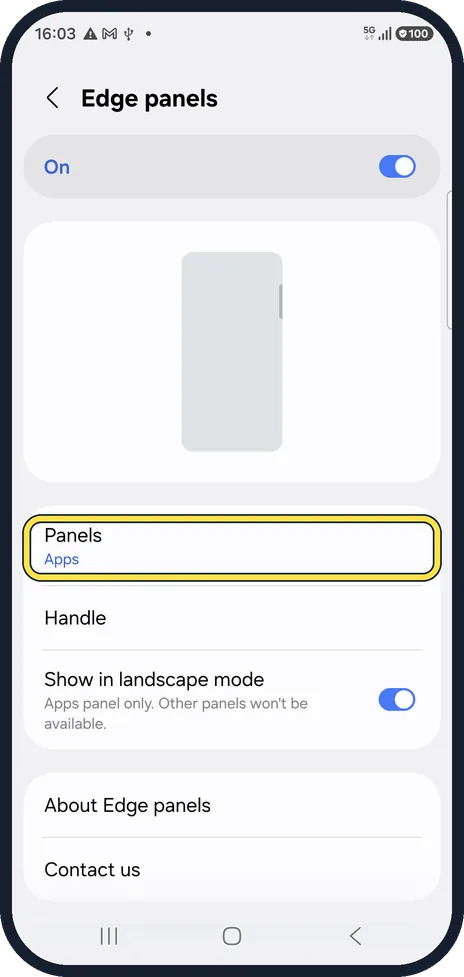
Or choose fewer panels
Panels lets you pick which panels appear. Ours showed only Apps.
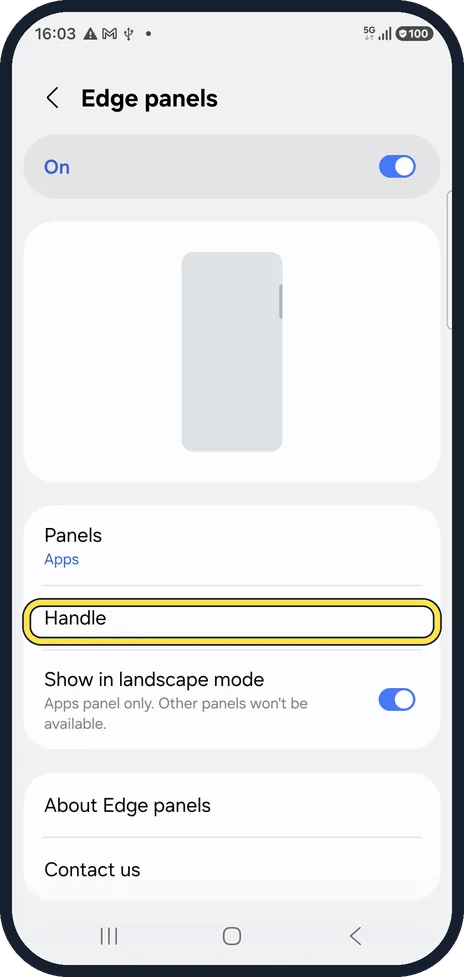
Or change the handle
Handle sets where the handle sits and how big and see-through it is, so you touch it less by accident.
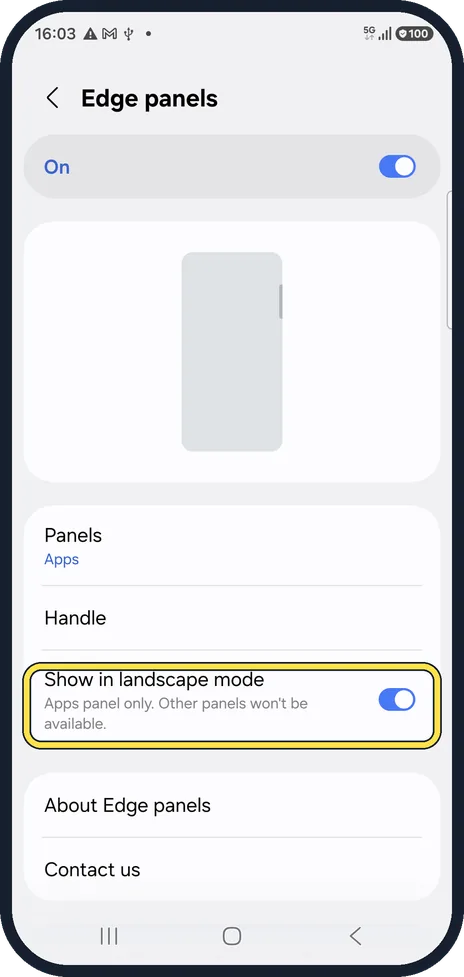
Landscape mode
Show in landscape mode keeps the Apps panel available when the phone is sideways; other panels are not. It was on on ours.
If you do not see this option
- There is no Edge panels row Samsung says the Edge panel may not be available on all models and software versions. Source: Add or remove Edge panels on your Galaxy phone or tablet
- A panel you used has gone Samsung says a missing panel has been turned off or moved. Check it under Settings, Display, Edge panels, Panels. Source: Add or remove Edge panels on your Galaxy phone or tablet
If this does not work
- The handle is still in the way Samsung says Handle sets the handle's position, size, colour and transparency, so you can make it smaller or move it. Source: Add or remove Edge panels on your Galaxy phone or tablet
- A panel from Galaxy Store will not download Samsung says some downloadable panels have to be bought, and some devices cannot download extra panels. Source: Add or remove Edge panels on your Galaxy phone or tablet
About this guide
Edge panels are the shortcut panels you swipe in from the side of the screen. If you keep opening them by accident, switch them off or change the handle.
Good to know
Prefer quick settings? how to edit the quick panel buttons on a Samsung Galaxy.
In short: Settings, Display, Edge panels, switch off. Or keep it and change Panels or Handle.
Links checked in October 2026. Menus and features can change after software updates. These steps match the version named at the top.
📷 See real photos from the Galaxy A57 in our Camera Lab, next to 10 other phones.
Did this guide work for you?
Sorry about that. What happened?