
howtosimply.com/guides/how-to-stack-notifications-on-a-samsung-galaxy-one-ui-9/ · Checked October 2026 · SM-A576B), One UI 9, Android 17 (build A576BXXU6BZIE · Samsung Galaxy A57
In this guide
There is no stacking switch in One UI 9: notifications from the same app stack by themselves. Swipe down and tap the number on a stacked card to open the group; tap the arrow next to the group name to fold it again. Sort and filter notifications only changes the order.
4 of 4 steps with real screenshots · 2 official sources below
- Device
- Android
- Shown on
- Samsung Galaxy A57 (SM-A576B), One UI 9, Android 17 (build A576BXXU6BZIE)
- Starts in
- Quick Settings
- Real screenshots
- 4 of 4 steps
- Checked
- October 2026
- Sources
- 2 official, linked below
Step by step
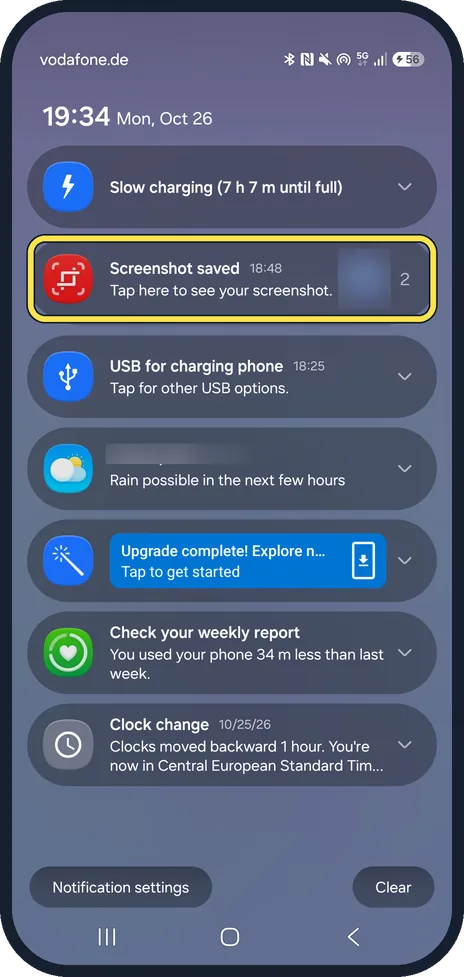
Swipe down to open the panel
Swipe down from the top of the screen. A stacked card shows the newest notification with a number on the right: ours read Screenshot saved and 2.
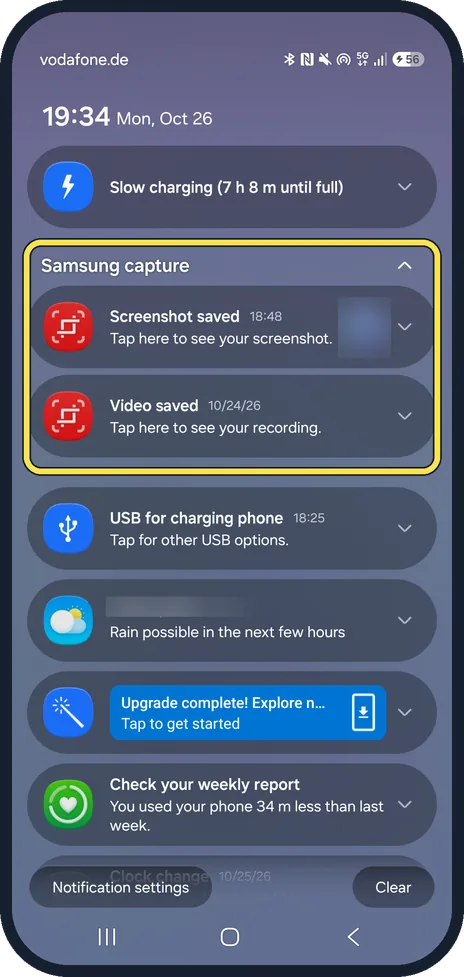
Tap the number to open the stack
The card opens into a group with the app's name on top, Samsung capture on ours, with Screenshot saved and Video saved below. Tap the arrow on the right of the group name to fold it again.
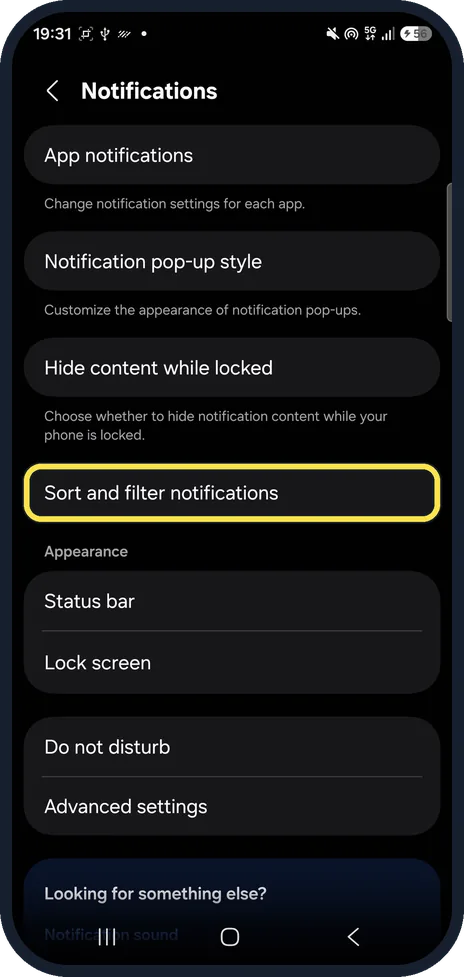
Open Sort and filter notifications
For the order of the panel, open Settings, Notifications (or Notification settings at the bottom of the panel) and tap Sort and filter notifications.
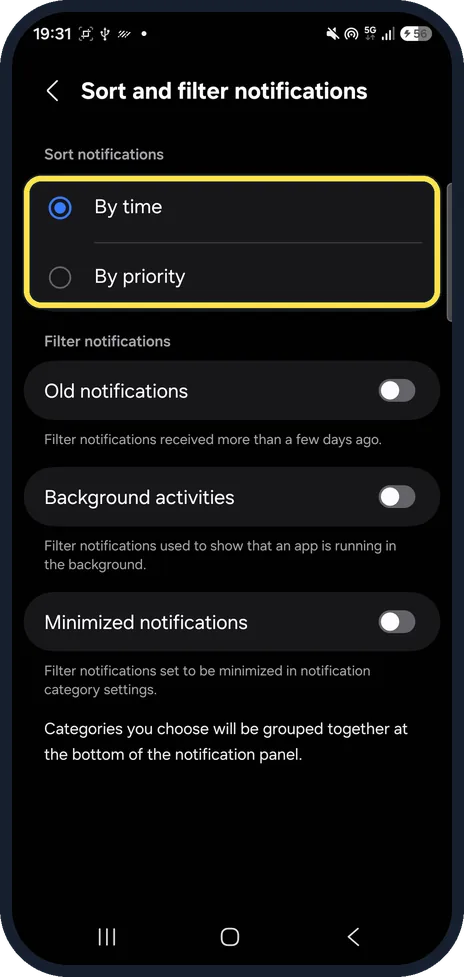
Pick By time or By priority
By time was picked on ours. Below are Old notifications, Background activities and Minimized notifications, which move those to the bottom of the panel as a group.
If you do not see this option
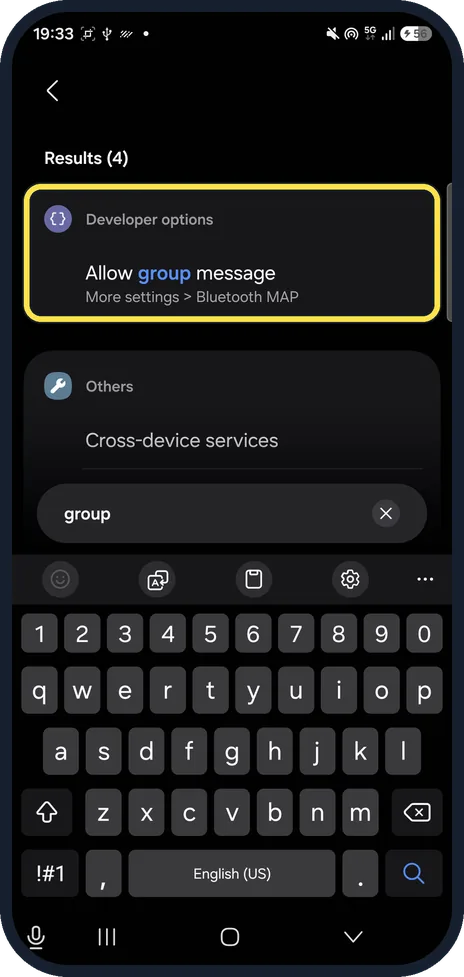
- Searched Settings for group or stack? On ours, group gave only Developer options and Bluetooth hits such as Allow group message, and stack gave nothing for notifications.
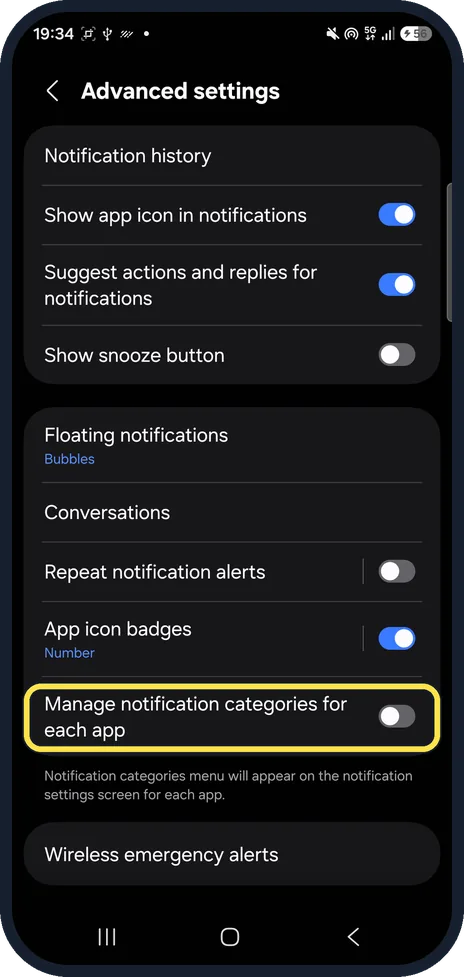
- Want per-app categories? Notifications, Advanced settings has Manage notification categories for each app. It was off on ours; the page says it adds a categories menu to each app's notification settings.
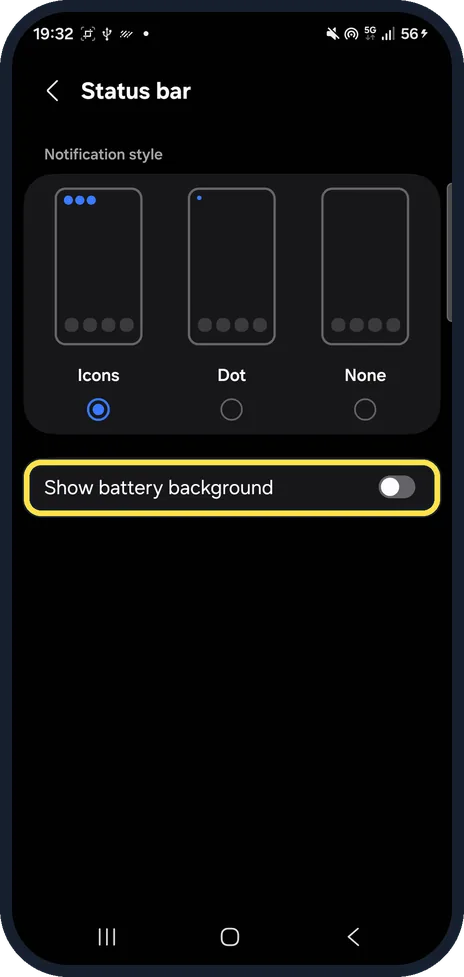
- Looking for the battery percentage too? One UI 9 has no Show battery percentage switch either: the number sits inside the battery icon, and Notifications, Status bar only has Show battery background.
If this does not work
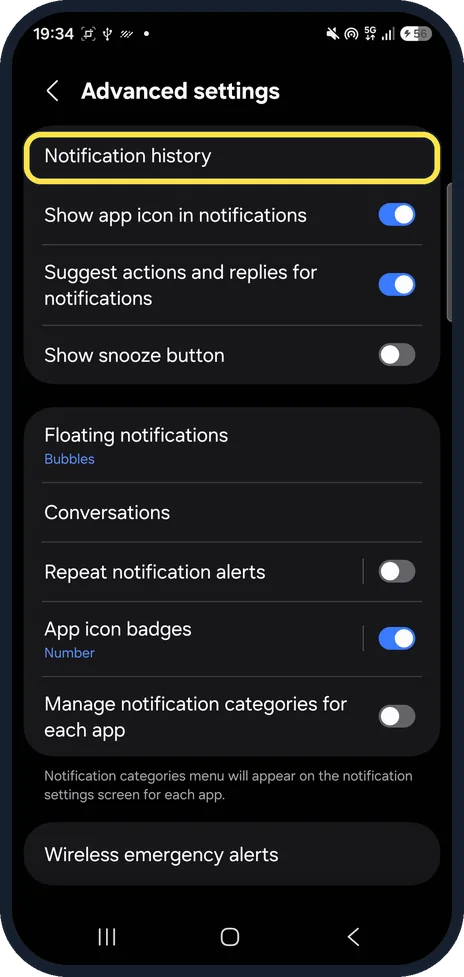
- Cleared a stack by mistake? Samsung says Notification history stores recent notifications even if they are dismissed or cleared. It is under Notifications, Advanced settings. Source: How to Enable Notification History
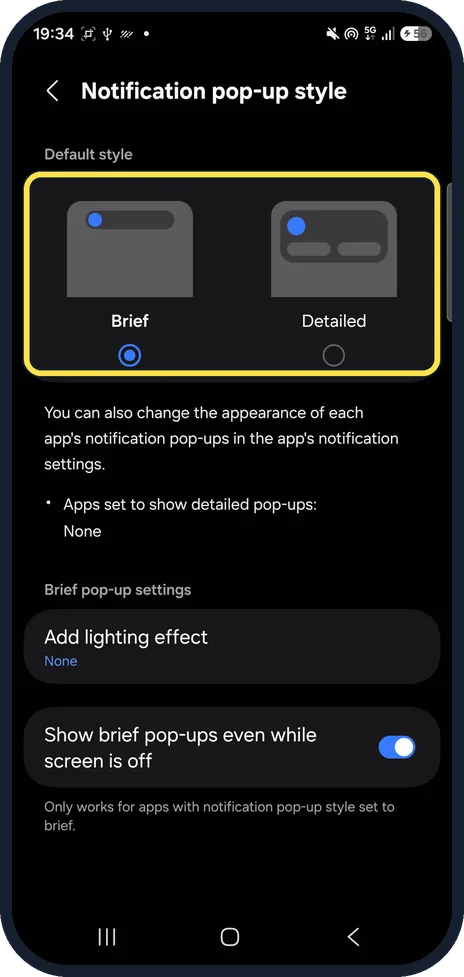
- Pop-ups are bigger than the stack? Notification pop-up style sets Brief or Detailed pop-ups; Brief was picked on ours. Google notes that settings can vary by phone. Source: Control notifications on Android
About this guide
Searching Settings for stack or group on our Galaxy A57 found no notification setting. The stacking is automatic: two Samsung capture notifications showed as one Screenshot saved card with a 2 on it.
The screenshots are from our Samsung Galaxy A57 (SM-A576B) with One UI 9.0 and Android 17 (build CP2A.260605.016.A576BXXU6BZIE), in Dark mode, taken on 26 October 2026. The weather location and the screenshot thumbnail in the panel are hidden in the pictures.
Good to know
For the battery number, see show battery percentage on a Samsung Galaxy; the One UI 9 status bar page looked the same on our A57. To see old notifications, see notification history on a Samsung Galaxy.
In short: No switch: same-app notifications stack by themselves. Tap the number to open a stack; Sort and filter notifications sets the order.
- Samsung Gulf: How to Enable Notification History
- Google Android Help: Control notifications on Android
Links checked in October 2026. Menus and features can change after software updates. These steps match the version named at the top.
📷 See real photos from the Galaxy A57 in our Camera Lab, next to 10 other phones.
Did this guide work for you?
Sorry about that. What happened?