XIAOMI REDMI
How to change the notification shade style on a Xiaomi phone (HyperOS 3)

In short
Go to Settings, Notifications & status bar, Notification style and tap Classic or Android on the Notification shade page. Ours had Android: app names, times and an arrow on each notification; Classic groups them under one icon with no times.
7 of 7 steps show a real screenshot from our Redmi Note 15 Pro 5G. Each step was checked against the maker's own instructions, linked at the end.
Steps
- 1
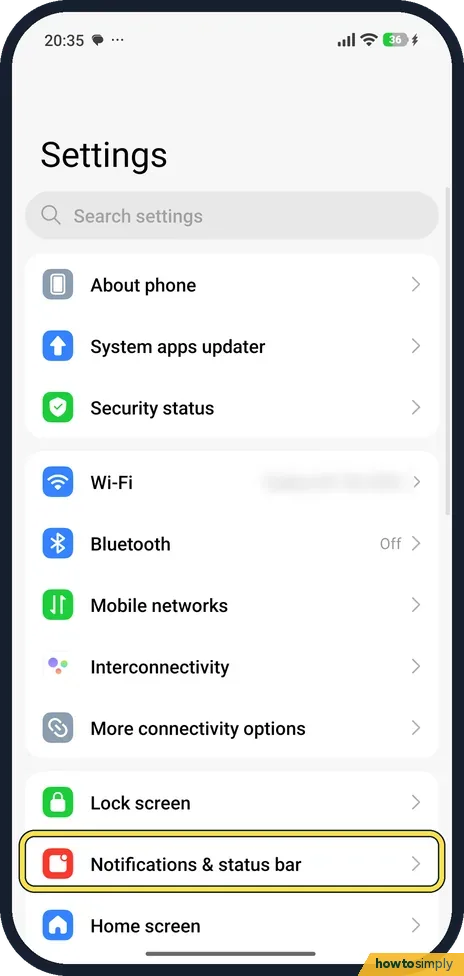
Open Notifications & status bar
Open Settings and tap Notifications & status bar, below Lock screen.
- 2
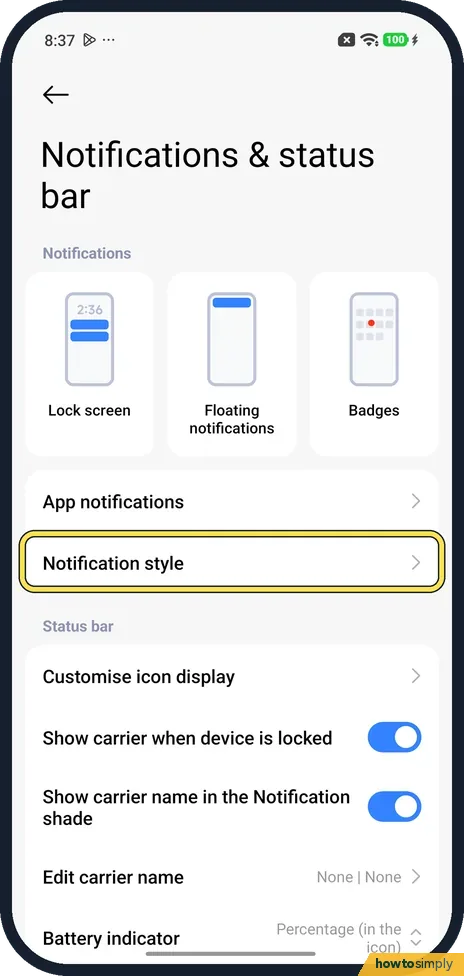
Tap Notification style
Under Notifications, Notification style is below App notifications. Tap it.
- 3
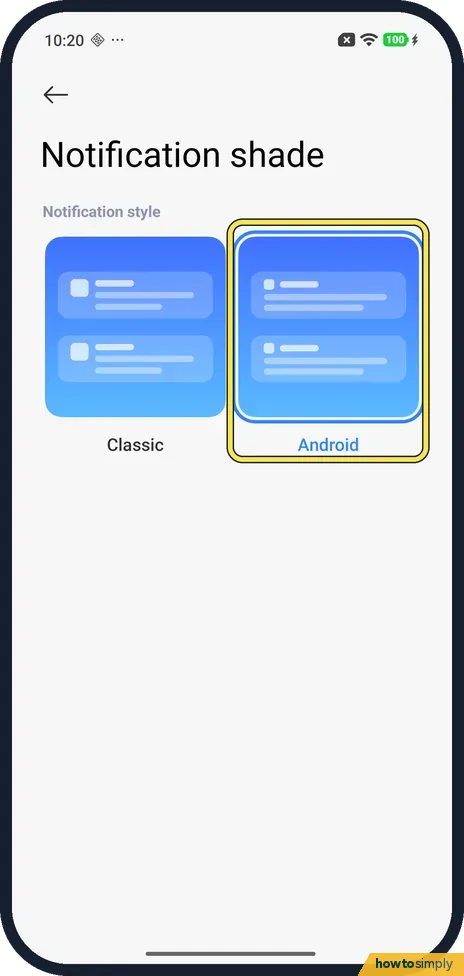
See which style is on
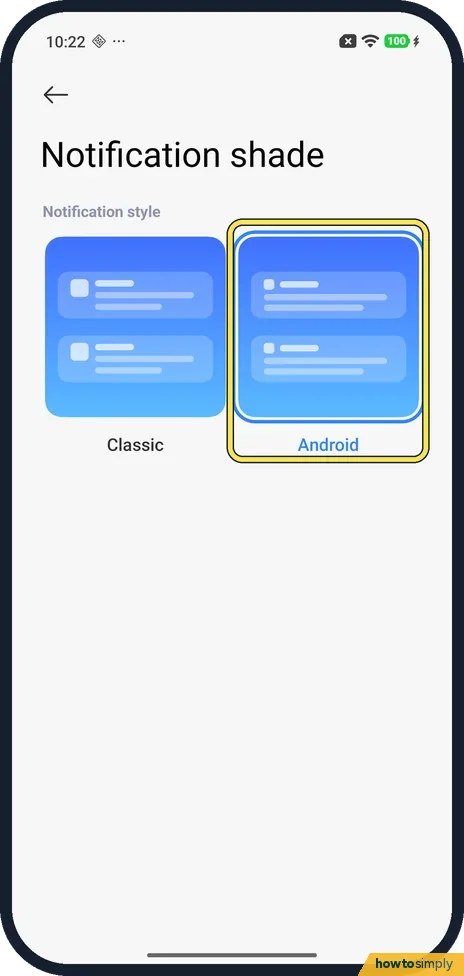
The page is called Notification shade. Under Notification style are two previews, Classic and Android. Ours had Android selected, with a blue frame and blue text.
- 4
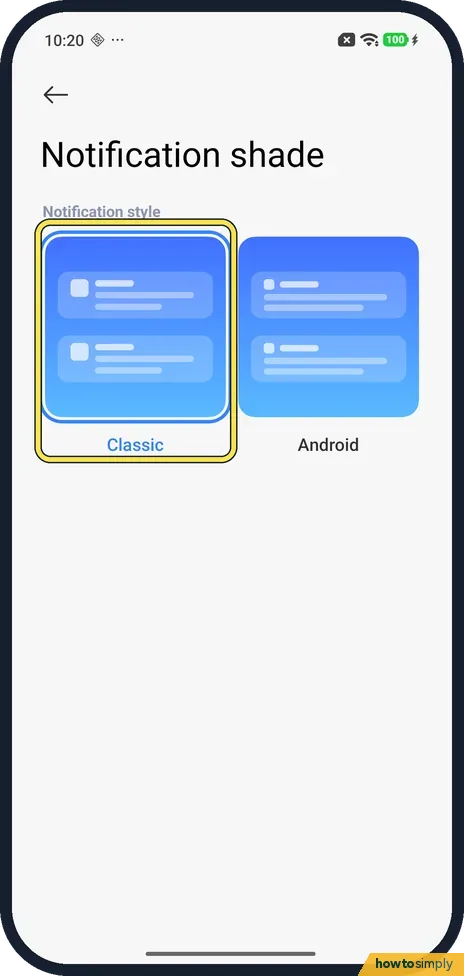
Tap Classic
Tap the Classic preview. The blue frame moves to it straight away; there is no Save button.
- 5
How Classic looks
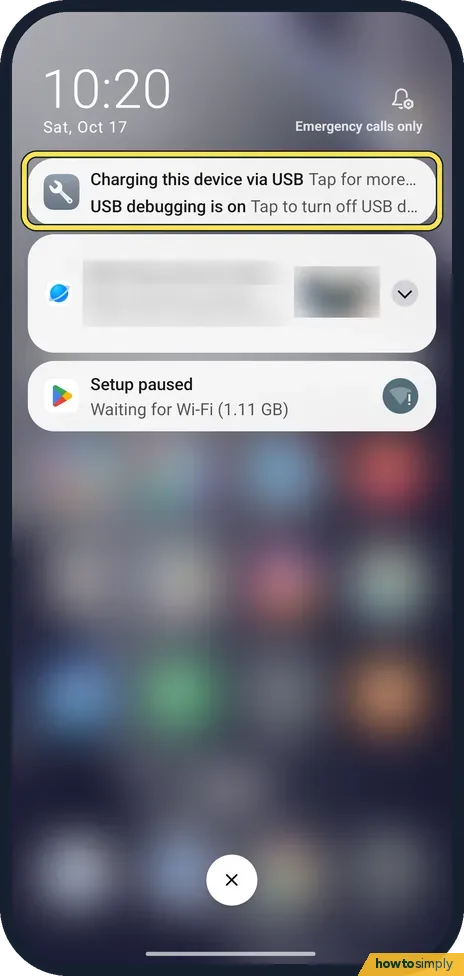
Swipe down from the top left. In Classic our two system notifications, Charging this device via USB and USB debugging is on, sat together in one card under a wrench icon, with no app name and no time.
- 6
How Android looks
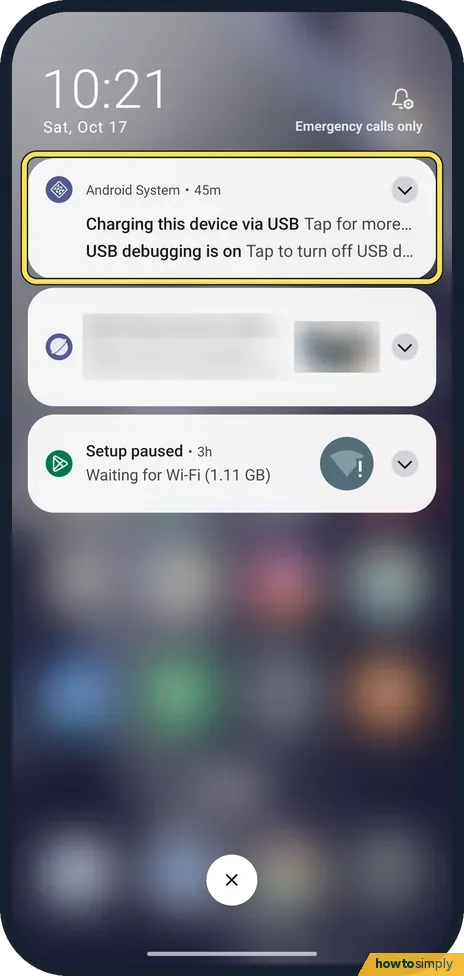
With Android, the same card has a header with the app and the time, Android System • 45m, and an arrow at the top right to expand it. Each card had its own arrow.
- 7
Switch back
To go back, open Notification style again and tap Android. We put ours back to Android.
If you do not see this option
- Same on other Xiaomi phones? Xiaomi gives the same route and the same two styles, Classic and Android, for the REDMI 13C and the Xiaomi 14T. Sources: How to manage notification shade style on the REDMI 13C?, How to manage notification shade style on the Xiaomi 14T?
- Expected a page called Notification style? On ours the row is Notification style, but the page it opens is titled Notification shade.
If this does not work
- Want to see when a notification came in? Pick Android. On ours only the Android style showed times, like 45m and 3h; Classic showed none.
- Control centre opens instead? Swipe from the top left for notifications. Xiaomi says swiping down from the top right opens Control centre.
- Too many notifications in the shade? Xiaomi says to swipe a notification right or left to clear it, or tap the X icon at the bottom to clear them all. Ours had the X at the bottom in both styles.
- Shade will not open during a game? Xiaomi's guide says Game Turbo's Game DND can be set to Don't open Notification shade while you play. Change that option in Game Turbo if you need the shade in games.
Good to know
To remove badges or pop-up notifications, see how to turn off notification badges and floating notifications.
To silence one app, see how to turn off notifications for an app.
The style only changes the shade's look. Notification sounds, badges, floating notifications and what the lock screen shows stay as they were, and there is no effect on battery. You can switch between the two styles as often as you like.
About this guide
- Device
- Android
- Shown on
- Xiaomi Redmi Note 15 Pro 5G (25080RABDG), HyperOS 3.0.308.0, Android 16
- App
- Settings
- Path
- Settings › Notifications & status bar › Notification style: Classic (grouped
- Real screenshots
- 7 of 7 steps
- Checked
- October 2026
- Sources
- 3 official, linked below
Sources
Links checked October 2026. Menus and features can change with updates.Spotted a mistake? Menus change with updates, and we want every step to match your screen. Email us about this page or use the contact form. We read every report, and fixes are listed on What changed.
Liked this guide?
Follow us for new guides and short how-to videos.
Did this guide work for you?
Sorry about that. What happened?