
howtosimply.com/guides/how-to-turn-off-google-discover-on-a-google-pixel/ · Checked October 2026 · build CP3A.261005.005 · Google Pixel 10a, Android 17
In this guide
Open the Google app, tap your profile picture, then Settings. Search the settings for Discover and switch it off. The Home tab then shows a Turn on Discover button instead of the feed.
4 of 4 steps with real screenshots · 1 official source below
- Device
- Android
- Shown on
- Google Pixel 10a, Android 17 (build CP3A.261005.005)
- App
- Settings
- Real screenshots
- 4 of 4 steps
- Checked
- October 2026
- Sources
- 1 official, linked below
Step by step
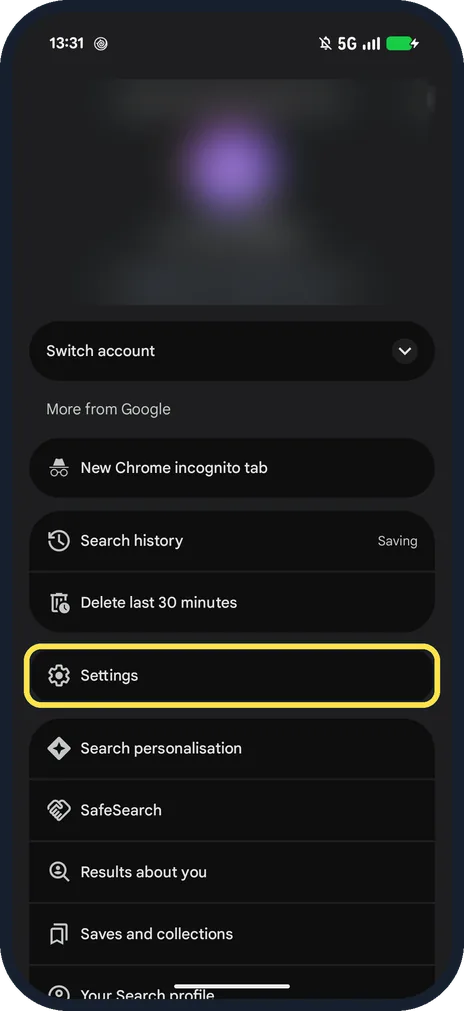
Tap your profile picture, then Settings
Open the Google app and tap your picture at the top right. Settings is below Delete last 30 minutes.
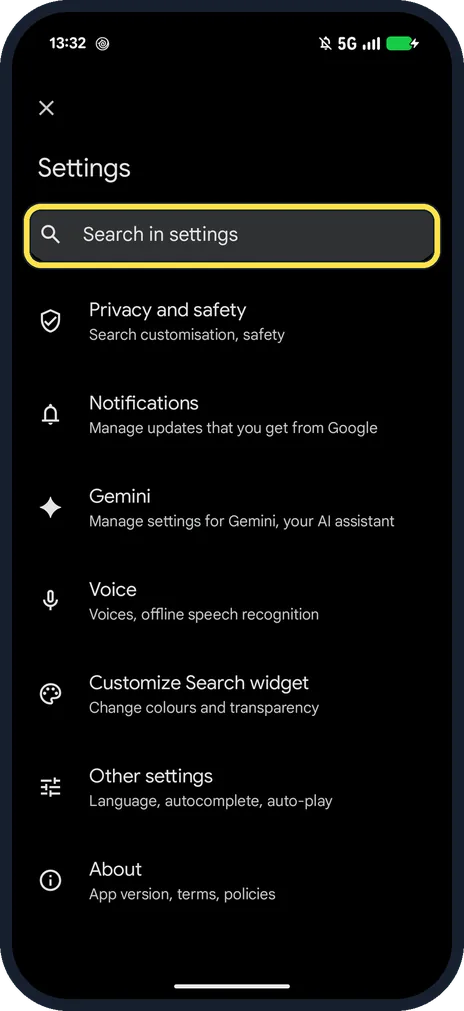
Tap Search in settings
It is at the top of the Google app's Settings, above Privacy and safety.
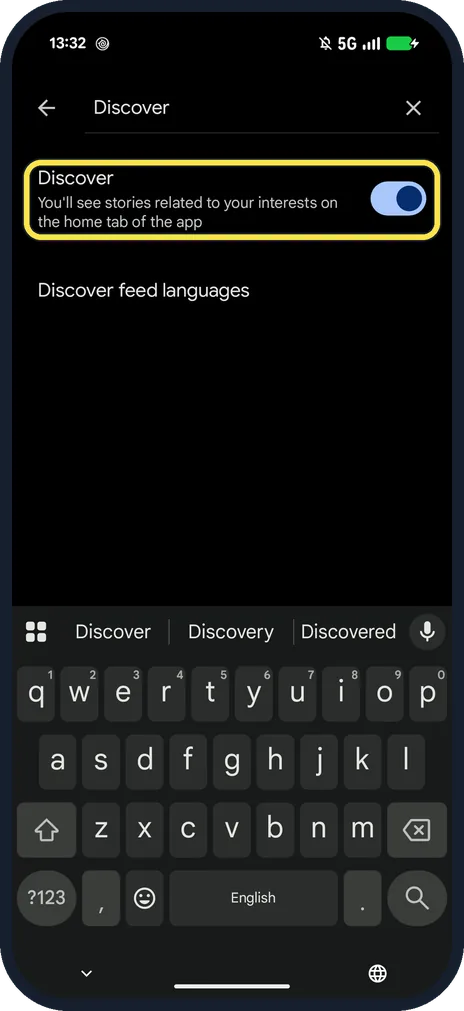
Type Discover
The result is the Discover switch: You'll see stories related to your interests on the home tab of the app. Ours was on.
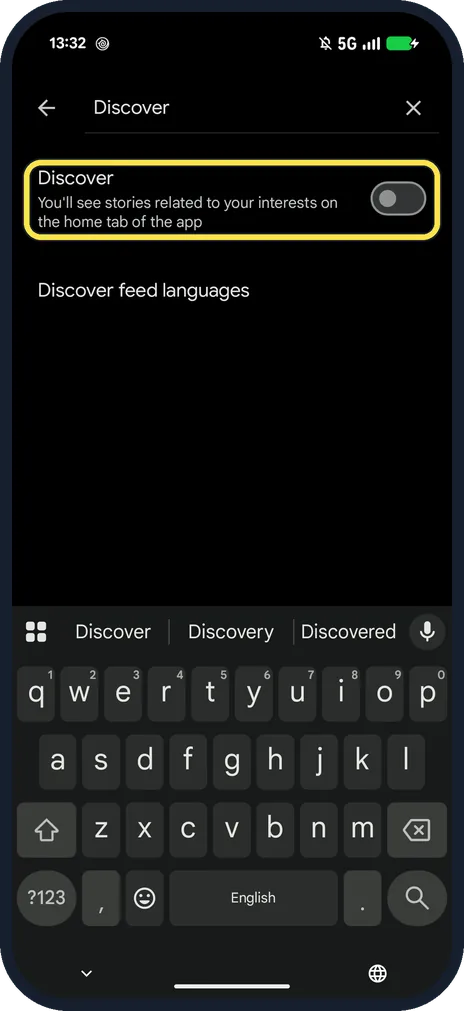
Switch off Discover
The switch turns grey. Discover feed languages stays below it.
If you do not see this option
- Following Google's steps? Google gives profile picture, Settings, General, then Discover. Our Google app's Settings had no General row, so searching was the quickest way. Source: Turn off Discover
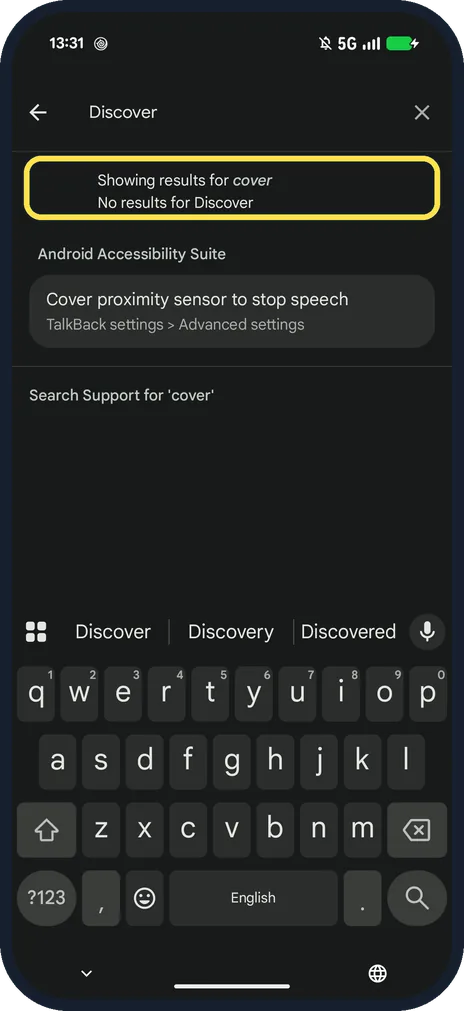
- Searching phone Settings for "Discover"? Ours said No results for Discover: the switch is only in the Google app.
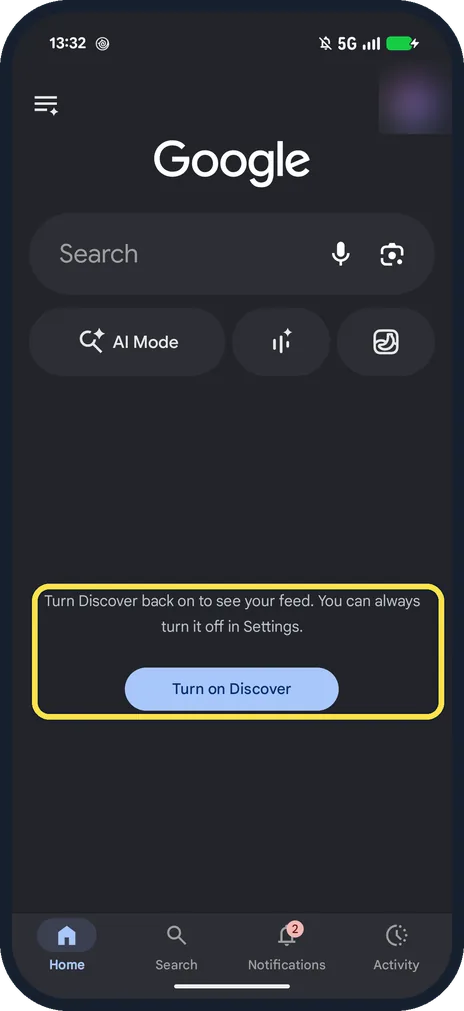
- Want the feed back? The Home tab says: Turn Discover back on to see your feed. You can always turn it off in Settings. Tap Turn on Discover.
If this does not work
- Seeing Discover on google.com in Chrome? That is a separate switch. Google says: profile picture, More settings, Other settings, turn off Show Discover on home page; it is not in all countries or languages. Source: Turn off Discover
- Only want fewer personal stories? Google says to turn off personal results instead of Discover. Source: Turn off Discover
About this guide
Discover is the news feed in the Google app. The switch is in the Google app's own settings, not in the phone's Settings.
The screenshots are from our Google Pixel 10a with Android 17, in Dark mode, taken on 25 October 2026. We switched Discover off for the screenshots, then on again.
Good to know
On a Galaxy the Discover page is a Home screen setting: see turn off the Google Discover page on a Galaxy.
On a OnePlus, see turn off Google Discover on a OnePlus.
In short: Google app, profile picture, Settings, search Discover, switch off.
Links checked in October 2026. Menus and features can change after software updates. These steps match the version named at the top.
📷 See real photos from the Pixel 10a in our Camera Lab, next to 10 other phones.
Did this guide work for you?
Sorry about that. What happened?