
howtosimply.com/guides/how-to-factory-reset-an-oppo-phone/ · Checked October 2026 · CPH2689, EEA), ColorOS 16.0.5, Android 16 (build CPH2689_16.0.5.1001(EX01) · OPPO Reno13 5G
In this guide
Back up, then open Settings, System & update, Back up & reset, Reset phone, Erase all data. Choose Erase data but retain eSIM profiles or Clear all data. We did not confirm.
4 of 4 steps with real screenshots · 5 official sources below
- Device
- Android
- Shown on
- OPPO Reno13 5G (CPH2689, EEA), ColorOS 16.0.5, Android 16 (build CPH2689_16.0.5.1001(EX01))
- App
- Settings
- Path
- Settings › System & update › Back up & reset › Reset phone › Erase all data
- Real screenshots
- 4 of 4 steps
- Checked
- October 2026
- Sources
- 5 official, linked below
Step by step
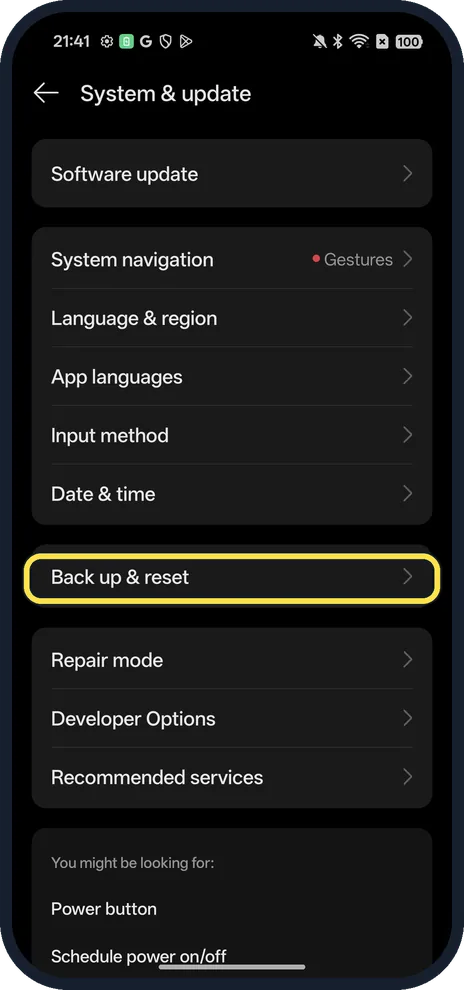
Open Back up & reset
Settings, System & update, Back up & reset.
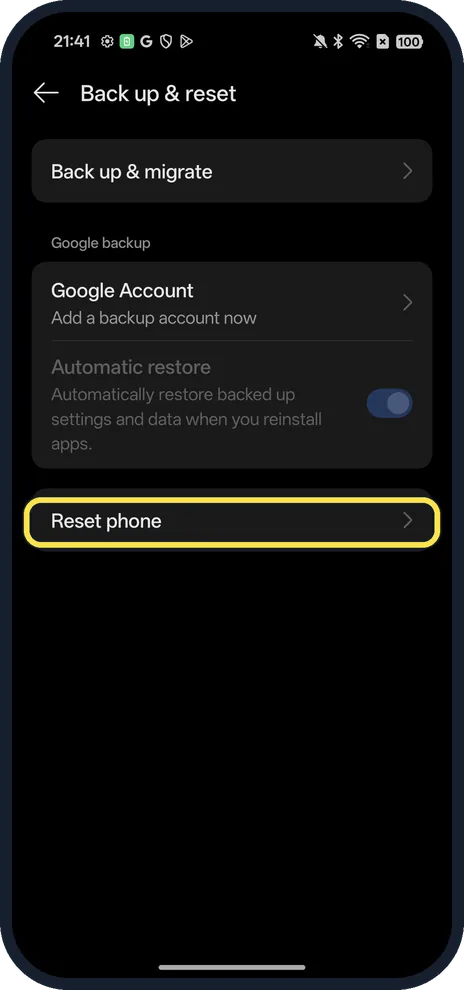
Back up, then tap Reset phone
Reset phone is under the backup options. Back up first: Back up & migrate makes a local backup and Google backup saves to your Google Account. OPPO warns a local backup on the phone is erased by the reset, so copy it to a computer first.
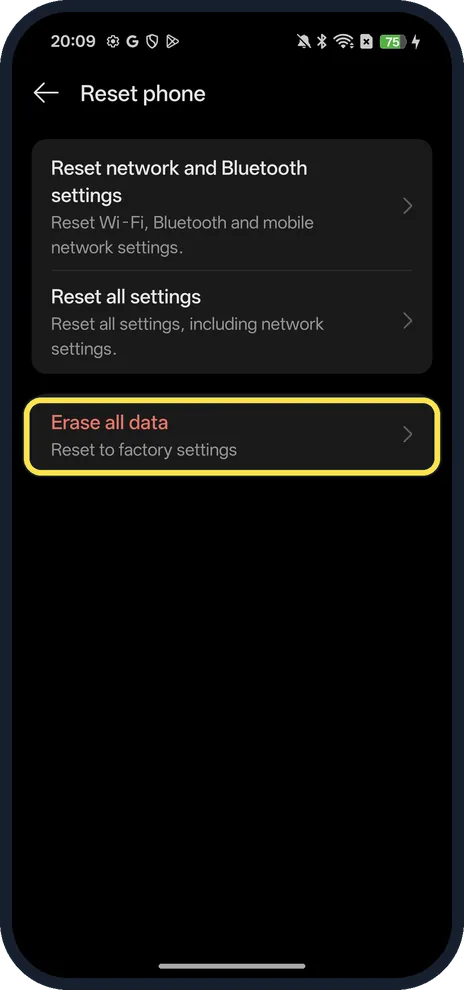
Tap Erase all data
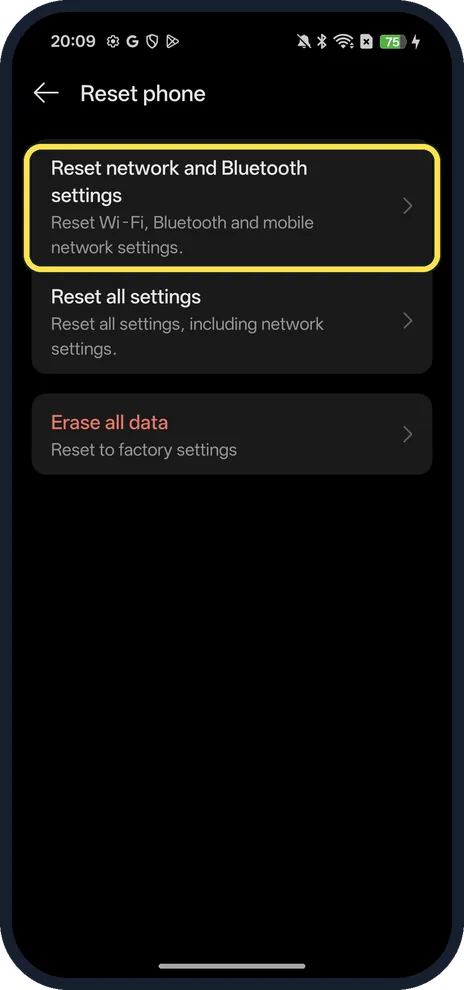
It says Reset to factory settings. The two rows above only reset Wi-Fi, Bluetooth and mobile network settings, or all settings, and keep your data.
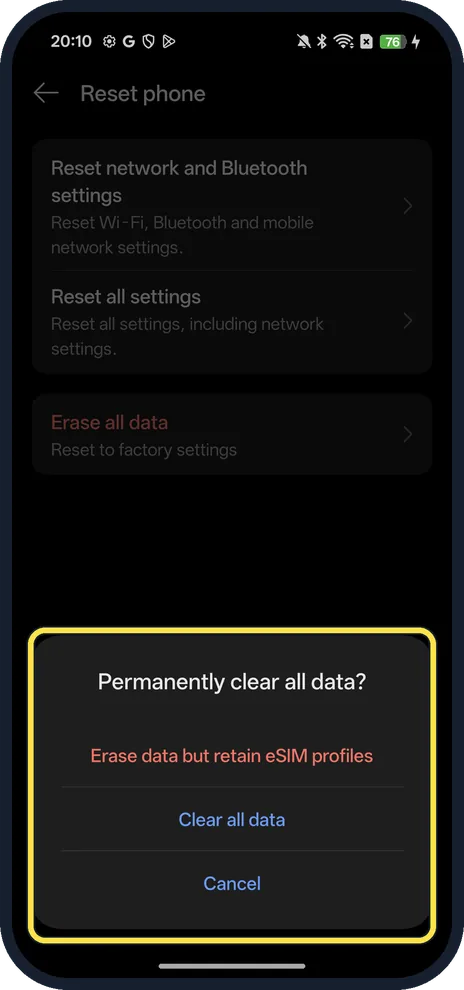
Choose how to erase
Permanently clear all data? Erase data but retain eSIM profiles keeps your eSIM for this phone; Clear all data removes it too, which you want before selling. We tapped Cancel. OPPO says you then enter your lock screen password to confirm.
If you do not see this option
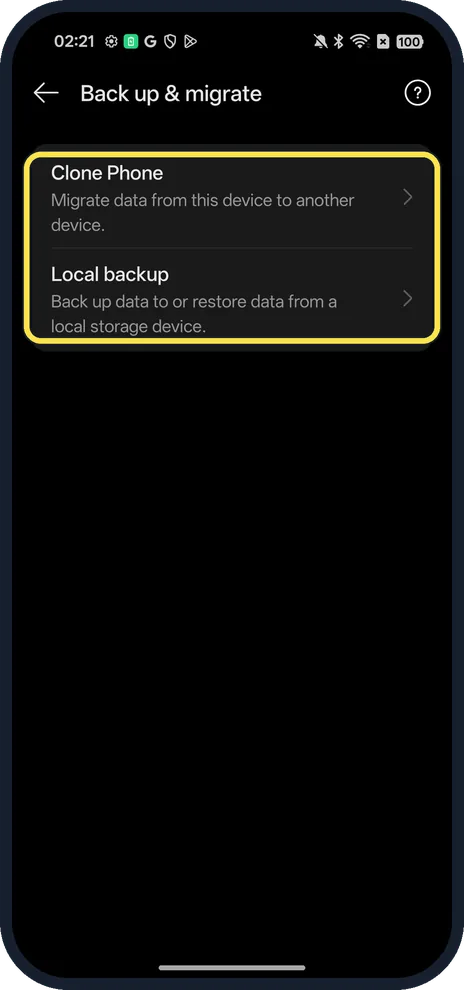
- What does Back up & migrate offer? On ours, two rows: Clone Phone moves data from this phone to another, and Local backup backs up to or restores from a local storage device.
- Older ColorOS? OPPO gives Settings, Additional Settings or System Settings, Back Up and Reset or Reset, Reset Phone or Erase All Data on ColorOS 12 and later, and Additional Settings, Back Up and Reset, Restore to Factory Settings on ColorOS 11 and below. Source: How to Wipe Data or Reset Your OPPO Phone
- Only Wi-Fi or Bluetooth broken? Use Reset network and Bluetooth settings instead; on ours it resets Wi-Fi, Bluetooth and mobile network settings without erasing data. Source: How to Wipe Data or Reset Your OPPO Phone
If this does not work
- Forgot the lock screen password, or the phone won't start? OPPO's Recovery Mode route: power off, hold Power and Volume Down until ColorOS Recovery appears, choose Format data, enter the code shown and confirm. This erases everything; OPPO asks you to charge if the battery is at 40% or below. Source: How to Hard Reset OPPO Phone Through Recovery Mode · Source: How to Wipe Data or Reset Your OPPO Phone
- Phone lost or stolen? OPPO says you can erase it from google.com/android/find with Erase Device if it was signed in to Google with Find My Device on. Source: How to Wipe Data or Reset Your OPPO Phone · Source: Find, secure or erase a lost Android device
- Asks for a Google account after the reset? Google says to know the Google Account and password on the phone before you reset, and to wait 24 hours after changing that password. Source: Reset your Android device to factory settings
About this guide
The screenshots are from our OPPO Reno13 5G, the European model CPH2689, with ColorOS 16.0.5 and Android 16 (build CPH2689_16.0.5.1001(EX01)), in Dark mode. We opened the final dialog and tapped Cancel.
Good to know
Before you sell it, remove your Google account and choose Clear all data so the eSIM goes too.
After setting it up again, check for updates: update an OPPO phone.
In short: Settings, System & update, Back up & reset, Reset phone, Erase all data.
- OPPO Support: How to Wipe Data or Reset Your OPPO Phone
- OPPO Support: How to Hard Reset OPPO Phone Through Recovery Mode
- OPPO Support: How to Back Up Your OPPO Phone
- Google Account Help: Find, secure or erase a lost Android device
- Google Android Help: Reset your Android device to factory settings
Links checked in October 2026. Back up anything you want to keep before you reset or delete. Menus can change after software updates.
Did this guide work for you?
Sorry about that. What happened?