GOOGLE PIXEL
How to find downloads in Chrome on Android
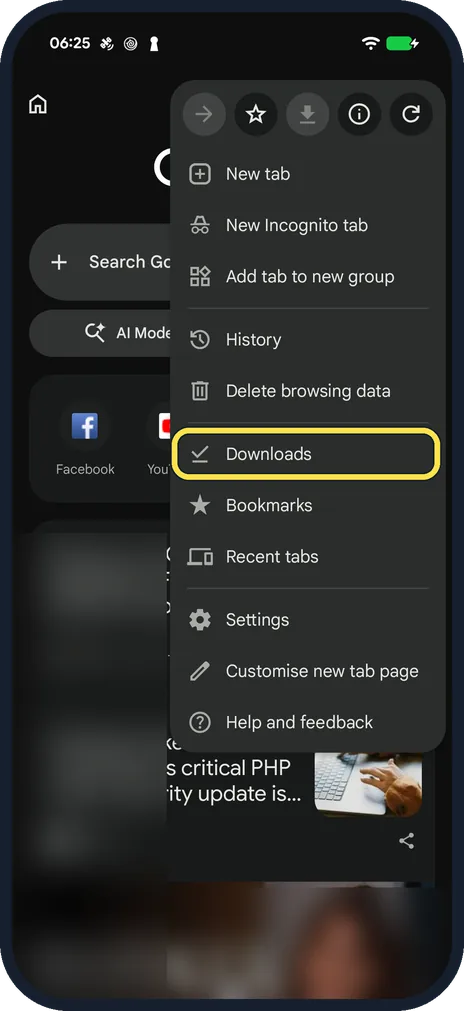
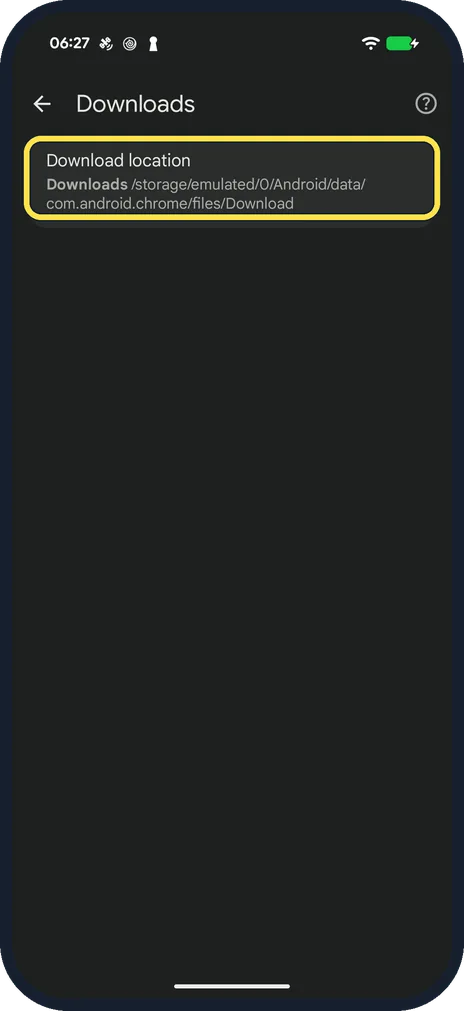
Tap the three dots in Chrome and choose Downloads: the list shows every file Chrome downloaded, newest first. Tap the gear at the top to see the Download location. On our Pixel 10a the setting named a folder inside Chrome's own app folder, but the file itself was in the phone's main Download folder.

4 of 4 steps show a real screenshot from our Pixel 10a. Each step was checked against the maker's own instructions, linked at the end.
- 1
Open Downloads
Tap the three dots at the top right of Chrome and choose Downloads. On our Pixel it sat below Delete browsing data, above Bookmarks.
- 2
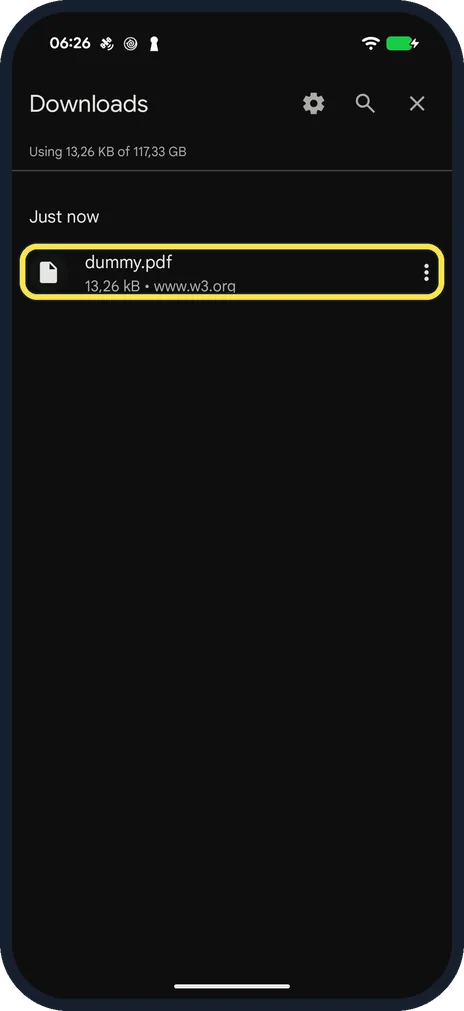
Find the file
Downloaded files are listed newest first; tap one to open it. Ours showed a test PDF, dummy.pdf, 13.26 kB, under Just now, with the site it came from. The gear at the top right opens the download settings.
- 3
Check the download location
Tap the gear. Download location on our Pixel read Downloads /storage/emulated/0/Android/data/com.android.chrome/files/Download. The test PDF itself was in the phone's main Download folder (/storage/emulated/0/Download), which the Files app lists as Downloads.
- 4
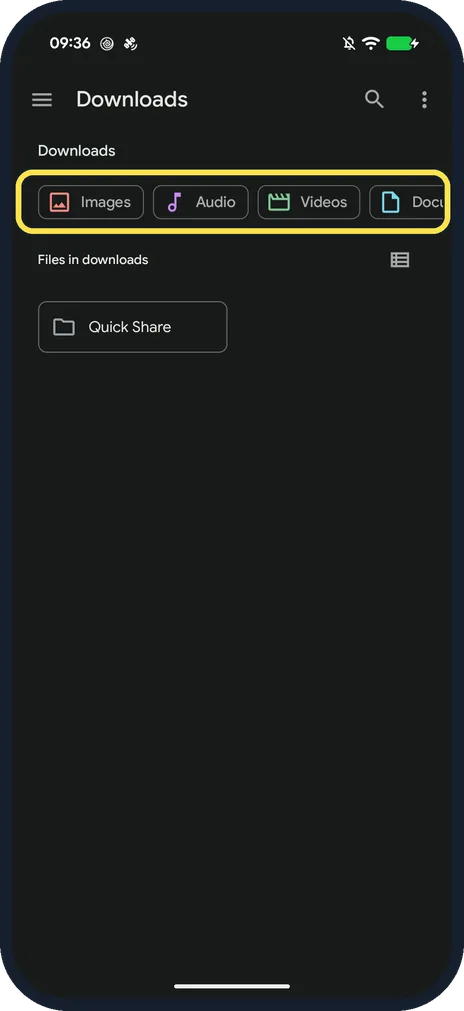
Or look in the Files app
Google's help page points to the phone's Files app for everything you downloaded. On our Pixel, Files by Google opened Downloads with Images, Audio, Videos and Documents filters; after we deleted the test PDF it held only a Quick Share folder.
If you do not see this option
- Your address bar is at the bottom Google says to swipe up on the address bar to reach Downloads. Source: Download a file (Android)
- The file is not in the list Look in two places in the phone's Files app: the main Download folder, and the folder the Download location row names (Android/data/com.android.chrome/files/Download). On our Pixel the test PDF was in the main Download folder. Source: Download a file (Android)
If this does not work
- A download is stuck Google says to open Downloads and tap Pause or Cancel next to the file, then download it again.
- The list is full of old files Google says to tap More next to a file and then Delete, or touch and hold several files and tap Delete.
Good to know
On a Galaxy the Files app is called My Files.
About this guide
- Device
- Android
- Shown on
- Google Pixel 10a, Android 17 (build CP3A.261005.005)
- App
- Chrome
- Real screenshots
- 4 of 4 steps
- Checked
- October 2026
- Sources
- 1 official, linked below
Sources
Links checked October 2026. Menus and features can change with updates.Did this guide work for you?
Sorry about that. What happened?