
howtosimply.com/guides/how-to-take-a-scrolling-screenshot-on-an-oppo-phone/ · Checked October 2026 · CPH2689, EEA), ColorOS 16.0.5, Android 16 (build CPH2689_16.0.5.1001(EX01) · OPPO Reno13 5G
In this guide
Take a normal screenshot, then tap Scroll on the small preview that appears. In the editor, drag the handle down or tap Auto scroll until the page you want is covered, then tap Done. The long image is saved with your other screenshots.
4 of 4 steps with real screenshots · 2 official sources below
- Device
- Android
- Shown on
- OPPO Reno13 5G (CPH2689, EEA), ColorOS 16.0.5, Android 16 (build CPH2689_16.0.5.1001(EX01))
- App
- Settings
- Real screenshots
- 4 of 4 steps
- Checked
- October 2026
- Sources
- 2 official, linked below
Step by step
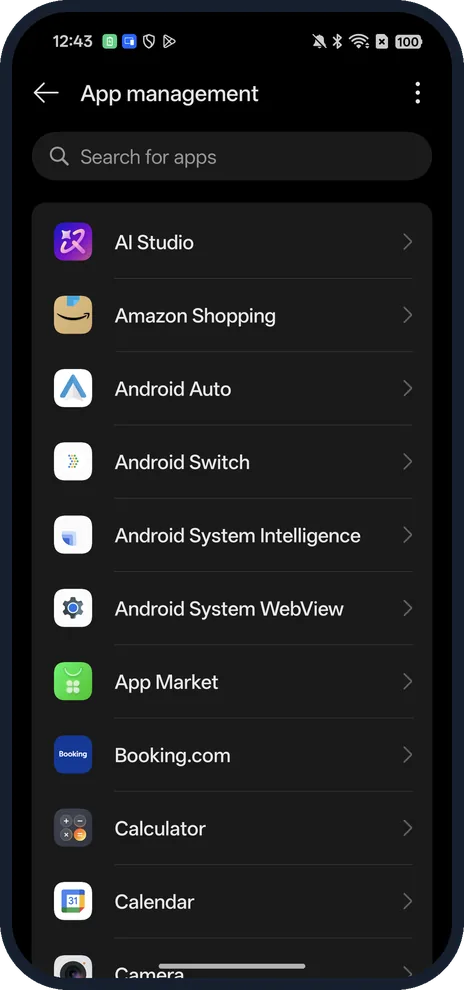
Open the long page and take a screenshot
Scroll to the top of a page that is longer than the screen, like App management in Settings. Then press Power and Volume Down together, or swipe down with three fingers.
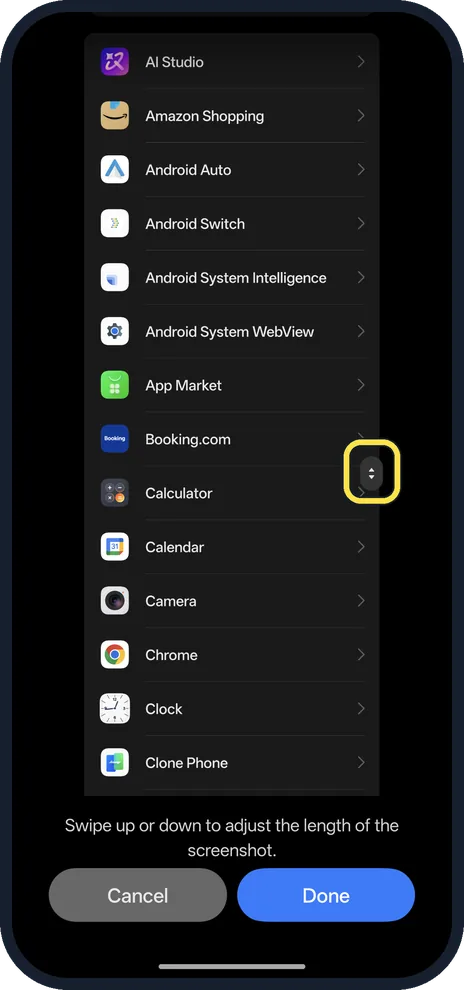
Tap Scroll on the preview, and the editor opens
The preview sits in the corner for a few seconds after the screenshot; it does not show up in screenshots on our OPPO, so this is the editor Scroll opens. It says: Swipe up or down to adjust the length of the screenshot. The handle on the right side moves the bottom edge.
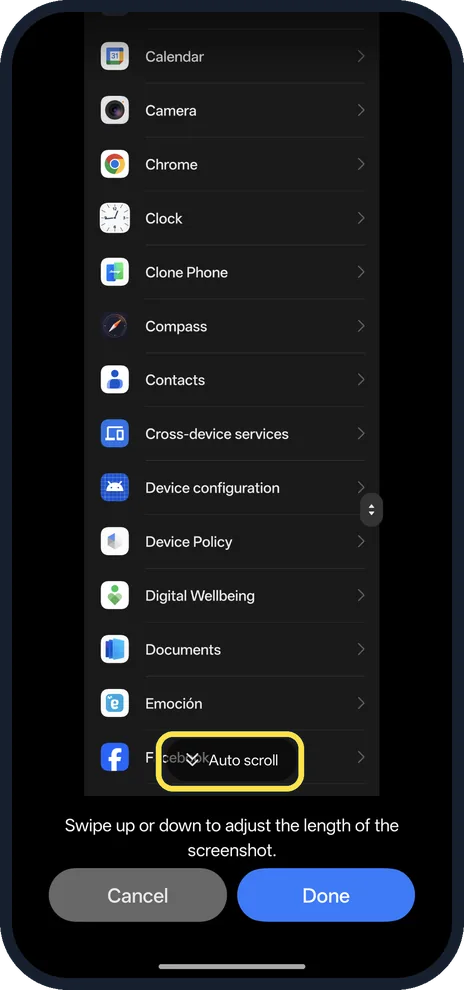
Drag down, or tap Auto scroll
Once you drag, Auto scroll appears at the bottom of the preview and keeps adding the page below. Stop where you want the picture to end.
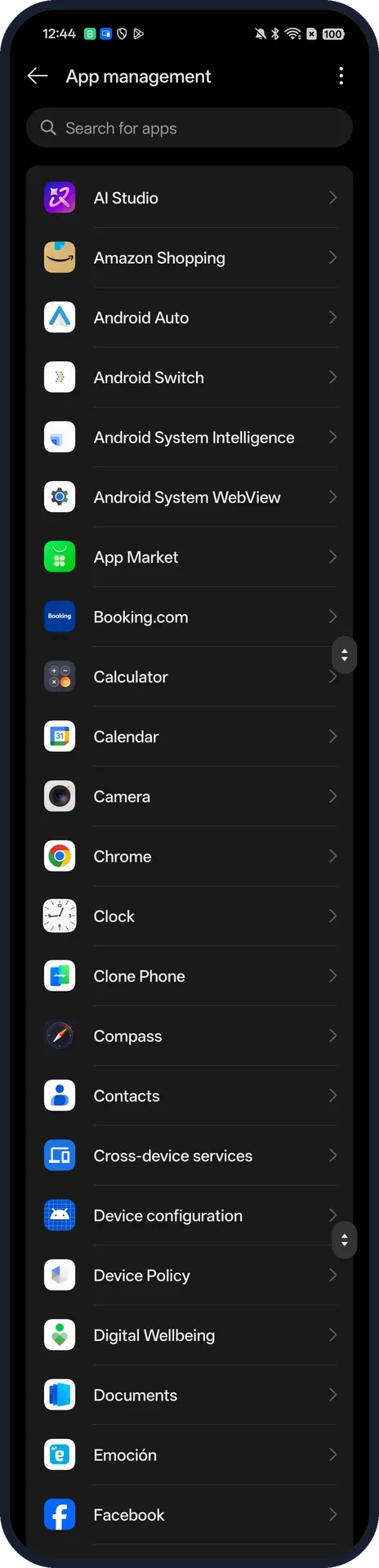
Tap Done
The long screenshot is saved with your other screenshots. Ours ran from AI Studio to Facebook in one picture, with the editor's small arrow handles still showing on the right edge.
If you do not see this option
- No Scroll button? The preview only appears if Screenshot preview floating window is on in Settings, Screenshot. The page says: After a screenshot is taken, show a preview with options such as scrolling screenshot.
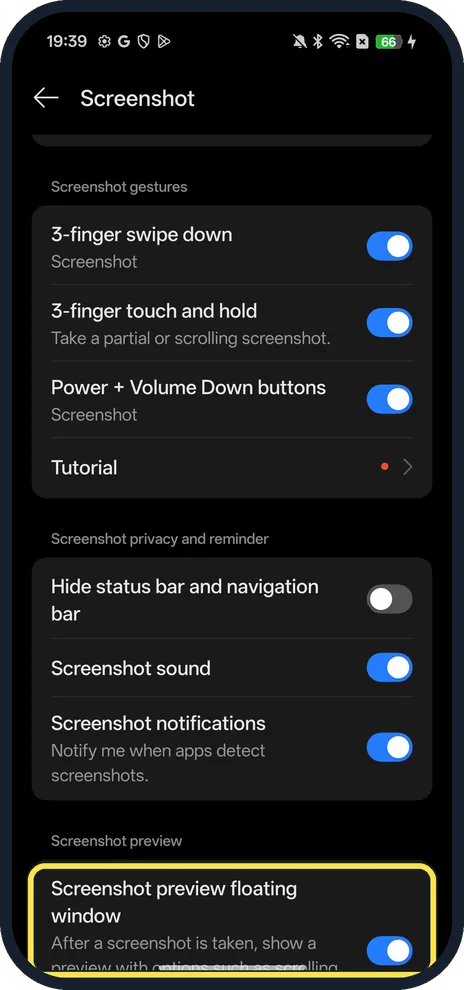
- Prefer a gesture? Our Screenshot settings page on ColorOS 16 lists 3-finger touch and hold: Take a partial or scrolling screenshot. Hold three fingers on the screen instead of pressing the buttons.
- No Scroll on some screens? Google says scrolling screenshots need Android 12 or later and work on most screens that allow you to scroll. On a screen that does not scroll, there is nothing to extend. Source: Take a screenshot or record your screen on your Android device
If this does not work
- Says "Already at the bottom of the page"? On ours this showed when the screen had nothing more below it. Scroll to the top of a page that is longer than the screen, then take the screenshot again.
- Long screenshot stops too early? Drag the handle further down before tapping Done. OPPO's guide says to slide to the position you want, then save. Source: ColorOS 11 User Guide
- The preview vanished? It only stays a few seconds. Take the screenshot again and tap Scroll straight away.
About this guide
We used the App management list in Settings because it is long. The floating preview with the Scroll button does not show up in screenshots on our OPPO, so step 2 shows the editor that Scroll opens.
The screenshots are from our OPPO Reno13 5G, the European model CPH2689, with ColorOS 16.0.5 and Android 16 (build CPH2689_16.0.5.1001(EX01)), in Dark mode.
Good to know
For the basic shortcuts and settings, see take a screenshot on an OPPO phone.
In short: Screenshot, Scroll on the preview, drag or Auto scroll, Done.
- OPPO: ColorOS 11 User Guide
- Google Android Help: Take a screenshot or record your screen on your Android device
Links checked in October 2026. Menus and features can change after software updates. These steps match the version named at the top.
📷 See real photos from the OPPO Reno13 5G in our Camera Lab, next to 10 other phones.
Did this guide work for you?
Sorry about that. What happened?