
howtosimply.com/guides/how-to-switch-between-buttons-and-swipe-gestures-on-a-samsung-galaxy-phone/ · Checked October 2026 · Samsung Galaxy A57 5G (SM-A576B), One UI 8.5, Android 16
In this guide
Open Settings, Display, Navigation bar and choose Buttons or Swipe gestures. With Buttons you get Recents, Home and Back at the bottom; with Swipe gestures, you swipe from the sides to go back and up from the bottom to go home. More options changes the button order.
3 of 5 steps with real screenshots · 1 official source below
- Device
- Android
- Shown on
- Samsung Galaxy A57 5G (SM-A576B), One UI 8.5, Android 16
- App
- Settings
- Path
- Settings › Display
- Real screenshots
- 3 of 5 steps
- Our phone
- Shown on Galaxy A57, One UI 8.5
- Checked
- October 2026
- Sources
- 1 official, linked below
Step by step
Open Display
Open Settings and tap Display.
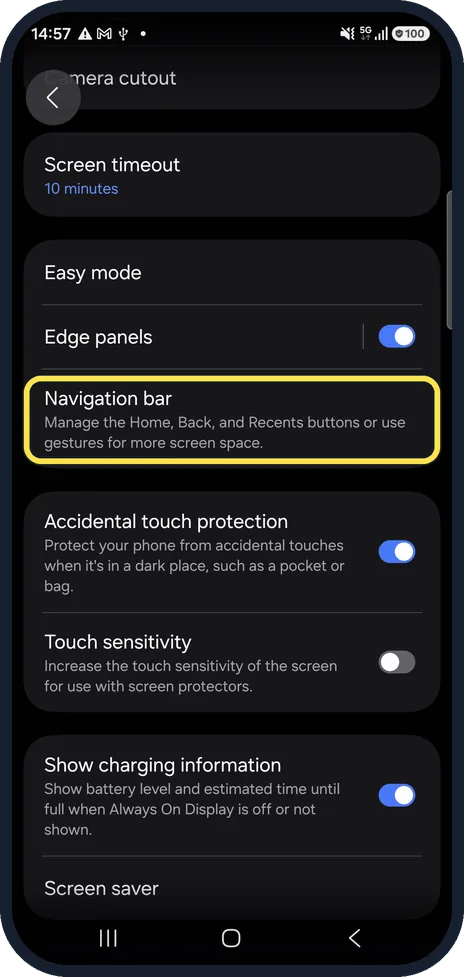
Open Navigation bar
Scroll down the Display page and tap Navigation bar.
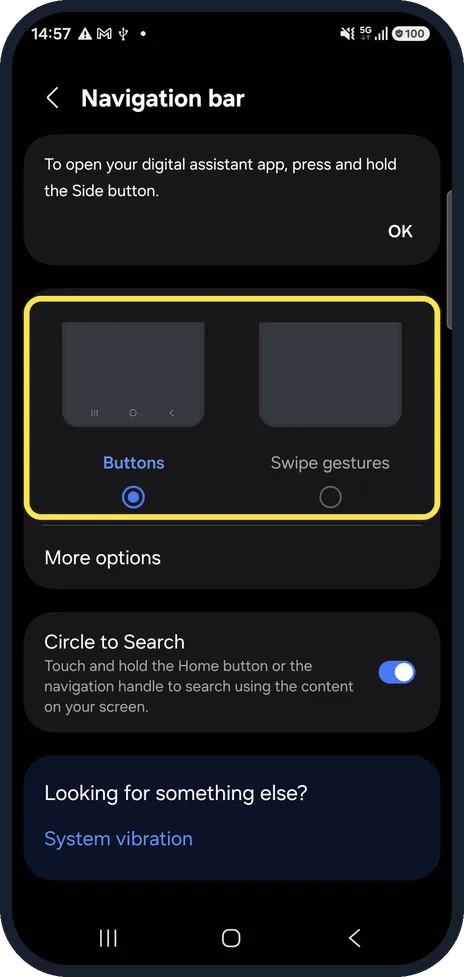
Choose Buttons or Swipe gestures
Tap Buttons for the three buttons, or Swipe gestures to remove them and use swipes instead. The change applies straight away.
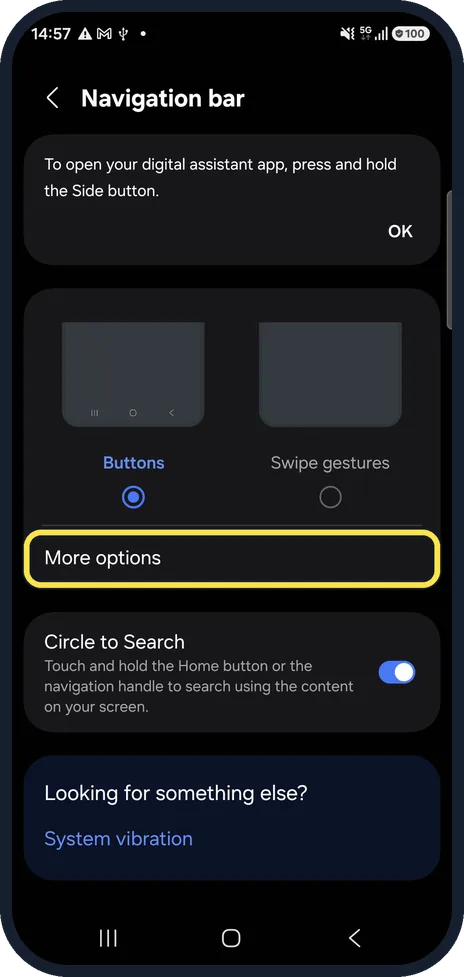
Change the button order
With Buttons selected, tap More options to swap the order of the Back and Recents buttons.
Use the gestures
With Swipe gestures on One UI 6.1 and later: swipe in from either side to go back, swipe up from the bottom to go home, and swipe up and hold to see recent apps.
If you do not see this option
- There is no Gesture hint switch Samsung says gesture hints are not available on One UI 6.1 or later, and the swipe direction can no longer be changed there. Source: Customize the Navigation bar on your Galaxy phone or tablet
- The gestures work differently on your phone Samsung says that on One UI 6.0 you swipe up from the left for recent apps, the middle for Home and the right for Back, instead of swiping in from the sides. Source: Customize the Navigation bar on your Galaxy phone or tablet
If this does not work
- The bar disappears in a game or video Samsung says the navigation bar can hide in full-screen apps; swipe up to bring it back for a moment. Source: Customize the Navigation bar on your Galaxy phone or tablet
- Back swipes trigger too easily, or not at all Samsung says to tap More options under Swipe gestures to adjust the gesture sensitivity. Source: Customize the Navigation bar on your Galaxy phone or tablet
About this guide
Galaxy phones can be navigated with three buttons at the bottom of the screen or with swipes. Neither is better; pick the one your thumb prefers.
Good to know
Circle to Search, on the same page, works with both: touch and hold the Home button or the navigation handle.
In short: Settings, Display, Navigation bar: Buttons or Swipe gestures. More options for the button order.
Links checked in October 2026. Menus and features can change after software updates. These steps match the version named at the top.
📷 See real photos from the Galaxy A57 in our Camera Lab, next to 10 other phones.
Did this guide work for you?
Sorry about that. What happened?