
howtosimply.com/guides/how-to-set-a-sleep-timer-in-youtube-on-android/ · Checked October 2026 · Samsung Galaxy A57 5G (SM-A576B), One UI 8.5, Android 16
In this guide
Tap the video, the gear, More and Sleep timer, then choose 10 minutes up to 1 hour or End of video. For a general nudge, YouTube Settings, Time management has Remind me to take a break.
4 of 4 steps with real screenshots · 1 official source below
- Device
- Android
- Shown on
- Samsung Galaxy A57 5G (SM-A576B), One UI 8.5, Android 16
- App
- YouTube
- Path
- Player settings › More › Sleep timer
- Real screenshots
- 4 of 4 steps
- Checked
- October 2026
- Sources
- 1 official, linked below
Step by step
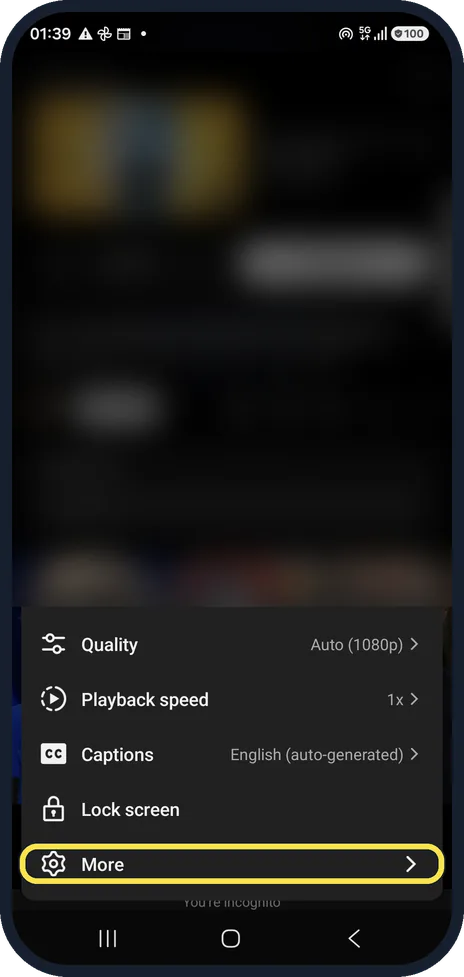
Open More in the player
Tap the video, then the gear, and tap More at the bottom.
Watch these steps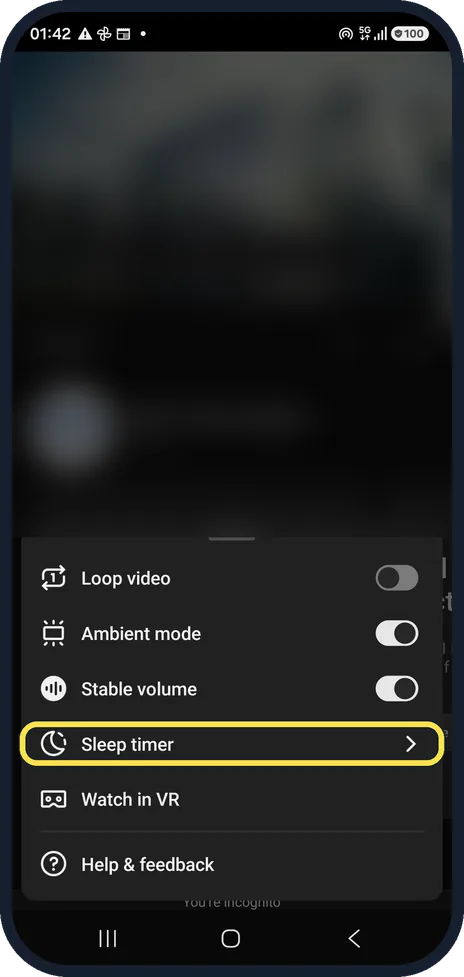
Tap Sleep timer
It sits between Stable volume and Watch in VR.
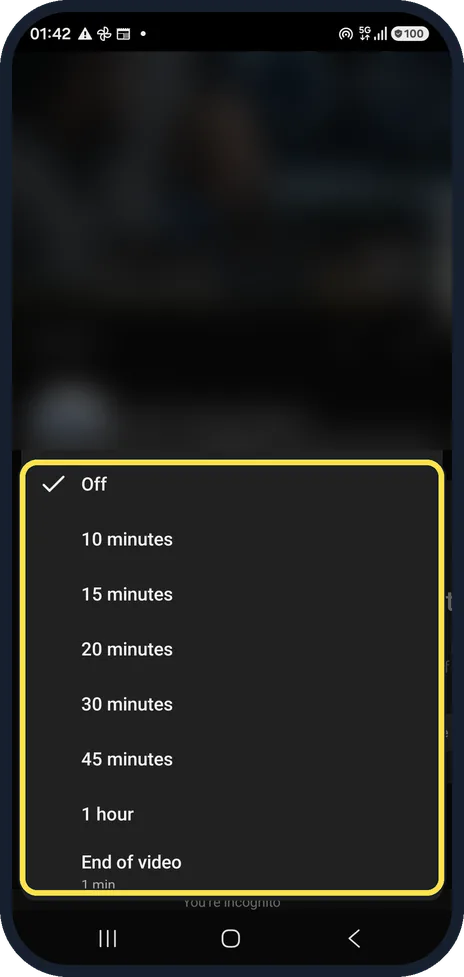
Choose the time
Off, 10, 15, 20, 30 or 45 minutes, 1 hour, or End of video.
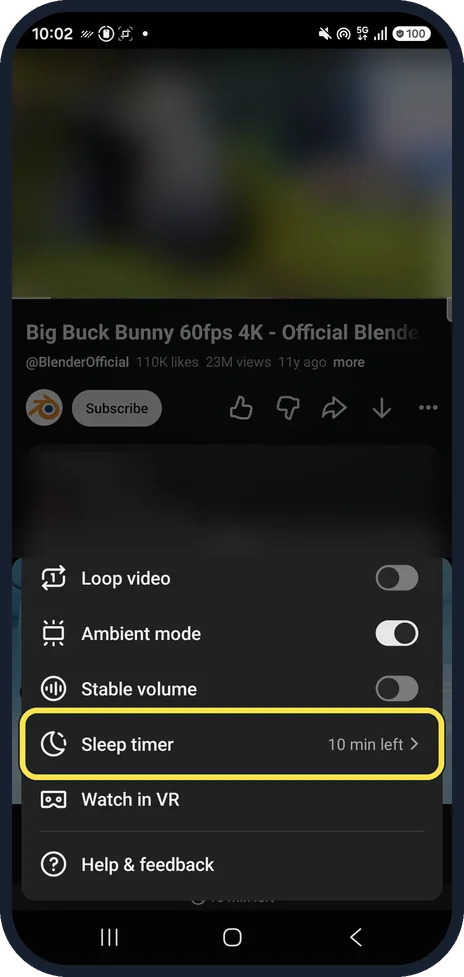
Or set a break reminder
In YouTube tap You at the bottom right, then the gear at the top right. Tap Time management. Remind me to take a break shows a reminder after the time you choose; it does not stop the video.
Watch these steps
If you do not see this option
- There is no Sleep timer under More YouTube Help gives the route as Settings in the player, then Sleep timer. On our app, version 21.39.522, it was under More; on other versions look for it directly in the player settings. Source: Set a sleep timer (Android)
- You want a reminder, not a pause YouTube Help points to the bedtime reminder for a nudge when it is time to go to bed; it does not stop the video. Source: Set a sleep timer (Android)
If this does not work
- The video paused but you are still awake YouTube says you get a silent notification when the timer pauses the video, and you can reset the timer to keep watching. Source: Set a sleep timer (Android)
- You want more or less time YouTube says to follow the same steps again, Settings in the player then Sleep timer, to change a timer that is already running. Source: Set a sleep timer (Android)
About this guide
Falling asleep to a video and waking to autoplay hours later. The sleep timer stops playback for you.
The screenshots are from the YouTube app, version 21.39.522, on a Samsung Galaxy A57 5G with Android 16 and One UI 8.5, in dark mode. Other people's videos, ads and comments are blurred.
Good to know
Turning off autoplay as well stops a new video starting once the current one ends.
In short: Player gear, More, Sleep timer. Reminder: Settings, Time management.
Links checked in October 2026. Menus and features can change after software updates. These steps match the version named at the top.
📷 See real photos from the Galaxy A57 in our Camera Lab, next to 10 other phones.
Did this guide work for you?
Sorry about that. What happened?