
howtosimply.com/guides/how-to-take-a-scrolling-screenshot-on-a-samsung-galaxy/ · Checked October 2026 · SM-A576B), One UI 9, Android 17 (build A576BXXU6BZIE · Samsung Galaxy A57
In this guide
Take a screenshot, then tap Scroll capture, the first icon (two arrows pointing down) in the toolbar at the bottom. Each tap scrolls the page and adds the next part. The long screenshot is saved in Gallery.
4 of 4 steps with real screenshots · 2 official sources below
- Device
- Android
- Shown on
- Samsung Galaxy A57 (SM-A576B), One UI 9, Android 17 (build A576BXXU6BZIE)
- Real screenshots
- 4 of 4 steps
- Checked
- October 2026
- Sources
- 2 official, linked below
Step by step
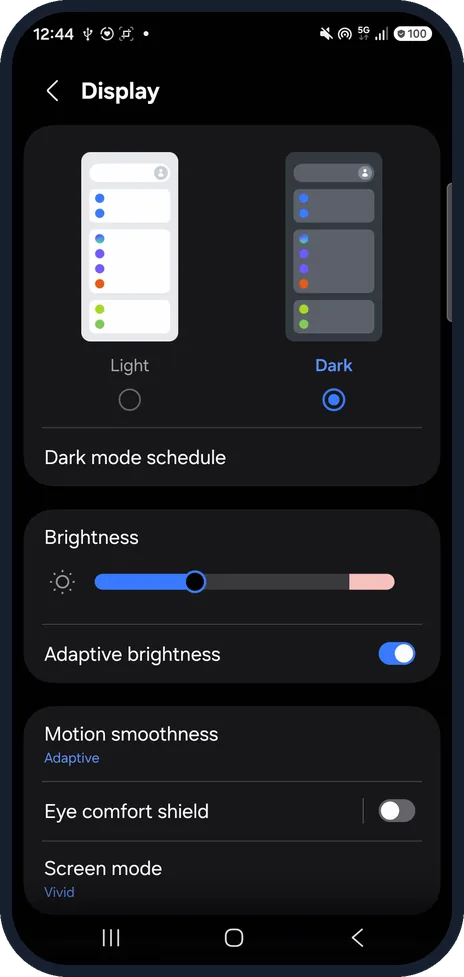
Open the long page and take a screenshot
Press Side and Volume down together.
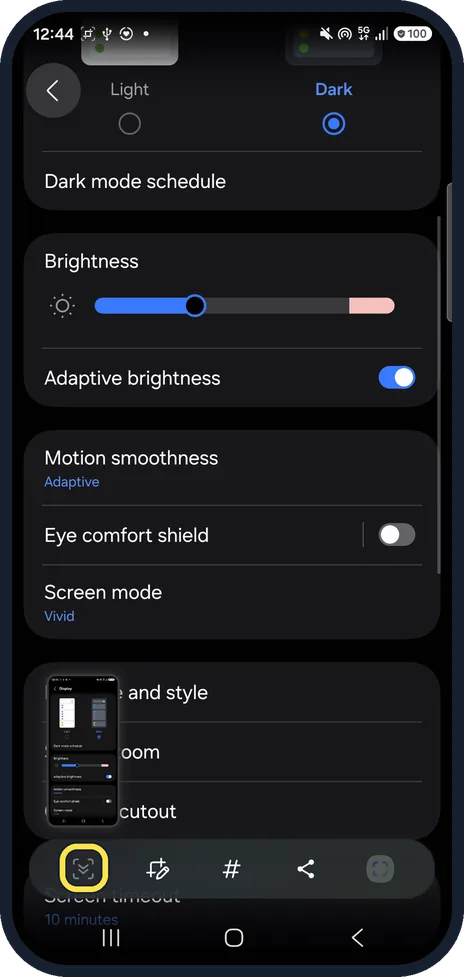
Tap Scroll capture
It is the first icon in the toolbar that appears. The page scrolls and the thumbnail at the bottom left grows.
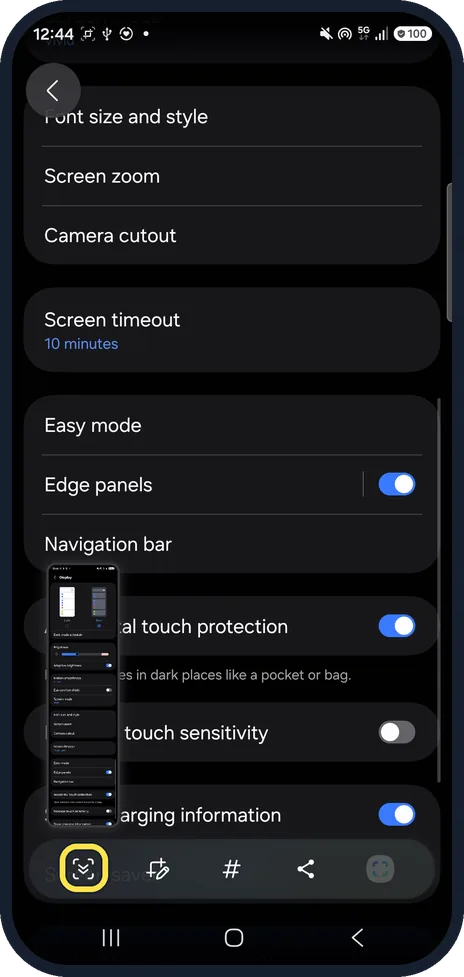
Tap it again for more
Ours reached Accidental touch protection after the second tap. Stop when you have what you need.
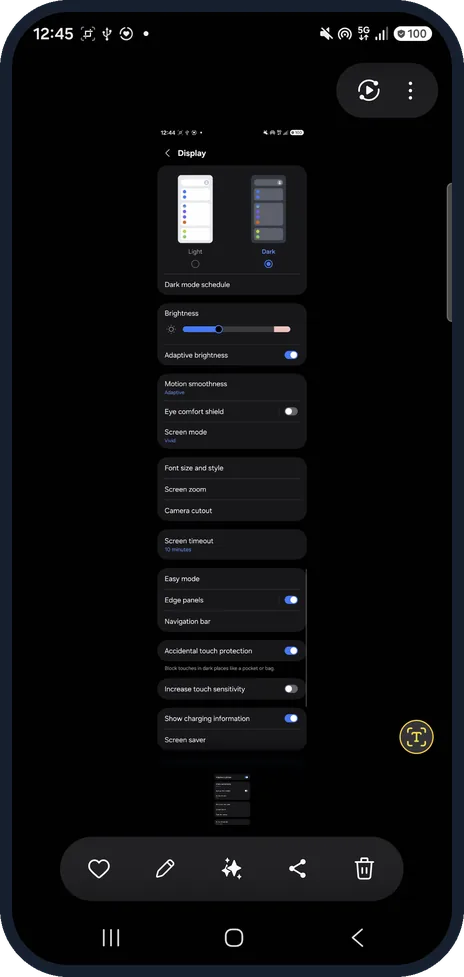
Open it in Gallery
The long screenshot is saved like any other. Ours ran from the Light/Dark choice down to Screen saver.
If you do not see this option
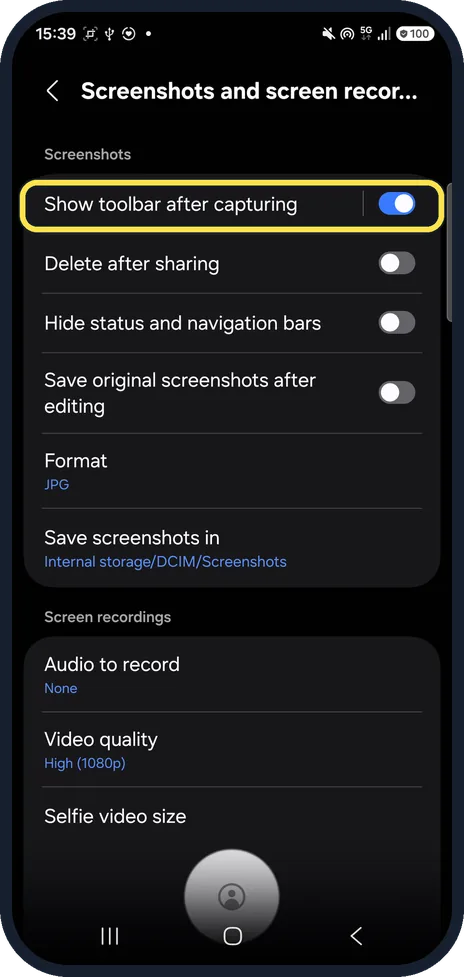
- No toolbar after a screenshot? Open Settings, Advanced features, Screenshots and screen recordings. Ours had Show toolbar after capturing switched on; turn it on if the toolbar does not appear.
- Toolbar shows but you were too slow? Samsung says to tap the Scroll capture icon (the two arrows pointing down) after taking a standard screenshot. Take the screenshot again and tap it straight away. Source: How to take a screenshot on a Samsung phone or tablet
- Other screenshot options? The same toolbar has edit, tags (#) and share; the screenshot guide covers the gestures and settings. Source: How to take a screenshot on a Samsung phone or tablet
If this does not work
- No Scroll capture icon? Samsung describes it for lengthy content: try it on a page that is longer than the screen. Source: How to take a screenshot on a Samsung phone or tablet
- Captured too much? Crop it afterwards in Gallery with the pencil (Edit). Source: Edit photos or videos on your Galaxy phone or tablet
About this guide
We captured the Display page in Settings, which is longer than the screen.
The screenshots are from our Samsung Galaxy A57 (SM-A576B) with One UI 9 and Android 17, in Dark mode, taken on 25 October 2026.
Good to know
For all the screenshot methods, see take a screenshot on a Samsung Galaxy.
In short: Screenshot, Scroll capture, tap again, saved in Gallery.
- Samsung US: How to take a screenshot on a Samsung phone or tablet
- Samsung US: Edit photos or videos on your Galaxy phone or tablet
Links checked in October 2026. Menus and features can change after software updates. These steps match the version named at the top.
📷 See real photos from the Galaxy A57 in our Camera Lab, next to 10 other phones.
Did this guide work for you?
Sorry about that. What happened?