
howtosimply.com/guides/how-to-take-a-screenshot-on-a-nothing-phone/ · Checked October 2026 · 4a) Pro (A069P, EEA), Nothing OS 4.1, Android 16 (build FroggerPro-B4.1-260424-1447-EEA · Nothing Phone
In this guide
Press Power and Volume Down together, or swipe down with three fingers once Three finger swipe is on in Settings, Special features, Gestures, Screenshot gesture. Press and hold with three fingers, then swipe, for an area screenshot.
5 of 5 steps with real screenshots · 2 official sources below
- Device
- Android
- Shown on
- Nothing Phone (4a) Pro (A069P, EEA), Nothing OS 4.1, Android 16 (build FroggerPro-B4.1-260424-1447-EEA)
- App
- Settings
- Path
- Settings › Special features › Gestures
- Real screenshots
- 5 of 5 steps
- Checked
- October 2026
- Sources
- 2 official, linked below
Step by step
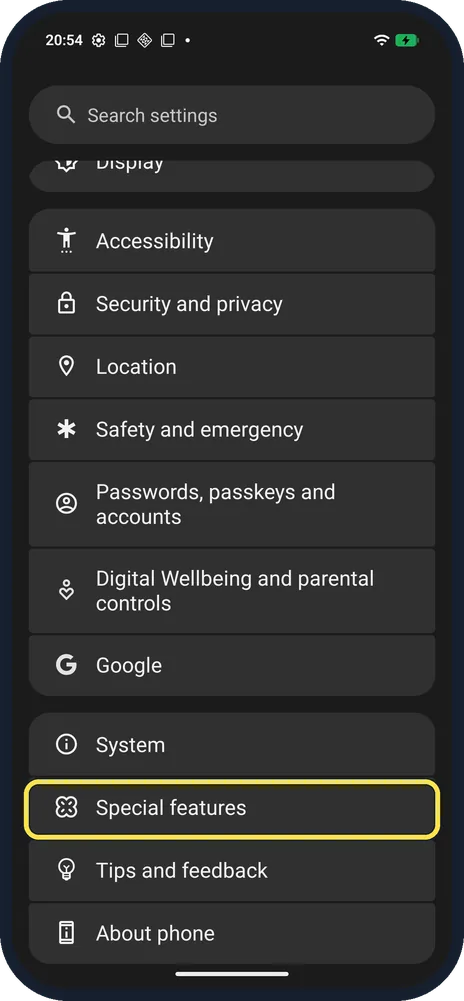
Open Special features
Open Settings and scroll near the bottom.
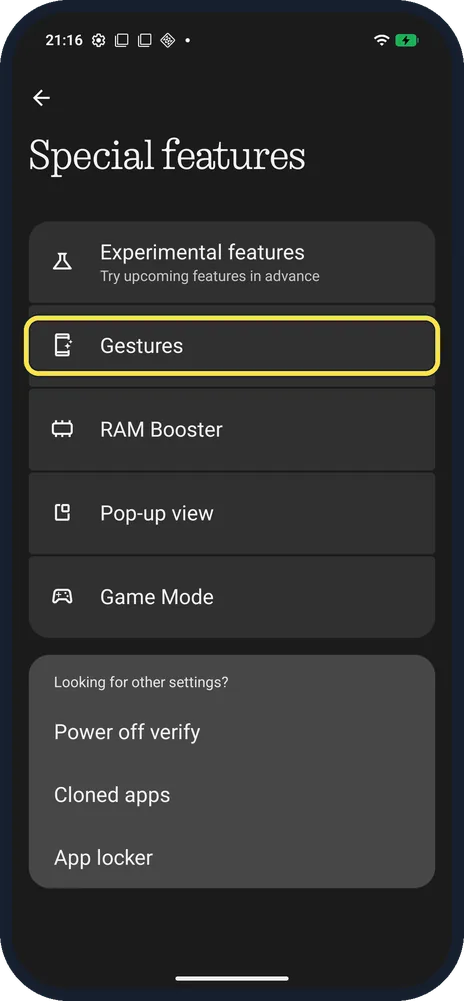
Tap Gestures
It is under Experimental features.
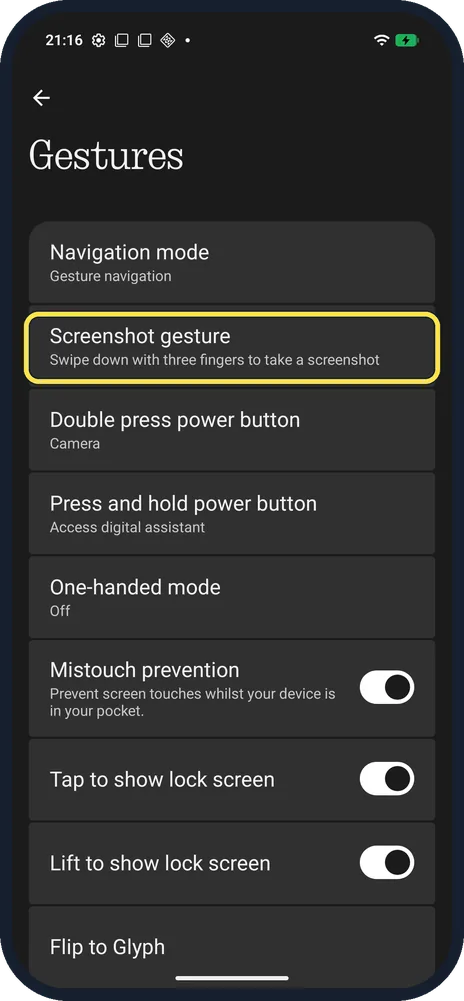
Tap Screenshot gesture
It says: Swipe down with three fingers to take a screenshot.
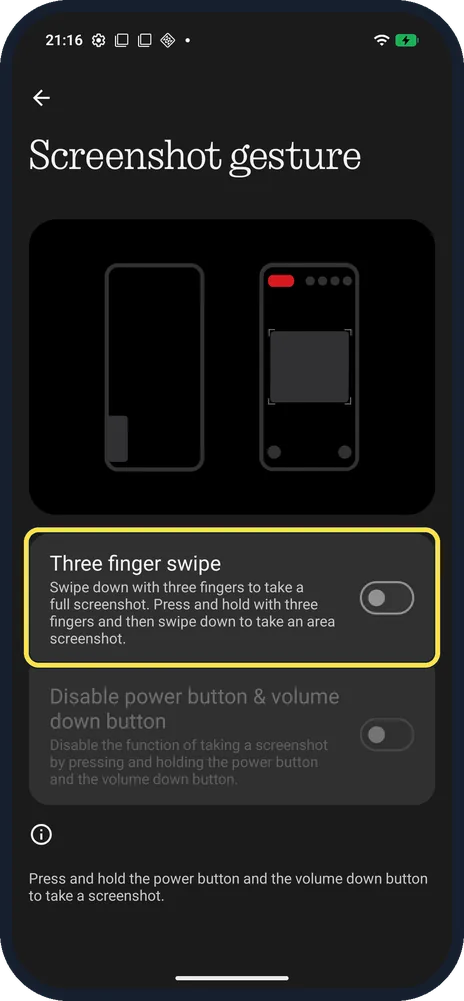
Check Three finger swipe
Swipe down with three fingers for a full screenshot; press and hold with three fingers and then swipe down for an area screenshot.
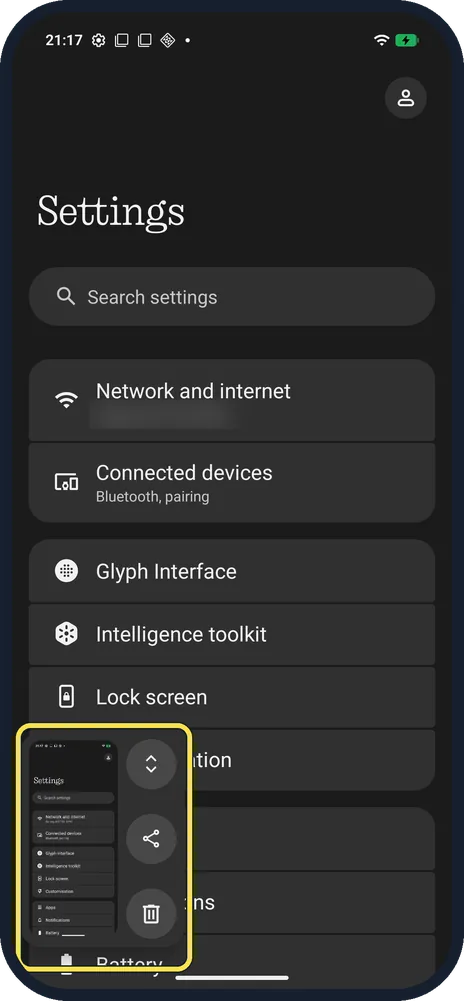
Use the preview
A thumbnail appears at the bottom left with buttons to capture more (a longer, scrolling screenshot), share and delete.
If you do not see this option
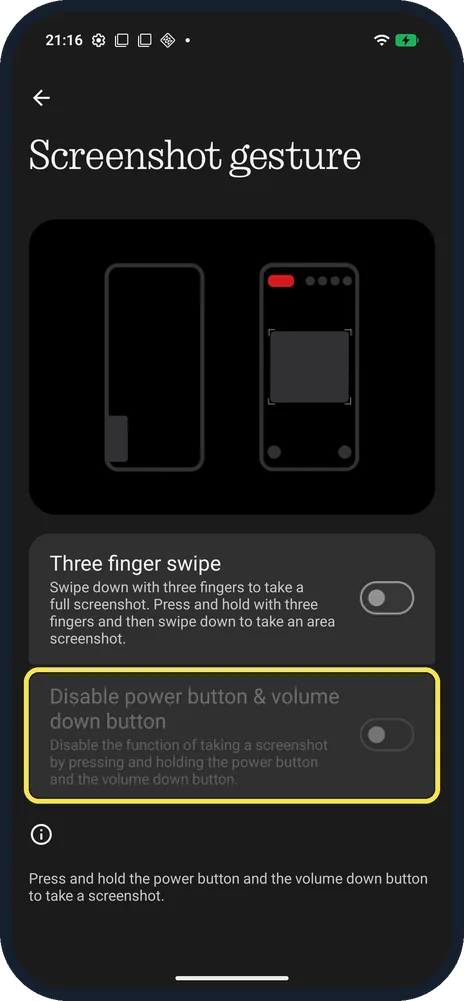
- Pressing Power and Volume Down by accident? Turn on Three finger swipe first: until then, Disable power button & volume down button on the same page is greyed out, as on ours. Then turn it on.
- Use the Essential Key? Nothing says a short press of the Essential Key takes a screenshot and a second short press saves it. On our (4a) Pro the key is on the left edge. See the Essential Key on the (4a) Pro. Source: How do I take a screenshot with the Essential Key?
If this does not work
- Long page? Tap the capture more button in the preview, drag the crop, then save. Source: Take a screenshot or record your screen on your Android device
- Three-finger swipe does nothing? Check that Three finger swipe is on in Settings, Special features, Gestures, Screenshot gesture, and swipe with three fingers at once.
About this guide
Nothing OS puts the screenshot gesture under Special features, not under System.
The screenshots are from our Nothing Phone (4a) Pro, the European model A069P, with Nothing OS 4.1 and Android 16 (build FroggerPro-B4.1-260424-1447-EEA), in Dark theme.
Good to know
For video instead, see screen record on a Nothing Phone.
On an HONOR, see take a screenshot on an HONOR phone. On an OPPO, see OPPO screenshots.
In short: Power + Volume Down, or Settings, Special features, Gestures, Screenshot gesture for three fingers.
- Google Android Help: Take a screenshot or record your screen on your Android device
- Nothing Support: How do I take a screenshot with the Essential Key?
Links checked in October 2026. Menus and features can change after software updates. These steps match the version named at the top.
Did this guide work for you?
Sorry about that. What happened?