ONEPLUS
How to record 4K or 60 fps video on a OnePlus (OxygenOS 16)

In short
Open the Camera, tap Video, then tap the size button at the top (1080P on ours). Pick 720p, 1080p or 4K and 30 fps or 60 fps.
3 of 3 steps show a real screenshot from our Nord 5. Each step was checked against the maker's own instructions, linked at the end.
Steps
- 1
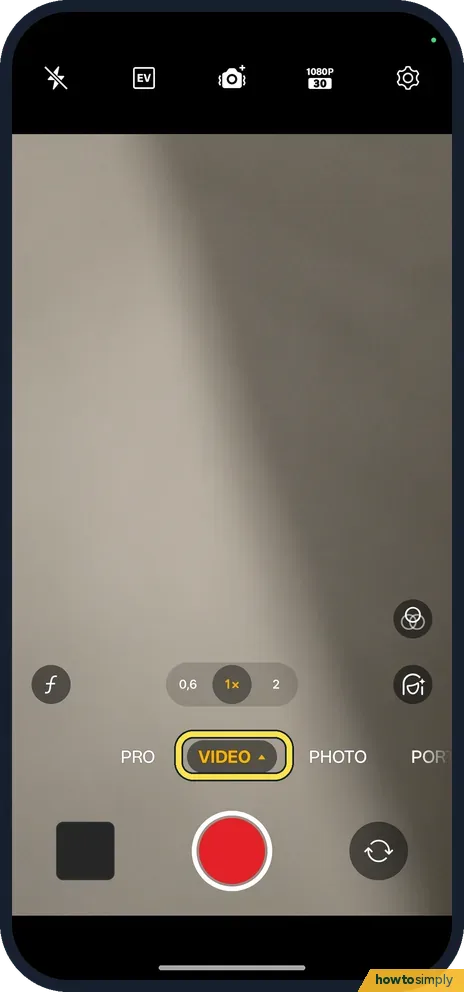
Tap Video
It is in the mode strip above the shutter.
- 2
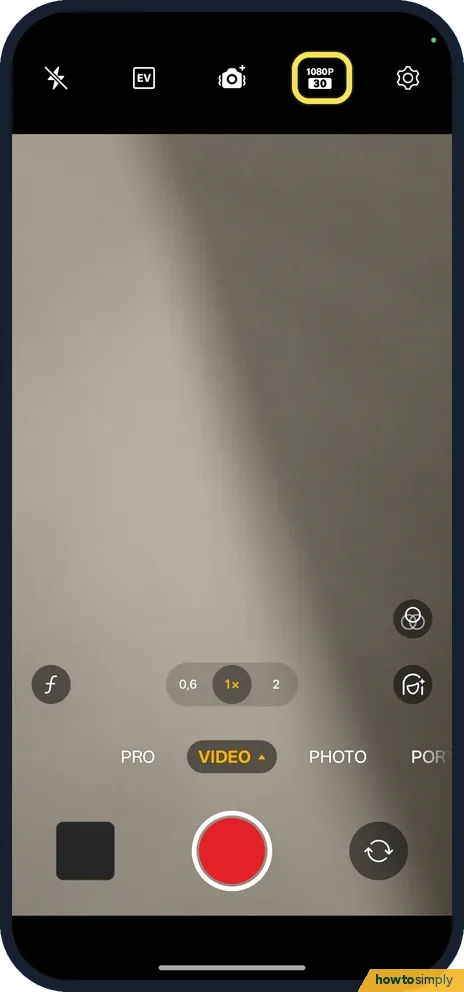
Tap the size button
It is at the top and showed 1080P on ours.
- 3
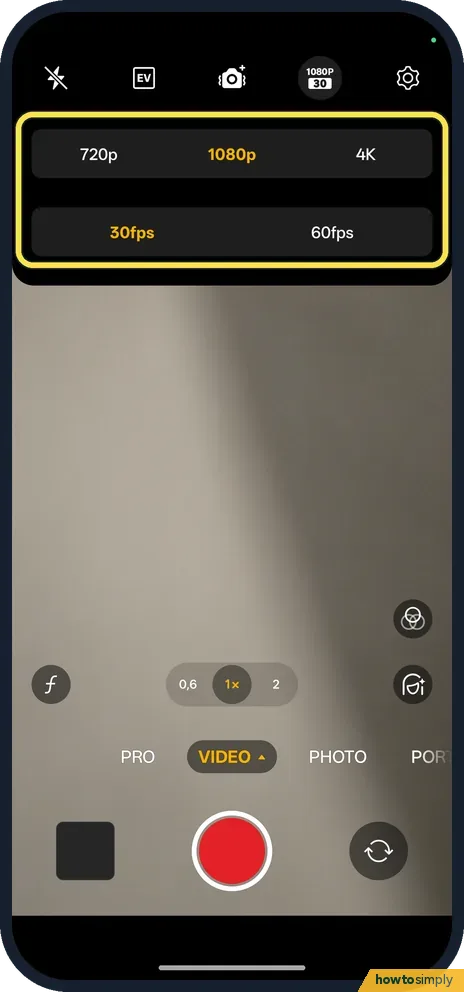
Pick size and frame rate
The top row is 720p, 1080p, 4K; the second is 30fps and 60fps.
If you do not see this option
- On OxygenOS 14? The OnePlus manual says video records at 1080p, 30 fps by default, and higher frame rates and sizes make bigger files. Source: OxygenOS 14.0 User Manual
- Another OnePlus? Video sizes vary by model. OnePlus lists the Nord 5's on its specs page. Source: OnePlus Nord 5 specs
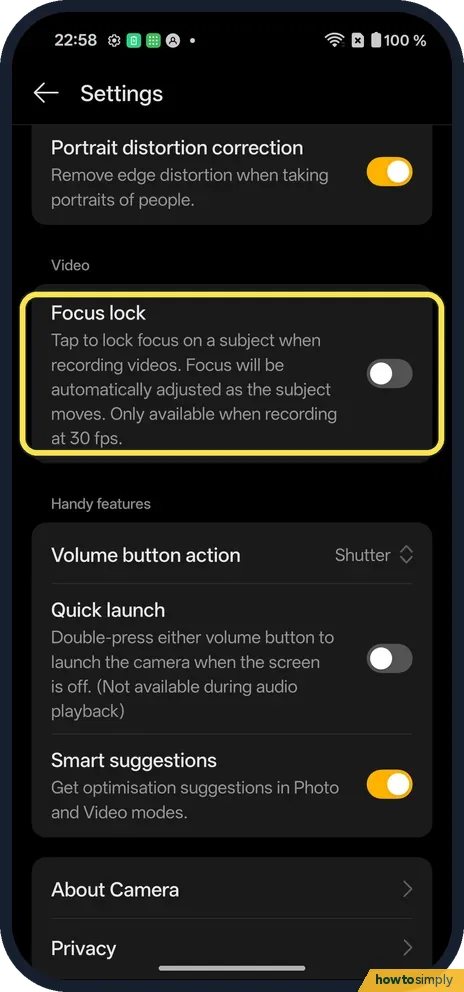
- Focus lock missing? Camera Settings on ours says Focus lock is only available when recording at 30 fps.
- Stabilisation option not showing? OnePlus's manual describes Ultra Steady in Video mode, but notes it is only available on some models. It also says Ultra Steady and Video HDR are not available in Movie mode. Source: OxygenOS 14.0 User Manual
If this does not work
- Storage filling up? 4K files are much bigger. More: free up storage on a OnePlus.
- Video still 1080p? Check the size button at the top of Video mode before you record. Ours showed 1080P.
- Phone gets warm while recording? 4K and 60 fps make the phone work harder than 1080p at 30 fps, so long clips can warm it up. Record in shorter clips, take the case off, and keep it out of direct sun.
- Clip looks dark or grainy indoors? At 60 fps each frame gets less light than at 30 fps. In dim rooms, switch back to 30 fps or add more light.
Good to know
Take 50 MP photos on a OnePlus.
Your choice only affects new videos. Clips you already shot stay at the size they were recorded in. To undo, tap the size button again and pick 1080p and 30 fps, the default according to OnePlus. Bigger clips also take longer to back up and upload, and use more mobile data if your photo backup runs off Wi-Fi.
The manual says you can pause and resume while recording, and take a still photo during a video without stopping it. It also describes trimming a clip later in Photos, which is a quick way to cut a long 4K video down to the part you want to keep. For hands-free clips of yourself, see use the camera timer on a OnePlus.
About this guide
- Device
- Android
- Shown on
- OnePlus Nord 5 (CPH2709), OxygenOS 16.0.5.1201, Android 16
- App
- Camera
- Path
- Camera › Video › Size and frame rate
- Real screenshots
- 3 of 3 steps
- Checked
- October 2026
- Sources
- 2 official, linked below
Sources
Links checked October 2026. Menus and features can change with updates.Spotted a mistake? Menus change with updates, and we want every step to match your screen. Email us about this page or use the contact form. We read every report, and fixes are listed on What changed.
Liked this guide?
Follow us for new guides and short how-to videos.
Did this guide work for you?
Sorry about that. What happened?