VIVO
How to take a screenshot on a vivo phone (OriginOS 6)

In short
Press the Power and Volume down buttons together, or swipe down with three fingers in the middle of the screen. The three-finger gesture is set in Settings, Shortcuts & accessibility, Super screenshot, which also has the screen recording options.
7 of 7 steps show a real screenshot from our V70 Lite 5G. Each step was checked against the maker's own instructions, linked at the end.
Steps
- 1
Open Super screenshot
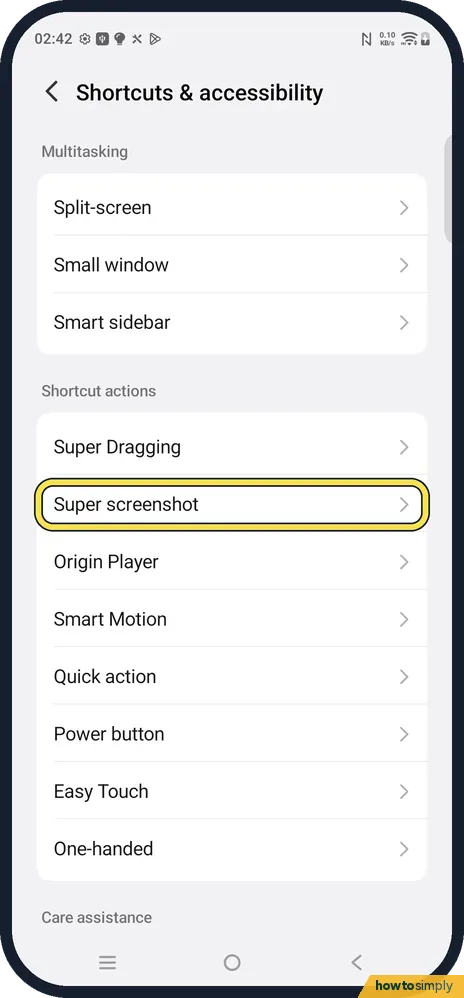
Open Settings, Shortcuts & accessibility. Under Shortcut actions, tap Super screenshot.
- 2
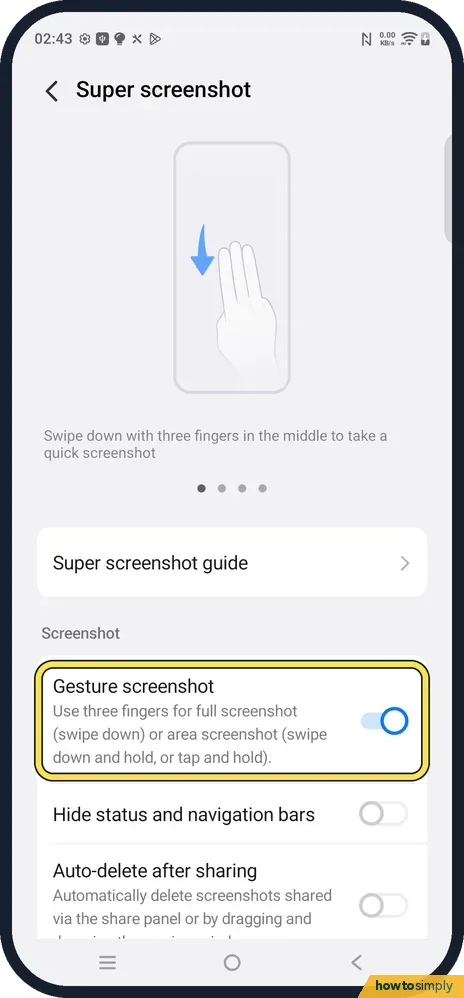
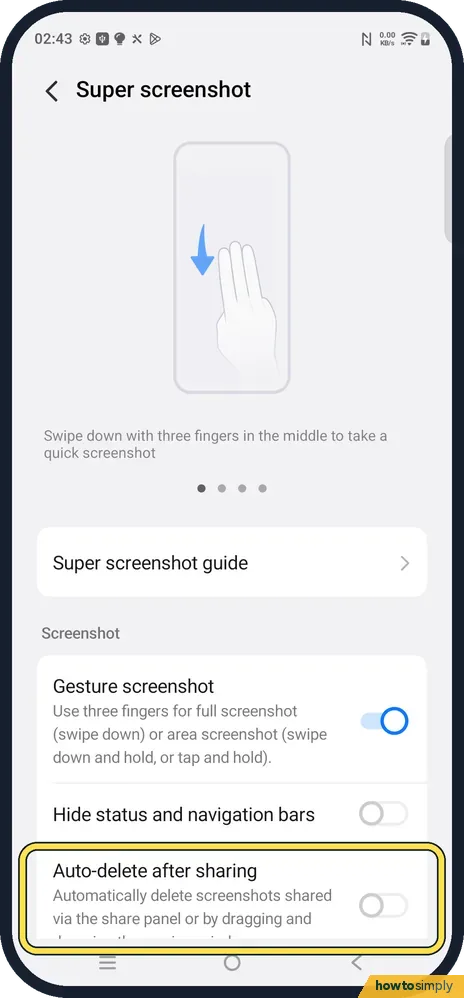
Turn on Gesture screenshot
Use three fingers for a full screenshot (swipe down) or an area screenshot (swipe down and hold, or tap and hold). It was on on ours. The animation at the top of the page shows the gesture.
- 3
Take a screenshot
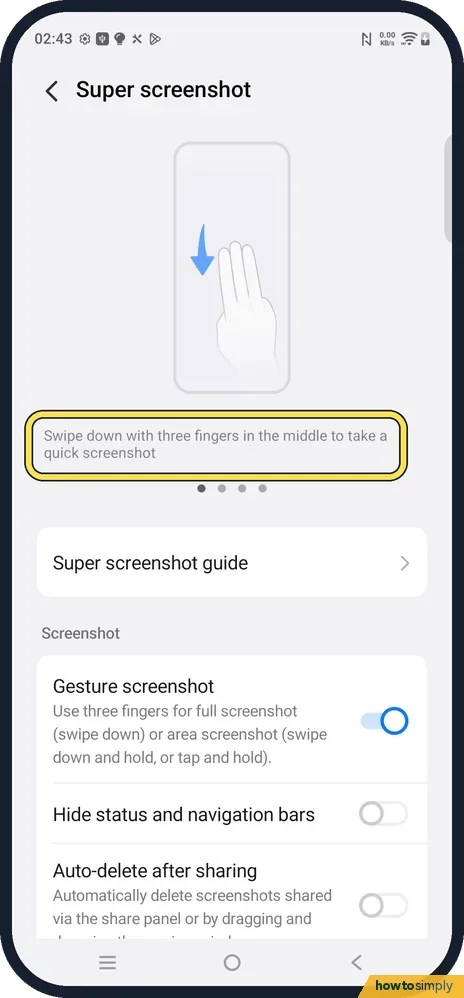
Swipe down with three fingers in the middle of the screen, or press Power and Volume down together. A floating preview appears for sharing and editing.
- 4
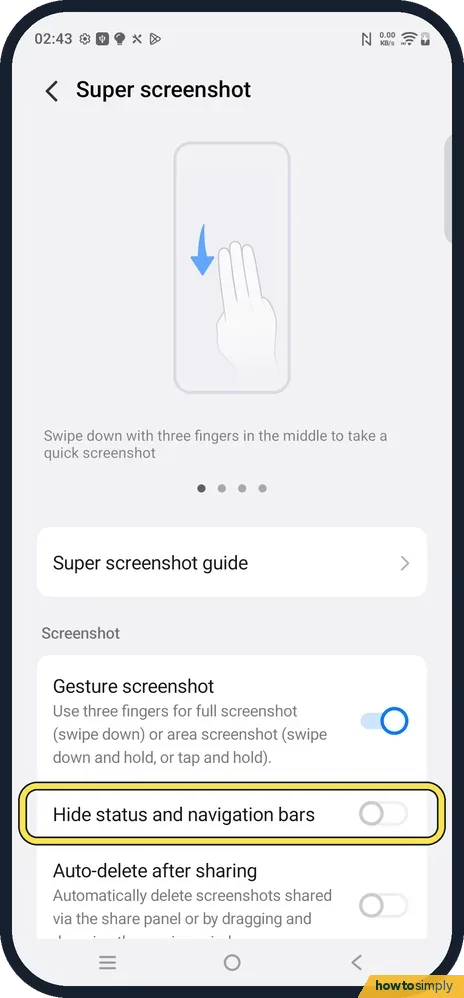
Hide the status and navigation bars if you like
Hide status and navigation bars leaves the clock, icons and buttons out of your screenshots. It was off on ours.
- 5
Decide on Auto-delete after sharing
It automatically deletes screenshots you share via the share panel or by dragging. Off on ours, so shared screenshots stay in Albums.
- 6
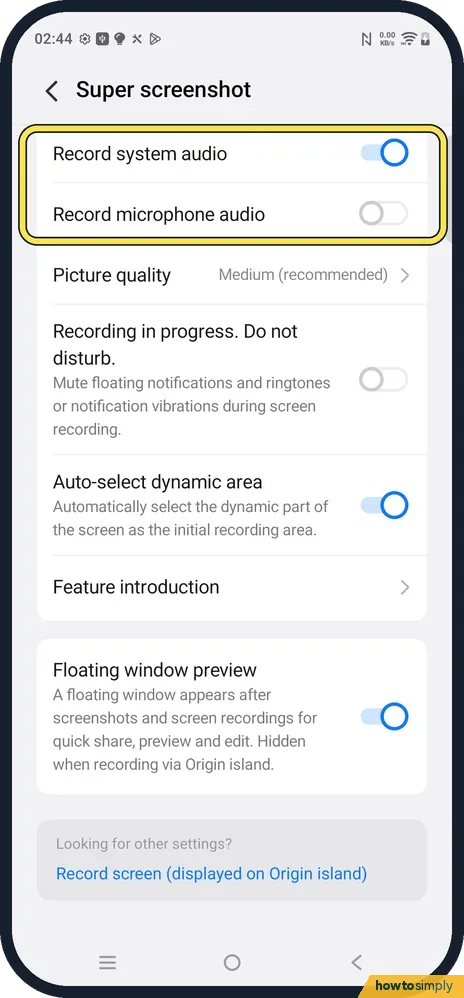
Check the screen recording sound
Lower on the page: Record system audio was on, Record microphone audio off, and Picture quality Medium (recommended). Turn on the microphone if you want to talk over a recording.
- 7
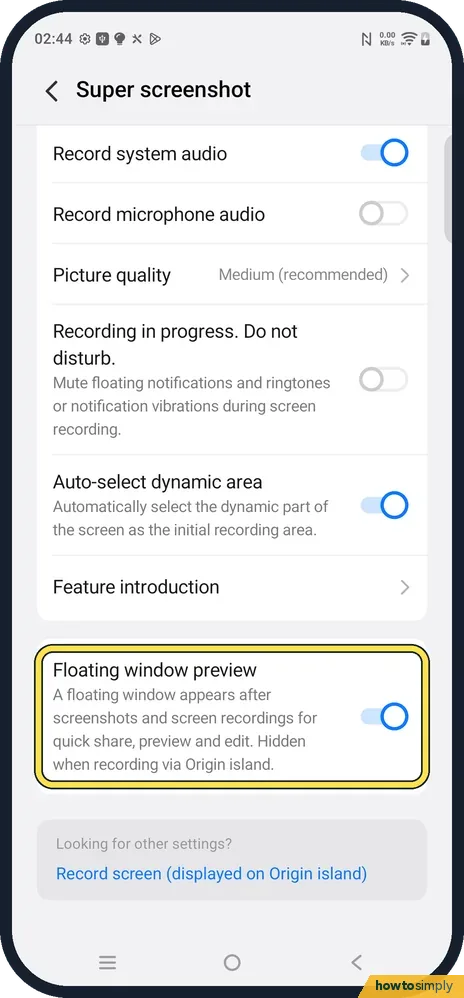
Keep Floating window preview on
A floating window appears after screenshots and screen recordings for quick share, preview and edit. On on ours. It is hidden when recording via Origin island.
If you do not see this option
- No Super screenshot row? Older vivo phones call it S-capture, under Settings, Shortcuts & accessibility or More settings.
- Looking for screen recording? The Looking for other settings? box on the same page links to Record screen (displayed on Origin island).
If this does not work
- Three-finger swipe opens split screen? Split-screen uses three fingers swiping up; screenshots use three fingers swiping down. Swipe down in the middle of the screen.
- Some apps give a black screenshot? Banking and video apps can block screenshots. That is the app, not the phone.
- Buttons take a screenshot instead of changing volume? Press and release both buttons at the same moment. Holding Volume down first changes the volume.
Good to know
Screenshots are saved in Albums, the vivo gallery app.
An area screenshot is useful when you only need part of the screen: swipe down with three fingers and hold, or tap and hold with three fingers.
Screen recording sound: Record system audio captures what the phone plays; the microphone records your voice. Recording in progress. Do not disturb mutes floating notifications and ringtones while you record; it was off on ours.
About this guide
- Device
- Android
- Shown on
- vivo V70 Lite 5G (V2529, EEA), OriginOS 6, Android 16 (build PD2512SF_EX_A_16.1.19.5)
- App
- Settings
- Path
- Settings › Shortcuts & accessibility › Super screenshot
- Real screenshots
- 7 of 7 steps
- Checked
- October 2026
- Sources
- 2 official, linked below
Sources
Links checked October 2026. Menus and features can change with updates.Spotted a mistake? Menus change with updates, and we want every step to match your screen. Email us about this page or use the contact form. We read every report, and fixes are listed on What changed.
Liked this guide?
Follow us for new guides and short how-to videos.
Did this guide work for you?
Sorry about that. What happened?