
howtosimply.com/guides/how-to-check-the-one-ui-and-android-version-on-a-samsung-galaxy-phone/ · Checked October 2026 · Samsung Galaxy A57 5G (SM-A576B), One UI 8.5, Android 16
In this guide
Open Settings, About phone, Software information. The first two lines show the One UI version and the Android version. To see whether a newer one is available, go back to Settings and tap Software update.
3 of 3 steps with real screenshots · 2 official sources below
- Device
- Android
- Shown on
- Samsung Galaxy A57 5G (SM-A576B), One UI 8.5, Android 16
- App
- Settings
- Path
- Settings › About phone
- Real screenshots
- 3 of 3 steps
- Our phone
- Shown on Galaxy A57, One UI 8.5
- Checked
- October 2026
- Sources
- 2 official, linked below
Step by step
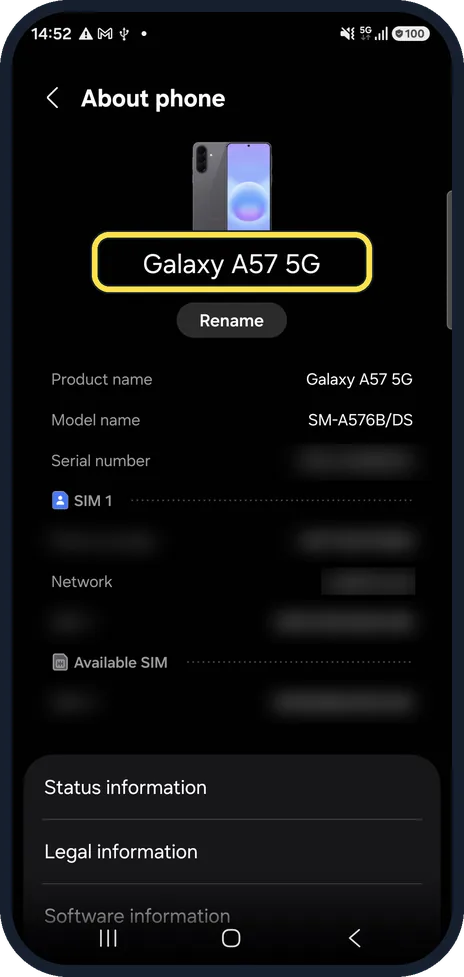
Open About phone
Open Settings, scroll to the very bottom and tap About phone. The top of the page shows the phone's name and model.
Watch these steps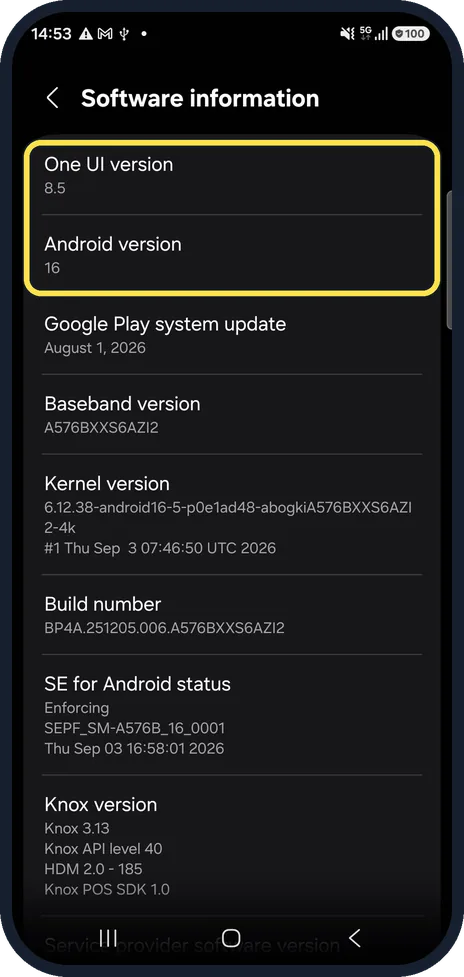
Open Software information
Scroll down and tap Software information. One UI version and Android version are at the top; further down are the build number and other details.
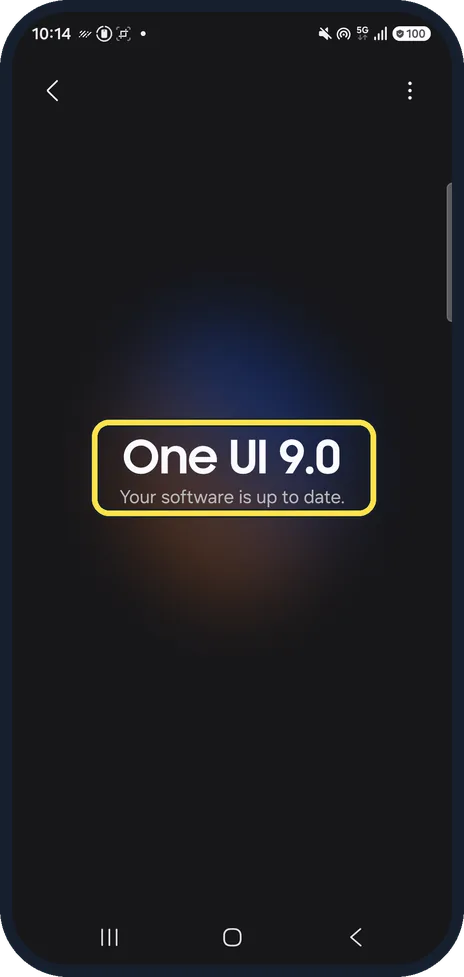
Check for an update
Go back to Settings and tap Software update, then the update button. Samsung advises downloading updates over Wi-Fi with enough battery.
Watch these steps
If you do not see this option
- You see About device instead of About phone Samsung says some models call it About device, which shows the Android version straight away, without a Software information page. Source: How to update the software on a Galaxy smartphone or tablet
- The Android version is a name, not a number Samsung says older versions had dessert names, such as Pie for Android 9 and Oreo for Android 8, but the phone always shows the number. Source: How to update the software on a Galaxy smartphone or tablet
If this does not work
- Software update says there is nothing new Samsung says updates arrive at different stages depending on your location and carrier. If none is offered, the phone already has the latest version for it. Older phones may not get the newest Android at all. Source: How to update the software on a Galaxy smartphone or tablet
- You want updates without checking Samsung says to tap the three dots on the Software update screen, Auto download, and choose Using Wi-Fi only. Updates can use a lot of data. Source: How to update the software on a Galaxy smartphone or tablet
About this guide
App requirements, support pages and guides like ours often depend on the One UI version, not just the Android version. Both are on one page.
Good to know
About phone also shows the serial number, IMEI and phone number. Do not share screenshots of that page without hiding them.
Updates arrive at different times depending on the country and carrier.
In short: Settings, About phone, Software information: One UI version and Android version.
- Samsung Gulf: How do I check my Samsung Galaxy operating system?
- Samsung UK: How to update the software on a Galaxy smartphone or tablet
Links checked in October 2026. Menus and features can change after software updates. These steps match the version named at the top.
📷 See real photos from the Galaxy A57 in our Camera Lab, next to 10 other phones.
Did this guide work for you?
Sorry about that. What happened?