
howtosimply.com/guides/samsung-galaxy-always-on-display-stuck-on-24-hour-time-fix/ · Checked October 2026 · SM-A576B), One UI 9, Android 17 (build A576BXXU6BZIE · Samsung Galaxy A57
In this guide
The Always On Display page has no clock-format option. The AOD follows the phone's clock: open Settings, General management, Date and time and turn Use 24-hour format off for 12-hour time, or on for 24-hour time. The AOD preview changed straight away on our Galaxy A57.
6 of 6 steps with real screenshots · 3 official sources below
- Device
- Android
- Shown on
- Samsung Galaxy A57 (SM-A576B), One UI 9, Android 17 (build A576BXXU6BZIE)
- App
- Settings
- Path
- Settings › General management › Date and time
- Real screenshots
- 6 of 6 steps
- Checked
- October 2026
- Sources
- 3 official, linked below
Step by step
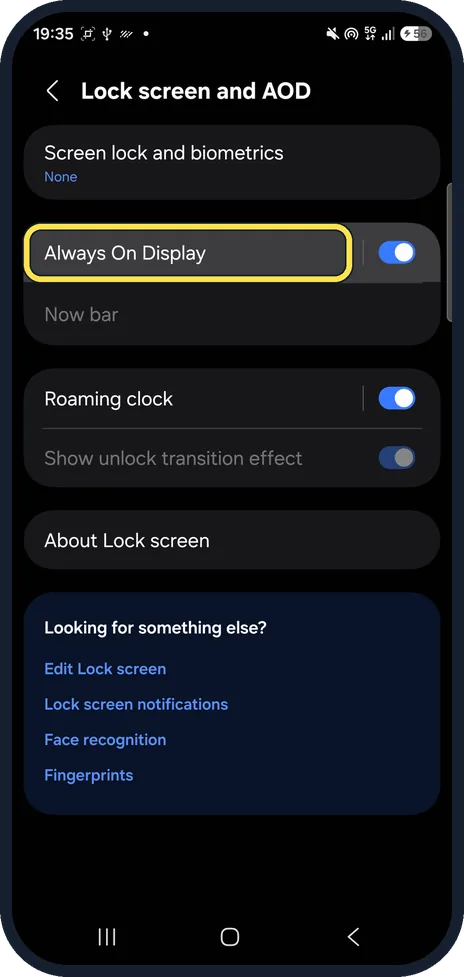
Open the Always On Display page
Open Settings, tap Lock screen and AOD, then tap the words Always On Display, not its switch.
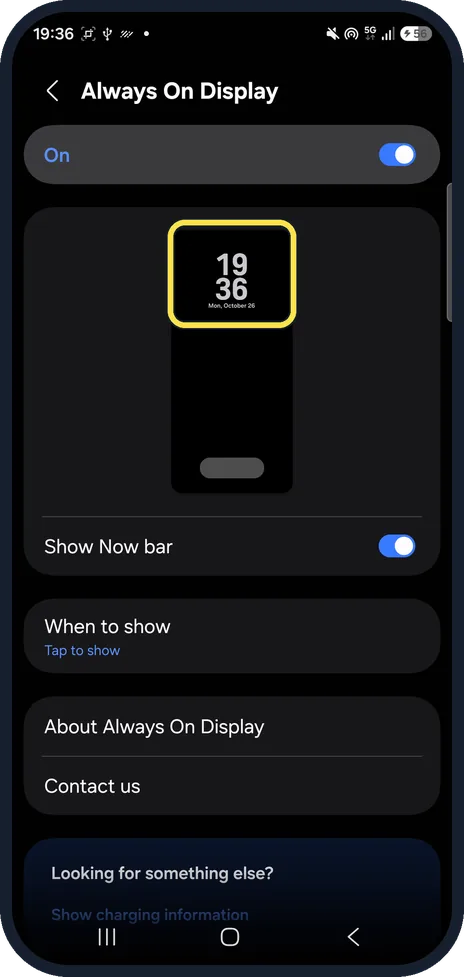
Check the clock in the preview
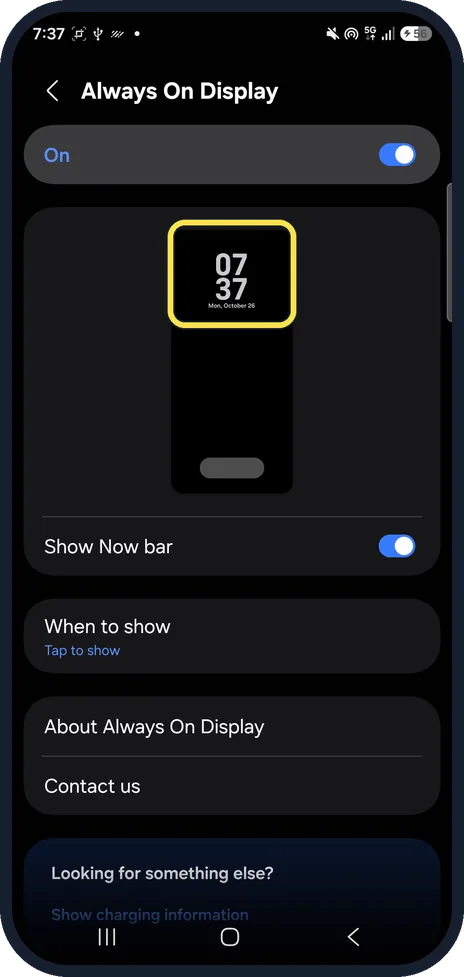
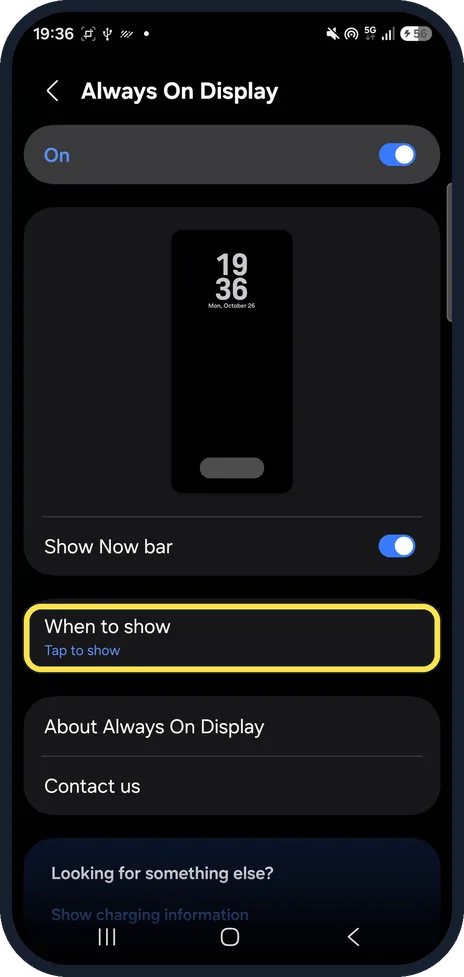
The page shows On, a preview, Show Now bar and When to show. Ours read 19 36 over Mon, October 26 in the preview, and there was no clock-format row anywhere on the page.
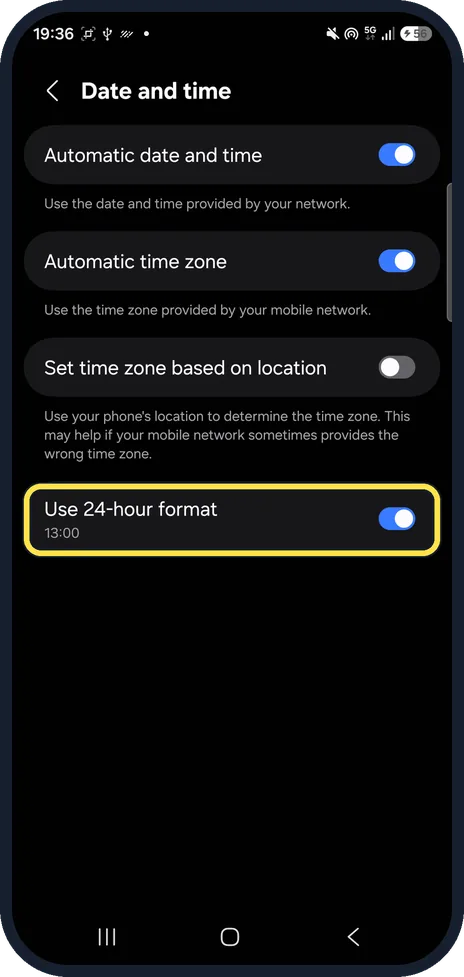
Open Date and time
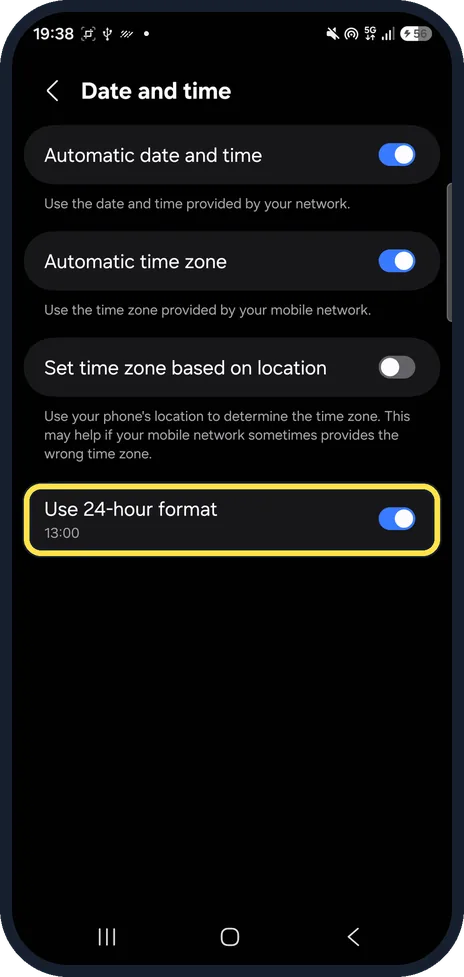
Go back to Settings and tap General management, then Date and time. Use 24-hour format is the last row; ours was on and showed 13:00 below it.
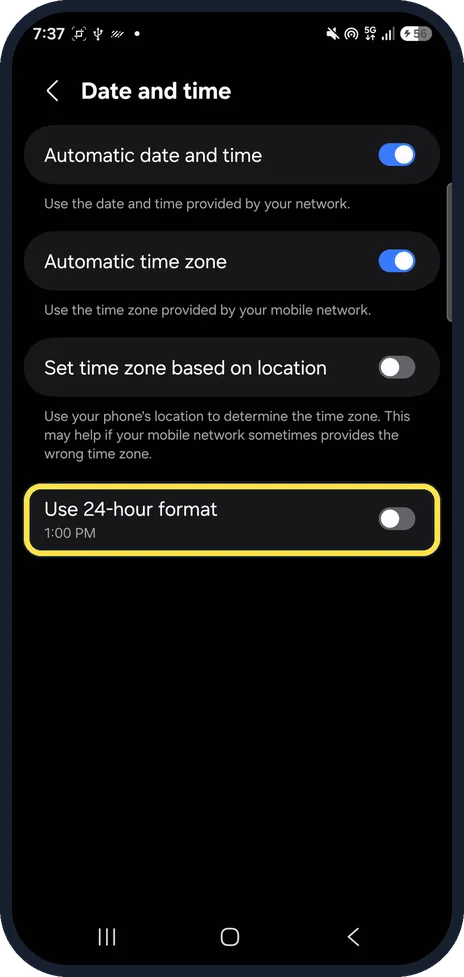
Turn off Use 24-hour format
Tap the switch. The example below the row changes to 1:00 PM and the status bar clock drops to 7:37.
Check the AOD preview
Open Lock screen and AOD, Always On Display again. Our preview now read 07 37 over Mon, October 26, instead of 19 37.
Want 24-hour time back? Turn it on
Tap Use 24-hour format again. The example goes back to 13:00. We did not reopen the AOD page after this, but it follows the same switch.
If you do not see this option
- No clock option on the AOD page? That is how One UI 9 looks. Samsung says that on One UI 6 or later the AOD uses the same clock style as the Lock screen; the 12 or 24-hour format comes from Date and time. Source: Always On Display on your Galaxy phone or tablet
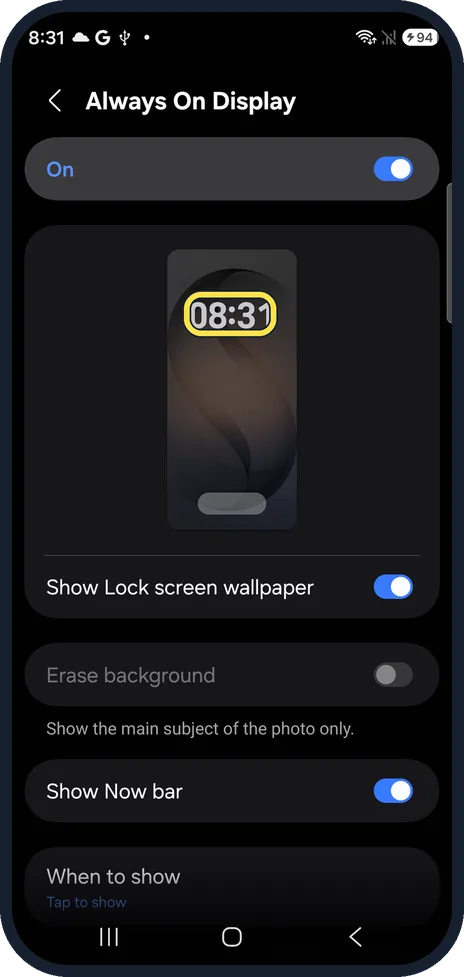
- Same on the Galaxy S26? Our Galaxy S26 with One UI 9 also had no clock-format row on its Always On Display page; its preview showed 08:31. We did not test its 24-hour switch.
- Cannot find Date and time? Samsung lists it under Settings, General management, Date and time, with the switch next to Use 24-hour format. Source: Change the date and time on your Galaxy phone or tablet.
If this does not work
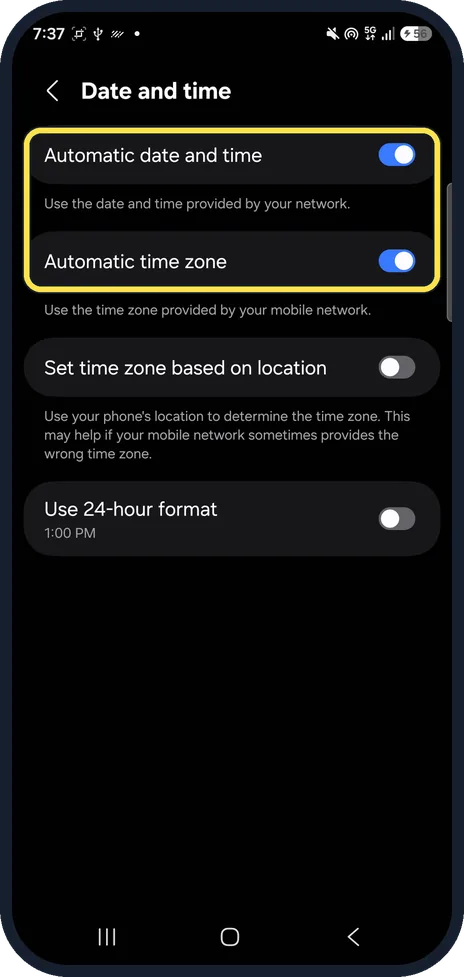
- Clock shows the wrong hour, not the wrong format? Use 24-hour format only changes how the time looks. Automatic date and time and Automatic time zone, at the top of the same page, set the time itself; both were on on ours. Source: Change the date and time on your Galaxy phone or tablet.
- AOD does not stay on? When to show was set to Tap to show on ours. Samsung says Tap to show makes the Always On Display appear for a short time after you tap the screen. Source: Always On Display on your Galaxy phone or tablet
About this guide
On One UI 9 the Always On Display page only has the On switch, a preview, Show Now bar and When to show. There is no 12-hour or 24-hour choice there, so the AOD clock copies the format of the phone's clock.
The screenshots are from our Samsung Galaxy A57 (SM-A576B) with One UI 9.0 and Android 17 (build CP2A.260605.016.A576BXXU6BZIE), in Dark mode, taken on 26 October 2026. We turned Use 24-hour format off for the pictures and then back on.
Good to know
If the time itself is off, see Samsung Galaxy showing the wrong time or date. To switch the AOD off, see turn Always On Display on or off.
In short: Settings, General management, Date and time, Use 24-hour format: off for 12-hour, on for 24-hour. The AOD follows it.
- Samsung US: Always On Display on your Galaxy phone or tablet
- Samsung Latin: Change the date and time on your Galaxy phone or tablet.
- Samsung US: Change the date and time on your Galaxy phone or tablet
Links checked in October 2026. Menus and features can change after software updates. These steps match the version named at the top.
📷 See real photos from the Galaxy A57 in our Camera Lab, next to 10 other phones.
Did this guide work for you?
Sorry about that. What happened?