GOOGLE PIXEL
How to switch between 12-hour and 24-hour time on a Google Pixel (Android 17)

In short
Open Settings, System, Date and time and tap 12-hour/24-hour format under More settings. Pick Automatic (apps follow the app language), 12-hour format (1:00 pm) or 24-hour format (13:00). On Android 17 there is no Use 24-hour format switch.
5 of 5 steps show a real screenshot from our Pixel 10a. Each step was checked against the maker's own instructions, linked at the end.
Steps
- 1
Open Date and time
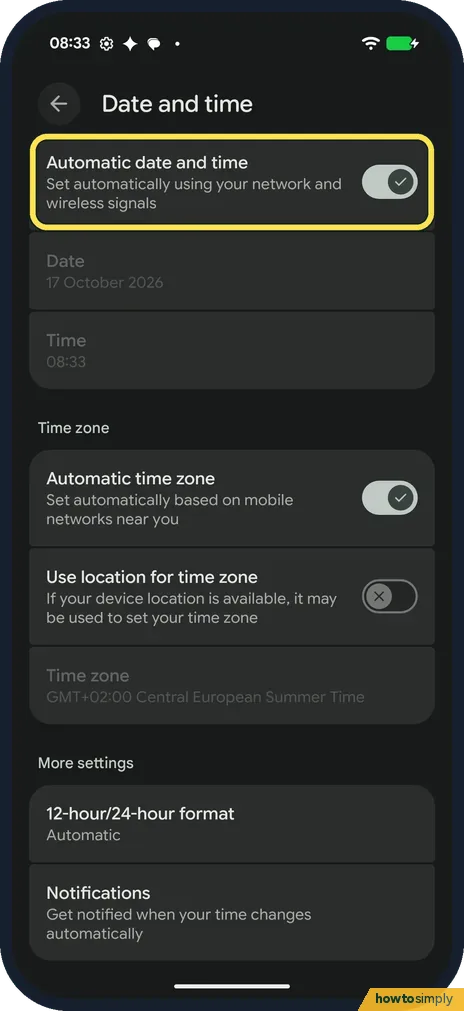
Open Settings, tap System, then Date and time. Automatic date and time was on at the top, so the Date and Time rows were greyed out.
- 2
Tap 12-hour/24-hour format
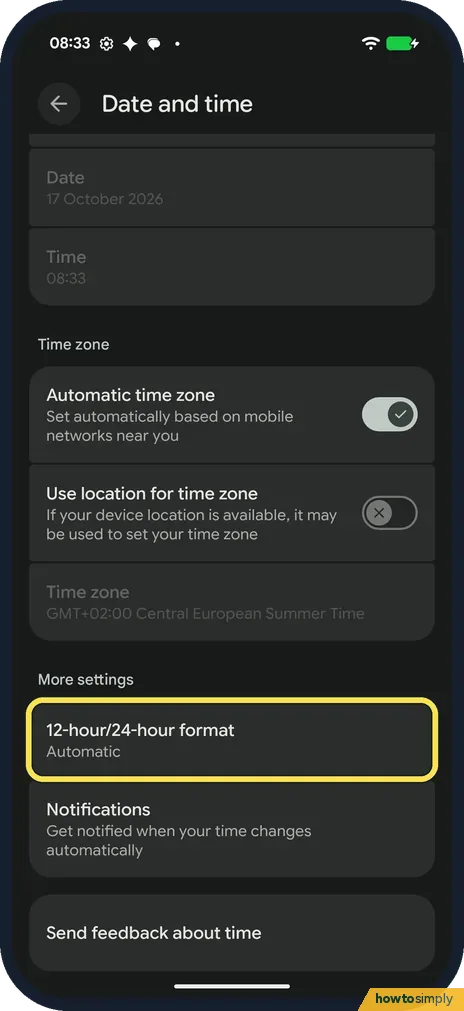
Scroll to More settings at the bottom. 12-hour/24-hour format said Automatic on ours. Tap it.
- 3
Read the choices
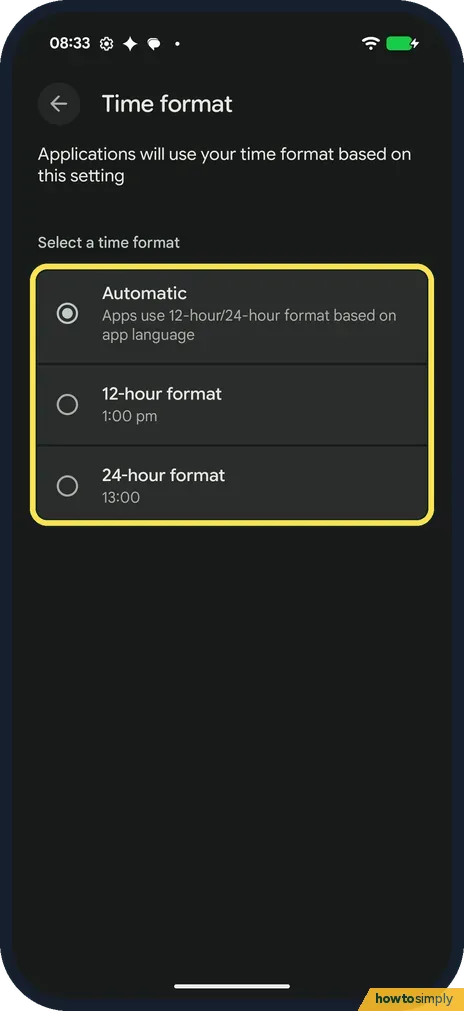
A Time format page opens: Applications will use your time format based on this setting. Automatic was selected: Apps use 12-hour/24-hour format based on app language.
- 4
Pick 12-hour or 24-hour
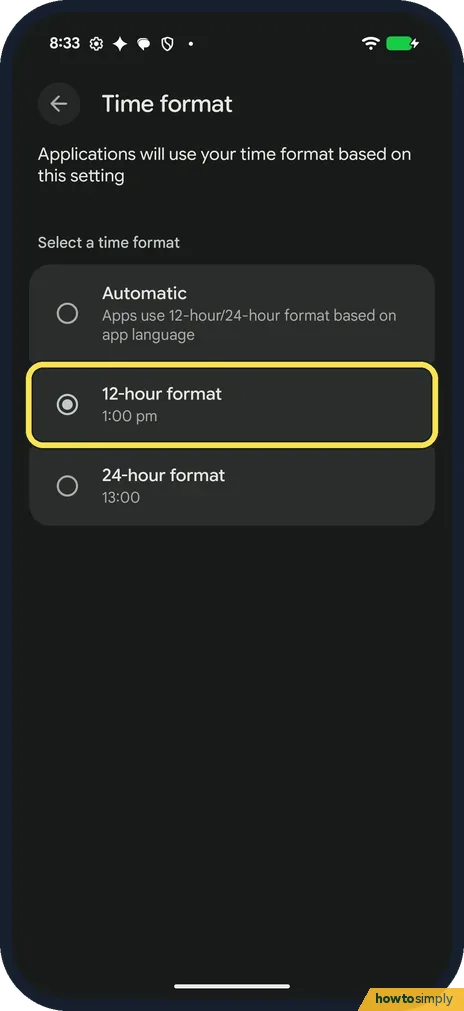
Tap 12-hour format (1:00 pm) or 24-hour format (13:00). We tapped 12-hour format. The change happens at once; there is no Save button.
- 5
Check the status bar
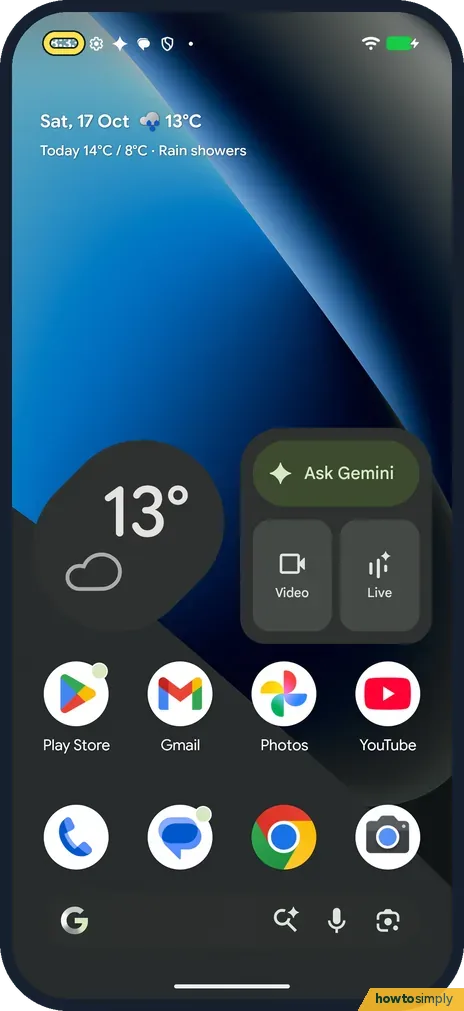
The clock at the top left changed from 08:33 to 8:33. The status bar shows no am or pm. We then set it back to Automatic.
If you do not see this option
- Looking for a Use 24-hour format switch? Google's help still describes one: open the Clock app, tap More, Settings, Change date & time, then Use 24-hour format. On our Android 17 Pixel it was the three-choice Time format page shown here. Source: Change your clock's display
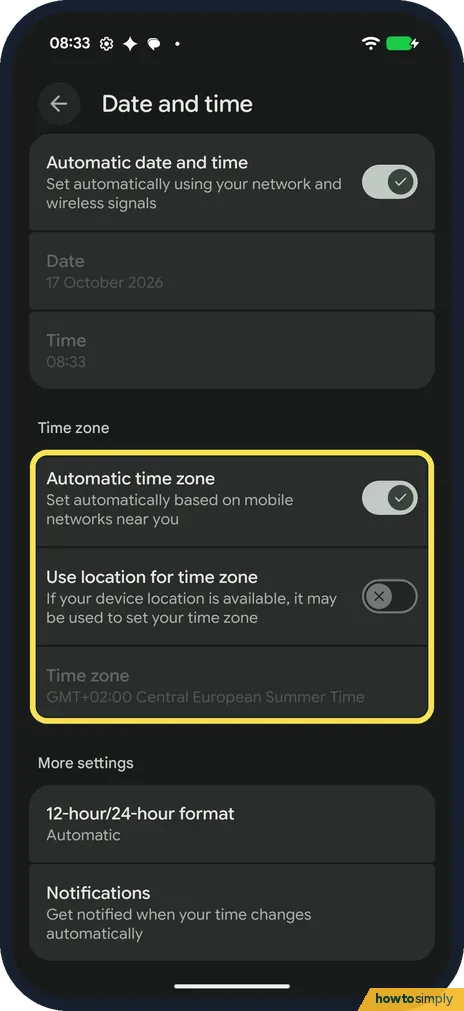
- Time zone set by location? Google says your device may use location to set the time zone, and that only some devices can set it automatically. On ours Automatic time zone was on and Use location for time zone off. Source: Set time, date and time zone
- Clock odd in one app? With Automatic, the page says apps choose by their app language. Pick 12-hour or 24-hour to make every app use the same format.
If this does not work
- Time is wrong, not just the format? Google's Clock help says to turn on Automatic date and time. It was on on ours, which is why the Date and Time rows were greyed out.
- Status bar still looks the same? In the morning the difference is small: on ours 08:33 became 8:33, with no am or pm. Check again after 1 pm, when 13:00 becomes 1:00.
- Time looks wrong after travelling? That is a time zone question, not a format one. Google's Clock help lists Home time zone and Automatic home clock in the Clock app (More, Settings); the second adds a clock for home while you are in another time zone.
Good to know
The locked screen can show the time too: how to turn on Always-on display on a Google Pixel.
The change has no effect on battery, data or privacy; it only changes how times are written. Apps that follow the system setting switch straight away, while an app with its own clock setting keeps its own choice. To undo it, pick Automatic again on the same Time format page. The lock screen clock's size and colour are set elsewhere: how to change the lock screen clock on a Pixel.
About this guide
- Device
- Android
- Shown on
- Google Pixel 10a, Android 17 (build CP3A.261005.005)
- App
- Settings
- Path
- Settings › System › Date and time
- Real screenshots
- 5 of 5 steps
- Checked
- October 2026
- Sources
- 3 official, linked below
Sources
Links checked October 2026. Menus and features can change with updates.Spotted a mistake? Menus change with updates, and we want every step to match your screen. Email us about this page or use the contact form. We read every report, and fixes are listed on What changed.
Liked this guide?
Follow us for new guides and short how-to videos.
Did this guide work for you?
Sorry about that. What happened?