
What changed: the screenshots are now our own iPhone 17e on iOS 27.0.1, dark mode, and the wording is checked against those screens and Apple's iOS 27 guide.
howtosimply.com/guides/iphone-camera-or-flash-not-working-8-fixes-to-try/ · Checked October 2026 · iPhone 17e · iOS 27.0.1
In this guide
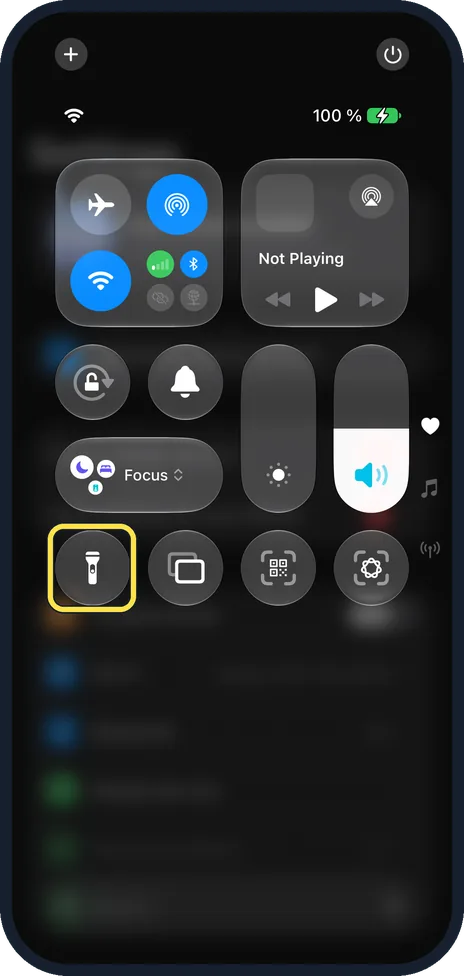
Remove any case or accessory that covers the camera or flash, then restart the iPhone and install the latest iOS. To test the flash, open Control Centre and tap the Torch button. If the camera screen stays black on both cameras, contact Apple Support about a repair.
6 of 6 steps with real screenshots · 7 official sources below
- Device
- iPhone
- Shown on
- iOS 27.0.1 (iPhone 17e)
- Starts in
- Control Centre
- Real screenshots
- 6 of 6 steps
- Checked
- October 2026
- Sources
- 7 official, linked below
Step by step
Test the flash with the torch
Apple says to remove any case, film or accessory that covers the camera or flash, such as an add-on lens. Swipe down from the top-right corner to open Control Centre and tap the Torch button. On an iPhone with a Home button, swipe up from the bottom edge instead. If the torch lights, the flash LED works. Apple says an image of the torch then appears, and you drag up or down on it to change the brightness. On our iPhone 17e the button was at the left of the bottom row.
Watch these steps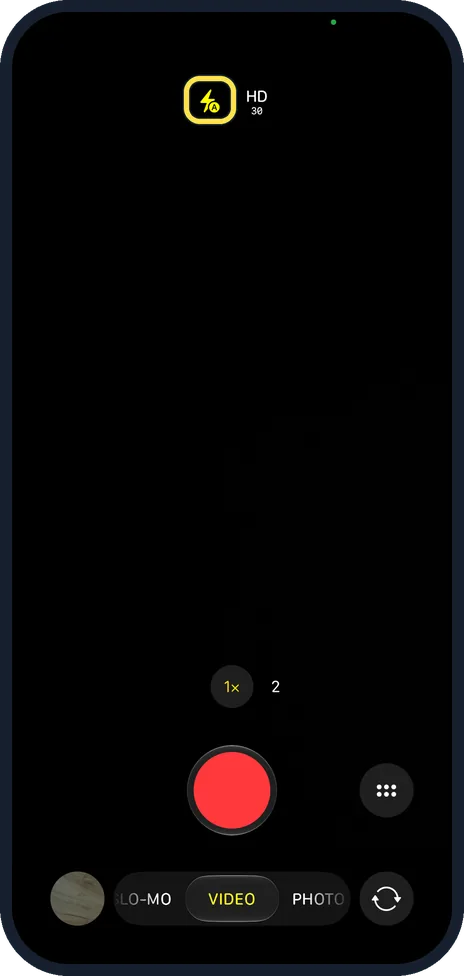
Check the flash setting in Camera
Apple says the camera uses the flash automatically when needed. Tap the Flash control above the camera frame to switch between Auto, On and Off. If the flash fires only sometimes, choose On instead of Auto for a test. On our iPhone 17e in Video mode the flash control was a yellow flash with an A, for Auto, next to HD and 30. In our picture the viewfinder is black: look at the controls, not the image.
Switch between front and back cameras
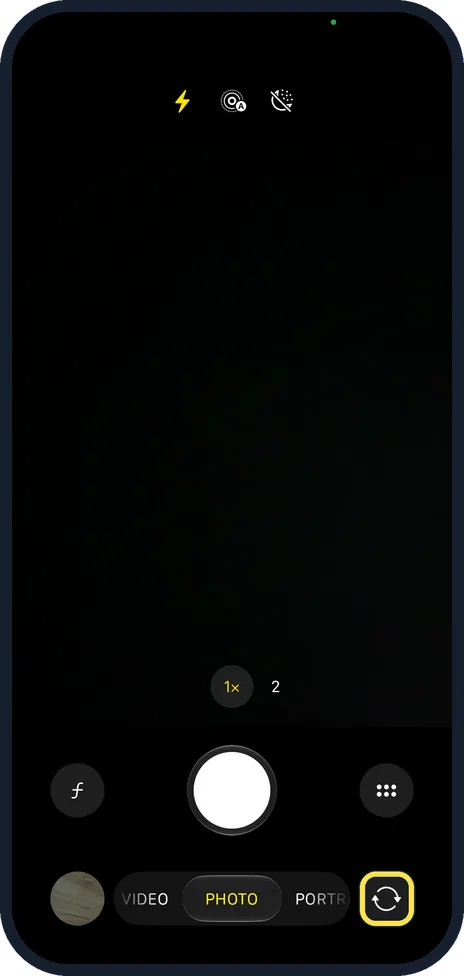
In the Camera app, tap the switch camera button to change between the back and front cameras. If one camera works and the other shows black, note which one fails before you contact Apple Support. On our iPhone 17e it was the round arrows button at the bottom right, beside the mode names, and the back camera had 1× and 2× zoom buttons. The viewfinder in this picture is black as well; it shows the controls only.
Restart the iPhone
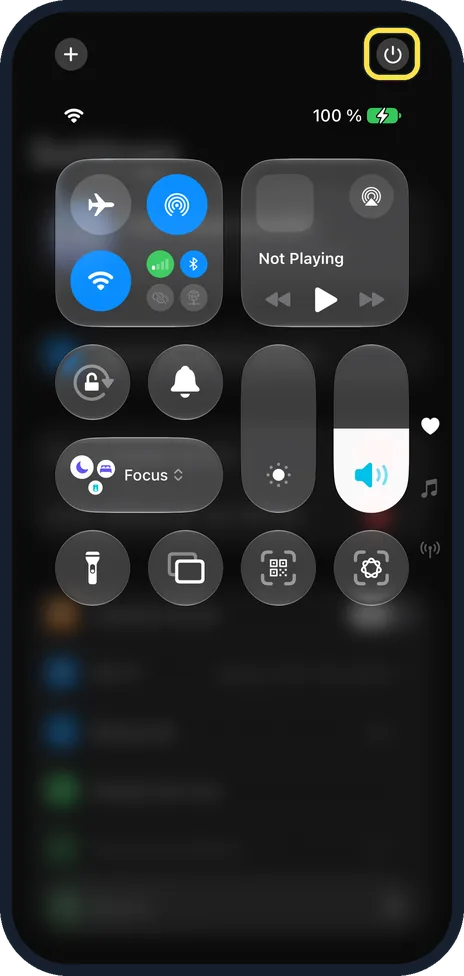
Apple says you can turn the iPhone off in Control Centre: touch and hold in the top-right corner and drag the slider. To turn it on again, press and hold the side button until the Apple logo appears. Then open the Camera app. On our iPhone 17e the top-right corner of Control Centre showed a power button.
Update iOS
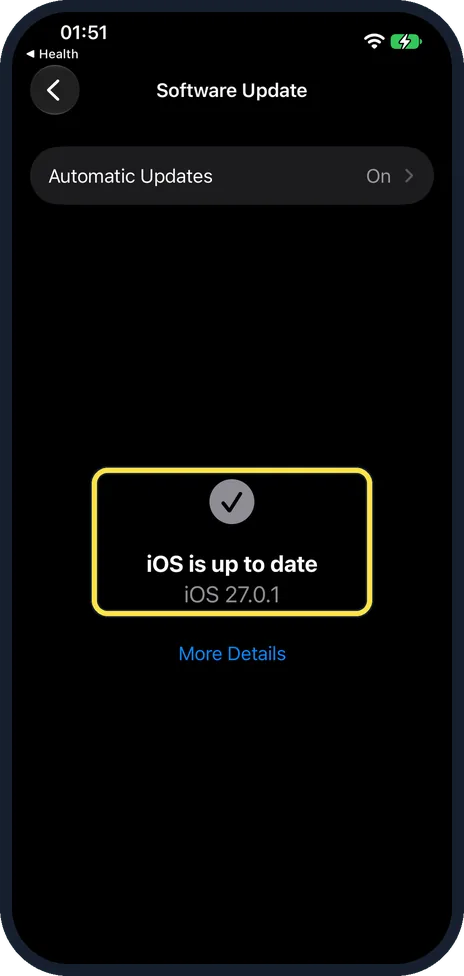
Open Settings, General, Software Update and install any waiting update. On our iPhone 17e it showed iOS is up to date, iOS 27.0.1, and Automatic Updates was on.
If the Camera app is missing, check Screen Time
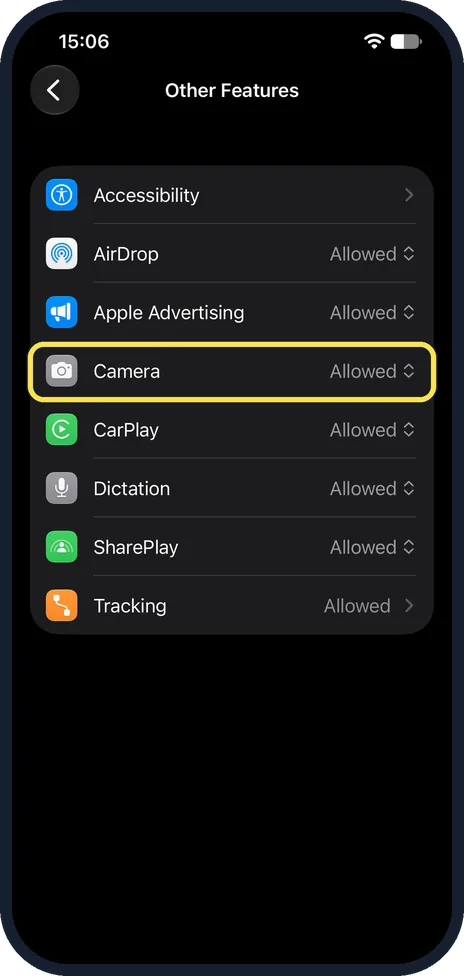
Open Settings, Screen Time, Content & Privacy Restrictions, Other Features and make sure Camera is allowed. Apple lists Camera there in iOS 27. On our iPhone 17e with iOS 27, Other Features listed Camera between Apple Advertising and CarPlay, set to Allowed.
What changed: the screenshots are now our own iPhone 17e on iOS 27.0.1, dark mode, and the wording is checked against those screens and Apple's iOS 27 guide.
Watch these steps
What we saw on our device
- Test the flash with the torch: On our iPhone 17e the button was at the left of the bottom row.
- Check the flash setting in Camera: On our iPhone 17e in Video mode the flash control was a yellow flash with an A, for Auto, next to HD and 30.
- Switch between front and back cameras: On our iPhone 17e it was the round arrows button at the bottom right, beside the mode names, and the back camera had 1× and 2× zoom buttons.
- Restart the iPhone: On our iPhone 17e the top-right corner of Control Centre showed a power button.
- Update iOS: On our iPhone 17e it showed iOS is up to date, iOS 27.0.1, and Automatic Updates was on.
- If the Camera app is missing, check Screen Time: On our iPhone 17e with iOS 27, Other Features listed Camera between Apple Advertising and CarPlay, set to Allowed.
If you do not see this option
- No Allowed Apps & Features row That was the iOS 26 name. In iOS 27 Apple lists built-in apps and features such as Camera under Content & Privacy Restrictions, Other Features. Source: Block apps, app downloads, websites, and purchases on iPhone · Source: Block features or content with Screen Time on iPhone
- No torch button in Control Centre Apple says you can add it back: open Control Centre, tap the plus at the top left to edit, then tap Add a Control and choose the torch. Source: Use and customize Control Center on iPhone · Source: Turn the iPhone flashlight on or off
If this does not work
- The torch is on but dim Apple says an image of the torch appears after you turn it on, and you drag up or down on it to change the brightness. Source: Turn the iPhone flashlight on or off
- Photos show motion blur in low light Apple says that if you see motion blur in low light and use a lens converter, metallic case or magnetic lens mount, try removing the accessory. Source: If the camera or flash on your iPhone, iPad, or iPod touch isn't working
- Photos look hazy or soft Wipe the front and back camera glass with a soft, lint-free cloth. Apple says supported models detect a smudged lens and suggest cleaning it; the hint can be turned off under Settings, Camera, Lens Cleaning Hints. Source: Change advanced camera settings on iPhone
- The flash fires in Control Centre but not in photos Check the Flash control above the camera frame. On our iPhone 17e it was set to Auto in Video mode, so the flash fires only when the camera decides it is needed. Source: Use iPhone camera tools to set up your shot
About this guide
A black camera screen, a flash that will not fire or a torch button that is greyed out can come from a case in the way, a frozen app, a setting or a hardware fault. Work through these checks first. Screenshots: iPhone 17e, iOS 27.0.1, dark mode.
Good to know
If the camera still shows a black screen or the flash never works after these steps, contact Apple Support about a repair.
In American English the Torch button is called Flashlight and Control Centre is spelled Control Center.
In short: Remove the case, test the torch in Control Centre, check the flash setting, switch cameras, restart and update.
- Apple Support: If the camera or flash on your iPhone, iPad, or iPod touch isn't working
- Apple iPhone User Guide: Use and customize Control Center on iPhone
- Apple iPhone User Guide: Block features or content with Screen Time on iPhone
- Apple iPhone User Guide: Block apps, app downloads, websites, and purchases on iPhone
- Apple iPhone User Guide: Turn the iPhone flashlight on or off
- Apple iPhone User Guide: Change advanced camera settings on iPhone
- Apple iPhone User Guide: Use iPhone camera tools to set up your shot
Links checked in October 2026. Menus and features can change after software updates. These steps match the version named at the top.
Did this guide work for you?
Sorry about that. What happened?