
howtosimply.com/guides/how-to-use-the-iphone-space-bar-as-a-trackpad-to-move-the-cursor/ · Checked October 2026 · iPhone 14 Pro · iOS 27.0.1
In this guide
While typing, touch and hold the space bar until the letters on the keyboard disappear. The keyboard is now a trackpad: keep your finger down and slide it to move the cursor through the text, then lift your finger where you want to type.
4 of 4 steps with real screenshots · 1 official source below
- Device
- iPhone
- Shown on
- iOS 27.0.1 (iPhone 14 Pro)
- Real screenshots
- 4 of 4 steps
- Checked
- October 2026
- Sources
- 1 official, linked below
Step by step
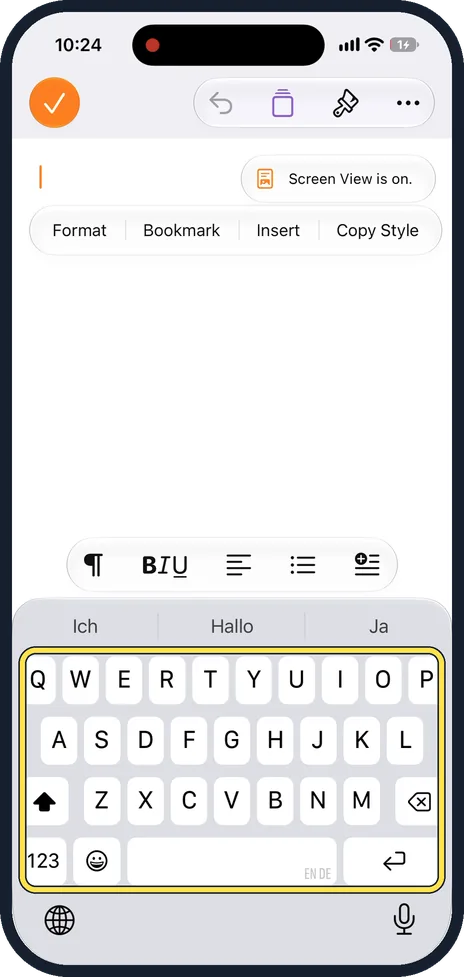
Open the keyboard
Tap into any text so the keyboard appears, here in a new Pages document.
Watch these steps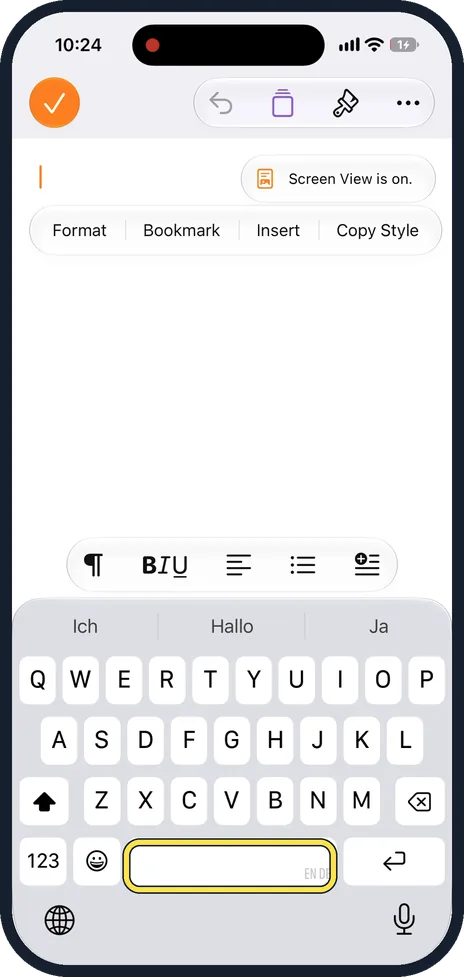
Touch and hold the space bar
Keep your finger on the space bar. After a moment the letters on the keys fade.
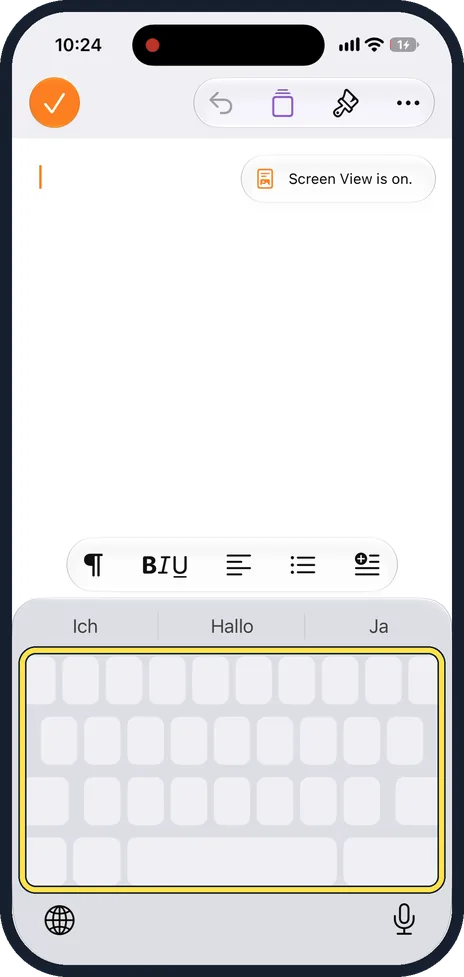
Slide to move the cursor
The keys are now blank: the keyboard is a trackpad. Without lifting your finger, slide in any direction and the cursor follows, line by line.
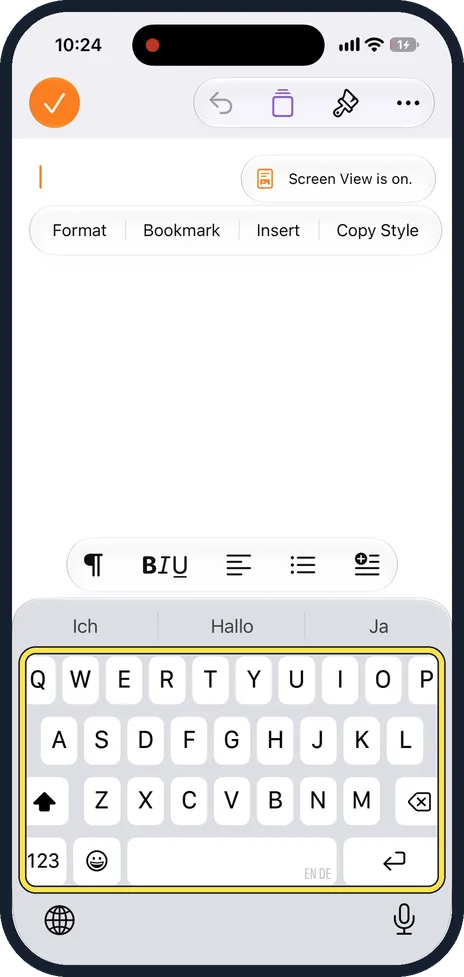
Lift your finger
The cursor stays where it is and the letters come back, so you can type straight away.
Watch these steps
About this guide
Tapping exactly between two letters is hard on a small screen. The space bar trick turns the whole keyboard into a trackpad, so you can put the cursor precisely where you need it. We recorded it in a blank Pages document; it works wherever the iPhone keyboard is open.
The screenshots are our own, taken on an iPhone 14 Pro running iOS 27.0.1. They were recorded over USB in QuickTime.
Good to know
Apple Support describes the same gesture: touch and hold the space bar, then drag your finger to move the cursor.
More keyboard settings: how to turn off keyboard clicks on an iPhone and how to use the one-handed keyboard on an iPhone.
In short: Touch and hold the space bar until the keys go blank, slide to move the cursor, lift your finger.
Links checked in October 2026. Menus and features can change after software updates. These steps match the version named at the top.
📷 See real photos from the iPhone 14 Pro in our Camera Lab, next to 10 other phones.
Did this guide work for you?
Sorry about that. What happened?