
What changed: the screenshots are now our own iPhone 17e on iOS 27.0.1, dark mode, and the wording is checked against those screens and Apple's iOS 27 guide.
howtosimply.com/guides/how-to-turn-on-caps-lock-on-an-iphone/ · Checked October 2026 · iPhone 17e · iOS 27.0.1
In this guide
Double-tap the Shift key on the iPhone keyboard. Apple's guide names this gesture for Caps Lock. If the double tap does nothing, open Settings, General, Keyboard and switch on Enable Caps Lock.
3 of 3 steps with real screenshots · 4 official sources below
- Device
- iPhone
- Shown on
- iOS 27.0.1 (iPhone 17e)
- App
- Settings
- Path
- Settings › General › Keyboard
- Real screenshots
- 3 of 3 steps
- Checked
- October 2026
- Sources
- 4 official, linked below
Step by step
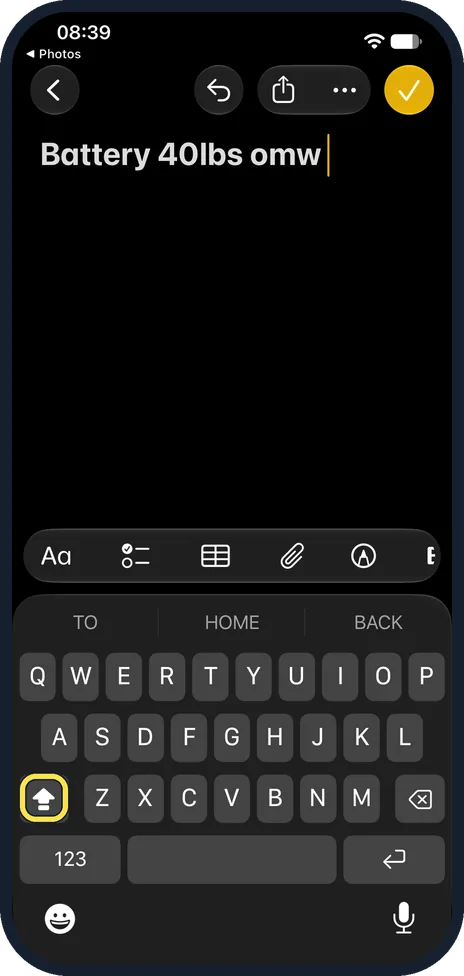
Double-tap the Shift key
In any text field, double-tap Shift. Apple's guide names this gesture for Caps Lock; if it does nothing, go on with step 2.
On our iPhone 17e, after a double tap on Shift the suggestions above the keys turned to capitals (TO, HOME, BACK) and the Shift arrow turned solid white.
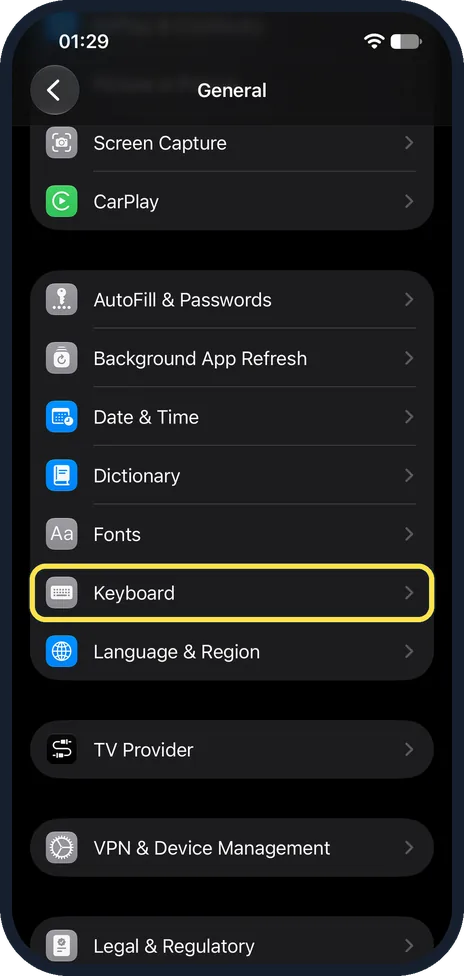
If that does nothing, open Settings, General, Keyboard
Open Settings, tap General, then scroll down and tap Keyboard. On our iPhone 17e it is between Fonts and Language & Region, and the page that opens is titled Keyboards.
Apple's guide also gives a shortcut: while you type, touch and hold the emoji or globe key, then tap Keyboard Settings.
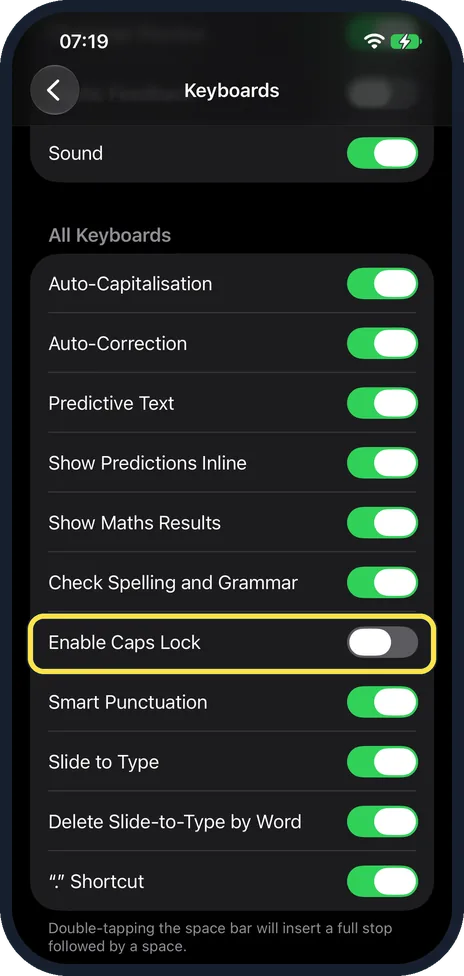
Scroll down to Enable Caps Lock
It is in the list of switches under All Keyboards, below Check Spelling and Grammar and above Smart Punctuation. Switch it on if it is off.
In the picture it is off: a grey switch among green ones. Unlike the "." Shortcut at the end of the same list, it has no note below it that explains what it does.
What changed: the screenshots are now our own iPhone 17e on iOS 27.0.1, dark mode, and the wording is checked against those screens and Apple's iOS 27 guide.
If you do not see this option
- You see no switches on the page. The page title does not tell you where you are: the main keyboard settings page is titled Keyboards too. Go back and scroll down until you see the All Keyboards heading with switches below it, as in step 3. Apple says the typing features are turned on or off there (Apple Support: Type with the onscreen keyboard on iPhone). Source: Type with the onscreen keyboard on iPhone · Source: Adjust the onscreen and external keyboard settings for accessibility on iPhone · Source: Type with the onscreen keyboard on iPhone (iOS 26) · Source: Add or change keyboards on iPhone
- You type with another keyboard app. Apple describes the double tap and the switches for the iPhone's onscreen keyboard. To switch keyboards while you type, touch and hold the emoji or globe key, then tap the keyboard you want (Apple iPhone User Guide: Add or change keyboards on iPhone). Source: Type with the onscreen keyboard on iPhone · Source: Adjust the onscreen and external keyboard settings for accessibility on iPhone · Source: Type with the onscreen keyboard on iPhone (iOS 26) · Source: Add or change keyboards on iPhone
- Your iPhone runs iOS 26. Apple's iOS 26 guide gives the same gesture, double-tap Shift, and the same place for the switches: Settings, General, Keyboard, below All Keyboards (Apple iPhone User Guide: Type with the onscreen keyboard on iPhone (iOS 26)). Source: Type with the onscreen keyboard on iPhone · Source: Adjust the onscreen and external keyboard settings for accessibility on iPhone · Source: Type with the onscreen keyboard on iPhone (iOS 26) · Source: Add or change keyboards on iPhone
If this does not work
- You want the keys to show capitals, not to type them. That is a different setting: in Settings, Accessibility, Keyboards & Typing, Apple says you turn off Show Lowercase Keys so the keyboard shows only uppercase letters (Apple Support: Adjust the onscreen and external keyboard settings for accessibility on iPhone). Source: Type with the onscreen keyboard on iPhone · Source: Adjust the onscreen and external keyboard settings for accessibility on iPhone · Source: Type with the onscreen keyboard on iPhone (iOS 26) · Source: Add or change keyboards on iPhone
- The double tap gives only one capital letter. Check Enable Caps Lock in Settings, General, Keyboard (step 3). On our iPhone 17e it was off. Switch it on, then double-tap Shift again.
About this guide
The iPhone keyboard has no Caps Lock key of its own. One tap on Shift gives a single capital letter. For a whole word in capitals, Apple's user guide names the gesture: double-tap Shift. Settings also has a switch called Enable Caps Lock. On our iPhone 17e it was off.
Screenshots: iPhone 17e, iOS 27.0.1, dark mode.
Good to know
For a single capital letter, tap Shift once, or touch Shift and slide to the letter.
In short: Double-tap Shift. If that does nothing: Settings, General, Keyboard, Enable Caps Lock on.
- Apple Support: Type with the onscreen keyboard on iPhone
- Apple Support: Adjust the onscreen and external keyboard settings for accessibility on iPhone
- Apple iPhone User Guide: Type with the onscreen keyboard on iPhone (iOS 26)
- Apple iPhone User Guide: Add or change keyboards on iPhone
Links checked in October 2026. Menus and features can change after software updates. These steps match the version named at the top.
Did this guide work for you?
Sorry about that. What happened?