
What changed: the screenshots are now our own iPhone 17e on iOS 27.0.1, dark mode, and the wording is checked against those screens.
howtosimply.com/guides/how-to-use-the-one-handed-keyboard-on-an-iphone/ · Checked October 2026 · iPhone 17e · iOS 27.0.1
In this guide
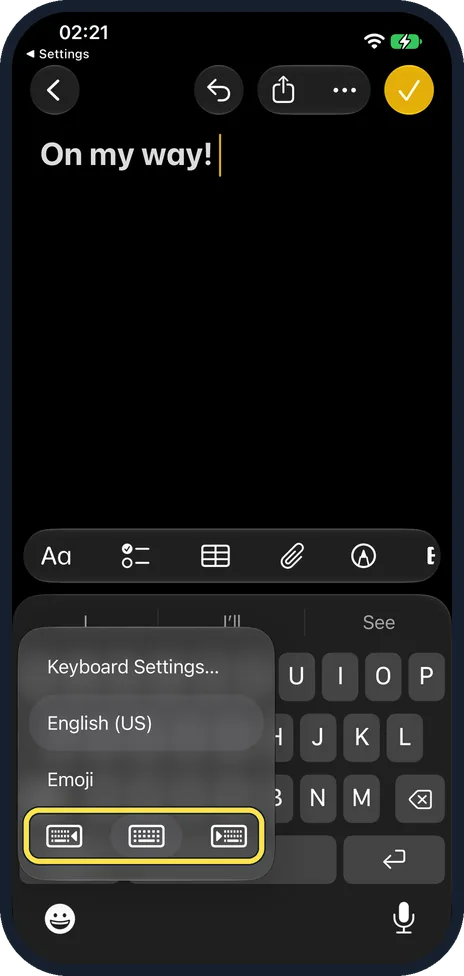
On the keyboard, touch and hold the emoji or globe key and tap one of the keyboard layouts to move the keys to the left or right side. Or open Settings, General, Keyboard, One-Handed Keyboard and choose Left or Right. To centre the keyboard again, tap the right or left edge of the keyboard.
6 of 6 steps with real screenshots · 1 official source below
- Device
- iPhone
- Shown on
- iOS 27.0.1 (iPhone 17e)
- App
- Settings
- Path
- Settings › General › Keyboard › One-Handed Keyboard
- Real screenshots
- 6 of 6 steps
- Checked
- October 2026
- Sources
- 1 official, linked below
Step by step
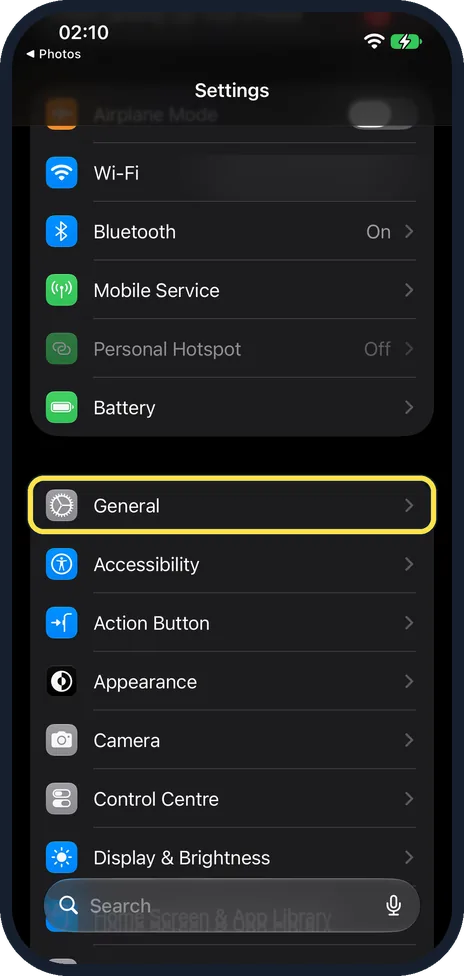
Open Settings and tap General
General is the first row of the group below Battery, after Airplane Mode, Wi-Fi and Bluetooth.
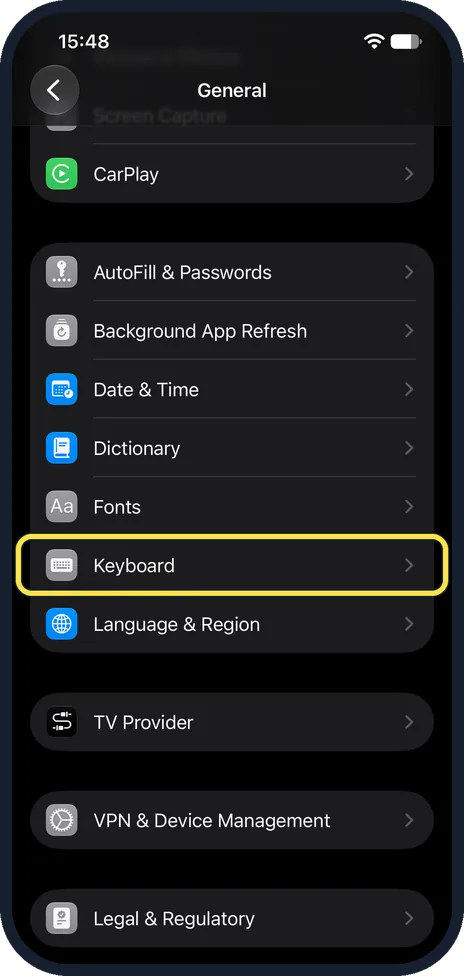
Tap Keyboard
It is just below Fonts, in the group that starts with AutoFill & Passwords.
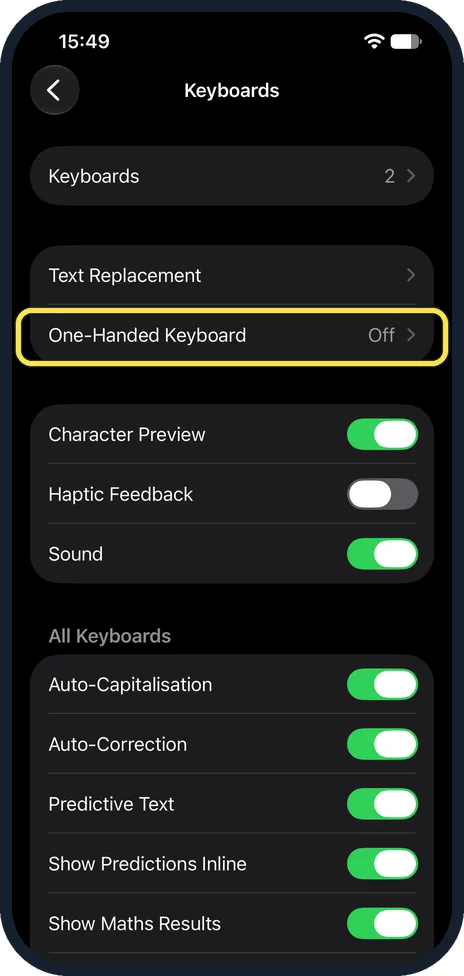
Tap One-Handed Keyboard
It is just below Text Replacement on the Keyboards page and shows Off until you choose a side.
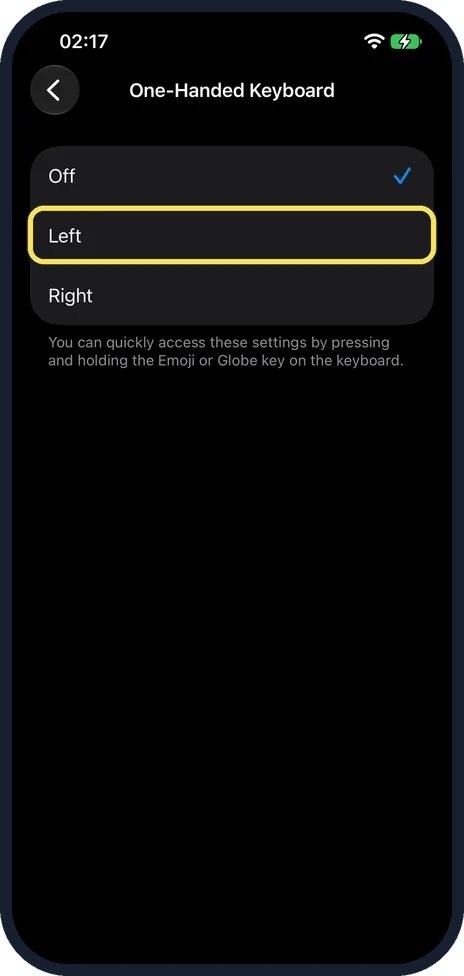
Tap Left or Right
Choose the side of the hand you type with. The note below says you can quickly access these settings by pressing and holding the Emoji or Globe key on the keyboard.
Or switch it from the keyboard
While typing, touch and hold the emoji key, or the globe key if you have more than one keyboard language. The menu ends with three keyboard pictures: left, full width and right. Tap the left or right one.
The keys move to that side
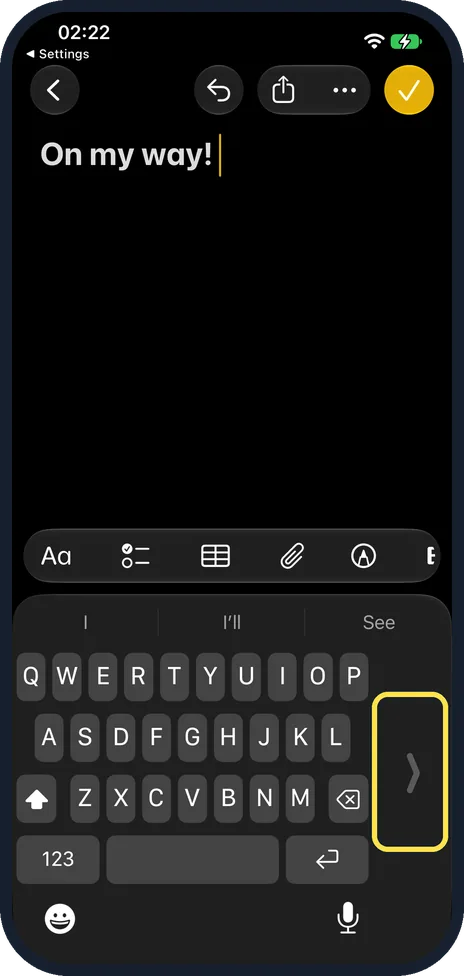
Ours moved to the left, with an arrow on the empty right side. To centre the keyboard again, tap that empty edge.
What changed: the screenshots are now our own iPhone 17e on iOS 27.0.1, dark mode, and the wording is checked against those screens.
If you do not see this option
- You see an emoji key, not a globe key. With one keyboard language you get the emoji key; ours had English (US) and Emoji. Holding it still showed the three keyboard pictures.
- Search for it. Open Settings, tap the search field at the bottom and type One-Handed. Apple notes that the sections in Settings depend on the iPhone model. Source: Find settings on iPhone
If this does not work
- The keyboard is stuck on one side. Tap the empty edge next to the keys, or set One-Handed Keyboard back to Off in Settings. Source: Type with the onscreen keyboard on iPhone
- The emoji keyboard opens instead of the menu. A tap on the emoji key switches to the emoji keyboard. Touch and hold the key until the menu appears. Source: Add emoji, Memoji, and stickers with the iPhone keyboard · Source: Type with the onscreen keyboard on iPhone
About this guide
On a large iPhone, the far side of the keyboard is hard to reach with one thumb. The one-handed keyboard moves the keys closer to your thumb, to the left or to the right side of the screen.
The screenshots are our own, taken on an iPhone 17e running iOS 27.0.1, in dark mode.
Good to know
To centre the keyboard again, tap the right or left edge of the keyboard.
In short: Hold the emoji or globe key and tap a layout. Or: Settings, General, Keyboard, One-Handed Keyboard.
Links checked in October 2026. Menus and features can change after software updates. These steps match the version named at the top.
Did this guide work for you?
Sorry about that. What happened?