
What changed: the screenshots are now our own iPhone 17e on iOS 27.0.1, dark mode, and the wording is checked against those screens.
howtosimply.com/guides/how-to-stop-the-iphone-typing-a-full-stop-after-two-spaces/ · Checked October 2026 · iPhone 17e · iOS 27.0.1
In this guide
Open Settings, tap General, then Keyboard, scroll down and switch off “.” Shortcut. After that, a double tap on the space bar no longer inserts a full stop followed by a space.
If you do not see this option
- Keyboard is not in view Scroll down the General page. On our iPhone, it sits between Fonts and Language & Region.
- The switch is not on the Keyboards page Scroll further down. On our iPhone, “.” Shortcut is the last switch before the Dictation heading.
- You are looking for a row called Full Stop There is none. The switch is named “.” Shortcut, a full stop in quotation marks.
3 of 3 steps with real screenshots · 1 official source below
- Device
- iPhone
- Shown on
- iOS 27.0.1 (iPhone 17e)
- App
- Settings
- Path
- Settings › General › Keyboard
- Real screenshots
- 3 of 3 steps
- Checked
- October 2026
- Sources
- 1 official, linked below
Step by step
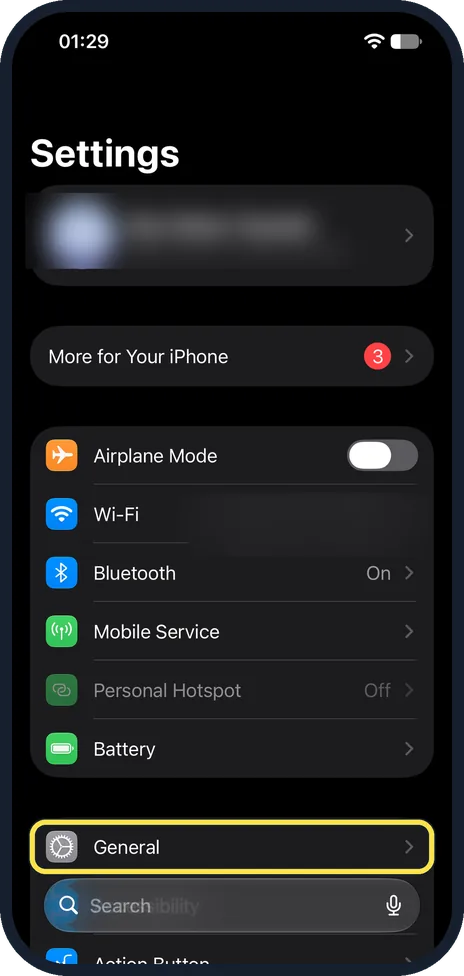
Open Settings and tap General
Scroll down the main Settings list. On our iPhone, General is the first row of the group below Battery.
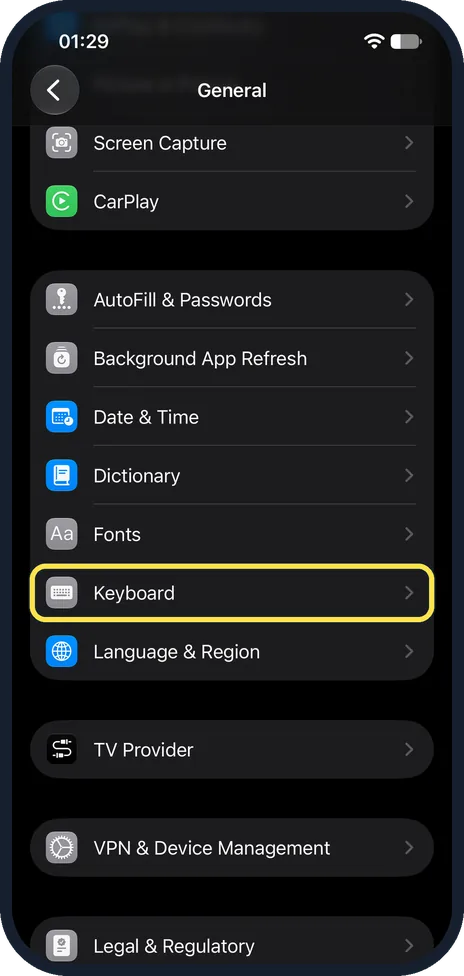
Tap Keyboard
Scroll down the General page if needed. On our iPhone, Keyboard is between Fonts and Language & Region.
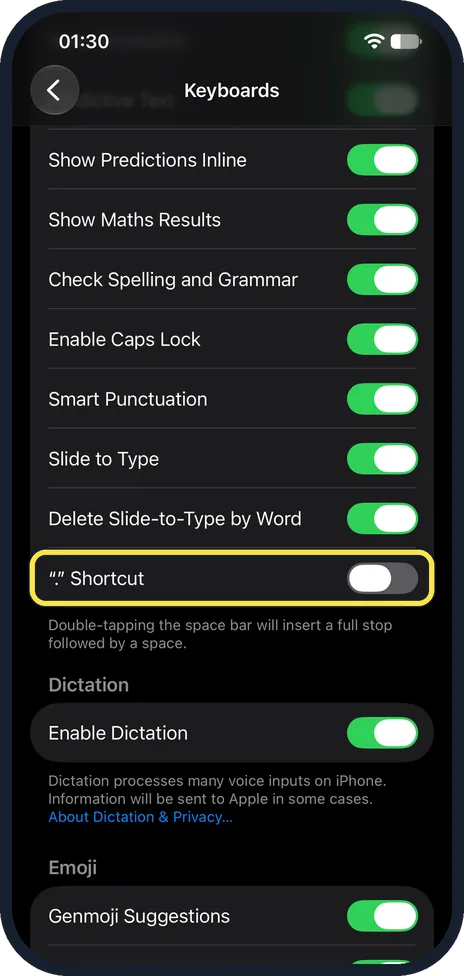
Scroll down and switch off “.” Shortcut
It is the last switch in the group, below Delete Slide-to-Type by Word. The note below it reads: Double-tapping the space bar will insert a full stop followed by a space.
On our iPhone, the switch turns grey when it is off.
What changed: the screenshots are now our own iPhone 17e on iOS 27.0.1, dark mode, and the wording is checked against those screens.
If this does not work
- A full stop still appears Go back to Keyboards and check that the “.” Shortcut switch is grey, not green.
- Other punctuation still changes as you type That is set by separate switches on the same Keyboards page, such as Smart Punctuation. On our iPhone, Smart Punctuation is on.
About this guide
On a new iPhone, a double tap on the space bar inserts a full stop followed by a space. That is quick at the end of a sentence, and a nuisance when you want two spaces or type quickly. The switch for it has an unusual name: a full stop in quotation marks.
On our iPhone, the row in General is called Keyboard, but the page it opens is headed Keyboards.
Good to know
To get the shortcut back, switch it on again in the same place.
Other automatic changes are on the same page: how to turn off autocorrect on iPhone.
In short: Settings, General, Keyboard, “.” Shortcut off.
Links checked in October 2026. Menus and features can change after software updates. These steps match the version named at the top.
Did this guide work for you?
Sorry about that. What happened?