GOOGLE PIXEL
How to set a data warning and limit on a Google Pixel (Android 17)
Open Settings, Network and Internet, SIMs, your SIM, then Data warning and limit. Turn on Set data warning and choose an amount, and turn on Set data limit to stop mobile data at a set amount. App data usage on the same SIM page shows which apps used data.

7 of 7 steps show a real screenshot from our Pixel 10a. Each step was checked against the maker's own instructions, linked at the end.
Steps
- 1
Open your SIM
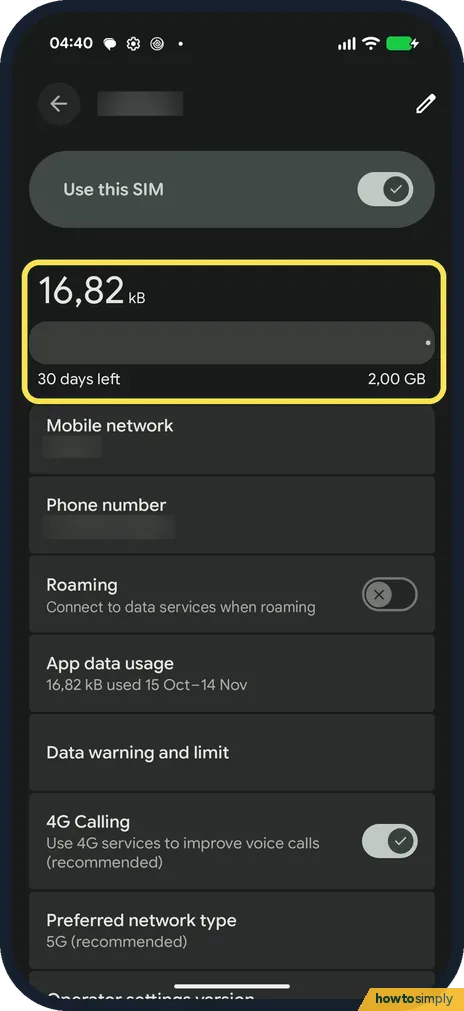
Go to Settings, Network and Internet, SIMs, and tap your SIM. The top shows the data used: 16.82 kB of a 2.00 GB warning on ours, with 30 days left.
- 2
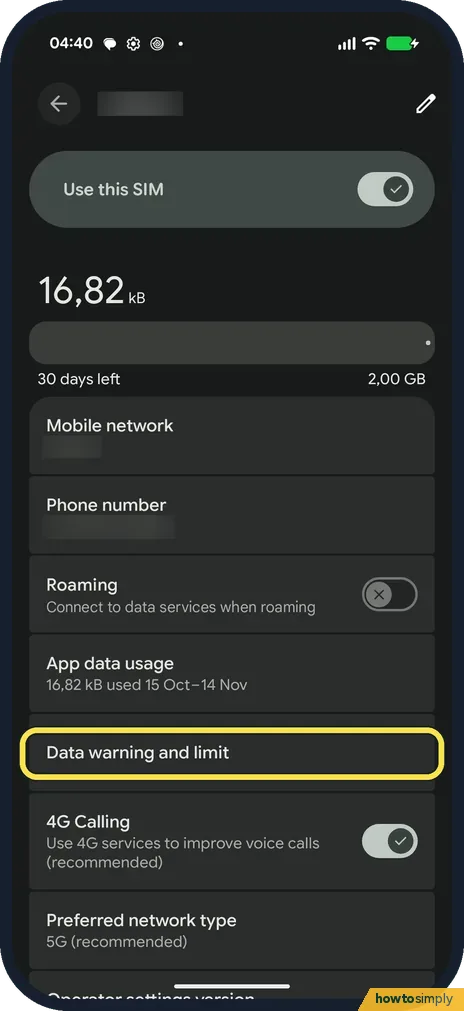
Tap Data warning and limit
Further down, tap Data warning and limit.
- 3
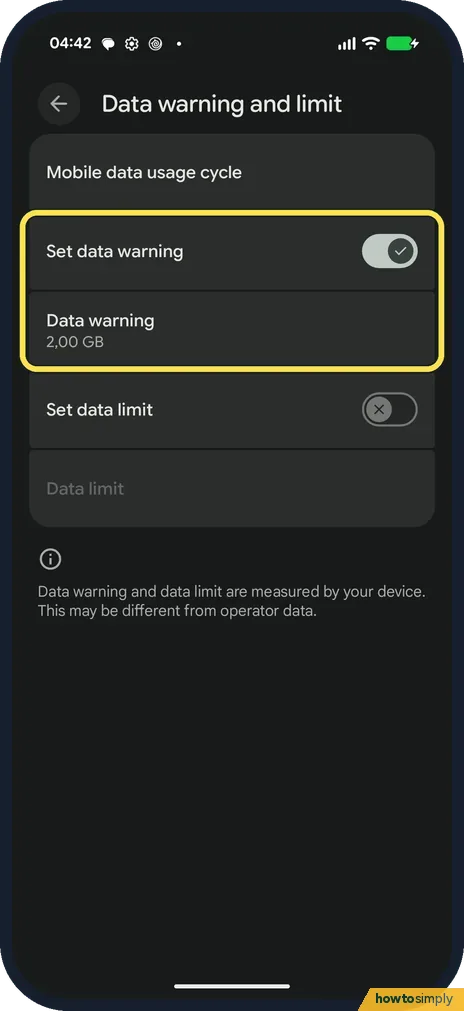
Set a warning
Turn on Set data warning and tap Data warning to choose the amount. Ours was 2.00 GB.
- 4
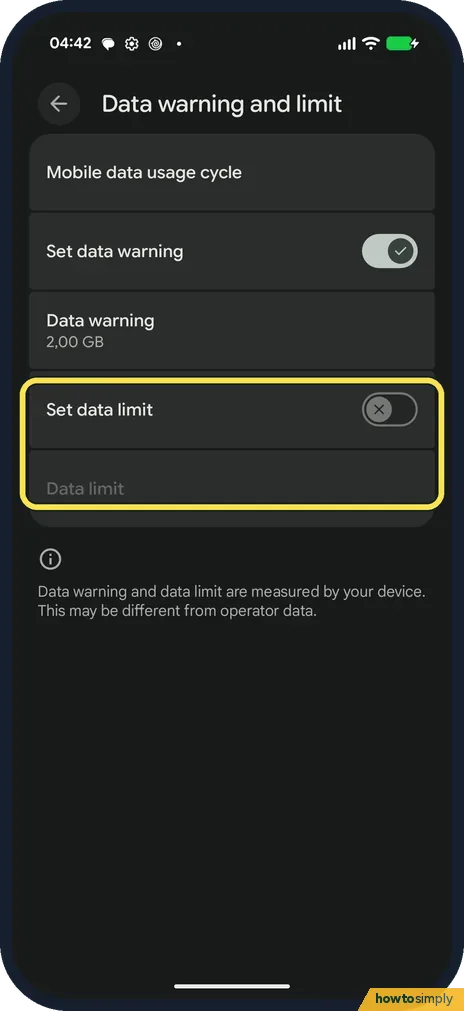
Set a limit
Turn on Set data limit and choose Data limit. It was off on ours. The page notes that your phone's count may differ from your operator's.
- 5
See which apps used data
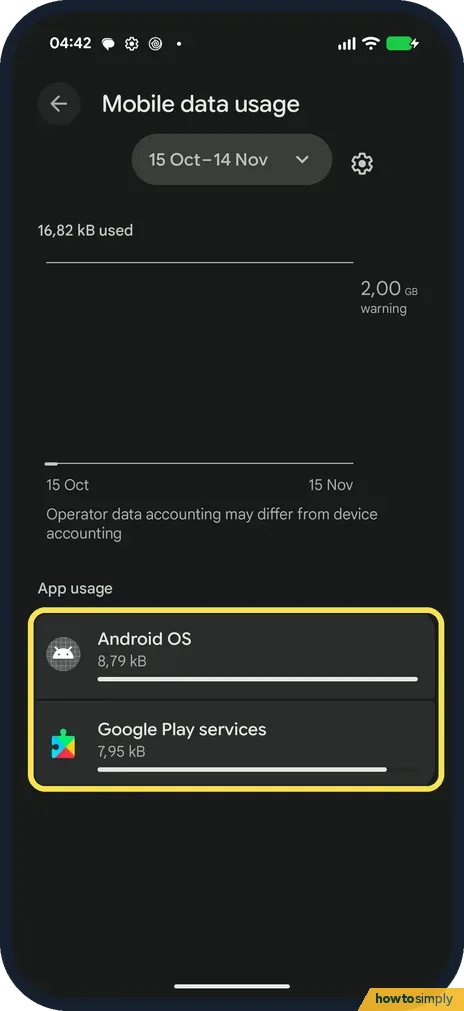
Back on the SIM page, tap App data usage. The Mobile data usage page opens. Ours showed the 15 Oct-14 Nov cycle, with Android OS and Google Play services.
- 6
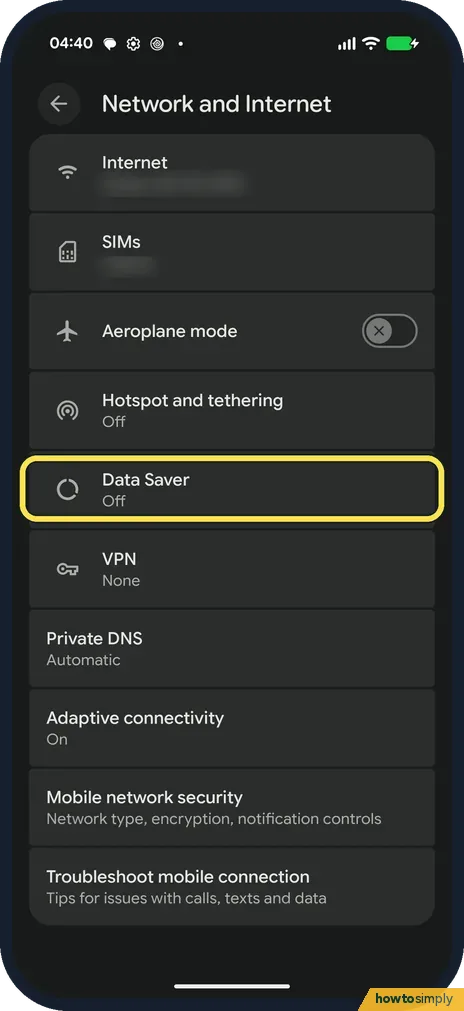
Open Data Saver
In Settings, Network and Internet, tap Data Saver. It said Off on ours.
- 7
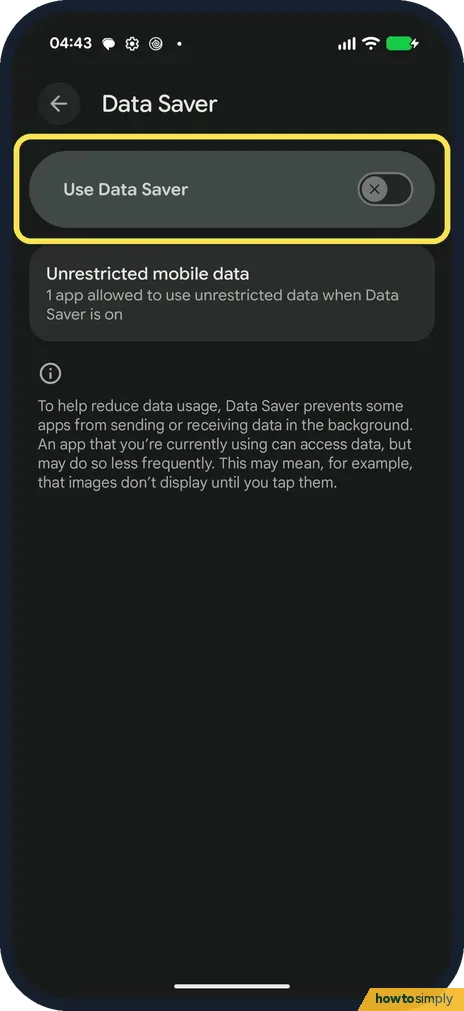
Turn on Data Saver
Turn on Use Data Saver. It was off on ours; Unrestricted mobile data lists apps allowed to keep using data.
If you do not see this option
- Can't find Data warning and limit? It is on your SIM's own page, not in Network and Internet. Ours had it below App data usage. Source: Reduce and manage mobile data usage
- Menus named differently? Google says steps differ by Android version and phone maker. Source: Reduce and manage mobile data usage
If this does not work
- Cycle starts on the wrong day? Tap Mobile data usage cycle on Data warning and limit.
- Mobile data turned off by itself? You reached the data limit. Google says you get a notification when that happens.
- Numbers differ from your carrier's? The screens say operator data accounting may differ from the phone's.
- Need data again after hitting the limit? Google says to go back to Data warning and limit and turn off Set data limit. Mobile data then works again; set a new, higher limit afterwards if you still want one.
- One app using too much in the background? Google says background data can be restricted per app. Open the app's settings and turn off its background data: how to stop an app using background data.
Good to know
Mobile data problems: Pixel mobile data not working.
When you reach the warning, you get a notification and nothing else changes. When you reach the limit, mobile data turns off by itself, and Google notes that some features stop working while mobile data is off. Wi-Fi still works, so apps can sync and update when you get home. Calls and SMS text messages use the mobile network, not mobile data, so they still work.
Data Saver, on the same Network and Internet page, works more gently. Google says it lets most apps use background data only over Wi-Fi, while apps you are using can still use mobile data: how to use Data Saver on a Google Pixel.
About this guide
- Device
- Android
- Shown on
- Google Pixel 10a, Android 17 (build CP3A.260905.009)
- App
- Settings
- Path
- Settings › Network and Internet › SIMs
- Real screenshots
- 7 of 7 steps
- What we did
- Observed: looked at each screen, changed nothing
- Checked
- October 2026
- Sources
- 2 official, linked below
Sources
Links checked October 2026. Menus and features can change with updates.Spotted a mistake? Menus change with updates, and we want every step to match your screen. Email us about this page or use the contact form. We read every report, and fixes are listed on What changed.
Liked this guide?
Follow us for new guides and short how-to videos.
Did this guide work for you?
Sorry about that. What happened?