GOOGLE PIXEL
How to start a Google Pixel in safe mode (Android 17)

In short
Swipe down twice, tap the power icon at the bottom right, then touch and hold Power off until Reboot to safe mode appears, and tap OK. In safe mode the apps you installed are switched off. Restart the phone normally to leave safe mode.
3 of 3 steps show a real screenshot from our Pixel 10a. Each step was checked against the maker's own instructions, linked at the end.
Steps
- 1
Open the power menu
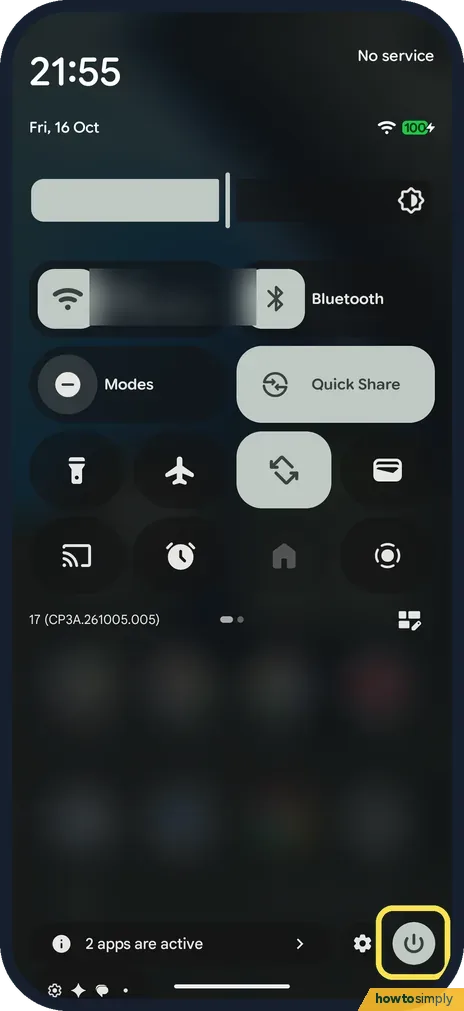
Swipe down twice from the top of the screen to open Quick Settings and tap the power icon at the bottom right. Pressing and holding the side button doesn't work on a Pixel set to open the assistant.
- 2
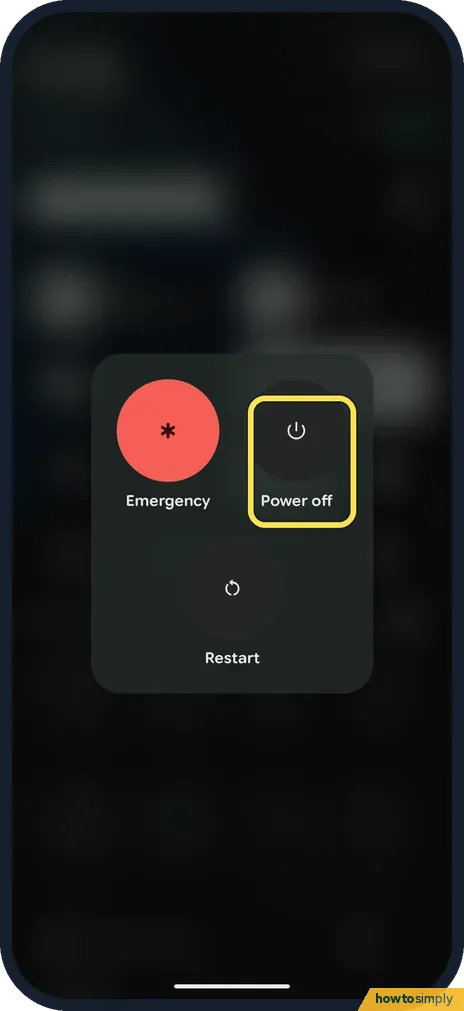
Touch and hold Power off
The menu shows Emergency, Power off and Restart. Touch and hold Power off; don't just tap it.
- 3
Tap OK
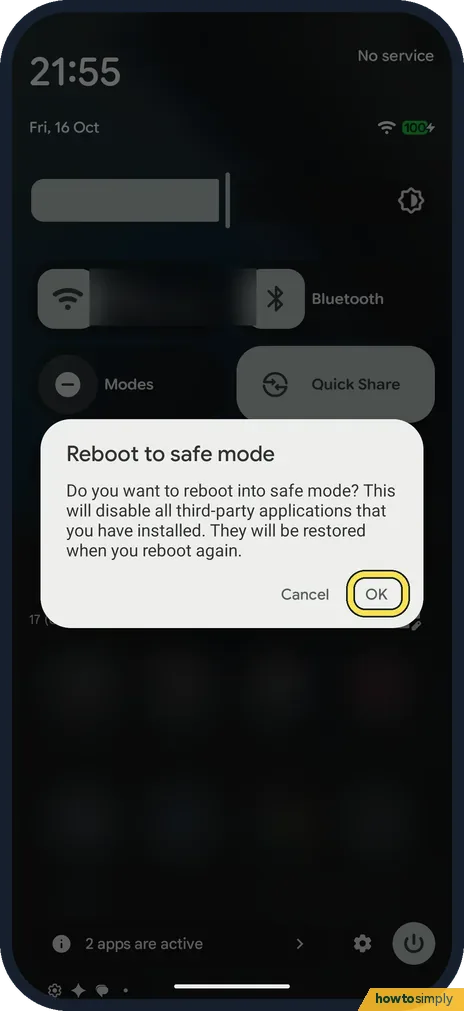
Reboot to safe mode asks if you want to reboot into safe mode, which disables all third-party apps until you reboot again. Google warns that safe mode removes some Home screen widgets, so if you use widgets, take a screenshot of your Home screen first to help you put them back. Then tap OK. When the phone restarts, Google says Safe mode shows at the bottom of the screen and Airplane mode is on: turn Airplane mode off to use Wi-Fi, calls or GPS while you test.
If you do not see this option
- Phone already off or frozen? Google gives a button route: turn the phone off, press the power button, and when the animation starts, press and hold Volume down until safe mode starts. We did not try it. Source: Find problem apps by rebooting to safe mode
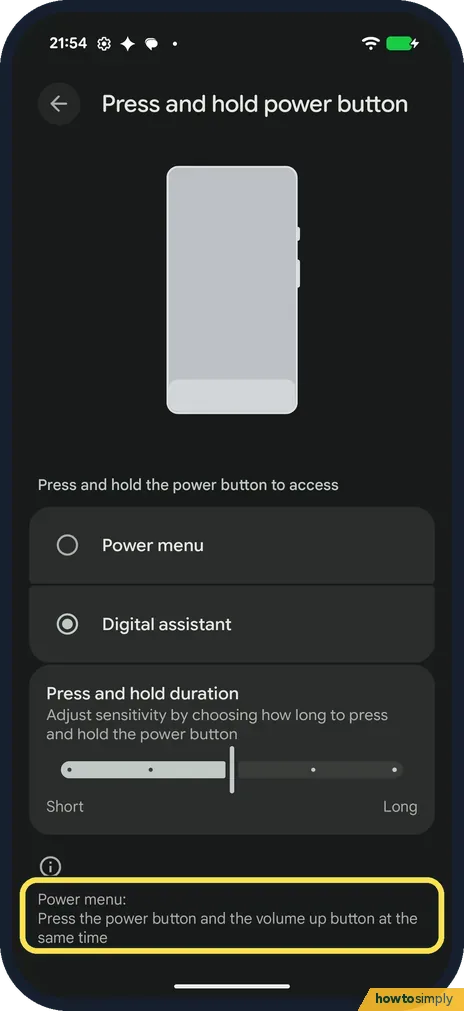
- Power button opens Gemini? On our Pixel, Settings, System, Gestures, Press and hold power button was set to Digital assistant. The page says the power menu is then Power and Volume up together.
If this does not work
- How do I leave safe mode? Restart the phone. Google says on a Pixel 6 or later, press and hold Power and Volume up for a few seconds, then tap Restart. See also how to turn off or restart a Google Pixel.
- Problem gone in safe mode? Google says to remove recently downloaded apps one by one, restarting normally after each, until the problem is gone. Then reinstall the others.
- Still there in safe mode? It is not one of your apps. Check for a system update, or scan with Play Protect.
- Widgets gone after safe mode? Google says safe mode removes some home screen widgets. You can add them back after you leave: how to add a widget to the home screen.
- Restart didn't leave safe mode? Use the full restart Google describes for your model. On a Pixel 5a or earlier, hold Power for about 30 seconds, or until the phone restarts. On a Pixel 6 or later, hold Power and Volume up, then tap Restart.
Good to know
Google says Safe mode shows at the bottom of the screen and Airplane mode turns on by itself. Turn Airplane mode off to use Wi-Fi, calls or GPS while you test.
On a Samsung Galaxy: how to start a Samsung Galaxy in Safe mode.
Safe mode is only a test. It does not delete apps, photos or messages, and your downloaded apps come back as soon as you restart normally. While it is on, you cannot use those apps, so notifications from WhatsApp, banking or other installed apps will not arrive until you leave. If you remove an app during testing, you can reinstall it from Google Play afterwards; some apps lose their sign-in or settings when uninstalled, so back up first where the app allows it.
If a problem stays even in safe mode, a system update may fix it: how to update a Google Pixel and its apps.
About this guide
- Device
- Android
- Shown on
- Google Pixel 10a, Android 17 (build CP3A.261005.005)
- App
- Settings
- Real screenshots
- 3 of 3 steps
- Checked
- October 2026
- Sources
- 1 official, linked below
Sources
Links checked October 2026. Menus and features can change with updates.Spotted a mistake? Menus change with updates, and we want every step to match your screen. Email us about this page or use the contact form. We read every report, and fixes are listed on What changed.
Liked this guide?
Follow us for new guides and short how-to videos.
Did this guide work for you?
Sorry about that. What happened?