GOOGLE PIXEL
How to set up Bedtime mode on a Google Pixel (Android 17)

In short
Open Settings, Digital Wellbeing and tap Bedtime mode under Ways to disconnect. Set the Start and End times and the days, then pick Use a schedule or Turn on while charging, and tap Done. Ours suggested 23:00 to 07:00.
4 of 4 steps show a real screenshot from our Pixel 10a. Each step was checked against the maker's own instructions, linked at the end.
Steps
- 1
Open Digital Wellbeing
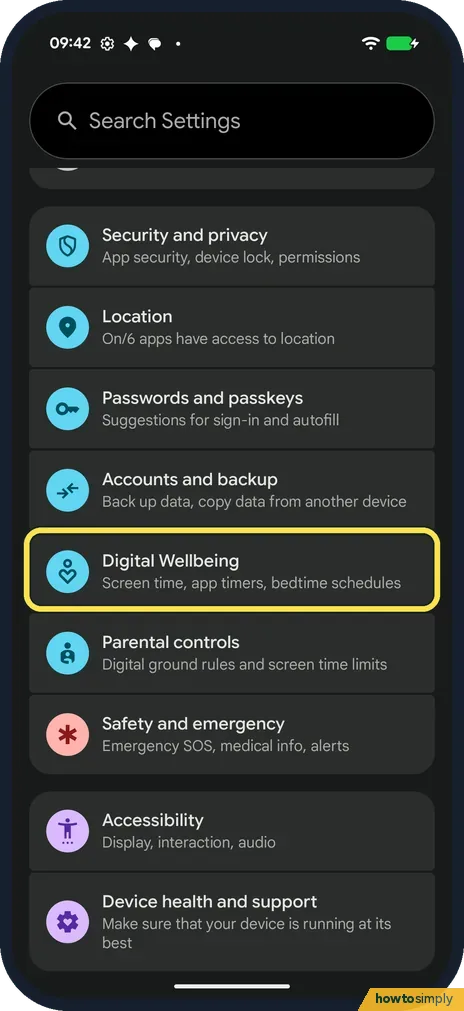
Open Settings and scroll down. On our Android 17 Pixel, Digital Wellbeing has its own row, just above Parental controls: Screen time, app timers, bedtime schedules. Tap it.
- 2
Tap Bedtime mode
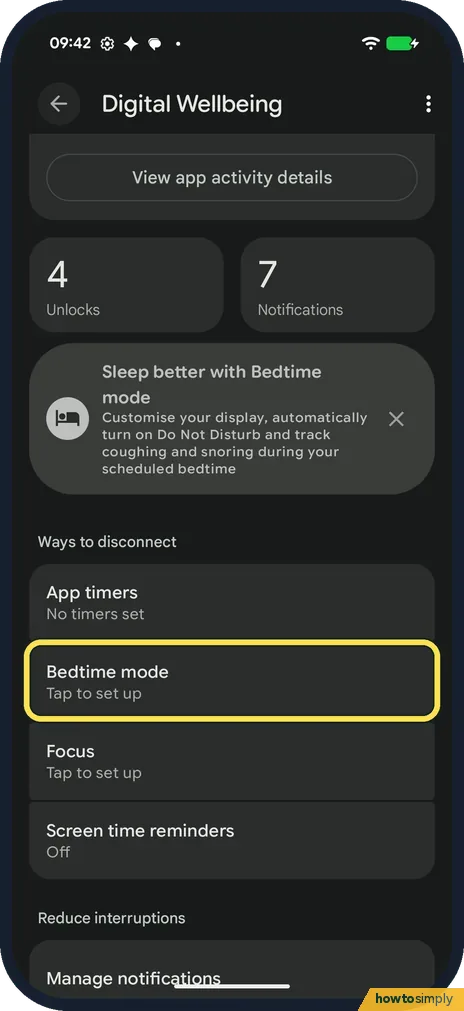
Scroll down to Ways to disconnect. Bedtime mode is the second row, below App timers. Ours said Tap to set up. Tap it.
- 3
Set the times, days and start
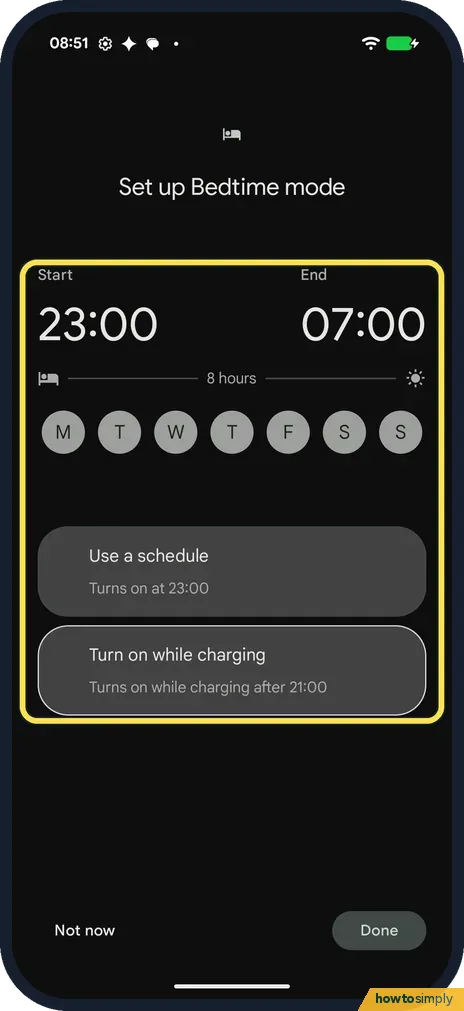
Set up Bedtime mode opens. Ours suggested Start 23:00 and End 07:00, 8 hours, with the days M to S below. Google says you set the start and end times and your preferred days. Then pick how it starts: Use a schedule (Turns on at 23:00 on ours) or Turn on while charging (Turns on while charging after 21:00). Tap Done, at the bottom right, to save. Google says you are then asked to allow access to app usage and sensor data. Not now, at the bottom left, closes it without saving; we tapped that.
- 4
Or start from Modes
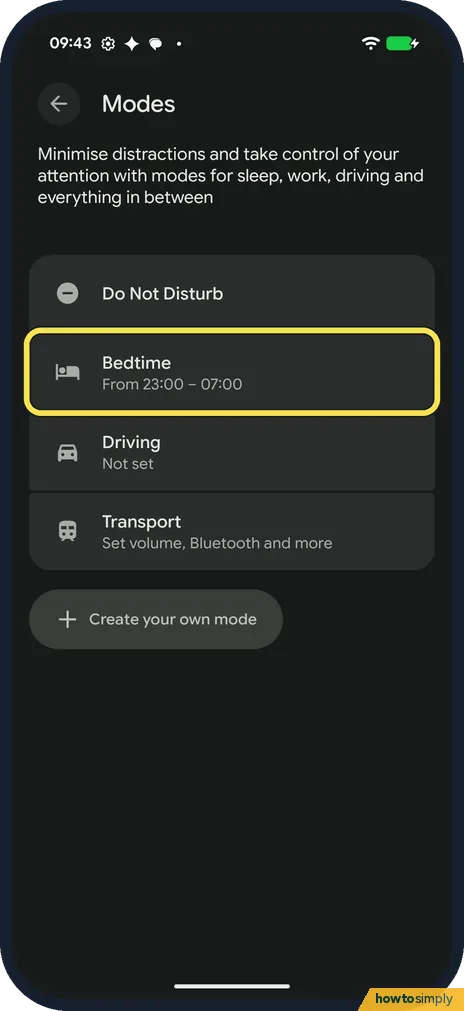
Google also gives Settings, Modes, Bedtime, Set up Bedtime. On ours the Modes page listed Bedtime with From 23:00 - 07:00 under it, although we had not saved a schedule. Tap Bedtime to open it.
If you do not see this option
- Digital Wellbeing and parental controls? Google's Android help gives Settings, Digital Wellbeing, Bedtime mode, Bedtime routine, and says the steps may vary by device. Ours went straight to Set up Bedtime mode, because it was not set up yet. Source: Manage how you spend time on your Android phone with Digital Wellbeing
- Set it from the Clock app? Google says the Clock app's Bedtime tab has a schedule card for your bedtime and days, plus a wake-up alarm. Source: Set a bedtime schedule
- Want a reminder before bed? Google says the Clock app's Bedtime tab has a Reminder notification, to remind you when it is nearly bedtime. Source: Set a bedtime schedule
If this does not work
- Want it on or off right now? Google says to use Quick Settings to turn Bedtime mode on and off quickly.
- Still on in the morning? Google says it turns off at your next alarm. With no alarm set, it turns off at the scheduled time or when you stop charging, depending on your routine.
- Alarms or calls silenced? Google says notification filters in Modes let you allow or block alarms, calls and messages. See how to use Do Not Disturb and modes.
Good to know
Google lists screen options for bedtime: Grayscale, Keep the screen dark (no always-on display), Dim the wallpaper and Dark theme.
To limit apps in the day instead, see how to see screen time and set app timers. For a warmer screen at night, see how to use Night Light.
Google says Recent bedtime activity, on the Clock app's Bedtime tab, estimates your time in bed from when the phone stayed still in a dark room; it needs the Digital Wellbeing app. To erase that usage, sensor and time zone data, tap More next to Recent bedtime activity, then Manage data.
About this guide
- Device
- Android
- Shown on
- Google Pixel 10a, Android 17 (build CP3A.261005.005)
- App
- Settings
- Path
- Settings › Digital Wellbeing › Bedtime mode: Start and End
- Real screenshots
- 4 of 4 steps
- Checked
- October 2026
- Sources
- 3 official, linked below
Sources
Links checked October 2026. Menus and features can change with updates.Spotted a mistake? Menus change with updates, and we want every step to match your screen. Email us about this page or use the contact form. We read every report, and fixes are listed on What changed.
Liked this guide?
Follow us for new guides and short how-to videos.
Did this guide work for you?
Sorry about that. What happened?