
howtosimply.com/guides/how-to-start-a-samsung-galaxy-in-safe-mode/ · Checked October 2026 · SM-S942N, Korean model), One UI 9, Android 17 (build S942NKSS4BZIG · Samsung Galaxy S26
In this guide
Swipe down from the top right, tap the power icon, touch and hold Power off, then tap the green Safe mode button. To leave, tap the Safe mode is on notification and Turn off, or restart. On our S26, Airplane mode stayed on afterwards.
7 of 7 steps with real screenshots · 1 official source below
- Device
- Android
- Shown on
- Samsung Galaxy S26 (SM-S942N, Korean model), One UI 9, Android 17 (build S942NKSS4BZIG)
- Starts in
- Quick Settings
- Real screenshots
- 7 of 7 steps
- Checked
- October 2026
- Sources
- 1 official, linked below
Step by step
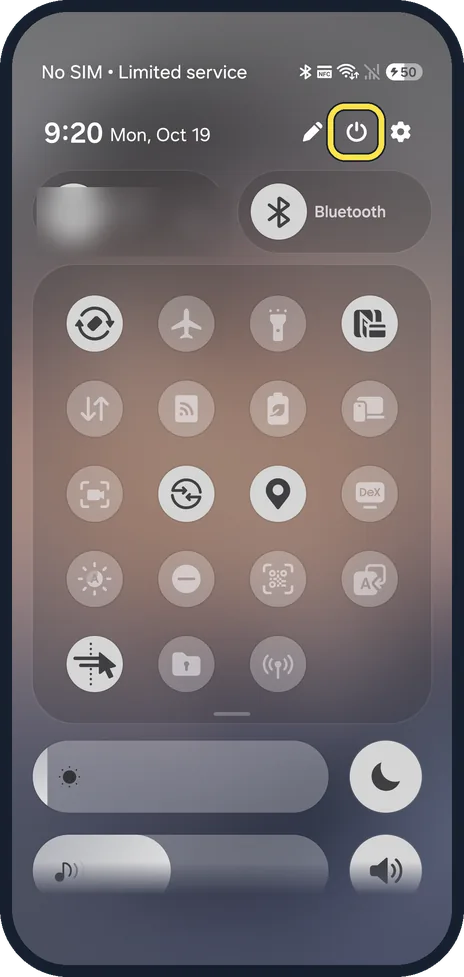
Open the power menu
Swipe down from the top right of the screen to open the quick panel and tap the power icon at the top, next to the pencil.
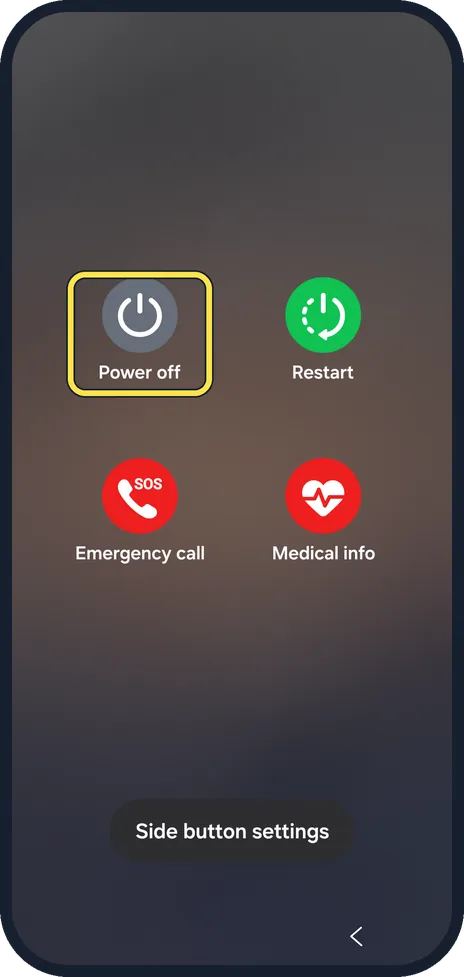
Touch and hold Power off
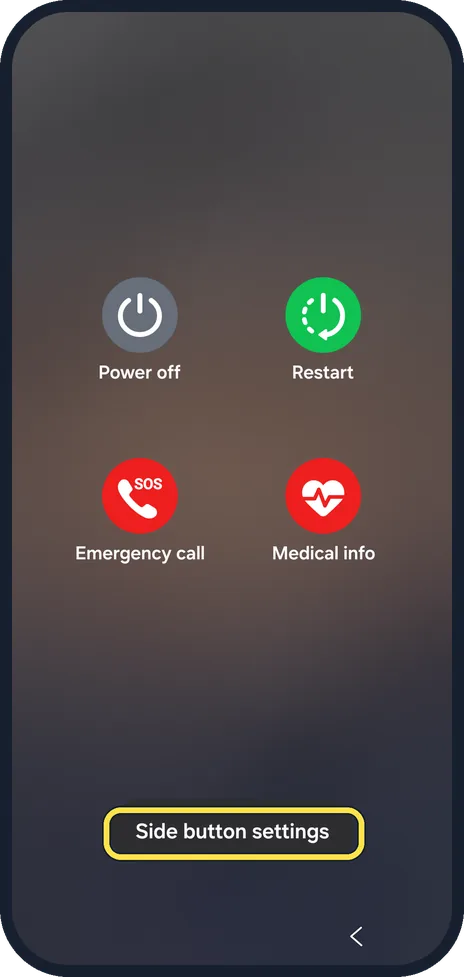
The menu shows Power off, Restart, Emergency call and Medical info. Touch and hold Power off; a short tap only asks to switch the phone off.
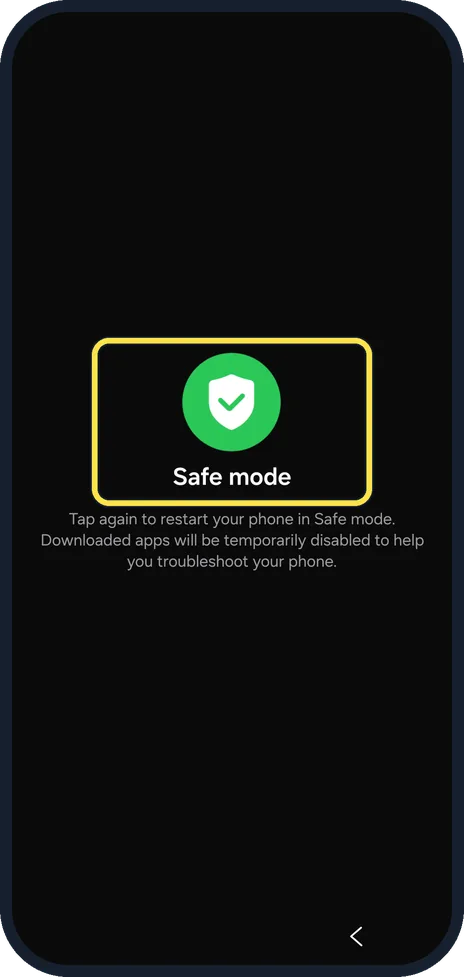
Tap Safe mode
A green Safe mode button appears. The text says to tap again to restart in Safe mode and that downloaded apps will be temporarily disabled. Tap it.
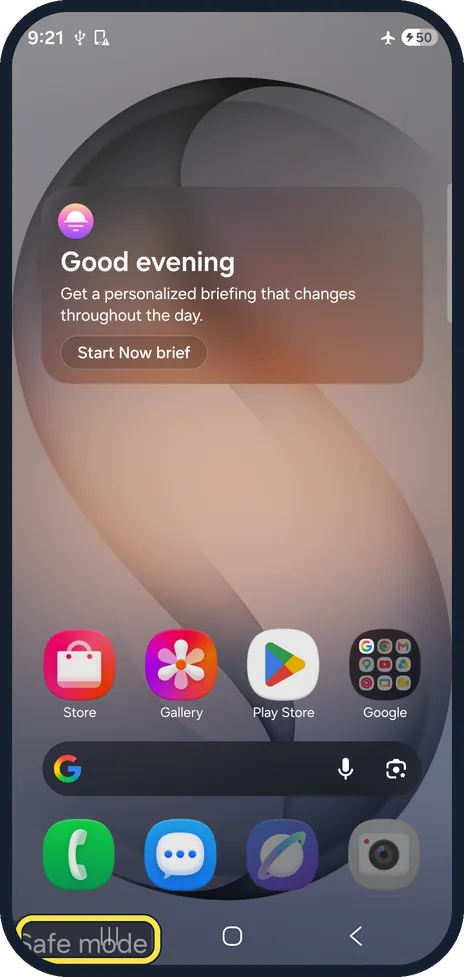
Check for Safe mode in the corner
The phone restarts. Safe mode shows at the bottom left of the lock screen and Home screen. Now try what was going wrong.
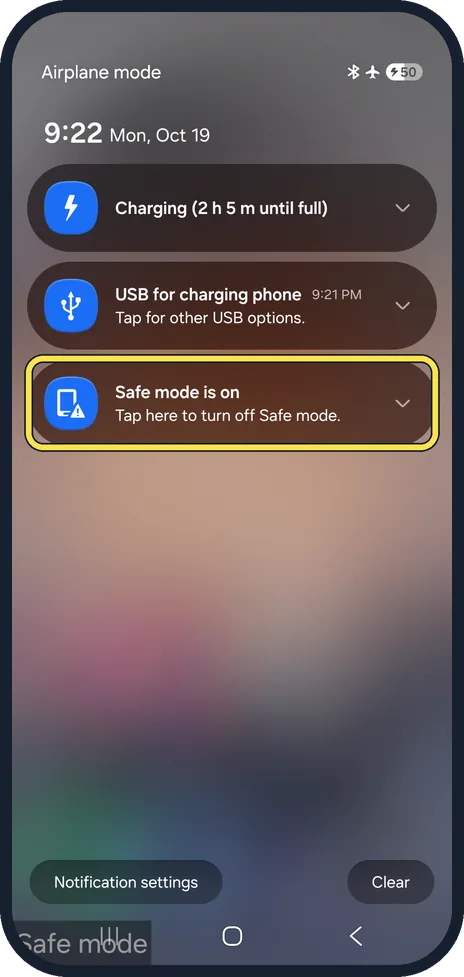
Tap the Safe mode is on notification
To leave, swipe down from the top of the screen. Below the charging and USB notifications, tap Safe mode is on.
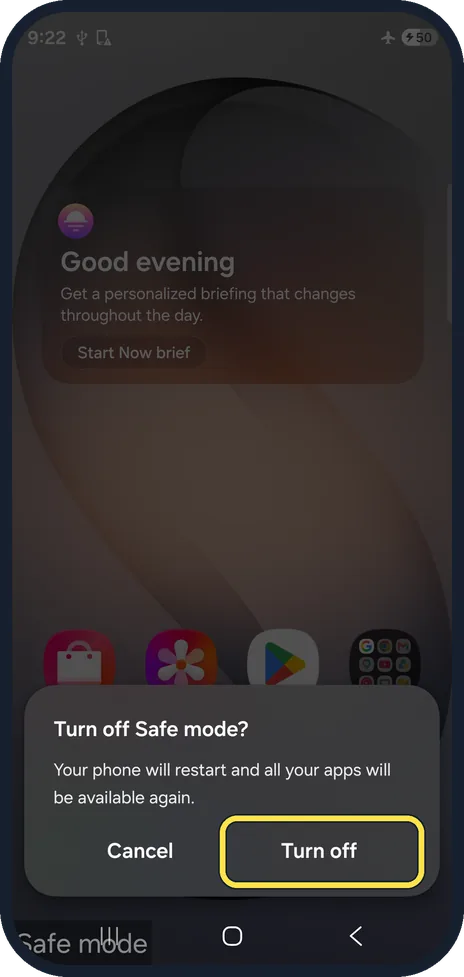
Tap Turn off
Turn off Safe mode? says the phone will restart and all your apps will be available again. Tap Turn off.
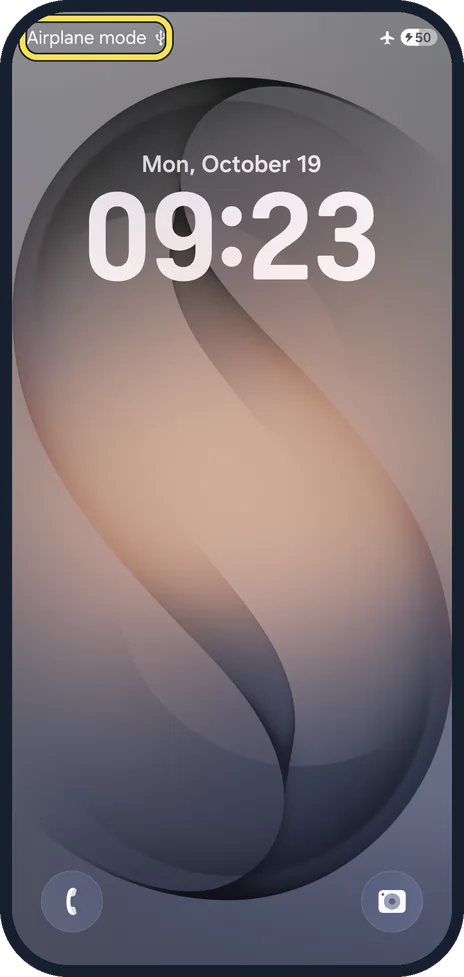
Turn Airplane mode off again
On our S26, Airplane mode came on in Safe mode and was still on after the normal restart: the lock screen said Airplane mode at the top. Swipe down and tap the Airplane mode button to turn it off, or Wi-Fi and calls stay off.
If you do not see this option
- Side button opens an assistant instead? Samsung also gives Side button and Volume down pressed together for the power menu. If your Side button opens Bixby or another assistant, use the power icon in the quick panel. The Side button settings button at the bottom of the power menu changes what the button does. Source: Power on your Galaxy phone or tablet in Safe mode
- Phone won't get to the Home screen? Samsung says to switch it off completely, switch it on and press and hold Volume down when the Samsung logo appears. Safe mode then shows at the bottom left; if it doesn't, repeat. We did not try this route. Source: Power on your Galaxy phone or tablet in Safe mode
If this does not work
- Problem gone in Safe mode? Then an app you installed is the likely cause. Samsung says to start by removing apps that were updated or installed when the problem started, then restart normally. Source: Power on your Galaxy phone or tablet in Safe mode
- Problem still there in Safe mode? It is not one of your downloaded apps. Check for a software update and see Samsung Galaxy keeps restarting? 7 things to check.
- No Wi-Fi or mobile data after leaving Safe mode? Look for the plane icon at the top right. On ours, Airplane mode stayed on after Safe mode until we turned it off.
About this guide
Safe mode tells you if an app you installed is behind crashes, freezes or a fast-draining battery. Samsung says that in Safe mode the phone doesn't run any third-party apps, so if the problem stops, an app is to blame.
The screenshots are from our Samsung Galaxy S26, the Korean model SM-S942N, with One UI 9 and Android 17 (build S942NKSS4BZIG), in Dark mode. Menus can differ on models sold in other regions. We started Safe mode and left it again; each restart took about 30 seconds.
Good to know
Apps closing by themselves? Apps keep crashing or closing on a Samsung Galaxy.
On a Google Pixel the route is different: how to start a Google Pixel in safe mode.
In short: Quick panel, power icon, touch and hold Power off, Safe mode. Leave: Safe mode is on notification, Turn off; then Airplane mode off.
Links checked in October 2026. Menus and features can change after software updates. These steps match the version named at the top.
Did this guide work for you?
Sorry about that. What happened?