
What changed: every step re-shot on our own Galaxy S26 (Korean model SM-S942N) on One UI 9, dark mode, with the steps rewritten for the One UI 9 screens.
howtosimply.com/guides/how-to-use-do-not-disturb-on-a-samsung-galaxy-phone/ · Checked October 2026 · SM-S942N, Korean model), One UI 9, Android 17 (build S942NKSS4BZIG · Samsung Galaxy S26
In this guide
Open Settings, Notifications, Do not disturb and switch it on, then choose how long. Under Schedule, switch on Sleeping or tap Add schedule. Allowed during Do not disturb lets chosen calls, messages, apps and alarms through.
7 of 7 steps with real screenshots · 1 official source below
- Device
- Android
- Shown on
- Samsung Galaxy S26 (SM-S942N, Korean model), One UI 9, Android 17 (build S942NKSS4BZIG)
- App
- Settings
- Path
- Settings › Notifications
- Real screenshots
- 7 of 7 steps
- Checked
- October 2026
- Sources
- 1 official, linked below
Step by step
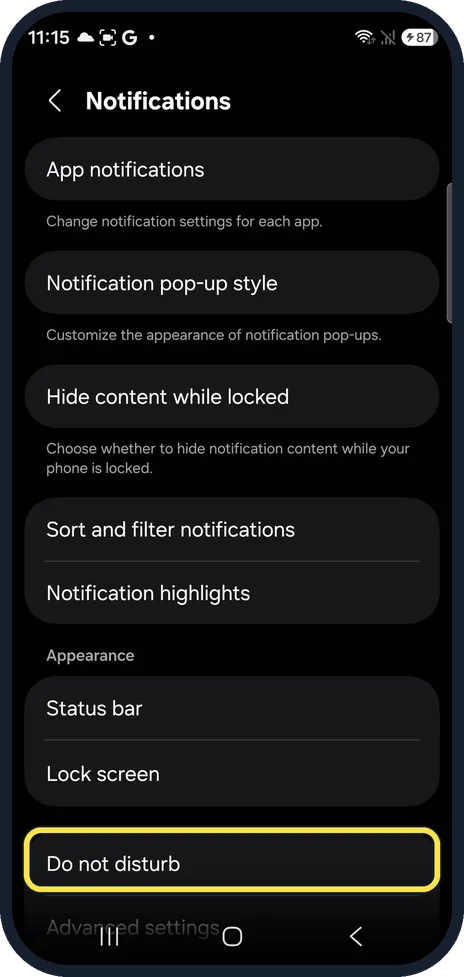
Open Do not disturb
Open Settings, tap Notifications and scroll down to Do not disturb.
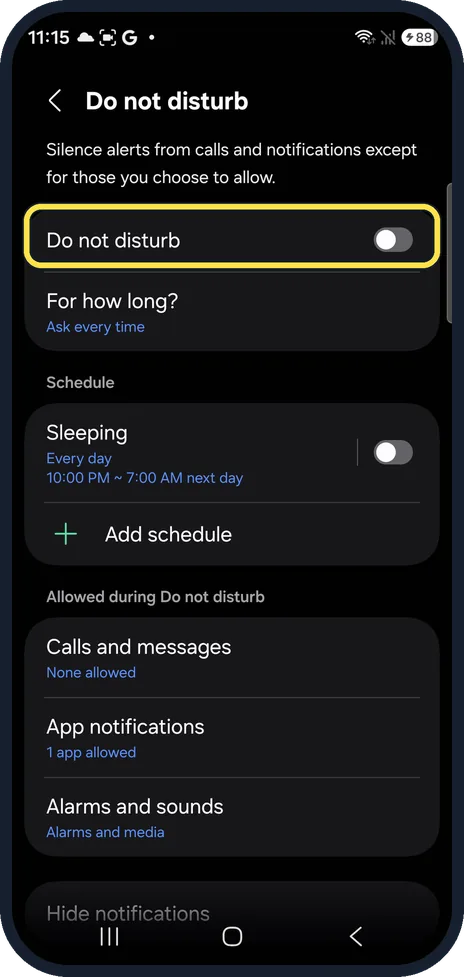
Switch it on
Tap the Do not disturb switch. For how long? below it was set to Ask every time on ours.
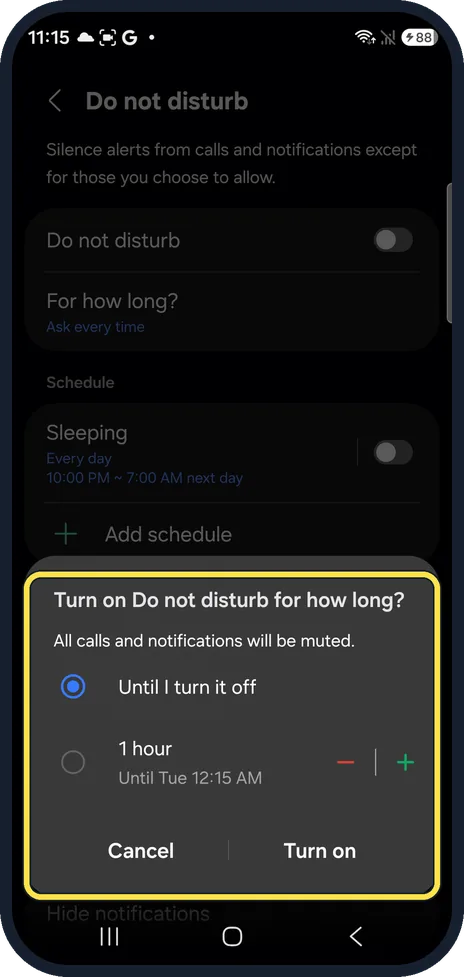
Choose how long
The phone asks Turn on Do not disturb for how long? Pick Until I turn it off or 1 hour, and tap Turn on.
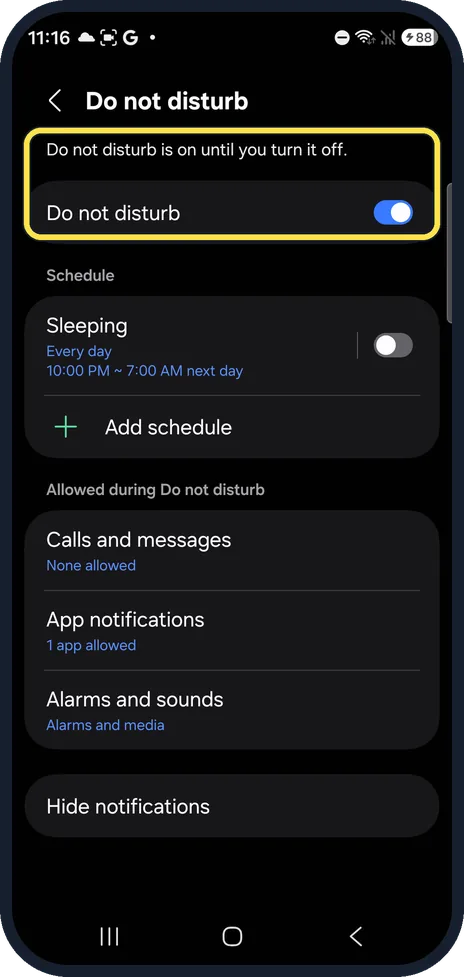
Check that it is on
The page now says Do not disturb is on until you turn it off. Tap the switch again to turn it off.
Add a schedule
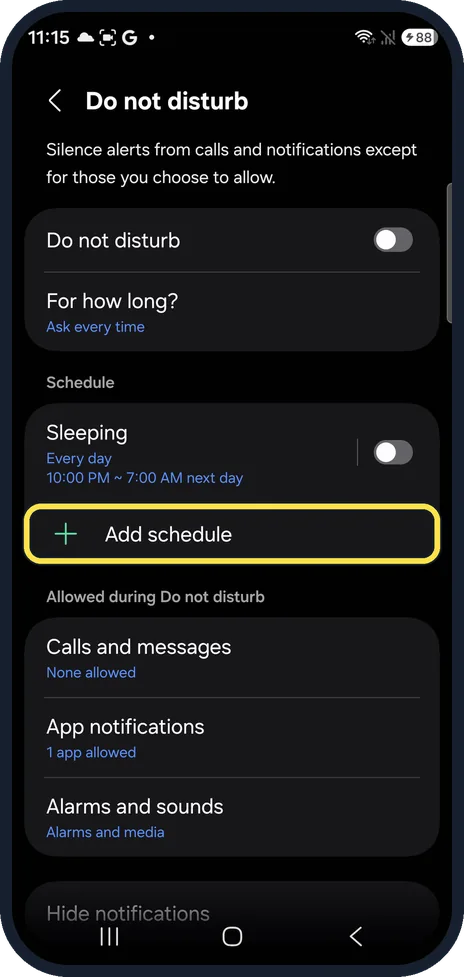
Back on the Do not disturb page, under Schedule, tap Add schedule. Sleeping (10:00 PM to 7:00 AM next day on ours) is a ready-made schedule you can switch on instead.
Name the schedule
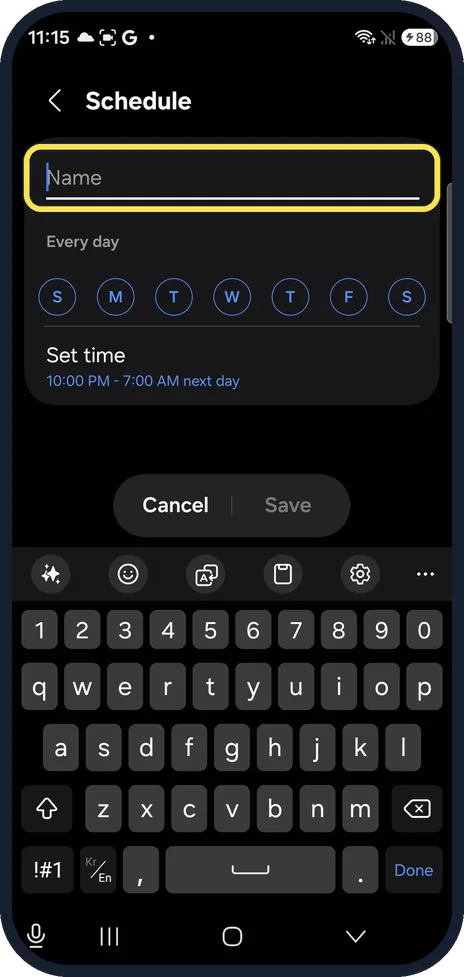
Type a name; Save stays grey until you do. Every day is ticked, so tap a day to skip it. Tap Set time, then Save.
Choose what may still come through
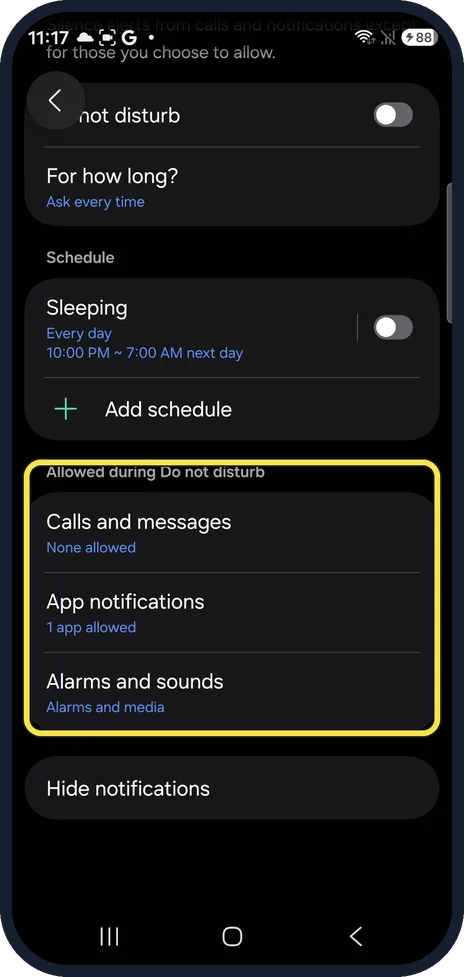
Under Allowed during Do not disturb, set Calls and messages, App notifications, and Alarms and sounds. Ours: None allowed, 1 app allowed, Alarms and media.
What changed: every step re-shot on our own Galaxy S26 (Korean model SM-S942N) on One UI 9, dark mode, with the steps rewritten for the One UI 9 screens.
If you do not see this option
- Do not disturb is not under Notifications Swipe down from the top and tap Do not disturb in the quick panel; touch and hold it to open its settings. Source: Use Do not disturb mode on your Galaxy phone
- Still cannot find it Tap Search in Settings and type Do not disturb.
If this does not work
- An urgent call is silent Calls and messages was None allowed on ours. Open it and allow your favourite contacts or repeat callers. Source: Use Do not disturb mode on your Galaxy phone
- An alarm did not ring Check Alarms and sounds under Allowed during Do not disturb; ours allowed Alarms and media.
About this guide
Do not disturb mutes calls, notifications and other alerts, except the ones you allow. Alarms still ring if you leave them allowed.
The screenshots are from our Samsung Galaxy S26, the Korean model SM-S942N, with One UI 9 and Android 17 (build S942NKSS4BZIG), in Dark mode. Menus can differ on models sold in other regions. We switched Do not disturb on and off again and saved no schedule.
Good to know
If notifications stay silent after you turned Do not disturb off: Samsung Galaxy notifications not showing? 5 settings to check.
In short: Settings, Notifications, Do not disturb: switch on, how long, add a schedule, choose what is allowed.
Links checked in October 2026. Menus and features can change after software updates. These steps match the version named at the top.
📷 See real photos from the Galaxy S26 in our Camera Lab, next to 10 other phones.
Did this guide work for you?
Sorry about that. What happened?