
howtosimply.com/guides/how-to-see-notification-history-on-a-samsung-galaxy/ · Checked October 2026 · Samsung Galaxy A57 5G (SM-A576B), One UI 8.5, Android 16
In this guide
Open Settings, Notifications, Advanced settings, Notification history and switch it on. From then on, notifications from the last 24 hours are kept, including ones you dismissed by accident. Tap an app in the list to see them.
4 of 4 steps with real screenshots · 1 official source below
- Device
- Android
- Shown on
- Samsung Galaxy A57 5G (SM-A576B), One UI 8.5, Android 16
- App
- Settings
- Path
- Settings › Notifications › Advanced settings › Notification history
- Real screenshots
- 4 of 4 steps
- Our phone
- Shown on Galaxy A57, One UI 8.5
- Checked
- October 2026
- Sources
- 1 official, linked below
Step by step
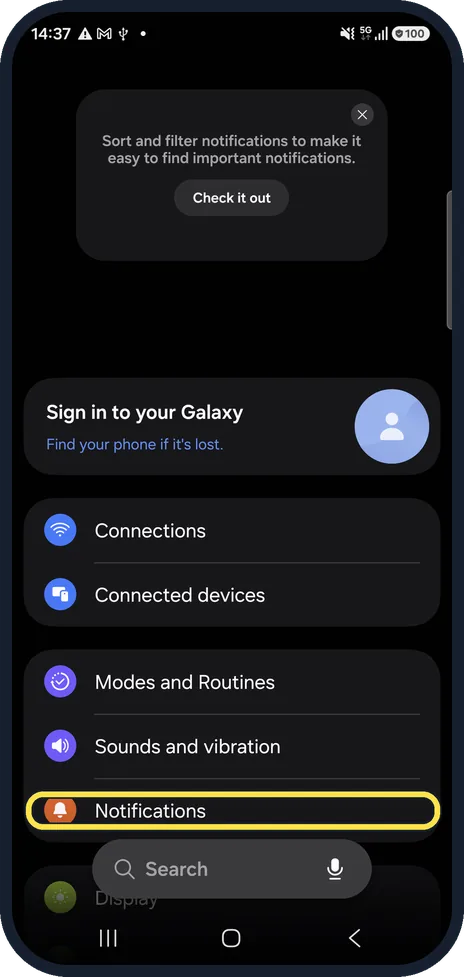
Open Notifications
Open Settings and tap Notifications.
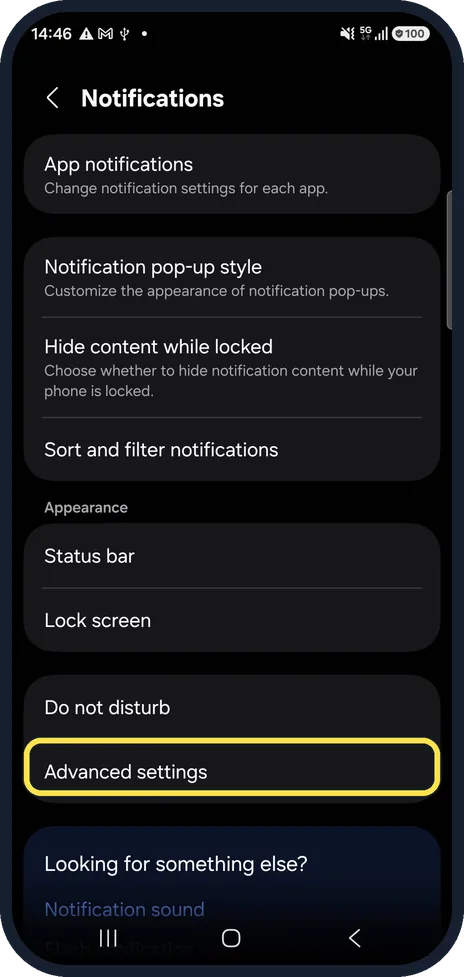
Tap Advanced settings
At the bottom of the Notifications page.
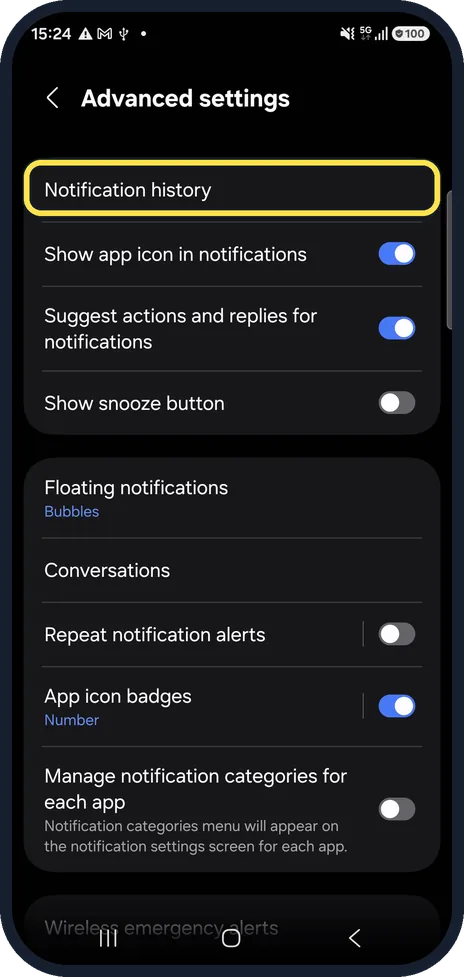
Tap Notification history
It is the first row on the Advanced settings page.
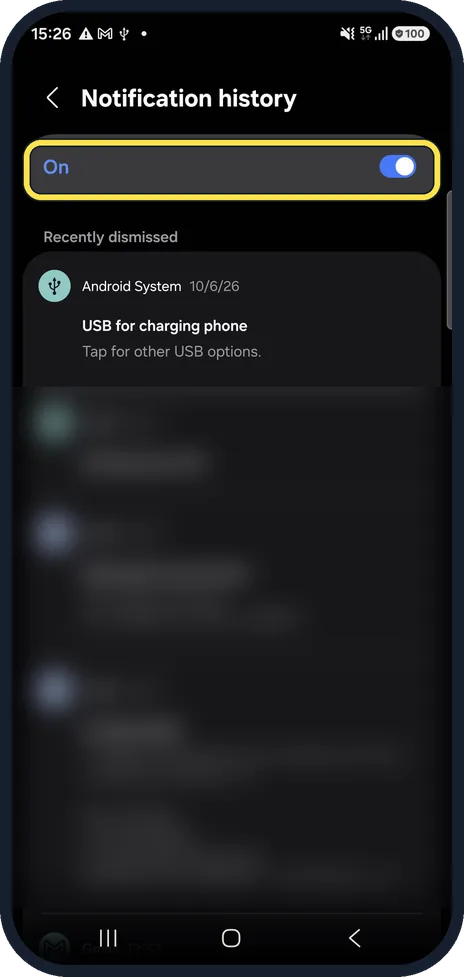
Switch it on
Tap the switch at the top so it reads On. Below, Recently dismissed and Last 24 hours list the notifications by app. Tap an app to expand them.
If you do not see this option
- There is no Notification history row Samsung says to make sure the phone runs the latest software and to check that your model supports it, then restart the phone after switching it on. Source: How to Enable Notification History
- You cannot find Advanced settings Search Settings for Notification history; Samsung puts it under Settings, Notifications, Advanced settings. Source: How to Enable Notification History
If this does not work
- The history is empty It only keeps notifications from the moment you switch it on. Samsung also says alerts older than 24 hours are not kept on most devices. Source: How to Enable Notification History
- Some notifications are missing Samsung says it may not store notifications from apps that do not support the feature, or system notifications during critical updates. Source: How to Enable Notification History
About this guide
Swiped away a notification before you read it? Notification history keeps a copy of everything from the last 24 hours. It only records from the moment you switch it on.
It was already on on our phone; the app list is blurred.
Good to know
Notification history shows the text of messages, so anyone with your unlocked phone can read it too.
Notifications not arriving at all? Samsung Galaxy notifications not showing? 5 settings to check.
In short: Settings, Notifications, Advanced settings, Notification history, On.
Links checked in October 2026. Menus and features can change after software updates. These steps match the version named at the top.
📷 See real photos from the Galaxy A57 in our Camera Lab, next to 10 other phones.
Did this guide work for you?
Sorry about that. What happened?