VIVO
vivo notifications late or missing? Settings to check (OriginOS 6)

In short
Open Settings, Battery, Background power control, tap the app and pick Allow background power usage. Then check Power saving management (Battery Saver and Sleep standby optimisation) and make sure Allow notification is on in Settings, Apps, App manager, the app, Notifications.
7 of 7 steps show a real screenshot from our V70 Lite 5G. Each step was checked against the maker's own instructions, linked at the end.
Steps
- 1
Open Background power control
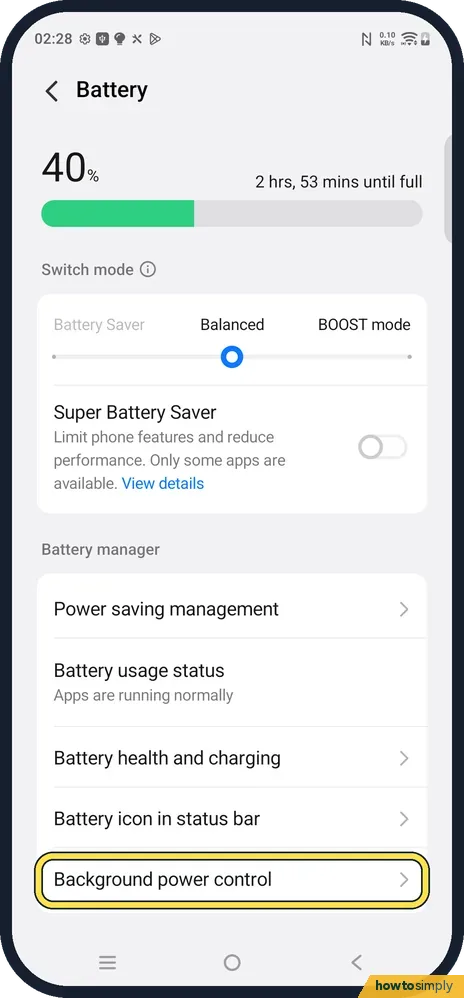
Open Settings and tap Battery. Under Battery manager, the last row is Background power control. The same page has Power saving management and Battery health and charging.
- 2
Find the app that is late
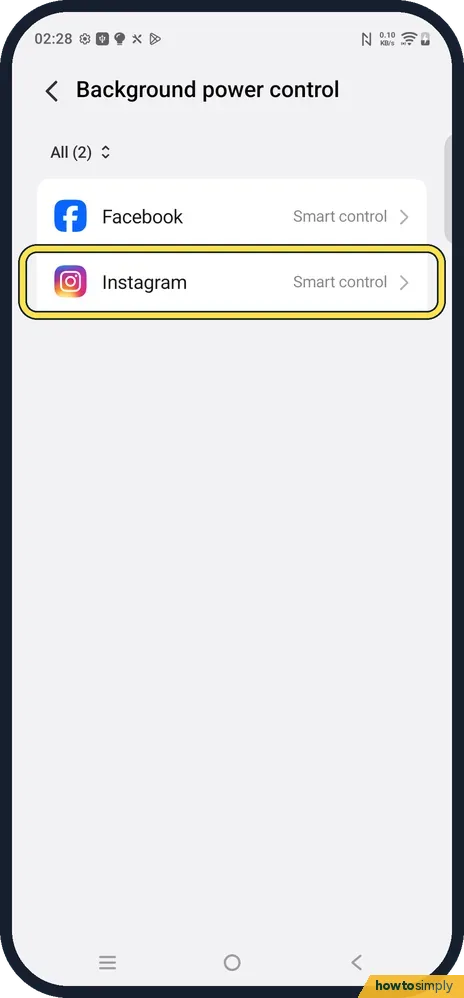
The list shows every app you can control, with its current choice. On ours All (2) listed Facebook and Instagram, both on Smart control, which is the default.
- 3
Pick Allow background power usage
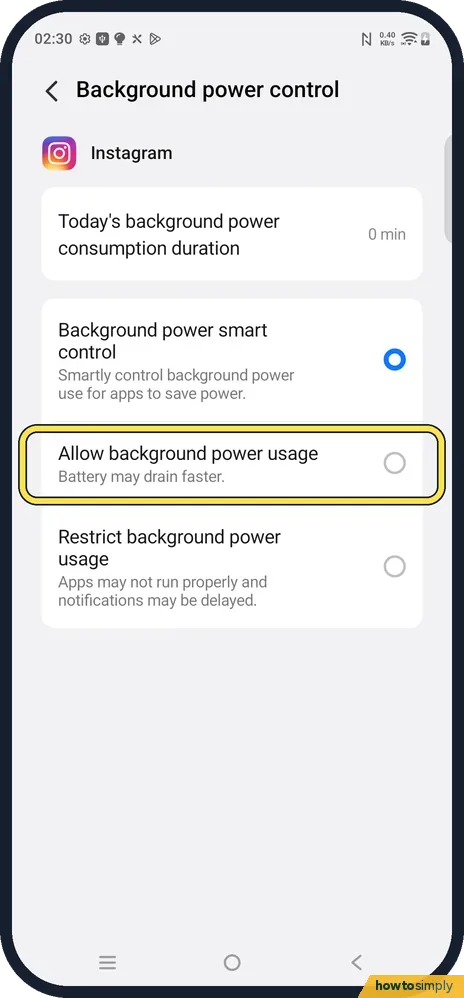
Tap the app. Background power smart control (ours, the default) smartly controls background power use for apps to save power. Allow background power usage lets the app keep running; the page warns that the battery may drain faster. Restrict background power usage says apps may not run properly and notifications may be delayed, so avoid it for chat apps.
- 4
Open Power saving management
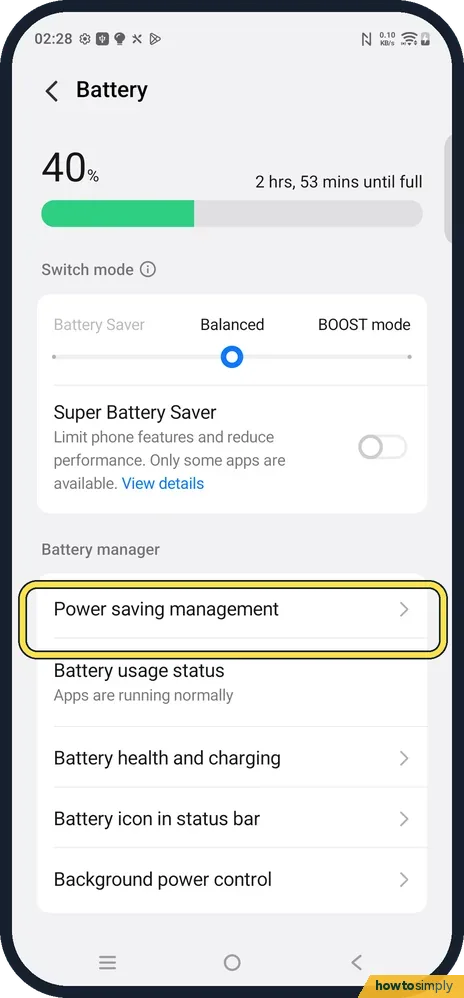
Go back to Battery and tap Power saving management, the first row under Battery manager.
- 5
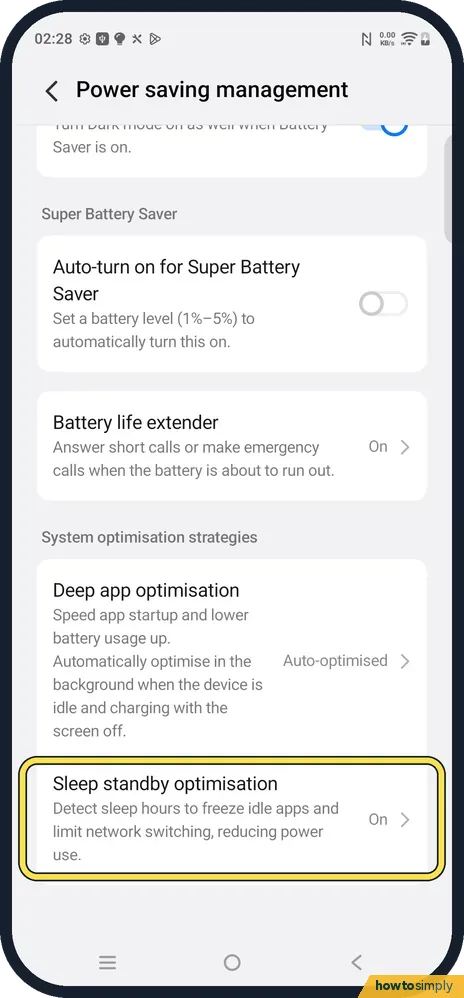
Check Sleep standby optimisation
Scroll down to System optimisation strategies. Sleep standby optimisation detects your sleep hours to freeze idle apps and limit network switching. It was On on ours. If messages only arrive late at night or first thing in the morning, this is the setting to look at.
- 6
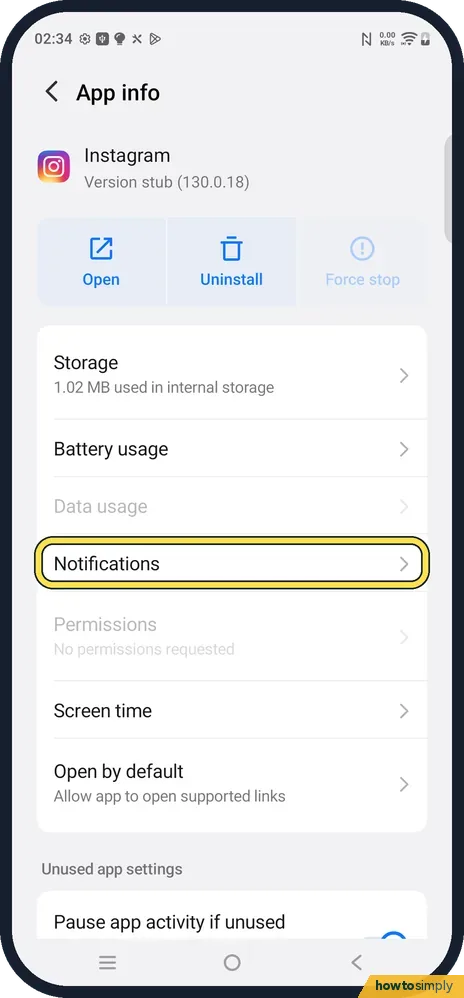
Open the app's Notifications page
Open Settings, Apps, App manager and tap the app. On App info, Notifications sits below Battery usage. Ours shows Instagram, a preinstalled version (it says Version stub until you update it from the Play Store).
- 7
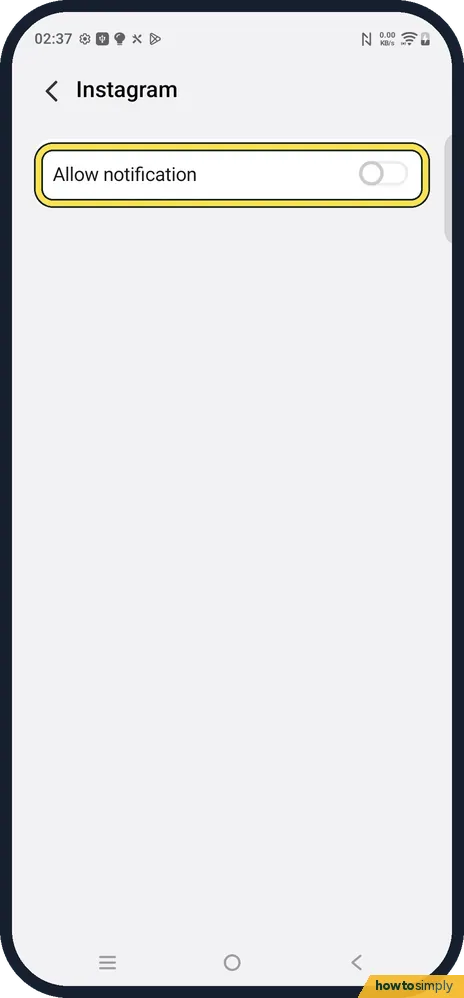
Turn on Allow notification
The switch at the top. It was off on ours because Instagram had never been opened. With it off the app cannot show anything, whatever the battery settings say.
If you do not see this option
- No Background power control row? vivo's older name is High background power consumption or Background power consumption management, also under Settings, Battery. vivo says you can reach it from Settings, Apps, the app, App battery usage too. Sources: Battery settings FAQs, Background app power consumption management
- App not in Background power control? Our list only showed third-party apps (two on ours). vivo says the restriction applies to third-party apps and some system apps. Source: Background app power consumption management
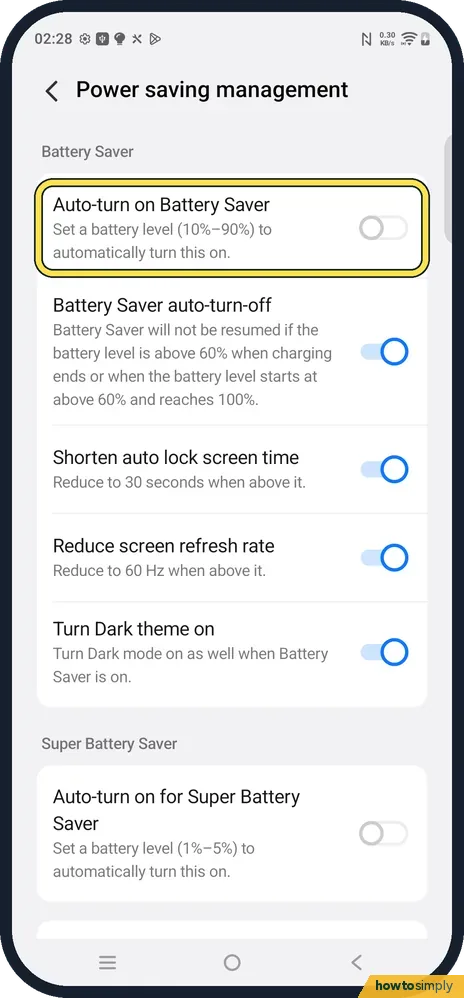
- Battery Saver turning on by itself? In Power saving management, Auto-turn on Battery Saver switches it on at a battery level you set (10 % to 90 %). It was off on ours.
If this does not work
- Late only after a restart? Open the app once after the phone restarts, then leave it in the background. A chat app that has not been opened since the restart may not be registered for messages yet.
- Notifications silent rather than late? Google says some notifications are shown silently, with no sound or vibration, and still appear when you swipe down. Check the app's notification categories on the same Notifications page.
- Still late with Allow background power usage? Check that Super Battery Saver is off on the Battery page: it limits phone features and only some apps are available while it is on.
- Battery drains faster now? That is the trade-off the page warns about. Go back to Smart control for apps that do not need to be instant, and keep Allow for one or two chat apps.
Good to know
Background power control decides whether vivo lets the app run when you are not using it. Notifications decides whether the app may show anything at all. A messaging app needs both: Allow notification on, and Smart control or Allow under Background power control.
vivo explains how the restriction works: when an app is active in the background frequently and its power use passes a threshold over a period, it is restricted, and you get a notification when this starts. Background music and background updates are excluded. Lifting it is a manual job, which is why late messages often only start after a few days of use.
Sleep standby optimisation is easy to miss because it is not on the Background power control page. It works on a schedule it learns, so it usually explains messages that arrive in a burst when you pick the phone up in the morning.
Change one app at a time. If messages arrive on time after picking Allow, keep that setting for that app and leave the rest on Smart control.
About this guide
- Device
- Android
- Shown on
- vivo V70 Lite 5G (V2529, EEA), OriginOS 6, Android 16 (build PD2512SF_EX_A_16.1.19.5)
- App
- Settings
- Path
- Settings › Battery › Background power control: the app › Allow background power usage
- Real screenshots
- 7 of 7 steps
- Checked
- October 2026
- Sources
- 4 official, linked below
Sources
Links checked October 2026. Menus and features can change with updates.Spotted a mistake? Menus change with updates, and we want every step to match your screen. Email us about this page or use the contact form. We read every report, and fixes are listed on What changed.
Liked this guide?
Follow us for new guides and short how-to videos.
Did this guide work for you?
Sorry about that. What happened?