
howtosimply.com/guides/samsung-do-not-disturb-turning-on-or-off-by-itself-what-to-check/ · Checked October 2026 · Samsung Galaxy A57 5G (SM-A576B), One UI 8.5, Android 16
In this guide
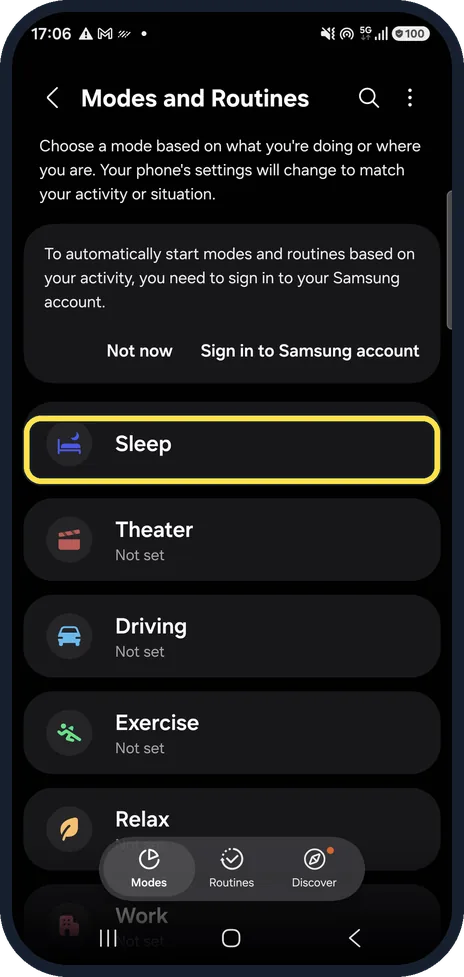
Open Settings, Notifications, Do not disturb. A schedule such as Sleeping switches it on and off at set times, and For how long decides when a manual Do not disturb ends. Also check whether the Sleep mode in Modes and Routines turns on Do not disturb.
7 of 7 steps with real screenshots · 2 official sources below
- Device
- Android
- Shown on
- Samsung Galaxy A57 5G (SM-A576B), One UI 8.5, Android 16
- App
- Settings
- Path
- Settings › Notifications
- Real screenshots
- 7 of 7 steps
- What we did
- Observed: looked at each screen, changed nothing
- Our phone
- Shown on Galaxy A57, One UI 8.5
- Checked
- October 2026
- Sources
- 2 official, linked below
Step by step
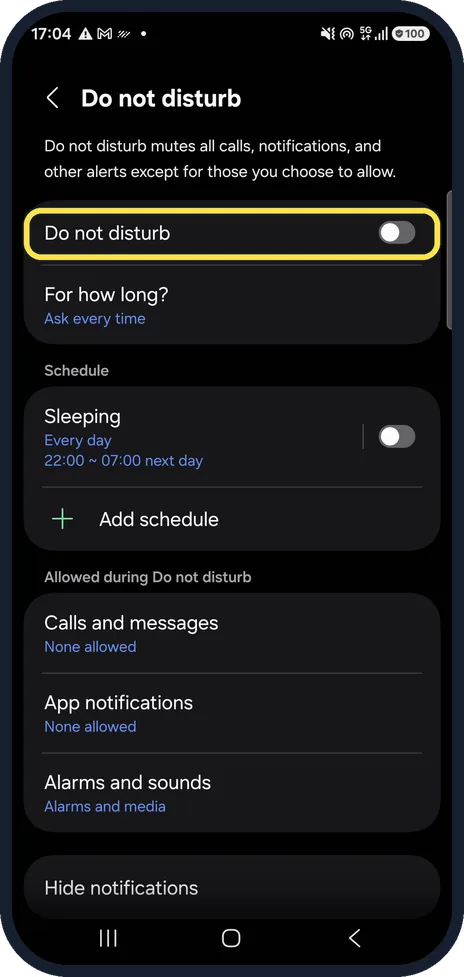
Open Do not disturb
Open Settings, Notifications, Do not disturb. The switch at the top shows whether it is on right now. You can also touch and hold the Do not disturb button in the quick panel.
Watch these steps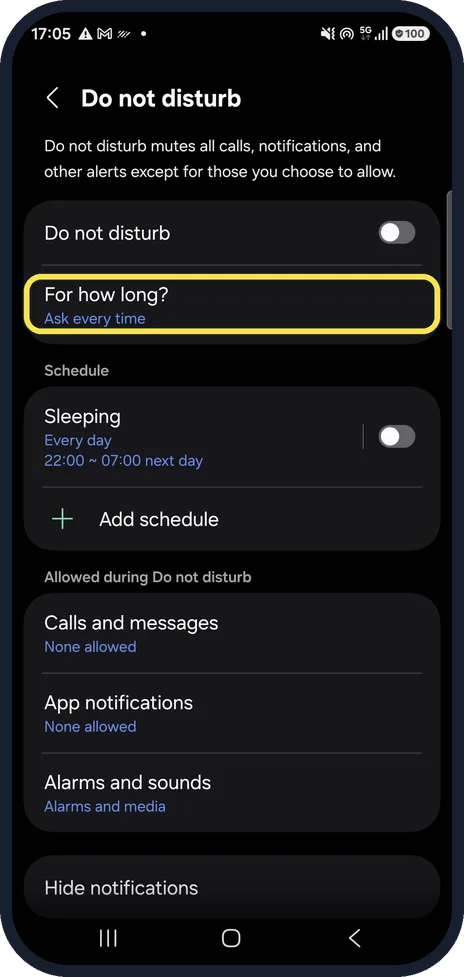
Check For how long
For how long decides when Do not disturb ends after you switch it on yourself. Ours says Ask every time, so the phone asks each time. If a fixed time is set here, it switches off on its own when the time is up.
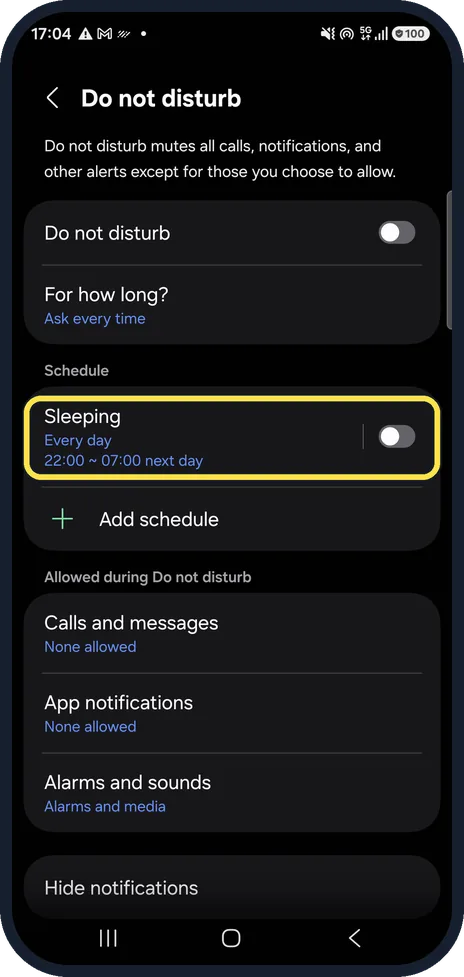
Check the schedules
Under Schedule each entry turns Do not disturb on and off at set times. Our phone has Sleeping, every day from 22:00 to 07:00, with its switch off. If a schedule is on, that explains Do not disturb starting at night and ending in the morning.
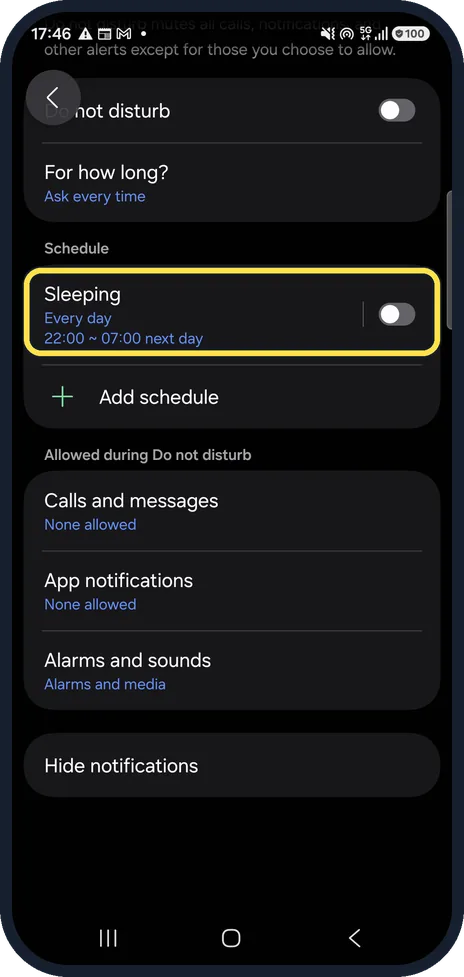
Change or delete a schedule
On our phone Sleeping sits under Schedule, above Add schedule, with its switch off. Tap the schedule to change its days and times, or to delete it.
Check the Sleep mode
Open Settings, Modes and Routines. On our phone Sleep has no Not set label, while Theater, Driving, Exercise and Relax say Not set. Tap a mode to see what it changes, and check whether it turns on Do not disturb.
Calls still coming through?
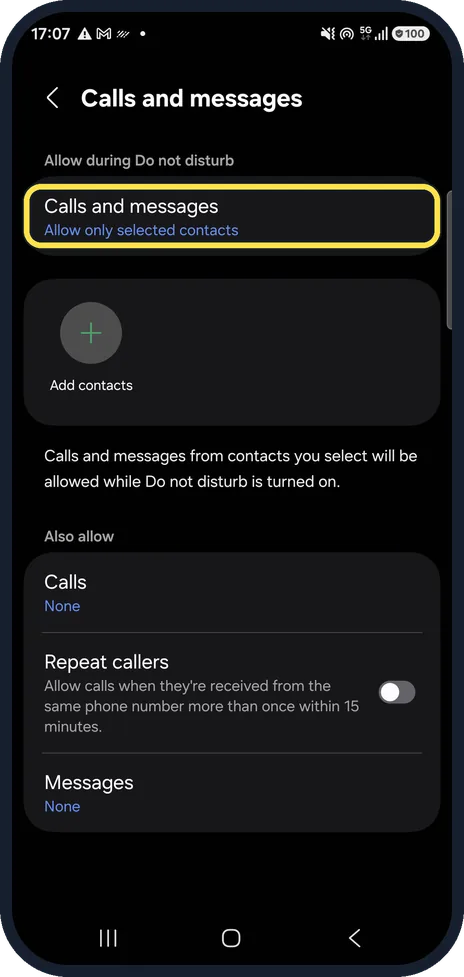
Back on the Do not disturb page, tap Calls and messages to see who gets through. On our phone it is set to Allow only selected contacts, with Add contacts below it. Only the contacts you select are allowed while Do not disturb is on. Repeat callers lets a second call from the same number within 15 minutes through.
Find the button in the quick panel
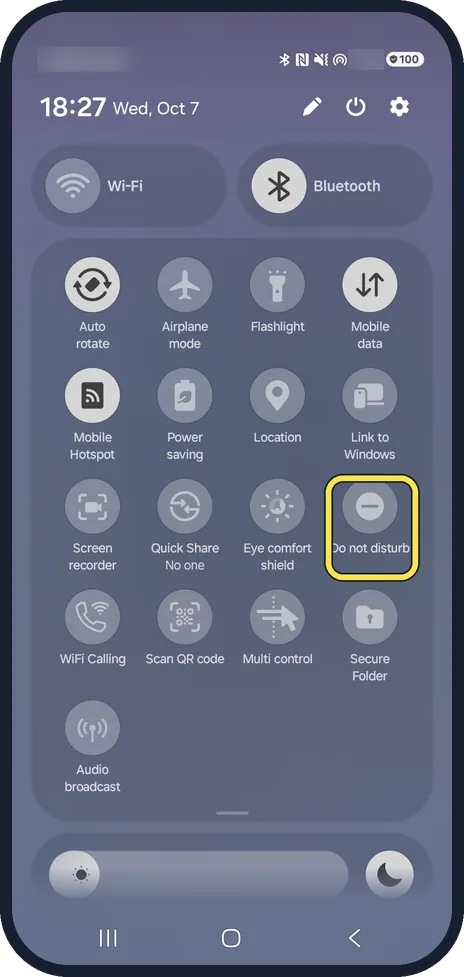
Open the quick panel and expand the grid of buttons. On our phone Do not disturb is in the third row, after Eye comfort shield. Tapping it is the quickest way to switch it off.
Watch these steps
If you do not see this option
- There is no Add schedule On some phones, Samsung says, you tap Turn on as scheduled instead, then Add (the plus sign) at the top right. Source: Use Do not disturb mode on your Galaxy phone
- Do not disturb is not under Notifications Samsung says to search Settings for Do not disturb, or touch and hold the Do not disturb button in the quick panel. Source: Use Do not disturb mode on your Galaxy phone
If this does not work
- It turns on with your Galaxy Watch Samsung says the Wearable app can sync Do not disturb between phone and watch: Watch settings, Notifications, Sync Do not disturb with phone. Turn the sync off if you want them separate. Source: How to use Do not disturb mode on your Samsung Galaxy Watch series
- Calls still come through with it on Samsung says the Allowed during Do not disturb section lets calls and messages, app notifications, and alarms and sounds through. Check each one. Source: Use Do not disturb mode on your Galaxy phone
About this guide
Do not disturb almost never switches by itself: a schedule, a time limit or a mode does it. All three live in a few places, and the Do not disturb page shows most of them at once.
Good to know
Samsung explains the Do not disturb settings, exceptions and schedules on its own support page.
If your phone stays silent with Do not disturb off: Samsung Galaxy not ringing: 7 things to check. Setting up Sleep mode: how to use Sleep mode on a Samsung Galaxy.
In short: Settings, Notifications, Do not disturb: check For how long and the schedules. Then check Sleep in Modes and Routines.
- Samsung US: Use Do not disturb mode on your Galaxy phone
- Samsung UK: How to use Do not disturb mode on your Samsung Galaxy Watch series
Links checked in October 2026. Menus and features can change after software updates. These steps match the version named at the top.
📷 See real photos from the Galaxy A57 in our Camera Lab, next to 10 other phones.
Did this guide work for you?
Sorry about that. What happened?