XIAOMI REDMI
How to show network speed in the status bar on a Xiaomi phone (HyperOS 3)

In short
Go to Settings, Notifications & status bar, Customise icon display (under Status bar). Turn on Connection speed, the first switch under System. The speed then shows at the top right, left of the other icons, such as 0.00 KB/s on ours.
5 of 5 steps show a real screenshot from our Redmi Note 15 Pro 5G. Each step was checked against the maker's own instructions, linked at the end.
Steps
- 1
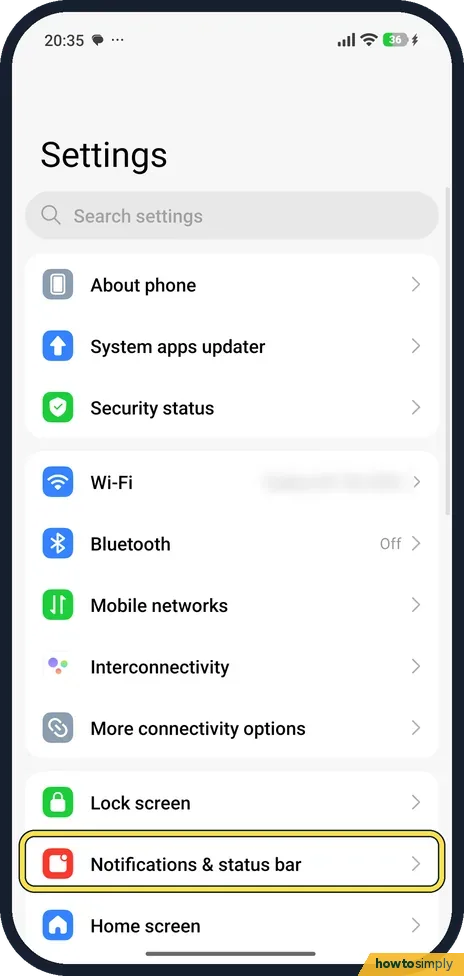
Open Notifications & status bar
Open Settings and tap Notifications & status bar, below Lock screen.
- 2
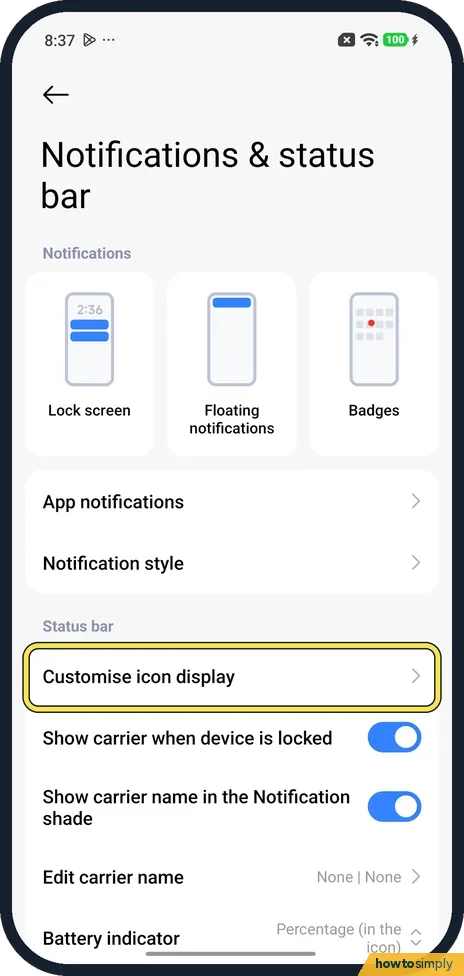
Tap Customise icon display
Scroll to Status bar. Customise icon display is the first row.
- 3
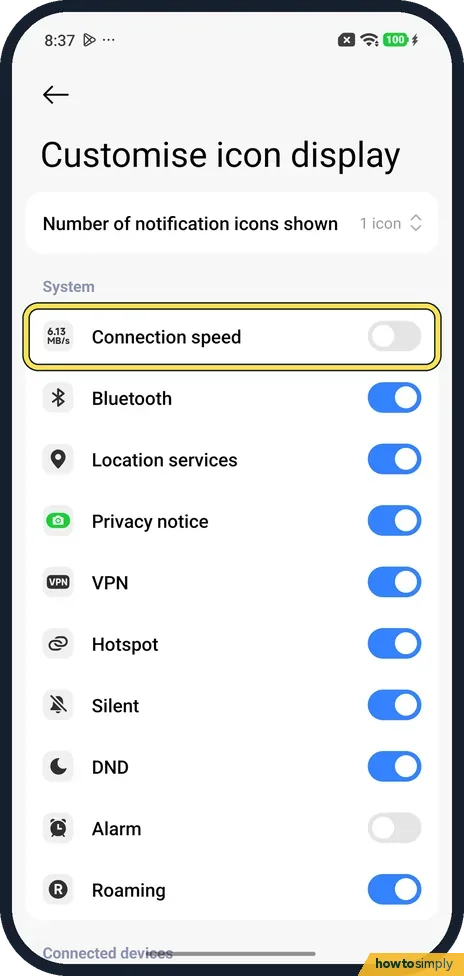
Find Connection speed
Under System, Connection speed is the first switch. It was off on ours. The other switches choose which icons show, such as Bluetooth and Alarm.
- 4
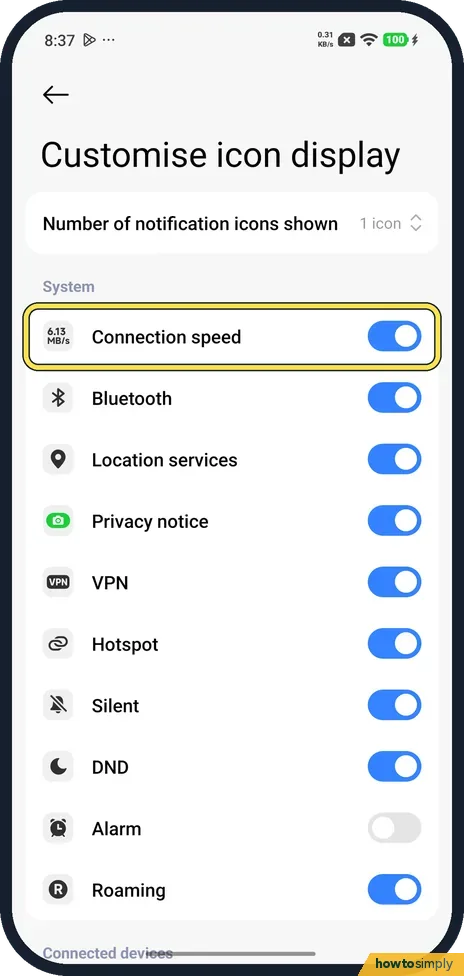
Turn it on
Tap the switch. The speed appears straight away at the top right of the screen, left of the other icons. Ours showed 0.31 KB/s.
- 5
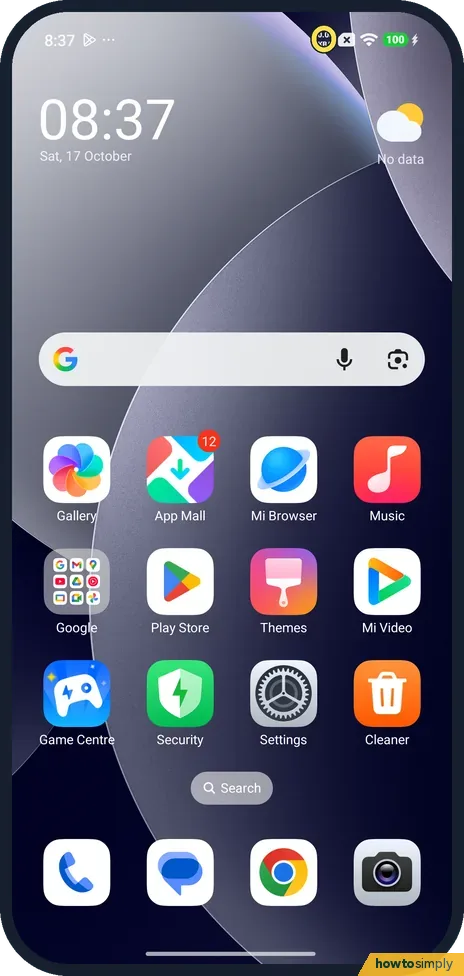
See it on the home screen
The speed stays in the status bar in apps and on the home screen. Ours read 0.00 KB/s while nothing was downloading.
If you do not see this option
- Show connection speed on the main page? On other models the switch is not on a separate page. Xiaomi's steps for the REDMI 13C and the Xiaomi 14T are Settings, Notifications & status bar, then turn on Show connection speed. Sources: How to show the connection speed on the REDMI 13C?, How to show the connection speed on the Xiaomi 14T?
- Older MIUI phone? Xiaomi's older help gives Settings, SIM card & mobile networks, Set data plan, then turn on show network speed. Source: How to set show network speed?
If this does not work
- Shows 0.00 KB/s? That is normal when nothing is loading. Xiaomi says it shows your internet speed in real time, so it rises while you stream or download.
- Speed always low? Xiaomi suggests switching networks if speeds stay low. For Wi-Fi drops see Xiaomi Wi-Fi keeps disconnecting; for mobile data see Xiaomi mobile data not working.
- Too many icons up there? Number of notification icons shown, at the top of Customise icon display, was 1 icon on ours. The switches below hide icons you don't need.
- Speed jumps while you do nothing? Apps and the system sync, back up and update in the background, and that traffic counts too. If it stays high for long, find the app using data in your data usage settings, or see how to stop an app using mobile data or Wi-Fi.
- The speed vanished from the status bar? Check that Connection speed is still on in Customise icon display. Space at the top is limited, so with many icons, a long carrier name or a busy notification area, some items may not fit.
Good to know
To turn it off, go back to Customise icon display and turn off Connection speed. We did, and it went.
It covers Wi-Fi and mobile data alike and changes as you switch between them. It is a handy way to see whether a download is still moving or has stalled, and whether a slow video is down to the connection. If you also want to keep an eye on how much charge is left, see how to show battery percentage, which uses the same status bar.
About this guide
- Device
- Android
- Shown on
- Xiaomi Redmi Note 15 Pro 5G (25080RABDG), HyperOS 3.0.308.0, Android 16
- App
- Settings
- Path
- Settings › Notifications & status bar › Customise icon display
- Real screenshots
- 5 of 5 steps
- Checked
- October 2026
- Sources
- 3 official, linked below
Sources
Links checked October 2026. Menus and features can change with updates.Spotted a mistake? Menus change with updates, and we want every step to match your screen. Email us about this page or use the contact form. We read every report, and fixes are listed on What changed.
Liked this guide?
Follow us for new guides and short how-to videos.
Did this guide work for you?
Sorry about that. What happened?