
howtosimply.com/guides/how-to-show-battery-percentage-on-an-oppo-phone/ · Checked October 2026 · CPH2689, EEA), ColorOS 16.0.5, Android 16 (build CPH2689_16.0.5.1001(EX01) · OPPO Reno13 5G
In this guide
Open Settings, Notifications & Quick Settings, Status bar, Battery percentage and choose Inside battery icon, Outside battery icon or Do not show. Ours was set to Inside battery icon.
5 of 5 steps with real screenshots · 3 official sources below
- Device
- Android
- Shown on
- OPPO Reno13 5G (CPH2689, EEA), ColorOS 16.0.5, Android 16 (build CPH2689_16.0.5.1001(EX01))
- App
- Settings
- Path
- Settings › Notifications & Quick Settings › Status bar › Battery percentage
- Real screenshots
- 5 of 5 steps
- Checked
- October 2026
- Sources
- 3 official, linked below
Step by step
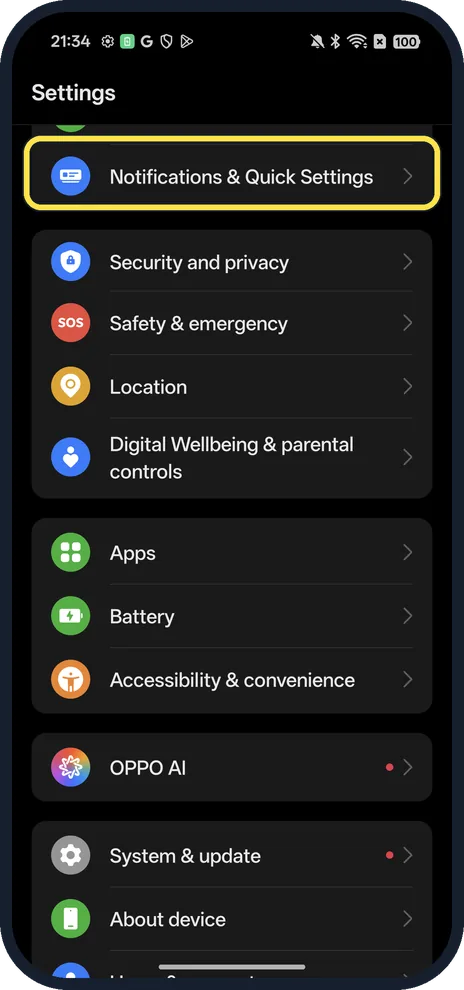
Open Notifications & Quick Settings
Open Settings and scroll a little.
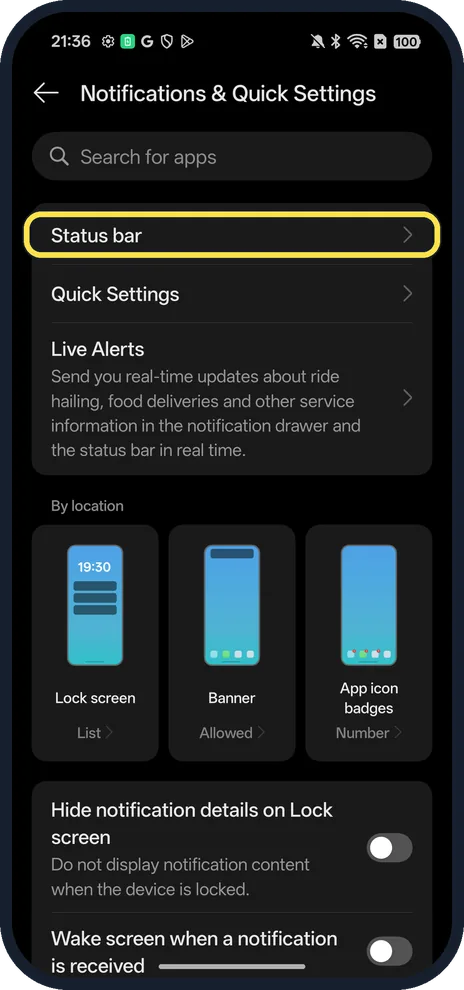
Tap Status bar
It is the first row.
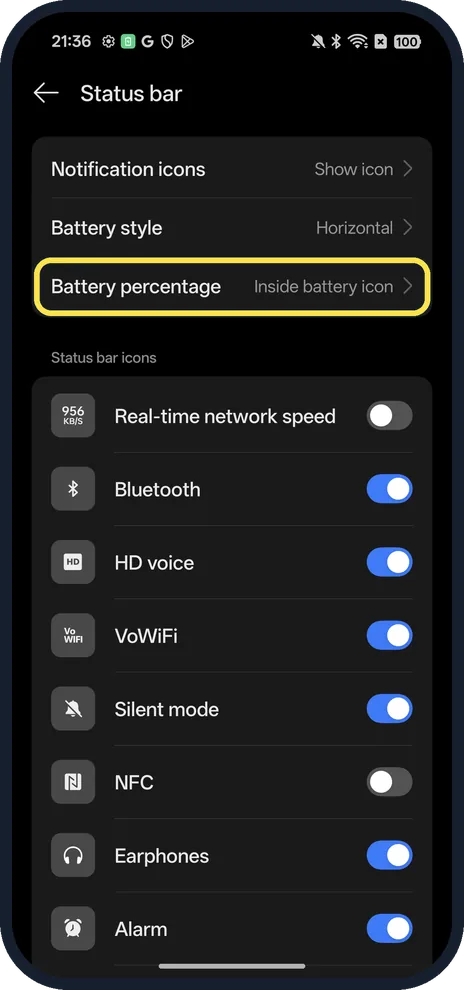
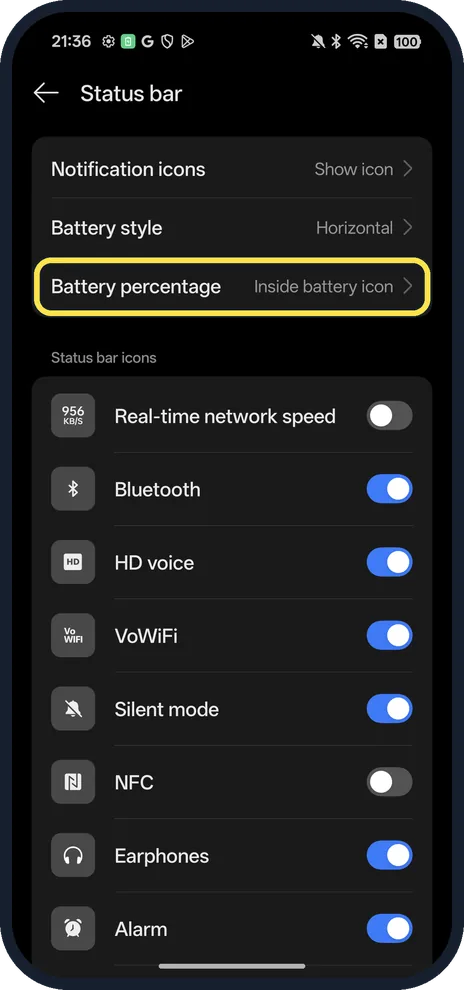
Tap Battery percentage
Ours said Inside battery icon.
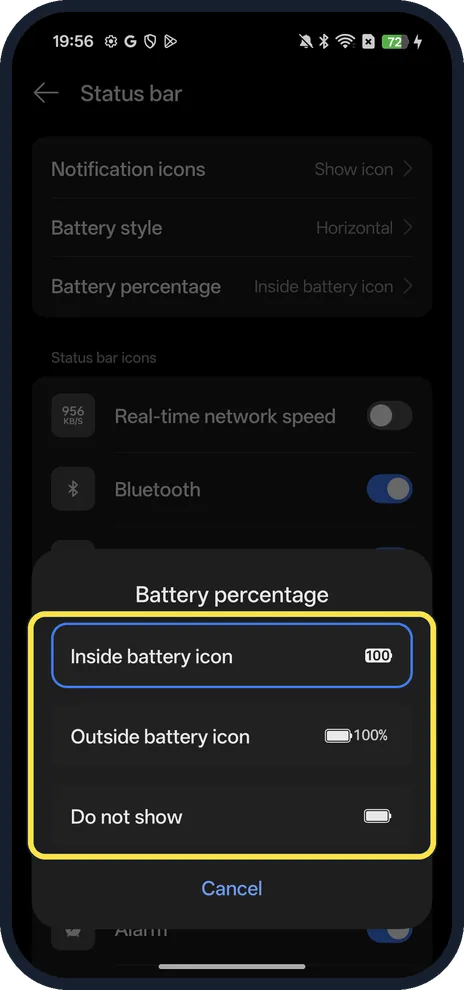
Pick where it shows
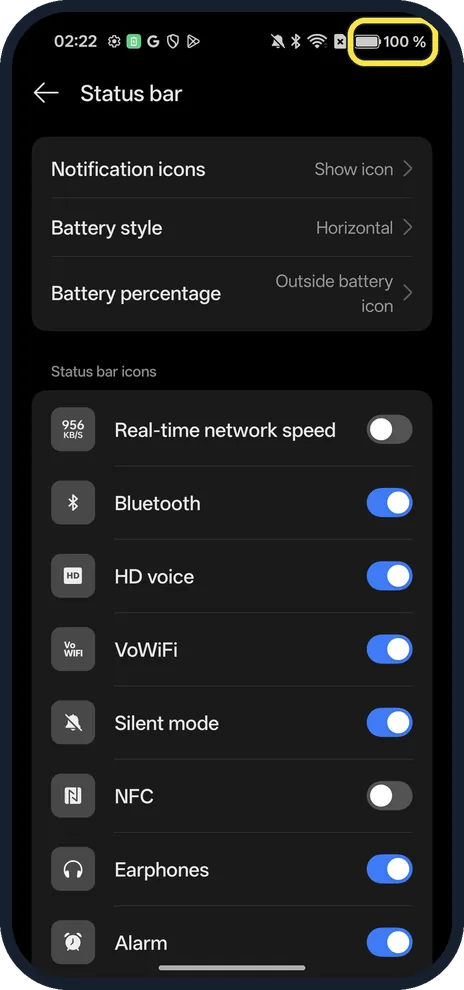
Inside battery icon, Outside battery icon (100% next to the icon) or Do not show.
Check the status bar
With Outside battery icon, ours showed 100 % next to the icon at the top right. We set it back to Inside afterwards.
If you do not see this option
- Not under Battery? On ColorOS 16 it is not on the Battery page at all; on ours it sat under Notifications & Quick Settings, Status bar. Older ColorOS (5.2) had Show battery percentage on the status bar on the Battery page, OPPO says. Source: The Power Saver Features of OPPO Smartphones
- Menu named differently? OPPO's help for ColorOS 15 and later calls the menu Notification & Quick Settings; ours reads Notifications & Quick Settings. Search Settings for battery percentage if your build names it differently. Source: No notification on the Status Bar
If this does not work
- Percentage not showing? Check it is not set to Do not show, the third choice. With Inside battery icon the number is small and inside the icon, so pick Outside battery icon for 100% next to it.
- Stuck at the same percentage while charging? OPPO suggests cleaning the charging port, trying another cable and adapter, running Phone Manager, Diagnostics, Battery & Charging, restarting and updating the software. Source: What to Do if My Battery Percentage Is Stuck While Charging
About this guide
On ColorOS the battery percentage lives under the status bar settings, not under Battery.
The screenshots are from our OPPO Reno13 5G, the European model CPH2689, with ColorOS 16.0.5 and Android 16 (build CPH2689_16.0.5.1001(EX01)), in Dark mode.
Good to know
Change the icon shape too: Battery style, just above Battery percentage, was Horizontal on ours.
See how worn the battery is: check battery health on an OPPO phone.
In short: Settings, Notifications & Quick Settings, Status bar, Battery percentage.
- OPPO Support: No notification on the Status Bar
- OPPO Support: The Power Saver Features of OPPO Smartphones
- OPPO Support: What to Do if My Battery Percentage Is Stuck While Charging
Links checked in October 2026. Menus and features can change after software updates. These steps match the version named at the top.
Did this guide work for you?
Sorry about that. What happened?