
howtosimply.com/guides/samsung-galaxy-wi-fi-keeps-disconnecting-6-things-to-check/ · Checked October 2026 · Samsung Galaxy A57 5G (SM-A576B), One UI 8.5, Android 16
In this guide
Open Settings, Connections, Wi-Fi, the three dots and Intelligent Wi-Fi, and turn off Switch to mobile data and Switch to better Wi-Fi networks to see whether they cause the drops. If not, forget the network and join again, then reset Wi-Fi and Bluetooth settings.
7 of 7 steps with real screenshots · 2 official sources below
- Device
- Android
- Shown on
- Samsung Galaxy A57 5G (SM-A576B), One UI 8.5, Android 16
- App
- Settings
- Real screenshots
- 7 of 7 steps
- What we did
- Observed: looked at each screen, changed nothing
- Checked
- October 2026
- Sources
- 2 official, linked below
Step by step
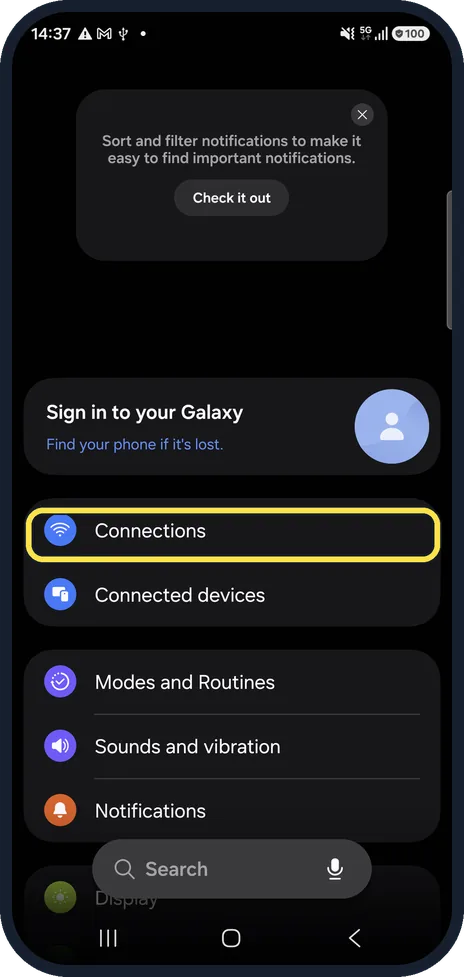
Open Connections
Open Settings and tap Connections.
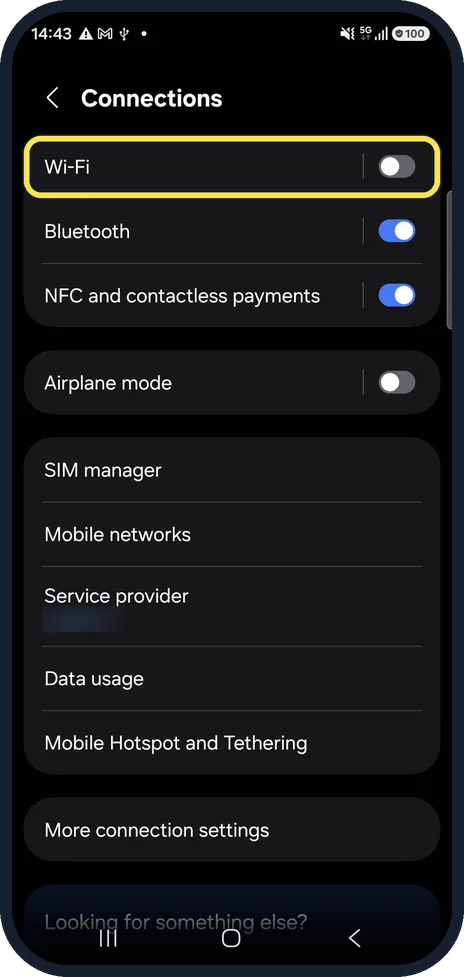
Tap Wi-Fi
Tap the word Wi-Fi, not the switch.
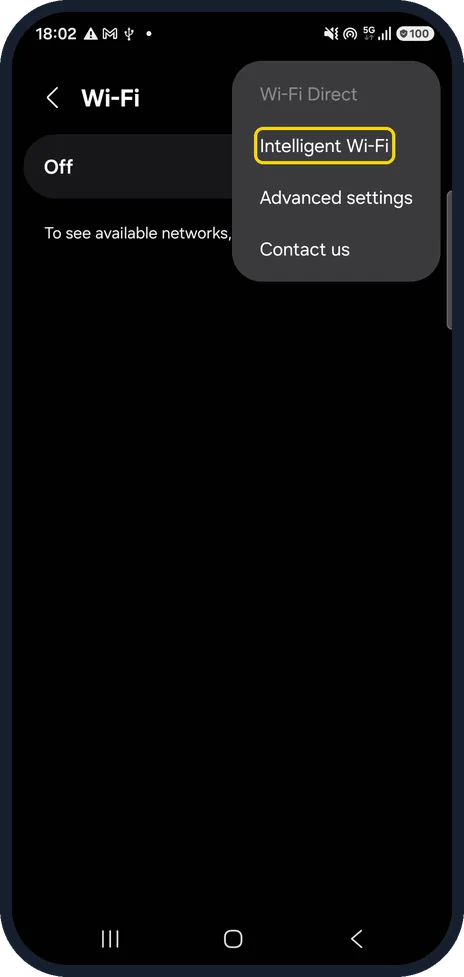
Tap the three dots, then Intelligent Wi-Fi
The three dots are at the top right of the Wi-Fi page; Samsung calls them More options. On our Galaxy A57 the menu lists Wi-Fi Direct, Intelligent Wi-Fi, Advanced settings and Contact us. Tap Intelligent Wi-Fi.
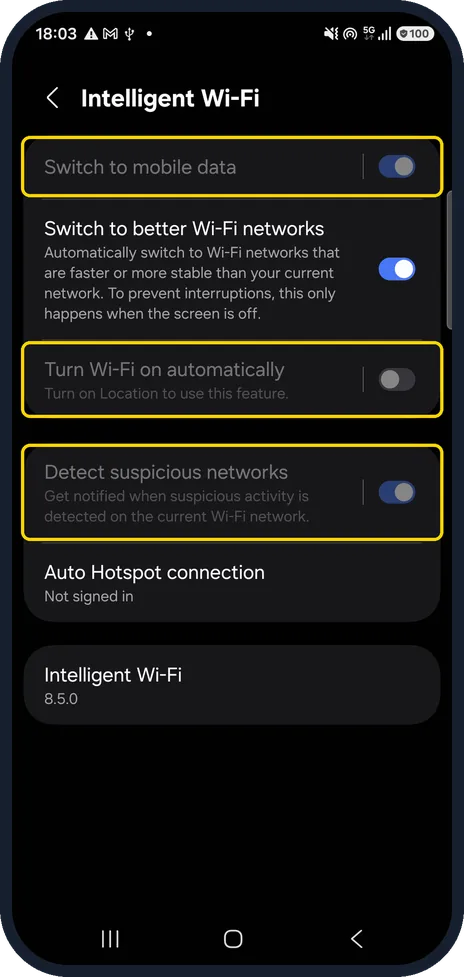
Check Switch to mobile data
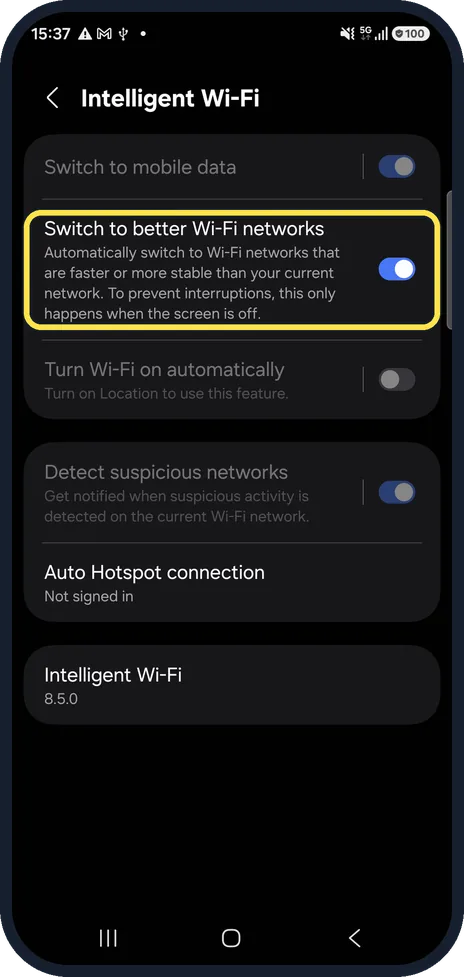
Samsung says the phone then switches to mobile data whenever the Wi-Fi connection is unstable. Switch it off to test whether it causes the drops. On our Galaxy A57 Wi-Fi was off, because the phone was sharing mobile data as a hotspot, and three rows were greyed out: Switch to mobile data, Turn Wi-Fi on automatically (Turn on Location to use this feature) and Detect suspicious networks.
Check Switch to better Wi-Fi networks
Samsung says this moves the phone to a saved network that is faster or more stable, and only while the screen is off. It can still move you off your main network. On our Galaxy A57 it was on and not greyed out, even with Wi-Fi off. Switch it off to test whether it causes the drops.
Check your saved networks
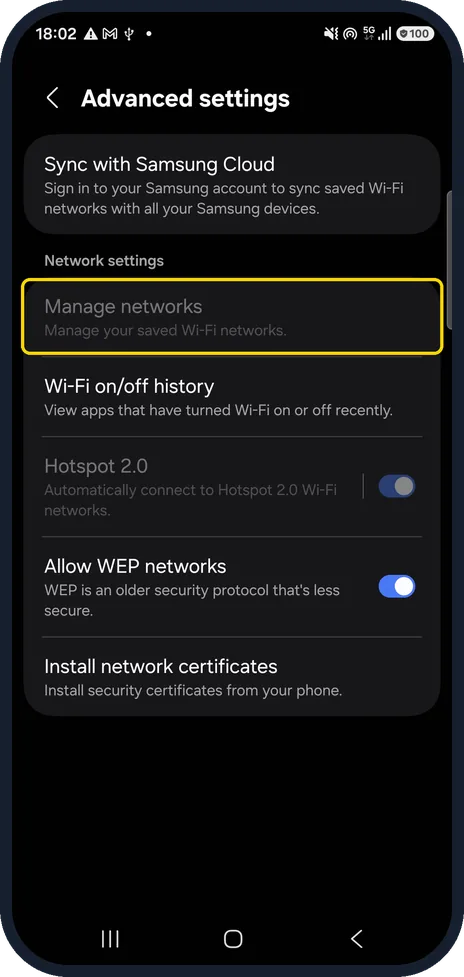
Tap the three dots, then Advanced settings. Manage networks lists your saved Wi-Fi networks. On our Galaxy A57 it was greyed out while Wi-Fi was off, so turn Wi-Fi on first.
Reset Wi-Fi and Bluetooth settings
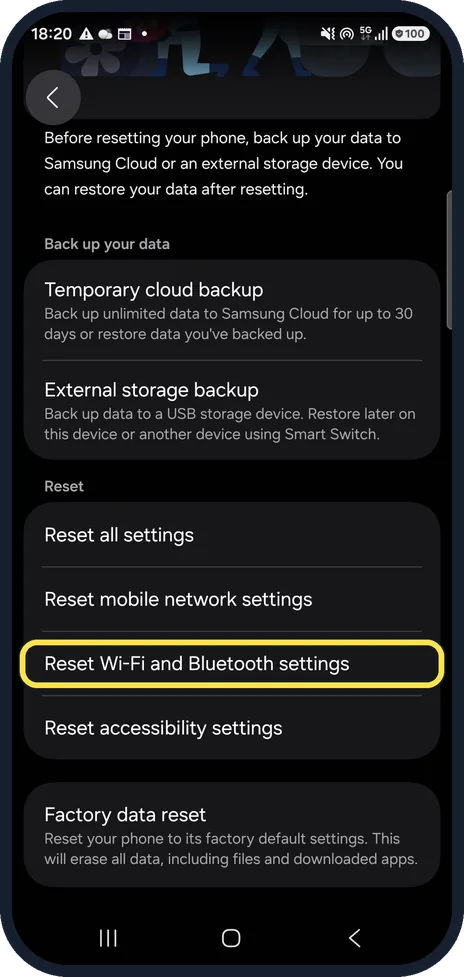
Samsung gives this path: Settings, General management, Reset, Reset Wi-Fi and Bluetooth settings, then Reset settings. On our Galaxy A57 it is the third reset option, below Reset mobile network settings. Steps: how to reset network settings on a Samsung Galaxy phone.
If you do not see this option
- Some Intelligent Wi-Fi switches are greyed out On our Galaxy A57, with Wi-Fi off, Switch to mobile data, Turn Wi-Fi on automatically and Detect suspicious networks were greyed out, while Switch to better Wi-Fi networks was not. Samsung's steps turn Wi-Fi on first. Source: Connection options for your Galaxy phone or tablet
- No list of saved networks Saved networks are under the three dots, Advanced settings, Manage networks. On our Galaxy A57 that row was greyed out while Wi-Fi was off, as in the saved networks step.
If this does not work
- Still dropping: forget the network Samsung says to press and hold the network, tap Forget network, then select it again and reconnect. We could not show this on our Galaxy A57, which had Wi-Fi off. Source: Wi-Fi connection issues on a Samsung Galaxy device
- Every network drops Samsung suggests the Wi-Fi test in Samsung Members: Support, Get started, Wi-Fi. It also suggests restarting the phone and checking for a software update. Source: Wi-Fi connection issues on a Samsung Galaxy device
About this guide
Samsung's Intelligent Wi-Fi settings can move a Galaxy to mobile data or to another saved network on purpose. Check those switches before blaming the router.
Wi-Fi was switched off on our phone when we captured these screens, because it was sharing mobile data as a hotspot.
Good to know
If only one network drops, Samsung suggests restarting that router by its power cable and checking that the network shows up on other devices.
Detect suspicious networks, lower on the Intelligent Wi-Fi page, gets you notified when suspicious activity is detected on the current Wi-Fi network.
In short: Wi-Fi, three dots, Intelligent Wi-Fi: test with Switch to mobile data and Switch to better Wi-Fi networks off. Then forget and rejoin, then reset Wi-Fi and Bluetooth settings.
- Samsung US: Connection options for your Galaxy phone or tablet
- Samsung US: Wi-Fi connection issues on a Samsung Galaxy device
Links checked in October 2026. Menus and features can change after software updates. These steps match the version named at the top.
📷 See real photos from the Galaxy A57 in our Camera Lab, next to 10 other phones.
Did this guide work for you?
Sorry about that. What happened?