XIAOMI REDMI
Xiaomi battery draining fast? What to check (HyperOS 3)
Open Settings, Battery and look at which apps use the most. Set a heavy app's battery saver, check which apps may start in the background, and check the refresh rate and Always-on display. Google also advises a shorter screen timeout and lower brightness.

8 of 8 steps show a real screenshot from our Redmi Note 15 Pro 5G. Each step was checked against the maker's own instructions, linked at the end.
Steps
- 1
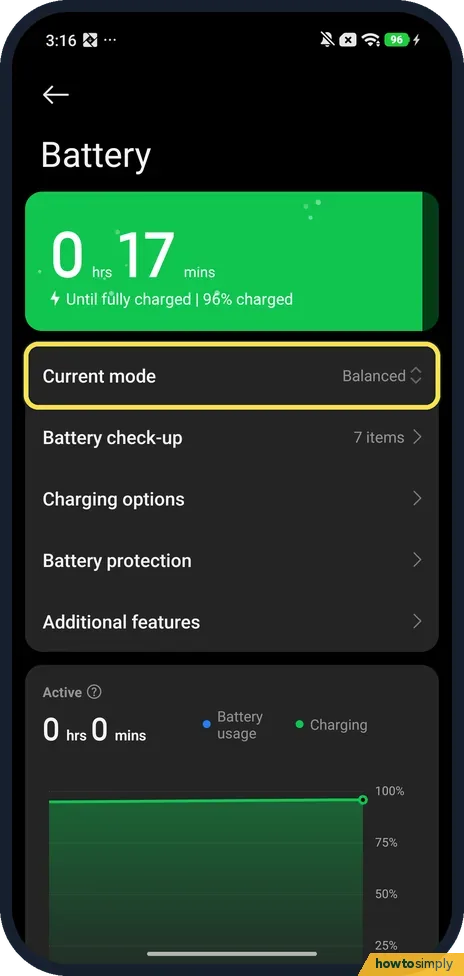
Open Battery and check Current mode
Open Settings and tap Battery. Under the charge card, Current mode said Balanced on ours. Battery check-up, below it, listed 7 items.
- 2
See which apps use the most
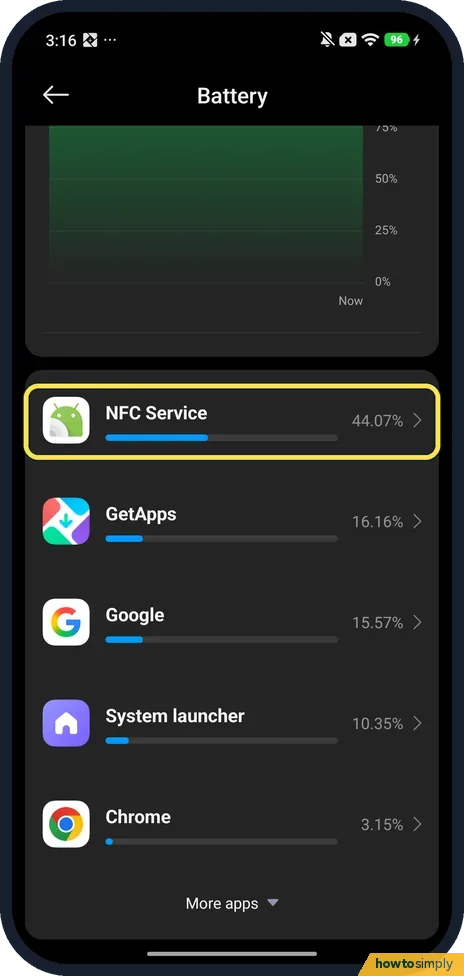
Scroll down past the chart. Apps are listed with their share of battery use. Ours: NFC Service 44.07%, GetApps 16.16%, Google 15.57%, System launcher 10.35% and Chrome 3.15%. More apps opens the rest of the list.
- 3
Open the app's Power page
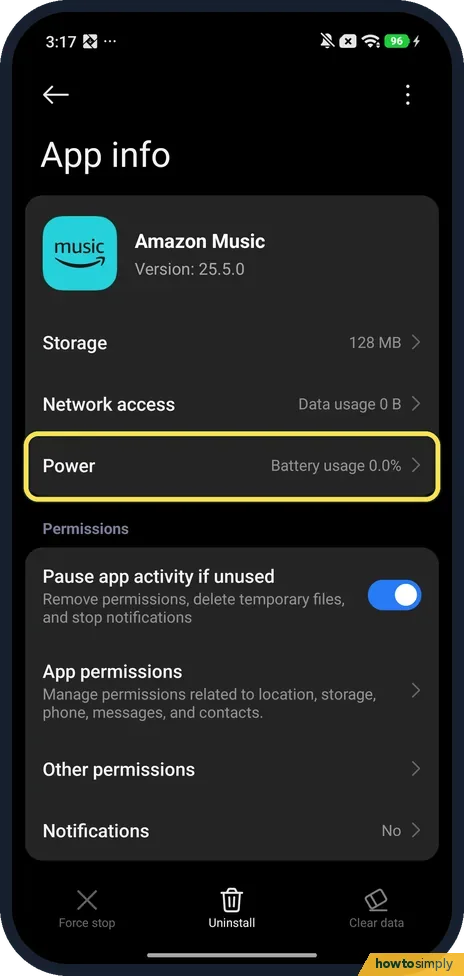
Open Settings, Apps, Manage apps and tap the app. On App info, tap Power; ours showed Battery usage 0.0% for Amazon Music.
- 4
Limit a heavy app in Battery details
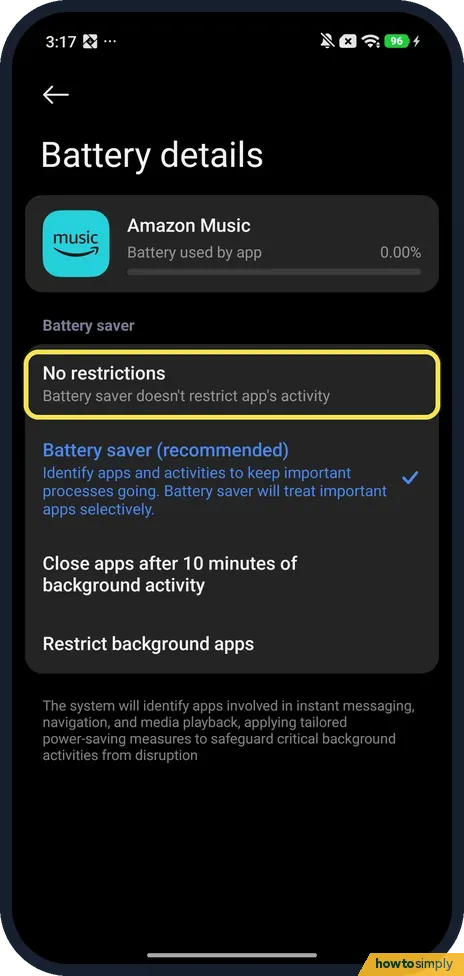
Battery details offers No restrictions, Battery saver (recommended), Close apps after 10 minutes of background activity and Restrict background apps. Ours was on Battery saver (recommended). Pick a stricter choice for an app that uses a lot.
- 5
Open Background autostart
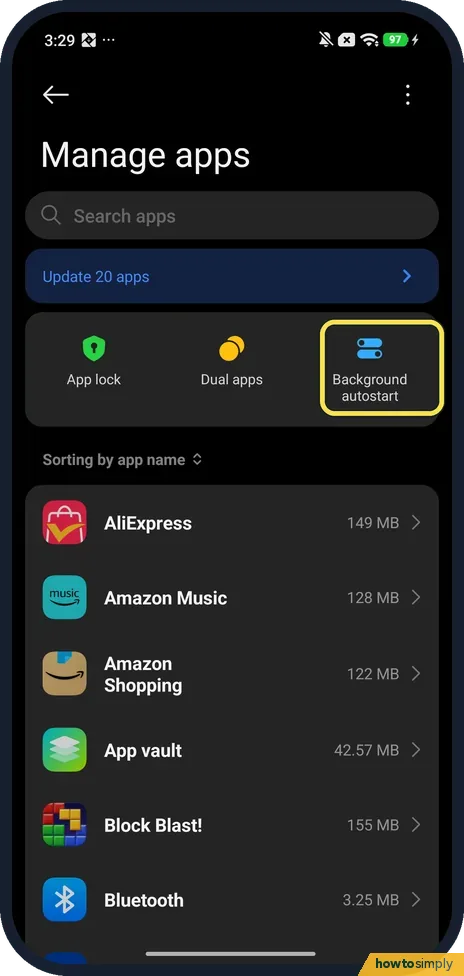
Go back to Manage apps. Background autostart is the third tile at the top, next to App lock and Dual apps. Tap it.
- 6
Check which apps may start on their own
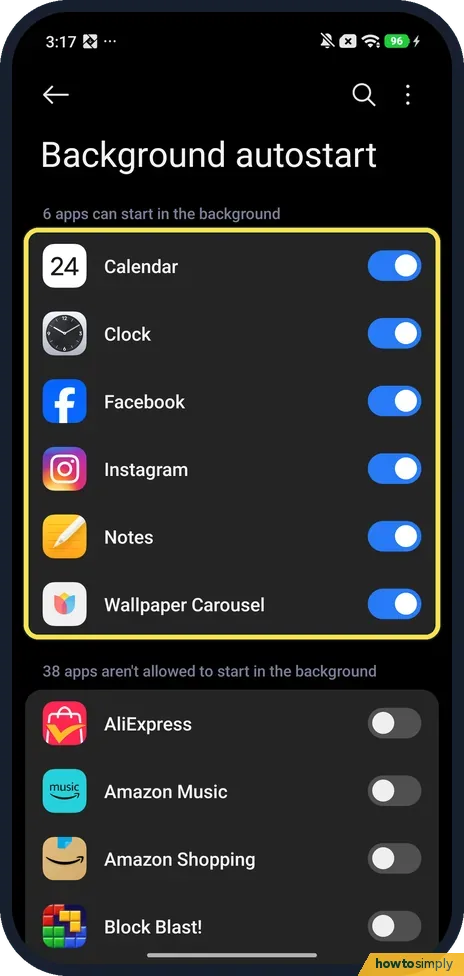
Ours said 6 apps can start in the background, Calendar, Clock, Facebook, Instagram, Notes and Wallpaper Carousel, and 38 apps aren't allowed to. Turn off apps you do not need running in the background.
- 7
Check the refresh rate
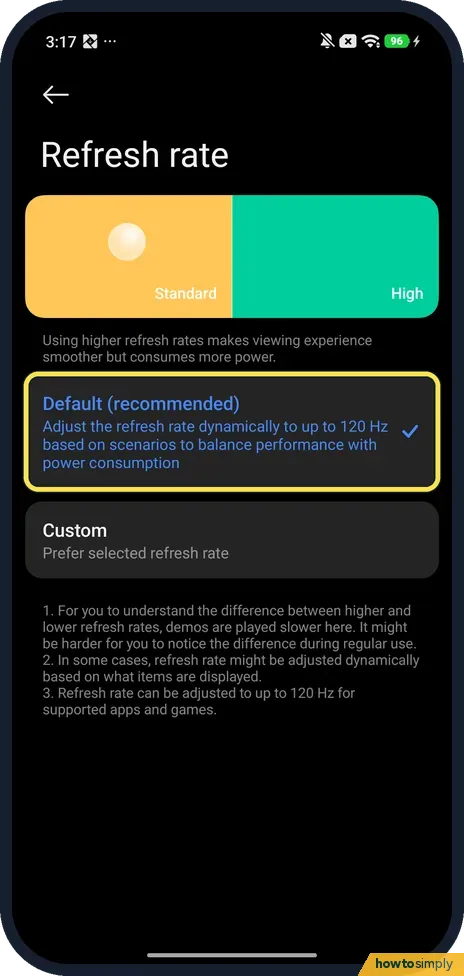
In Settings, Display & brightness, Refresh rate, ours was on Default (recommended): Adjust the refresh rate dynamically to up to 120 Hz. The page itself warns that using higher refresh rates consumes more power. Custom lets you pick a fixed rate instead.
- 8
Check Always-on display
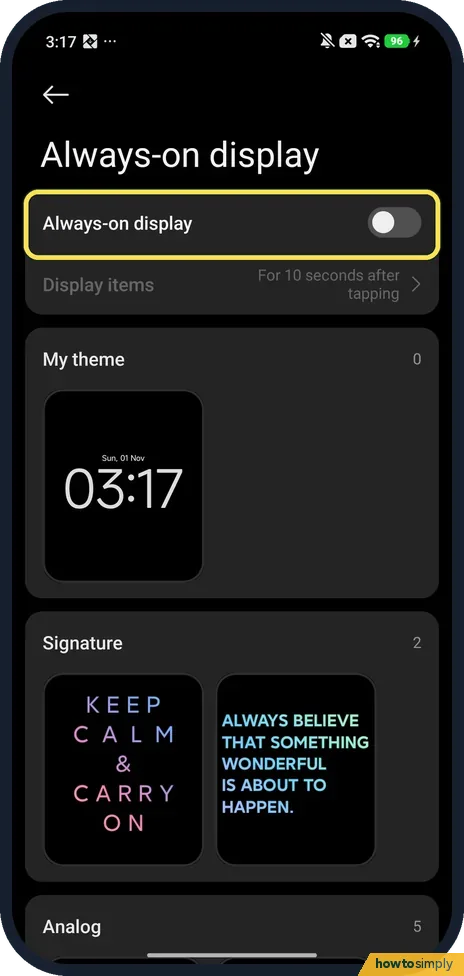
Open Settings and search for Always-on display. Ours was off, with Display items set to For 10 seconds after tapping. If yours is on all the time, that is one more thing keeping the screen lit.
If you do not see this option
- App not in the usage list? Our list showed five apps first; tap More apps under it for the rest.
- No Background autostart tile? Search Settings for autostart if Manage apps has no such tile; see how to allow Autostart for an app.
- Looking for Battery Saver? Google says some Android phones come with a battery saver or low power mode, which helps a charge last longer. On ours the modes sit behind Current mode on the Battery page. Source: Get the most life from your Android battery
If this does not work
- An app stops notifying after you limit it? Restrict background apps and Close apps after 10 minutes can delay messages from that app. Put chat and navigation apps back on Battery saver (recommended) or No restrictions: Xiaomi closing apps in the background.
- Battery drains even when the phone is idle? Google says your battery drains much faster when it's hot, even when not in use, and suggests Airplane mode if you do not need your mobile network, and Wi-Fi instead of mobile data.
- Nothing helps? Check the battery itself: how to check battery health on a Xiaomi phone. Google says that if you still have trouble, visit your carrier or manufacturer support site.
Good to know
To change the battery mode itself, see how to change battery mode and see battery use on a Xiaomi phone.
The percentages are each app's share of the battery used in the period shown, not a measure of how bad an app is. Ours were read while the phone was charging and had hardly been used, so a system service such as NFC Service could top the list. Look at the list after a normal day of use before you limit anything.
Google's own list of quick wins: let your screen turn off sooner, reduce screen brightness or set it to change automatically, turn on dark theme, and restrict apps with high battery use. For the screen timeout, see how to change the screen timeout on a Xiaomi phone; for dark theme, how to turn on dark mode on a Xiaomi phone.
Location also costs power. Google suggests turning off Location access when you do not need it, but warns that some apps and features won't work when Location is off.
About this guide
- Device
- Android
- Shown on
- Xiaomi Redmi Note 15 Pro 5G (25080RABDG), HyperOS 3.0.309.0, Android 16
- App
- Settings
- Real screenshots
- 8 of 8 steps
- Checked
- October 2026
- Sources
- 1 official, linked below
Sources
Links checked October 2026. Menus and features can change with updates.Spotted a mistake? Menus change with updates, and we want every step to match your screen. Email us about this page or use the contact form. We read every report, and fixes are listed on What changed.
Liked this guide?
Follow us for new guides and short how-to videos.
Did this guide work for you?
Sorry about that. What happened?