SAMSUNG GALAXY
Change the hotspot name, password and band on a Samsung Galaxy
Open Settings, Connections, Mobile Hotspot and Tethering, tap the words Mobile Hotspot, then the Network name, Password and Band section. Configure Mobile Hotspot has the name, password, band and security; Advanced holds the auto-off timer and more. Tap Save.

9 of 9 steps show a real screenshot from our Galaxy S26. Each step was checked against the maker's own instructions, linked at the end.
Steps
- 1
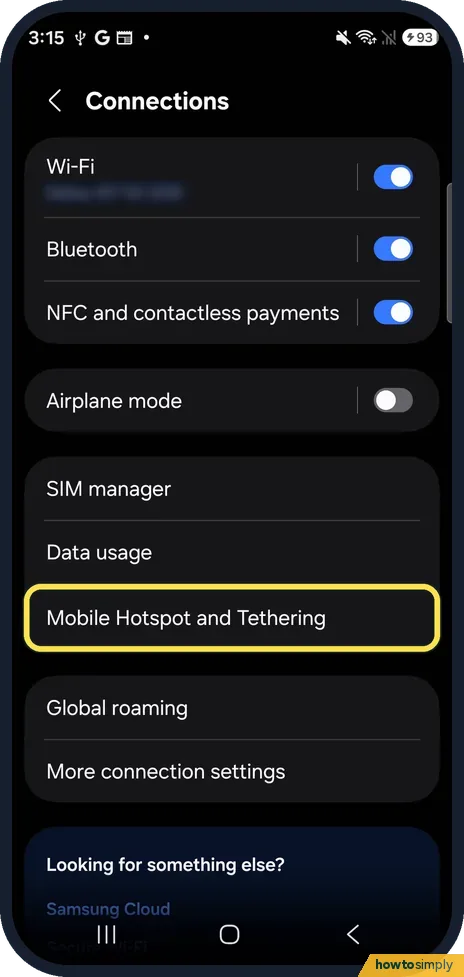
Open Mobile Hotspot and Tethering
Open Settings and tap Connections. Mobile Hotspot and Tethering is below Data usage.
- 2
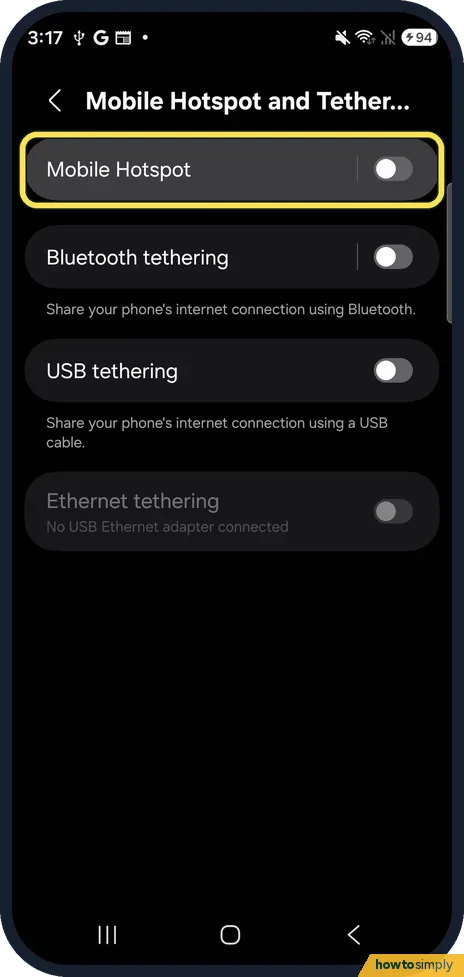
Tap the words Mobile Hotspot
Tap the name Mobile Hotspot, at the left of the row, not its switch. The switch turns the hotspot on; the name opens its settings. The same page has Bluetooth tethering and USB tethering.
- 3
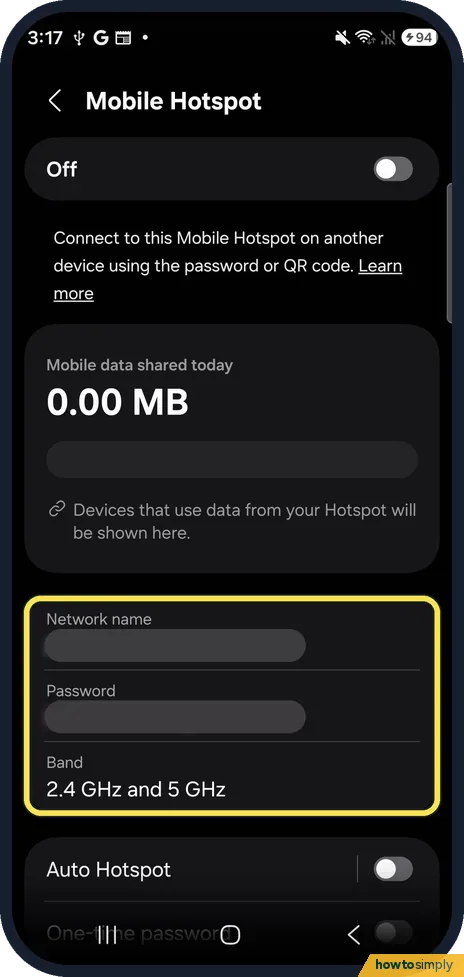
Tap the Network name, Password and Band section
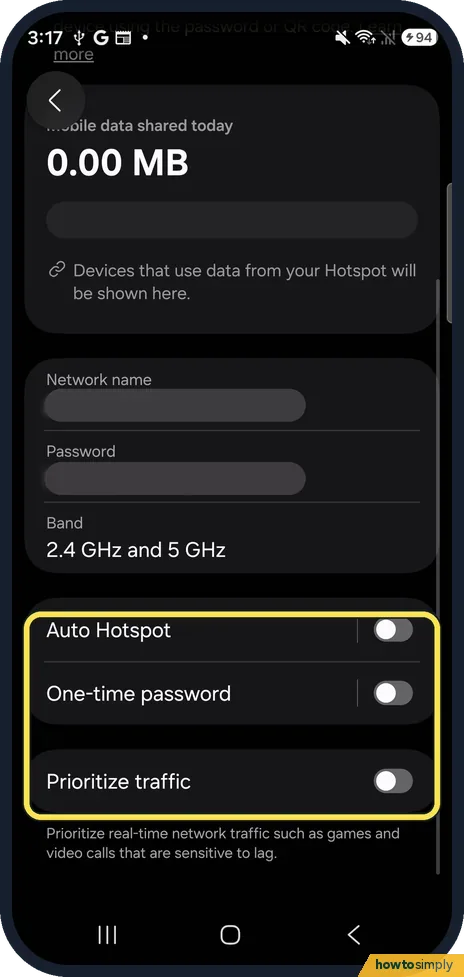
The Mobile Hotspot page shows the switch (Off on ours), Mobile data shared today (0.00 MB) and a section with Network name, Password and Band. Samsung calls it the Information section; tap it.
- 4
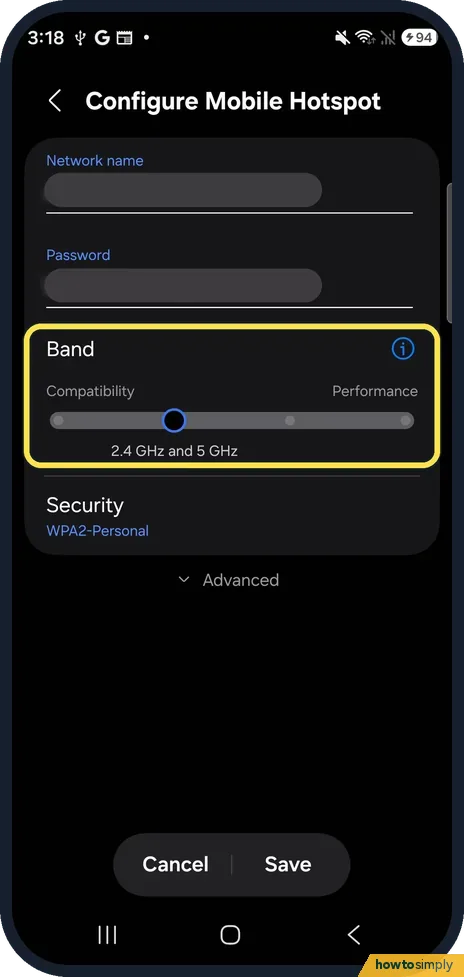
Change the name, password and band
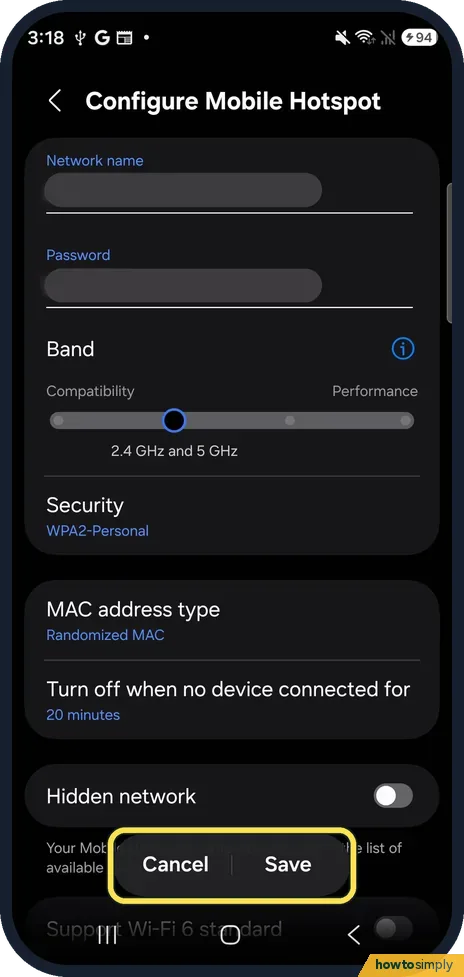
Configure Mobile Hotspot opens. Tap Network name or Password to type a new one; both are blurred in our picture. Band is a slider from Compatibility to Performance; ours was at 2.4 GHz and 5 GHz. Samsung says 2.4 GHz suits device compatibility and 5 GHz suits performance.
- 5
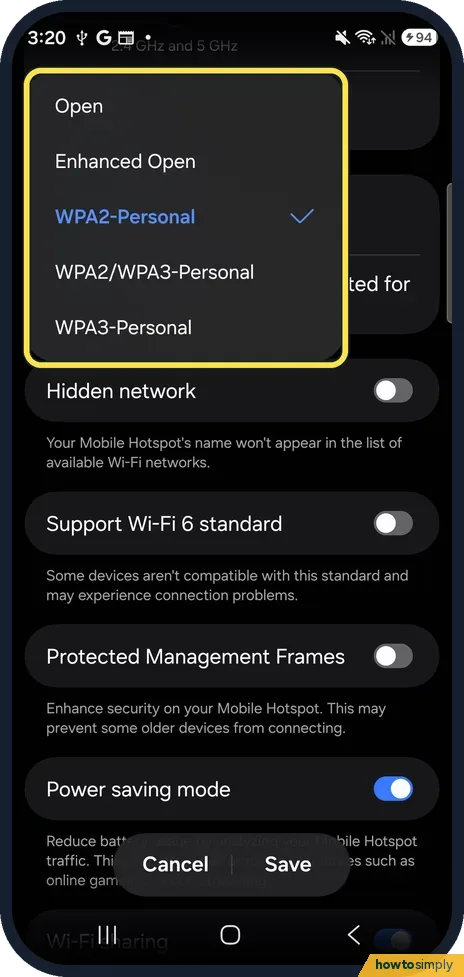
Pick the security
Tap Security to choose Open, Enhanced Open, WPA2-Personal, WPA2/WPA3-Personal or WPA3-Personal. Ours used WPA2-Personal. Open needs no password, so anyone nearby can join.
- 6
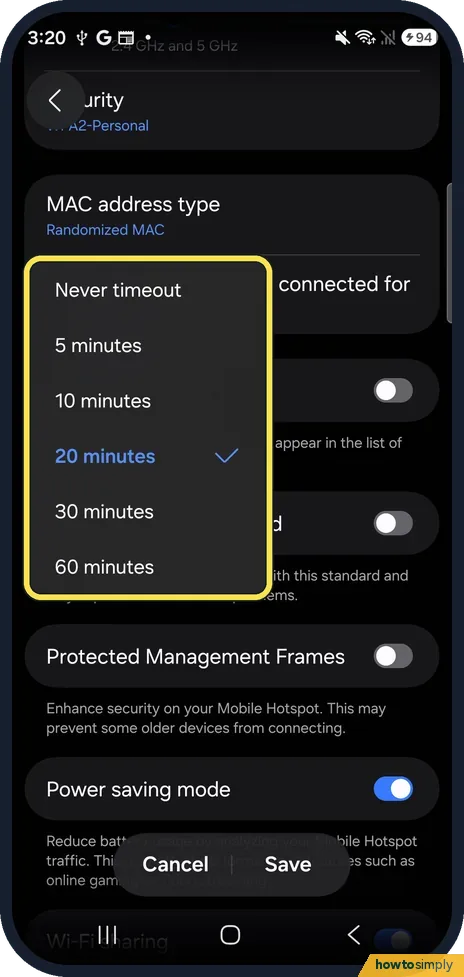
Open Advanced and set the auto-off timer
Tap Advanced, below Security, then Turn off when no device connected for. The choices were Never timeout, 5, 10, 20, 30 and 60 minutes; ours was 20 minutes.
- 7
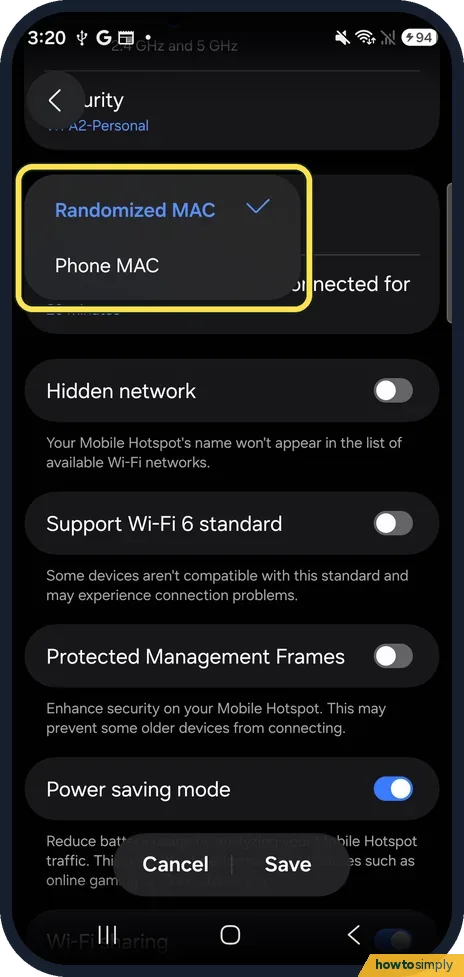
Choose the MAC address type
MAC address type offers Randomized MAC, which ours used, and Phone MAC.
- 8
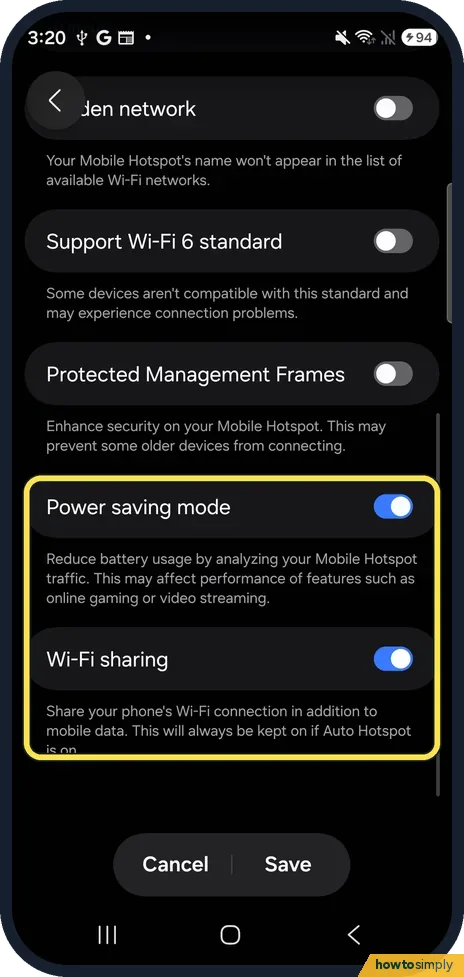
Check the other switches
Further down are Hidden network, Support Wi-Fi 6 standard, Protected Management Frames, Power saving mode and Wi-Fi sharing. On ours the first three were off and the last two on. The page says Power saving mode may affect performance of features such as online gaming or video streaming.
- 9
Tap Save
Tap Save at the bottom to keep your changes, or Cancel to leave everything as it was. We tapped Cancel.
If you do not see this option
- No Configure Mobile Hotspot page? Tap the words Mobile Hotspot, not the switch, then the Network name, Password and Band section. Samsung gives the same route. Source: Use a mobile hotspot on your Galaxy phone or tablet
- Looking for Auto Hotspot? It is on the Mobile Hotspot page itself, below Band, with One-time password and Prioritize traffic. All three were off on our S26. Samsung says to tap Auto Hotspot and turn it on, and that its Family sharing switch lets family members use it. Source: Use a mobile hotspot on your Galaxy phone or tablet
- Some switches missing? Samsung's page lists Power saving mode and Wi-Fi sharing under Advanced but not MAC address type, Hidden network or Wi-Fi 6, so those rows may not be on every Galaxy. Source: Use a mobile hotspot on your Galaxy phone or tablet
If this does not work
- A device cannot join after the change? It still has the old name or password saved. Forget the network on that device and join again with the new password. Protected Management Frames and Support Wi-Fi 6 standard both warn on our S26 that some older devices may not connect, so turn them off if an old device fails.
- The hotspot keeps switching itself off? Turn off when no device connected for closes it after the time you pick. Set Never timeout if you want it to stay on.
- Other devices cannot see the hotspot? Check Hidden network under Advanced. Its note on our S26 says your Mobile Hotspot's name won't appear in the list of available Wi-Fi networks. It was off on ours; if it is on, turn it off.
Good to know
To see who is on your hotspot and how much data each device used: see who is connected to your Samsung Galaxy hotspot.
If devices still cannot connect or get no internet, see Samsung Galaxy hotspot not working: 6 fixes.
A hotspot uses your mobile data. Samsung notes that even unlimited plans may have limitations, so check your plan before sharing a lot of data.
A strong password and WPA2 or WPA3 security keep strangers off your hotspot. If you shared the password with someone who should no longer use it, change it here; every device then has to join again with the new one.
About this guide
- Device
- Android
- Shown on
- Samsung Galaxy S26 (SM-S942N, Korean model), One UI 9, Android 17 (build S942NKSS4BZIG)
- App
- Settings
- Path
- Settings › Connections › Mobile Hotspot and Tethering › Mobile Hotspot › Network name/Password/Band section: name
- Real screenshots
- 9 of 9 steps
- Checked
- October 2026
- Sources
- 2 official, linked below
Sources
Links checked October 2026. Menus and features can change with updates.Spotted a mistake? Menus change with updates, and we want every step to match your screen. Email us about this page or use the contact form. We read every report, and fixes are listed on What changed.
Liked this guide?
Follow us for new guides and short how-to videos.
Did this guide work for you?
Sorry about that. What happened?