XIAOMI REDMI
How to set and delete an alarm on a Xiaomi phone (HyperOS 3)

In short
Open the Clock app and tap + on the Alarm tab. Scroll the H and M wheels to the time, set Repeat and tap the tick. To delete an alarm, touch and hold it and tap Delete. On our phone it went at once, with no confirm step.
9 of 9 steps show a real screenshot from our Redmi Note 15 Pro 5G. Each step was checked against the maker's own instructions, linked at the end.
Steps
- 1
Tap +
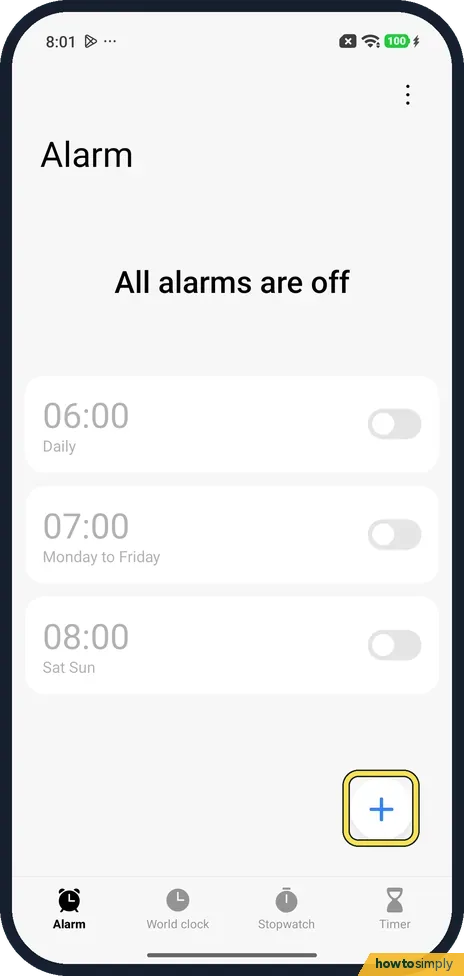
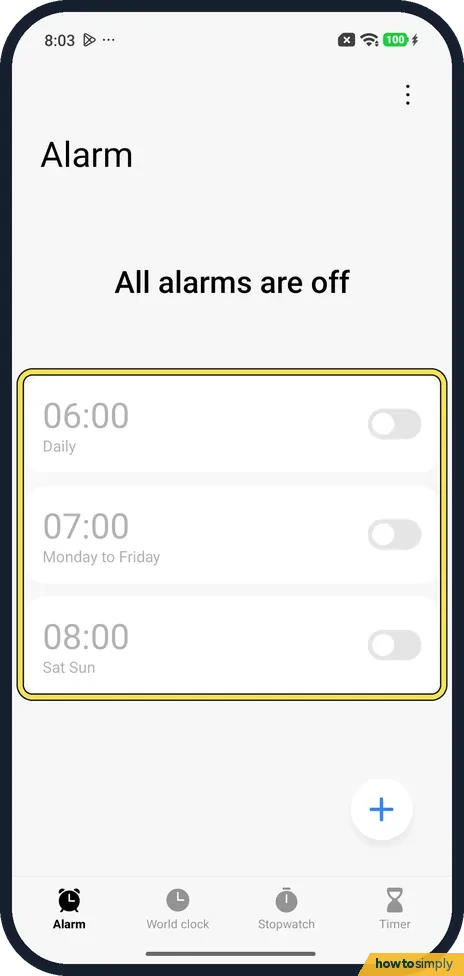
Open the Clock app. It opens on the Alarm tab with your alarms and a + button at the bottom right. Ours had three alarms, all off, and said All alarms are off. Tap +.
- 2
Set the time
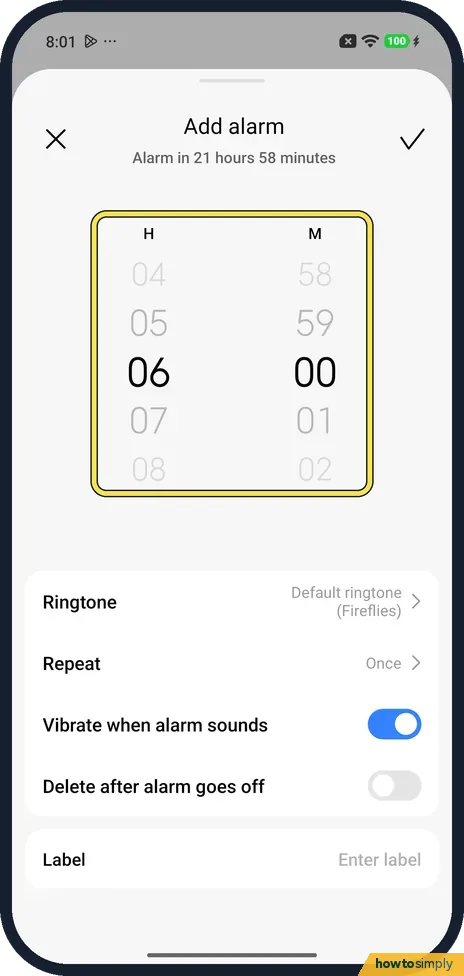
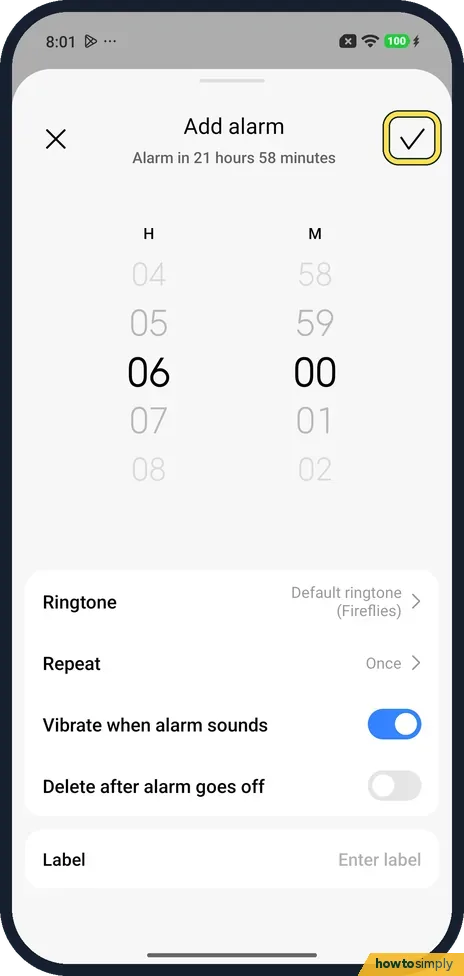
An Add alarm sheet opens. Scroll the H (hours) and M (minutes) wheels. The line under Add alarm counts down to it: for 06:00 ours said Alarm in 21 hours 58 minutes.
- 3
Choose how often
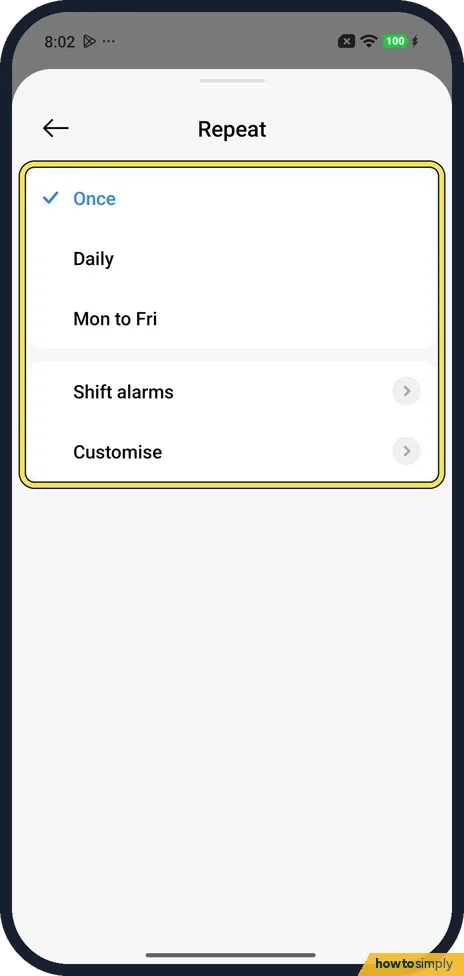
Tap Repeat. The choices are Once, Daily, Mon to Fri, Shift alarms and Customise. Once was ticked, and we kept it. Shift alarms and Customise open their own pages; we did not open them.
- 4
Check the other options
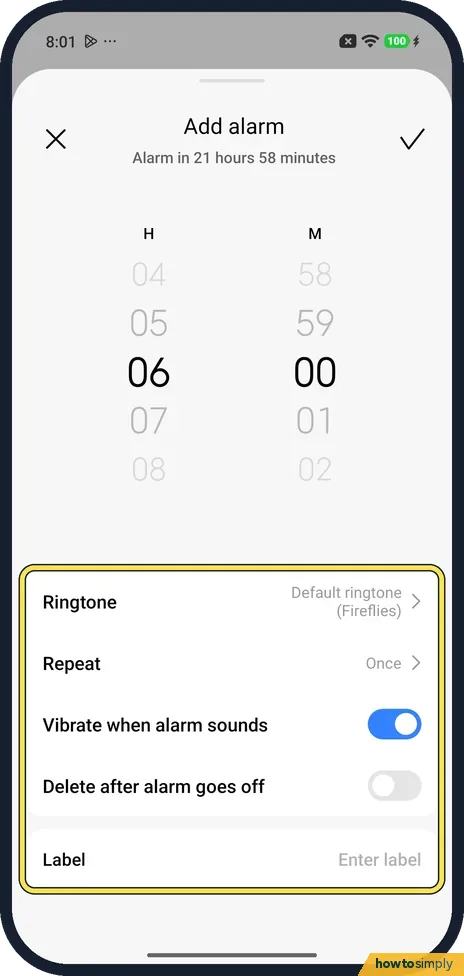
Back on the sheet, Vibrate when alarm sounds was on and Delete after alarm goes off was off. Label lets you give the alarm a name. Ringtone, above Repeat, said Default ringtone (Fireflies).
- 5
Tap the tick
Tap the tick at the top right to save the alarm. The X at the top left closes the sheet without saving.
- 6
See the new alarm
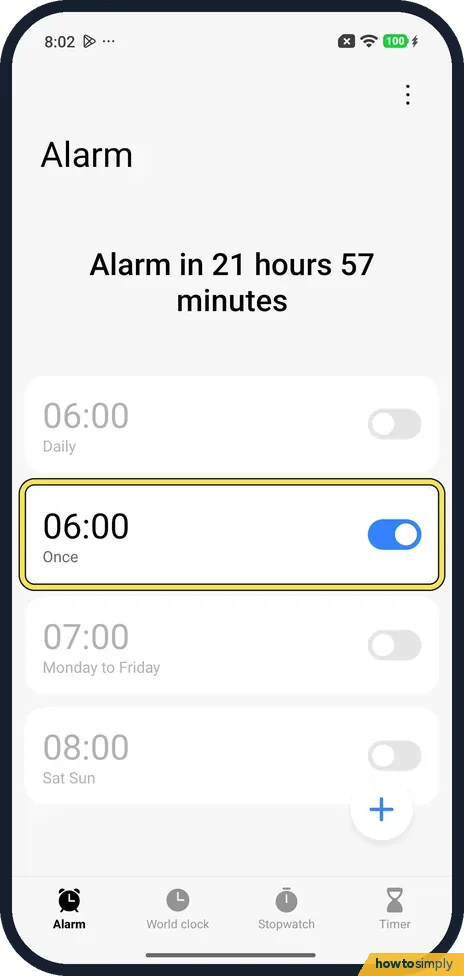
The 06:00 Once alarm shows in the list with its switch on, and the top of the page says Alarm in 21 hours 57 minutes. Xiaomi's guide says you tap an alarm to change its time.
- 7
Touch and hold to delete
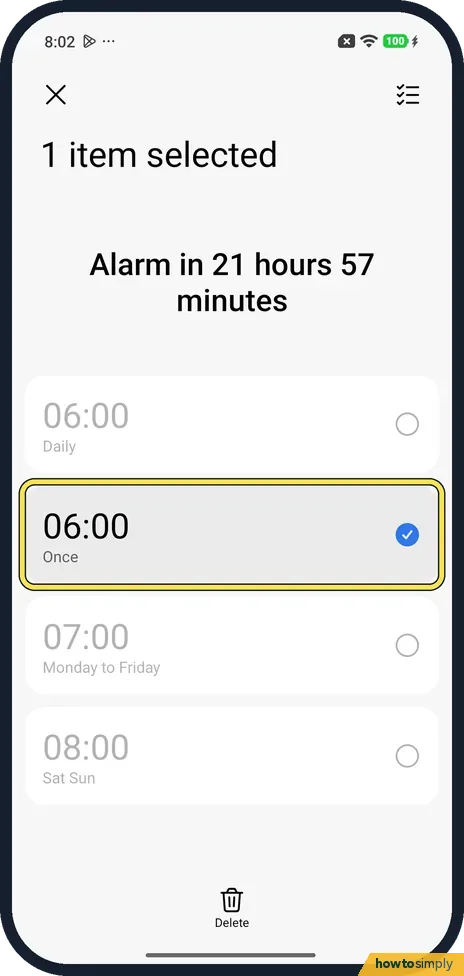
To delete an alarm, touch and hold it. The page changes to 1 item selected and the alarm gets a blue tick.
- 8
Tap Delete
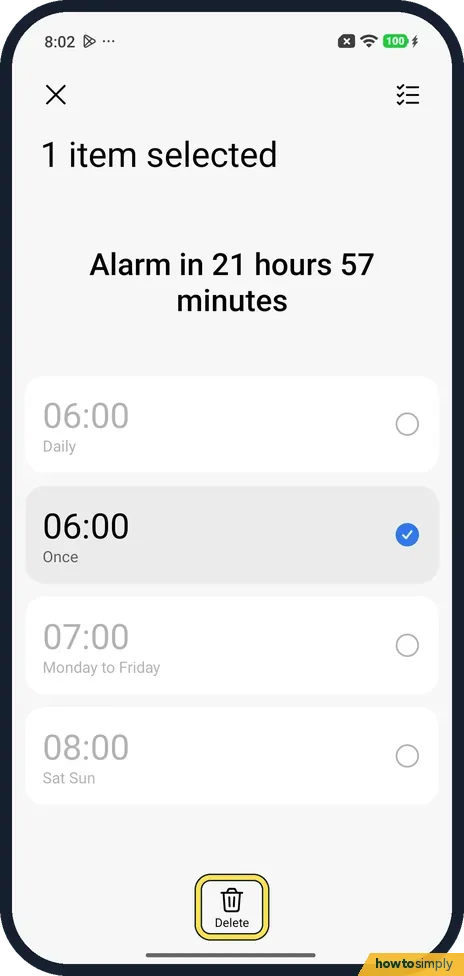
Tap Delete at the bottom. On our phone the alarm was gone straight away. There was no Are you sure? step, so check the tick is on the right alarm first.
- 9
Check the list
The list is back to our three alarms, and the page says All alarms are off again.
If you do not see this option
- Want the alarm to ring when the phone is off? It depends on the model. Xiaomi says the REDMI 15 has Shutdown alarm in Clock, under the three-dot menu, Settings, Additional alarm settings. It says the REDMI Note 11 Pro 5G does not ring once it is powered off. We did not check our phone. Sources: Does the REDMI 15 support the Shutdown alarm feature in the Clock App?, Will the alarm sound after powering off the REDMI Note 11 Pro 5G?
- Your Clock app looks different? Google's Clock app works another way: tap Add, set the time and tap OK. To delete, open the alarm and tap Delete. Our Redmi used Xiaomi's Clock app shown here. Source: Set, cancel, or snooze alarms on your Android device
- Only want to skip a day? Xiaomi's HyperOS 3 guide says you can turn off an alarm just once or turn off the repeating alarm. Use the switch next to the alarm instead of deleting it. Source: Generic User Guide for HyperOS 3.0
If this does not work
- The alarm did not ring? Xiaomi's tips: set a test alarm one minute ahead, check that the alarm volume is up and a ringtone is set, then restart the phone. More checks: Xiaomi phone not ringing or vibrating.
- Silenced by Do Not Disturb or Battery Saver? Google's Clock help says to allow alarms in Do Not Disturb, and that Battery Saver may block alarms. See how to use Do Not Disturb.
- Two alarms close together? Google's Clock help says the first one may be cancelled and suggests leaving 5 minutes between them.
Good to know
Keep alarms ringing at night: how to use Do Not Disturb on a Xiaomi phone.
Check which battery mode is on: how to change battery mode.
About this guide
- Device
- Android
- Shown on
- Xiaomi Redmi Note 15 Pro 5G (25080RABDG), HyperOS 3.0.308.0, Android 16
- App
- Clock
- Path
- Clock › Alarm
- Real screenshots
- 9 of 9 steps
- Checked
- October 2026
- Sources
- 5 official, linked below
Sources
- Xiaomi: Generic User Guide for HyperOS 3.0
- Clock Help: Set, cancel, or snooze alarms on your Android device
- Xiaomi Support: What if the alarm clock of Mi phone doesn't ring?
- Xiaomi Support: Does the REDMI 15 support the Shutdown alarm feature in the Clock App?
- Xiaomi Support: Will the alarm sound after powering off the REDMI Note 11 Pro 5G?
Spotted a mistake? Menus change with updates, and we want every step to match your screen. Email us about this page or use the contact form. We read every report, and fixes are listed on What changed.
Liked this guide?
Follow us for new guides and short how-to videos.
Did this guide work for you?
Sorry about that. What happened?