GOOGLE PIXEL
How to set and delete an alarm on a Google Pixel (Android 17)

In short
Open the Clock app, tap Alarms, then the + button. Pick the hour and minutes on the dial and tap OK. The new alarm is switched on. Tap the day letters to repeat it, change Sound or Vibrate, then Save. To remove an alarm, open it and tap Delete.
11 of 11 steps show a real screenshot from our Pixel 10a. Each step was checked against the maker's own instructions, linked at the end.
Steps
- 1
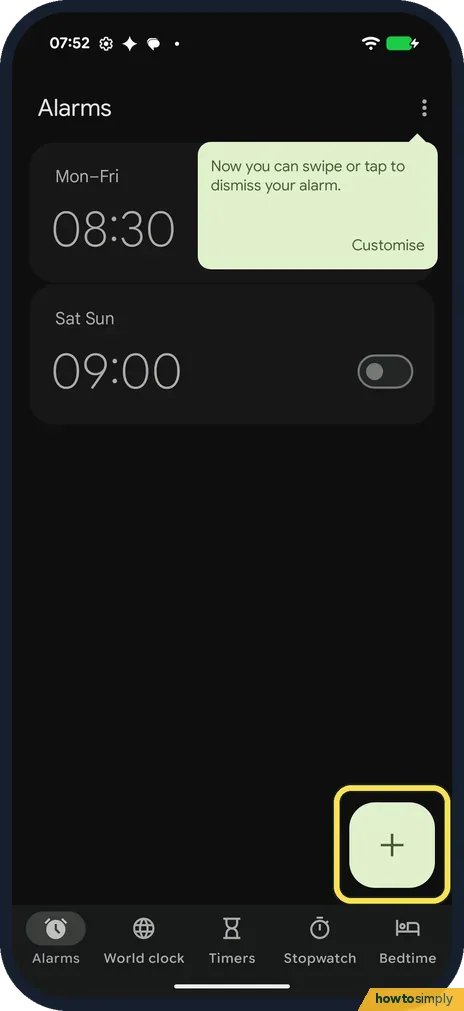
Tap + on the Alarms tab
Open the Clock app. Alarms is the first tab at the bottom, next to World clock, Timers, Stopwatch and Bedtime. Tap the + button at the bottom right. Our two old alarms, Mon–Fri 08:30 and Sat Sun 09:00, were both off.
- 2
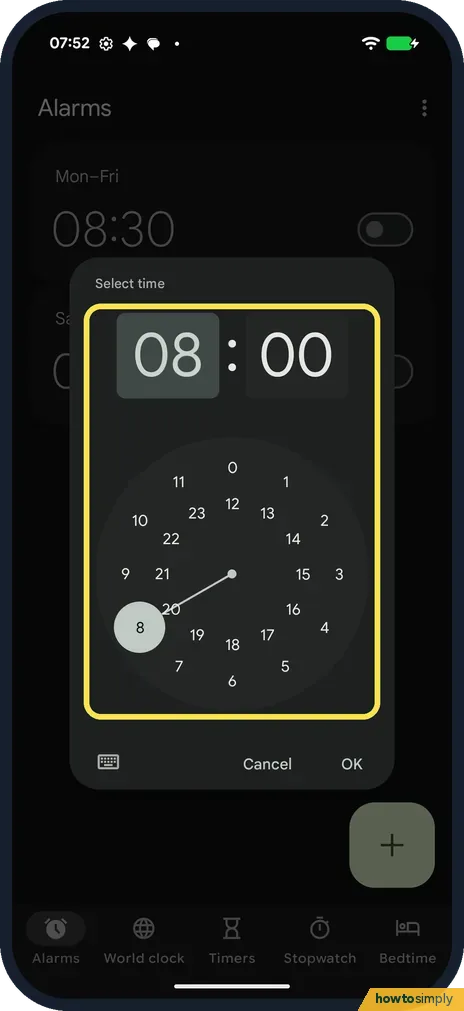
Pick the hour
Select time opens with a dial. On our 24-hour phone the dial shows 0 to 11 on the outer ring and 12 to 23 inside. Tap the hour; ours started at 08.
- 3
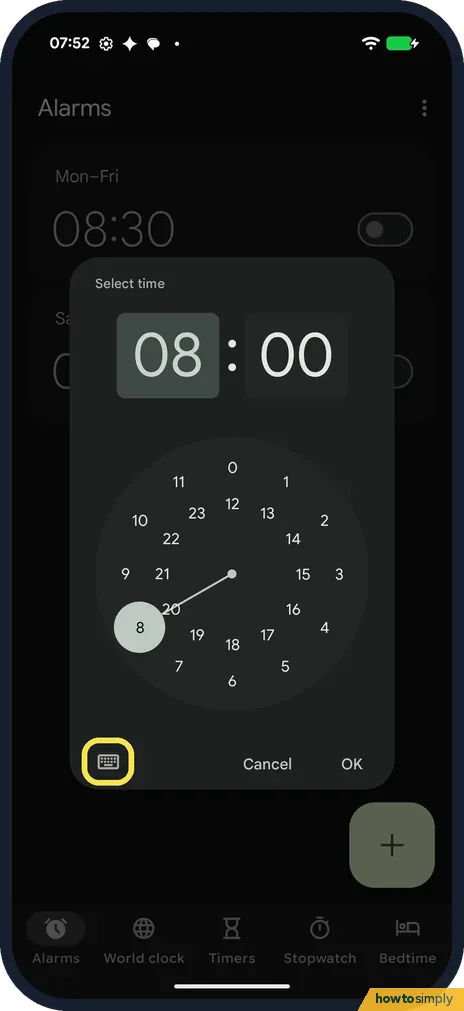
Or type the time
The keyboard icon at the bottom left of the dial lets you type the time instead.
- 4
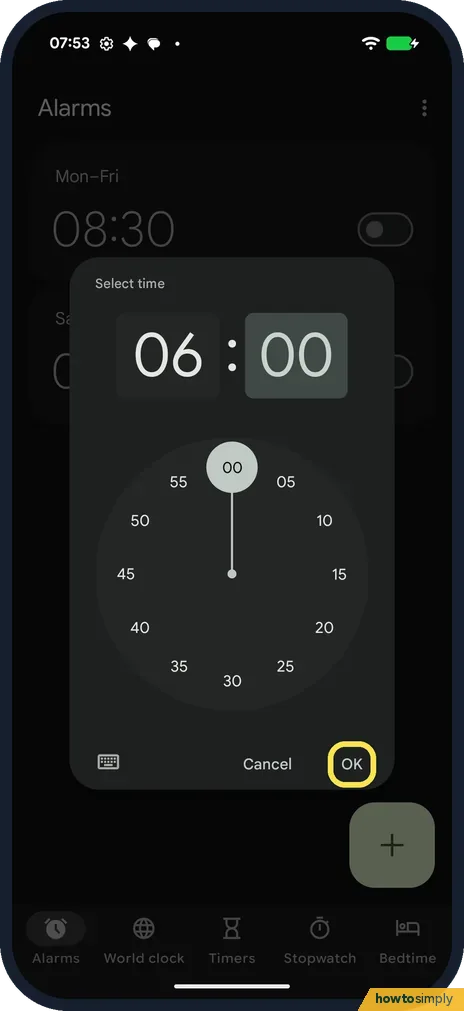
Pick the minutes and tap OK
After the hour, the dial switches to minutes, labelled in steps of 5. We set 06:00 and tapped OK.
- 5
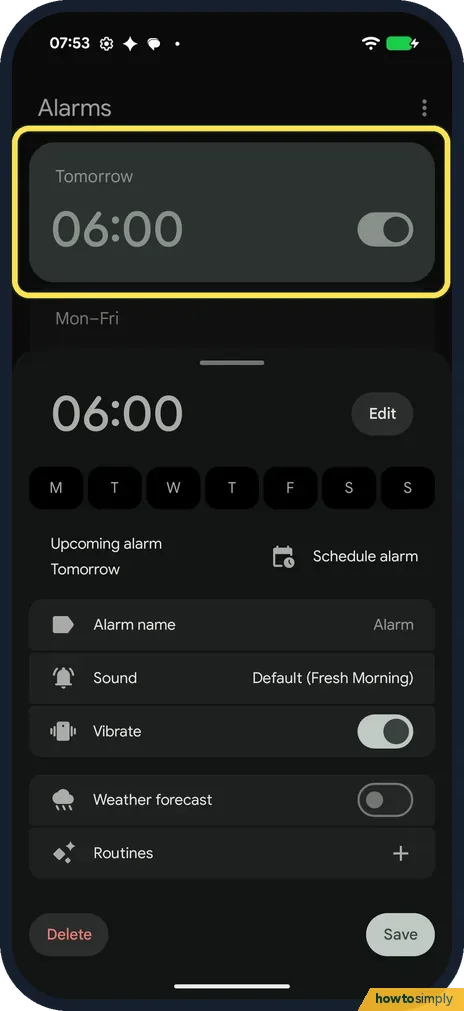
Check the new alarm
The alarm is added at the top of the list, already switched on and labelled Tomorrow. Its options open below it.
- 6
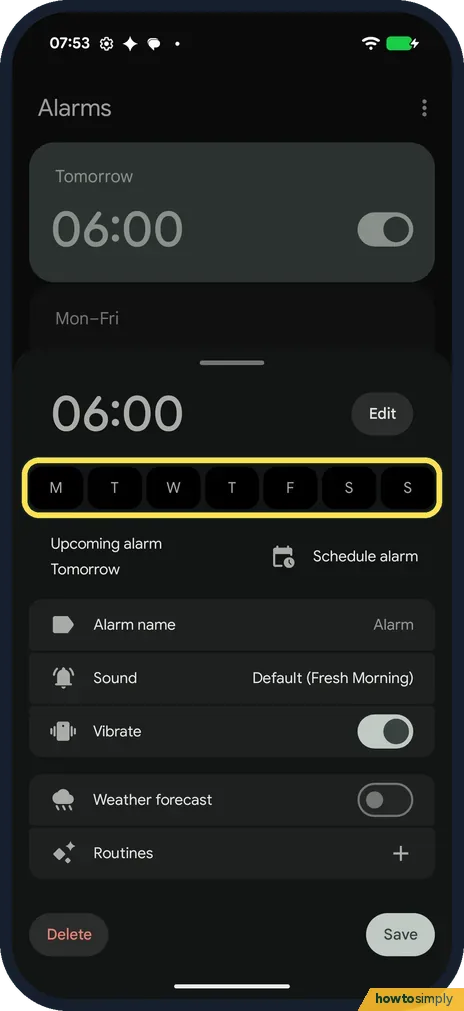
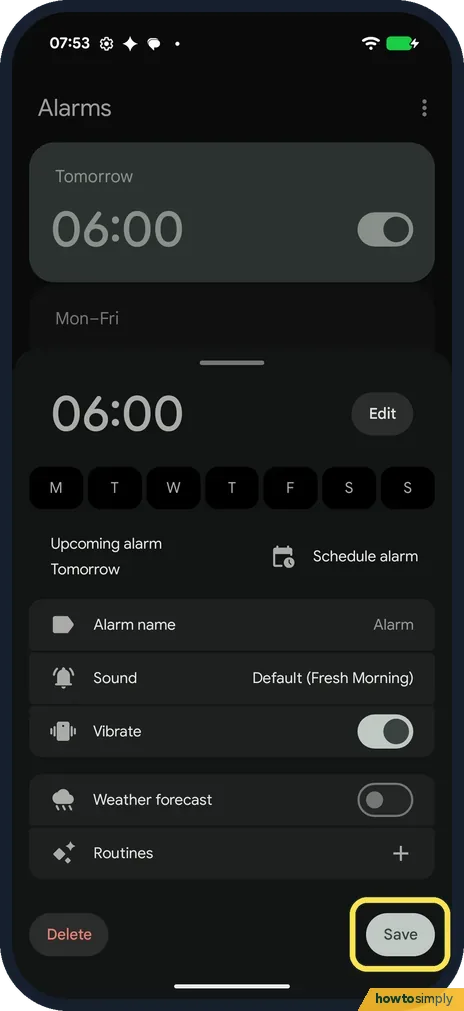
Repeat it on some days
Tap the day letters M T W T F S S to make the alarm repeat on those days. With no day picked, ours said Upcoming alarm Tomorrow.
- 7
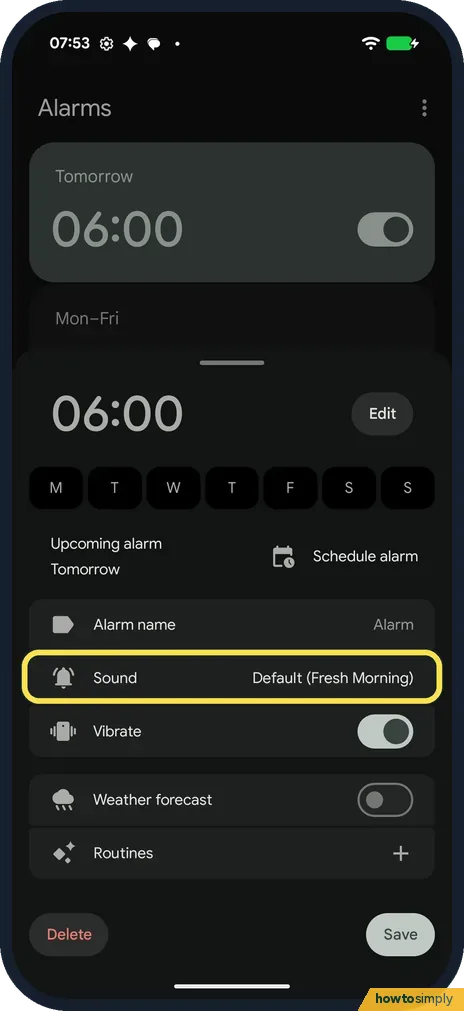
Change the sound
Sound was Default (Fresh Morning) on ours. Tap it to pick another sound. Alarm name, just above, lets you give it a label.
- 8
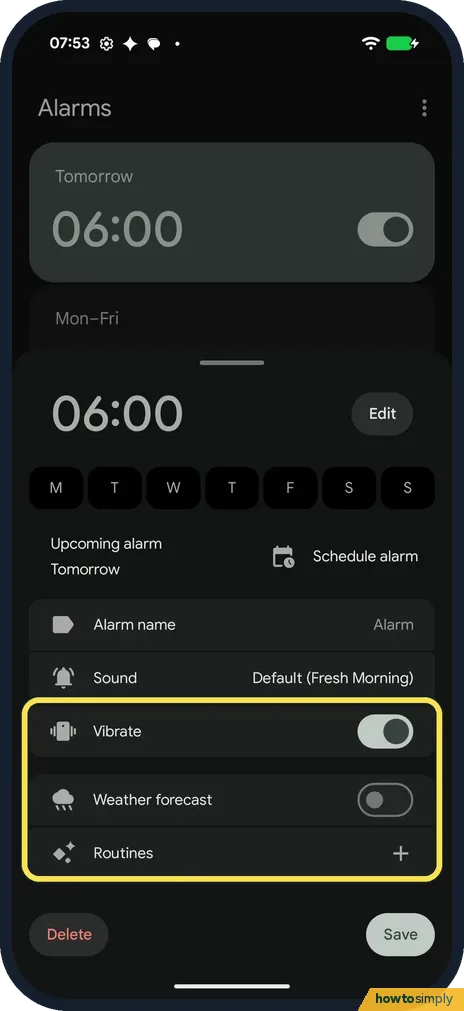
Vibrate, weather and routines
Vibrate was on, Weather forecast was off, and Routines had a + to add one.
- 9
Tap Save
Tap Save at the bottom right to keep your changes.
- 10
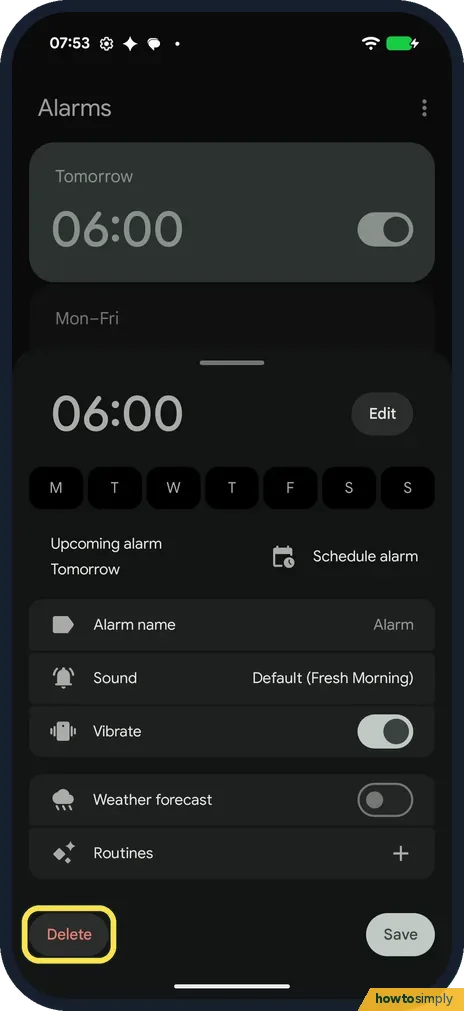
Delete an alarm
To remove an alarm, tap it to open these options and tap Delete at the bottom left.
- 11
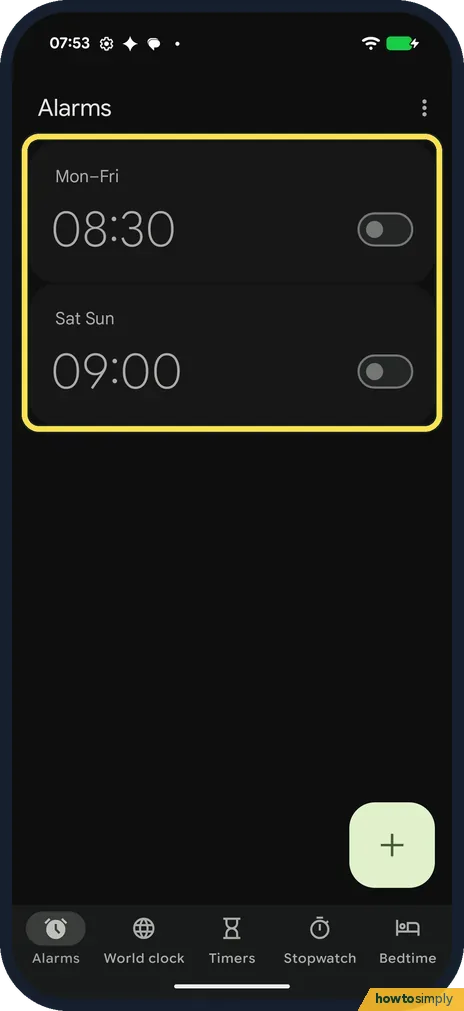
Check it is gone
After Delete, the 06:00 alarm was gone from our list. Only Mon–Fri 08:30 and Sat Sun 09:00 were left, both still off.
If you do not see this option
- No AM or PM on the dial? Google says that with the 12-hour format you also choose AM or PM. Our phone, set to region Germany, uses the 24-hour clock, so its dial runs from 0 to 23 with no AM or PM. Source: Set, cancel, or snooze alarms on your Android device
- Routines not working? Google says alarm routines need Google Assistant, the Clock app by Google and the Google Search app. On ours, Routines showed only a + to add one. Source: Set, cancel, or snooze alarms on your Android device
- Want music from Spotify or another app? Google says music services such as Spotify need their own app, and some need a premium or signed-in account. Otherwise pick a sound from the phone. Source: Set, cancel, or snooze alarms on your Android device
If this does not work
- Alarm made no sound? Google says an alarm won't go off if your ringtone is silent and vibration is off, and that an alarm volume below 30% may be too low. See Pixel not ringing.
- Silenced at night? Google says Do Not Disturb can silence an alarm unless alarms are allowed in its settings: how to use Do Not Disturb and modes.
- Battery Saver was on? Google says Battery Saver may stop an alarm from going off. See how to use Battery Saver on a Google Pixel.
- First of two alarms didn't ring? Google says that if you set 2 alarms too close together, the first one may be cancelled. Leave more time between them.
Good to know
Our Clock app showed a tip when we opened it: Now you can swipe or tap to dismiss your alarm, with a Customise button. We didn't open it.
Google says tapping Snooze delays a ringing alarm by 10 minutes.
About this guide
- Device
- Android
- Shown on
- Google Pixel 10a, Android 17 (build CP3A.261005.005)
- App
- Clock
- Path
- Clock › Alarms
- Real screenshots
- 11 of 11 steps
- Checked
- October 2026
- Sources
- 1 official, linked below
Sources
Links checked October 2026. Menus and features can change with updates.Spotted a mistake? Menus change with updates, and we want every step to match your screen. Email us about this page or use the contact form. We read every report, and fixes are listed on What changed.
Liked this guide?
Follow us for new guides and short how-to videos.
Did this guide work for you?
Sorry about that. What happened?