
howtosimply.com/guides/how-to-set-a-call-background-on-a-samsung-galaxy/ · Checked October 2026 · Samsung Galaxy A57 5G (One UI 8.5, Android 16) and Samsung Galaxy A57 (One UI 9, Android 17 (build A576BXXU6BZIE))
In this guide
Open the Phone app, tap the three dots, Settings, Call background, then tap Background and choose a picture or video. It shows full screen when you make or receive calls.
3 of 3 steps with real screenshots · 3 official sources below
- Device
- Android
- Shown on
- Samsung Galaxy A57 5G (SM-A576B), One UI 8.5, Android 16, Samsung Galaxy A57 (SM-A576B), One UI 9, Android 17 (build A576BXXU6BZIE)
- App
- Phone
- Real screenshots
- 3 of 3 steps
- What we did
- Observed: looked at each screen, changed nothing
- Our phone
- Shown on Galaxy A57, One UI 8.5
- Checked
- October 2026
- Sources
- 3 official, linked below
Step by step
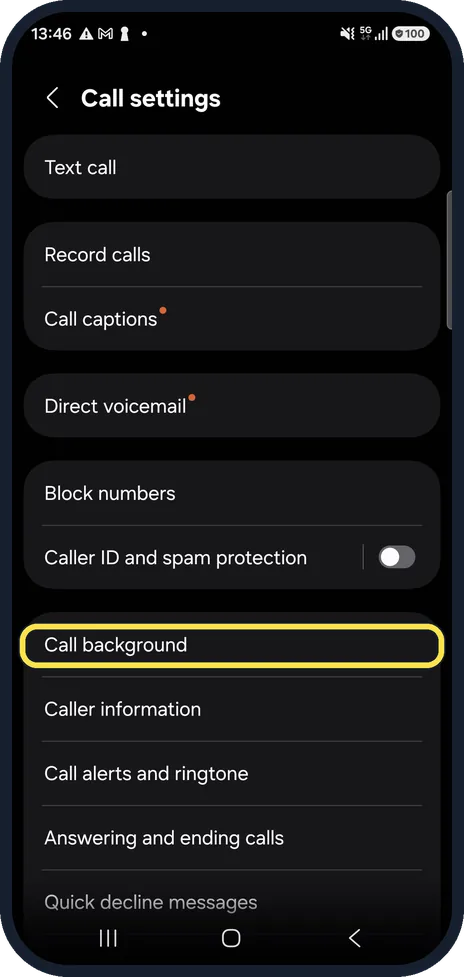
Open the Phone app settings
Open the Phone app, tap the three dots at the top right, then Settings. Call background is in the list.
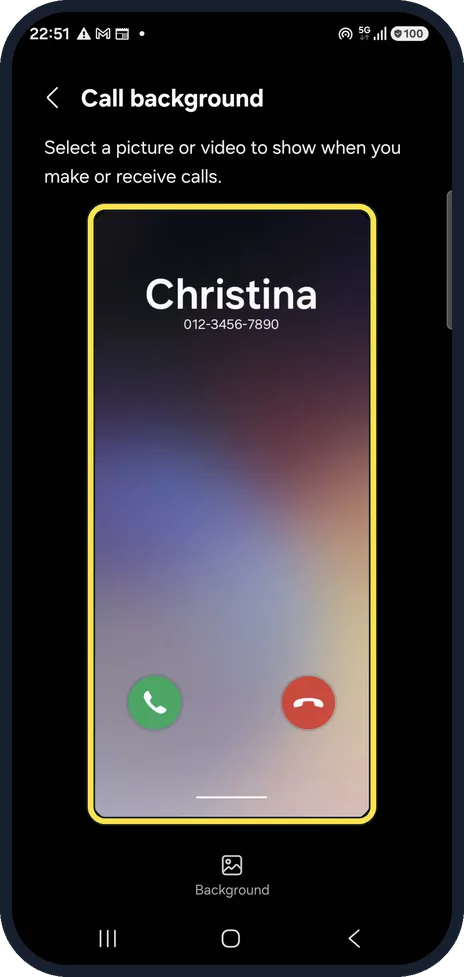
Open Call background
Tap Call background. A preview shows how a call looks.
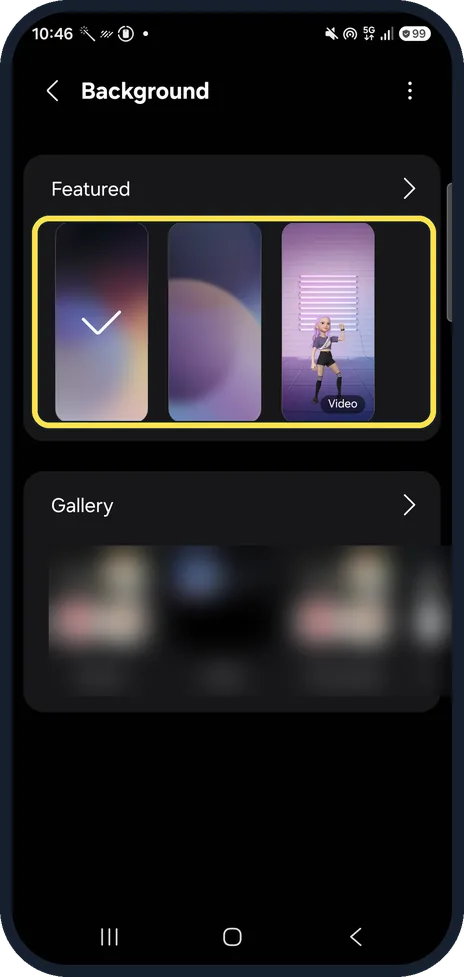
Tap Background
Tap Background under the preview and pick one of the built-in backgrounds, or a picture or video from Gallery.
Ours offered three Featured backgrounds, the first ticked, with Gallery albums below. We left the default.
If you do not see this option
- There is no Call background in the Phone settings Samsung says the call background needs Android 11 or later, and support varies by model. Source: How to change the call background on my Samsung Galaxy phone
- You want a background for one contact Samsung AE gives a route from the Contacts tab: pick the contact, tap the three dots, then Set as call background. Source: How to change the call background on my Samsung Galaxy phone
If this does not work
- Your video is not accepted Samsung says a video for the call background can be up to 15 seconds long. Source: How to set a picture or video as the call background on your Samsung Galaxy smartphone
- You want the video to ring too Samsung says you can use the video's sound as your ringtone when you set it. Source: How to set a picture or video as the call background on your Samsung Galaxy smartphone
- Set as call background is missing for a contact Samsung AE says the contact may not be properly saved in your phonebook. Save it as a contact first. Source: How to change the call background on my Samsung Galaxy phone
About this guide
The call background is what you see behind the caller's name during calls. It is only shown on your phone, not to the person calling.
Step 3 is from the same phone after its One UI 9 update (Android 17).
Good to know
The name and number in the preview, Christina 012-3456-7890, are Samsung's sample, not a real contact.
In short: Phone, three dots, Settings, Call background, Background, pick a picture or video.
- Samsung Latin: How to set a picture or video as the call background on your Samsung Galaxy smartphone
- Samsung AE: How to change the call background on my Samsung Galaxy phone
- Samsung PH: How to set a picture or video as the call background on your Samsung Galaxy smartphone
Links checked in October 2026. Menus and features can change after software updates. These steps match the version named at the top.
📷 See real photos from the Galaxy A57 in our Camera Lab, next to 10 other phones.
Did this guide work for you?
Sorry about that. What happened?