
howtosimply.com/guides/how-to-record-audio-with-the-recorder-app-on-a-google-pixel/ · Checked October 2026 · build CP3A.260905.009 · Google Pixel 10a, Android 17
In this guide
Open Recorder and tap the red record button. Tap Pause or Stop when you're done; the recording is saved with the date and time as its name. Open it to play it back or switch to the transcript, and use the menu to delete, share or crop it.
9 of 9 steps with real screenshots · 1 official source below
- Device
- Android
- Shown on
- Google Pixel 10a, Android 17 (build CP3A.260905.009)
- Real screenshots
- 9 of 9 steps
- Checked
- October 2026
- Sources
- 1 official, linked below
Step by step
Open Recorder
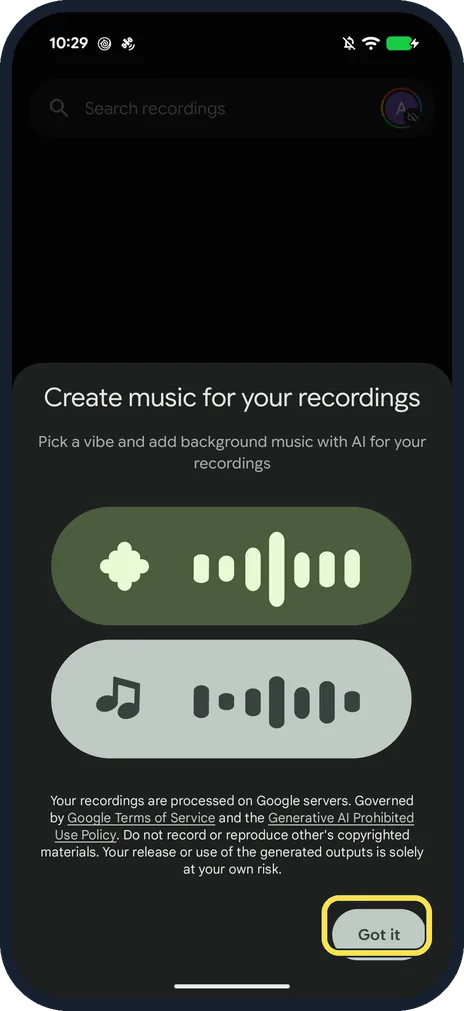
Open the Recorder app. The first time, ours showed Create music for your recordings, about adding AI background music. Tap Got it.
Tap the record button
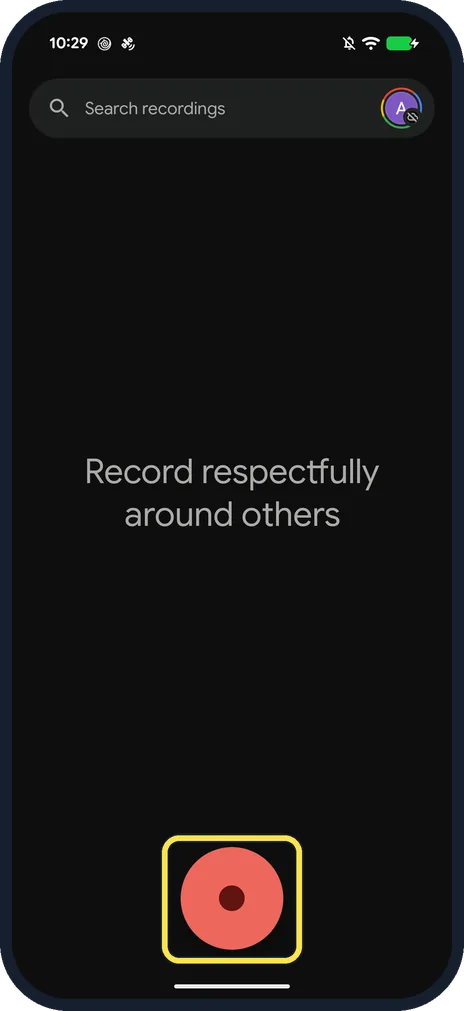
Tap the big red button at the bottom. The screen says Record respectfully around others.
Pause or stop
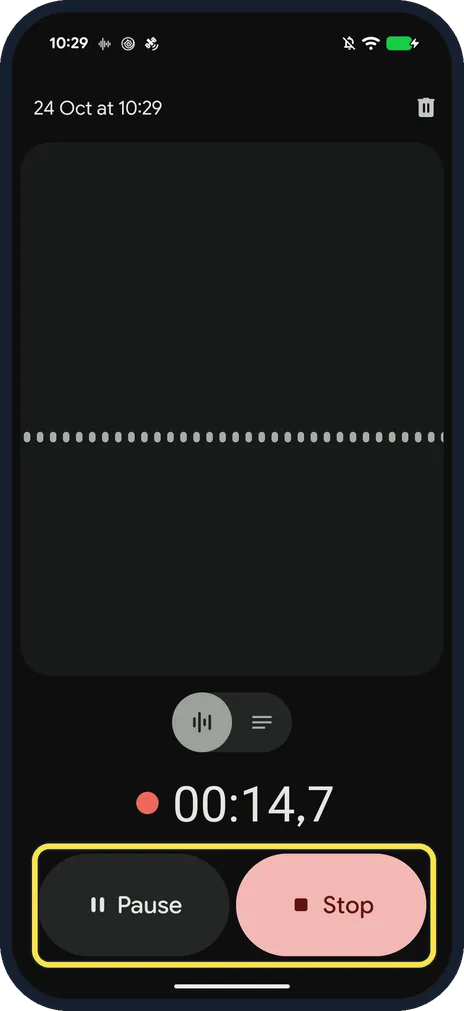
The timer counts up with a waveform above it. Tap Pause to take a break, or Stop to finish.
Add location?
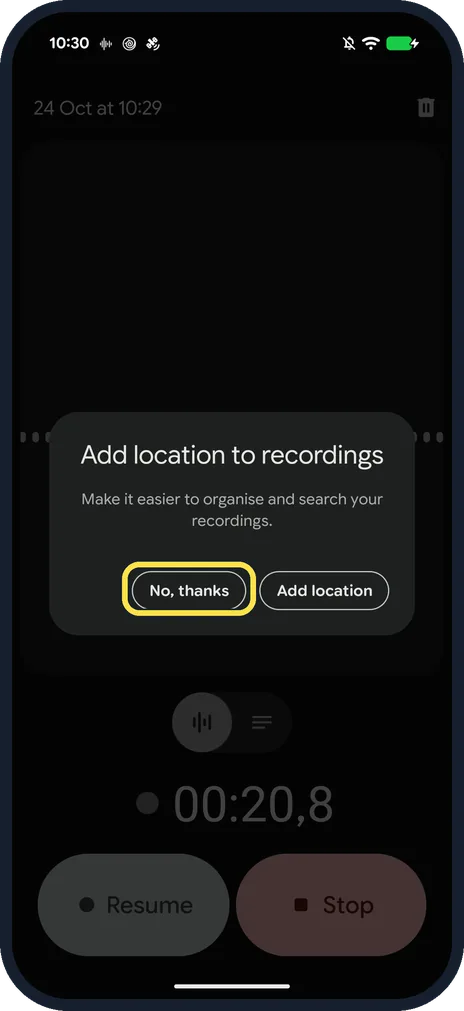
After our first recording it asked Add location to recordings, to make them easier to organise and search. We tapped No, thanks.
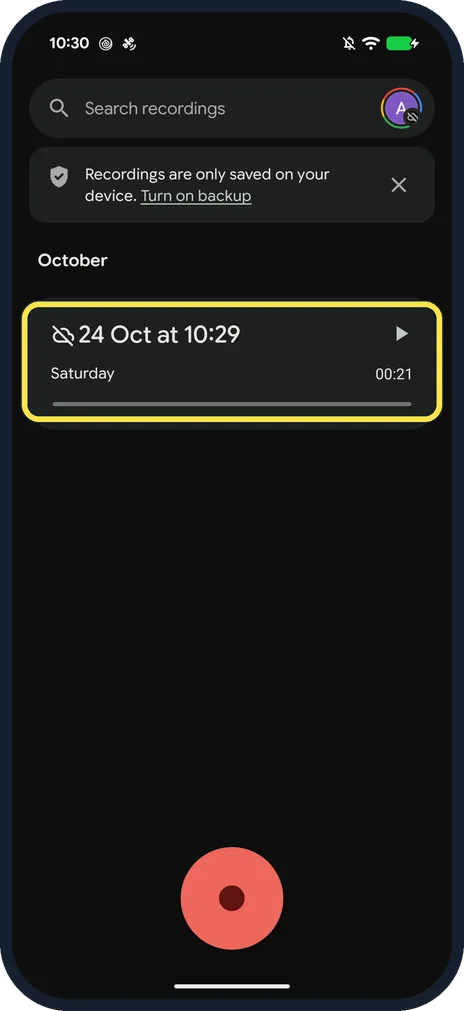
Find the recording
Recordings are listed by month, named with the date and time, with the length on the right. Tap one to open it.
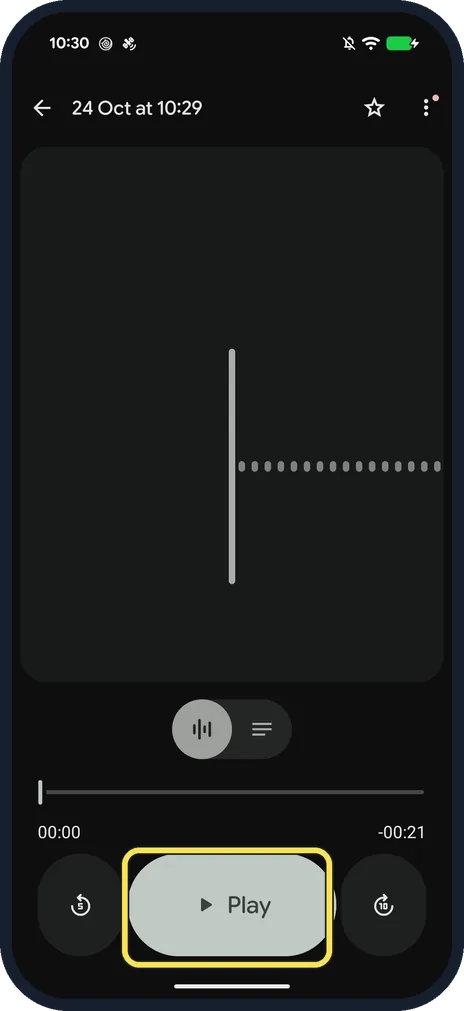
Play it back
Tap Play. The buttons either side skip back and forward.
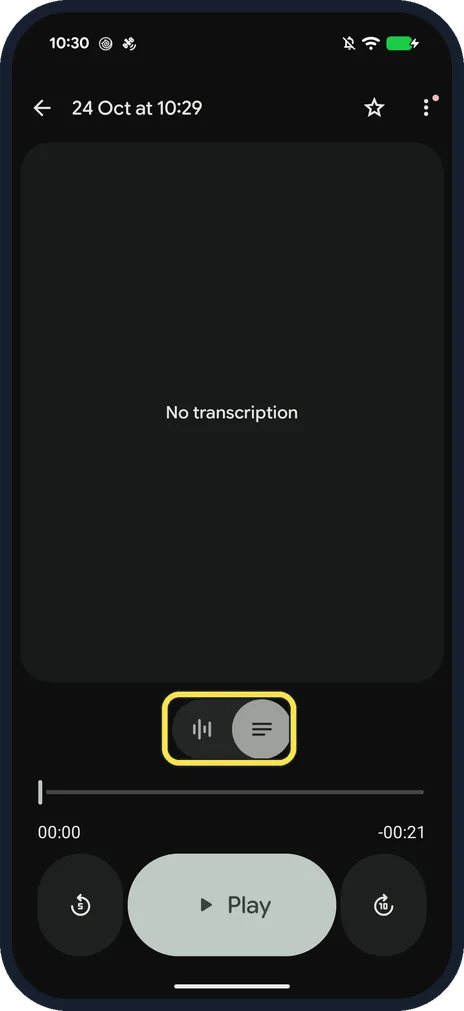
Switch to the transcript
Tap the lines icon above the timeline to see the transcript. Ours said No transcription, as the room was silent.
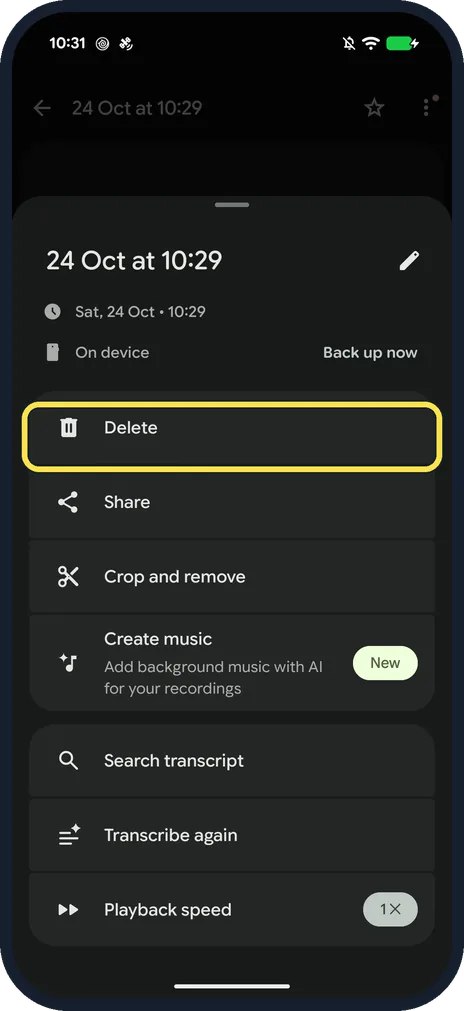
Delete, share or crop it
Tap the three dots at the top right. The menu has Delete, Share, Crop and remove, Create music, Search transcript and Transcribe again. Tap Delete to remove it.
Confirm the delete
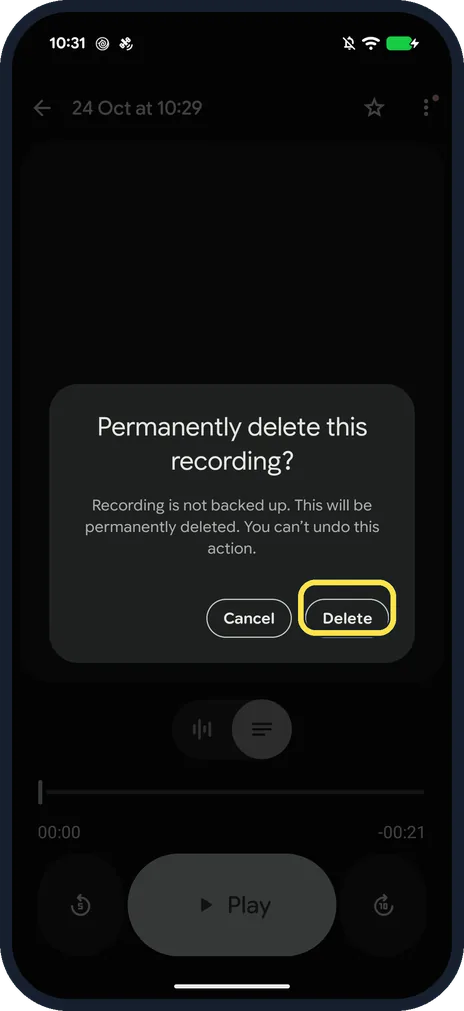
Ours asked Permanently delete this recording? Recording is not backed up, so it can't be undone. Tap Delete.
If you do not see this option
- Not a Pixel? Google says Recorder works on Pixel 3 and later phones and on Pixel Tablet, so other Android phones don't have this app. Source: Create, edit & delete a recording on your Pixel device
- No live transcript while recording? Google lists real-time transcription only in some languages: on Pixel 3 to 5a mainly English variants plus French, German and Japanese; Pixel 6 and later add more, such as Hindi, Italian, Mandarin and Spanish. Transcribe again, in the recording's menu, covers a longer list of about 40 languages. Source: Create, edit & manage transcriptions
- No speaker labels? Google says speaker labels are only available in US English. Source: Create, edit & manage transcriptions
If this does not work
- Banner says recordings are only saved on your device? Ours showed Recordings are only saved on your device, with Turn on backup. Back up now in the recording's menu does the same for one recording. Google says deleting a backed-up recording removes it from all synced devices and recorder.google.com. Source: Create, edit & delete a recording on your Pixel device
- Transcript empty? Speech has to be clear enough to transcribe; ours was silent. Try Transcribe again in the recording's menu. Source: Create, edit & manage transcriptions
About this guide
Recorder is Google's own voice recorder on Pixel phones. Google says it keeps recording with the screen off, for up to 18 hours per recording.
The screenshots are from our Google Pixel 10a with Android 17, in Dark mode, taken on 24 October 2026. We made a 21-second recording in a silent room, so there was nothing to transcribe, and deleted it afterwards.
Good to know
For live captions of a conversation as it happens, see how to use Live Transcribe on a Google Pixel.
In short: Recorder, red button, Pause or Stop. Open the recording to play it or see the transcript; three dots, Delete, Delete to remove it.
Links checked in October 2026. Menus and features can change after software updates. These steps match the version named at the top.
Did this guide work for you?
Sorry about that. What happened?