XIAOMI REDMI
How to screen record on a Xiaomi phone (HyperOS 3)
Add the Screen Recorder tile to Control Centre, then swipe down from the top right and tap it. A red button appears on the screen: tap it to start and tap it again to stop. To record what you say, set Sound source to Microphone or Both in Settings, Additional settings, Screen Recorder.

6 of 6 steps show a real screenshot from our Redmi Note 15 Pro 5G. Each step was checked against the maker's own instructions, linked at the end.
Steps
- 1
Add the Screen Recorder tile
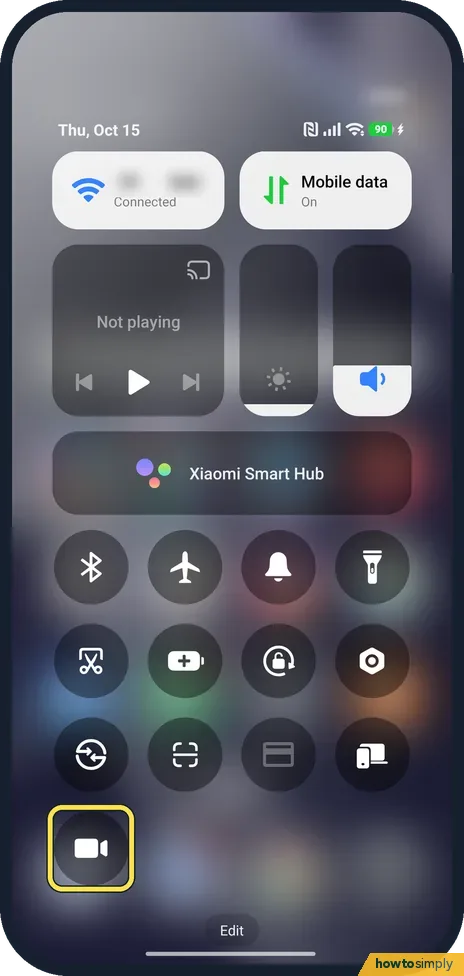
Screen Recorder was not in Control Centre on our phone. Swipe down from the top right, tap Edit and add Screen Recorder from the list: how to edit the Control Centre. Here it is added: the video-camera tile at the bottom is Screen Recorder.
- 2
Tap the tile
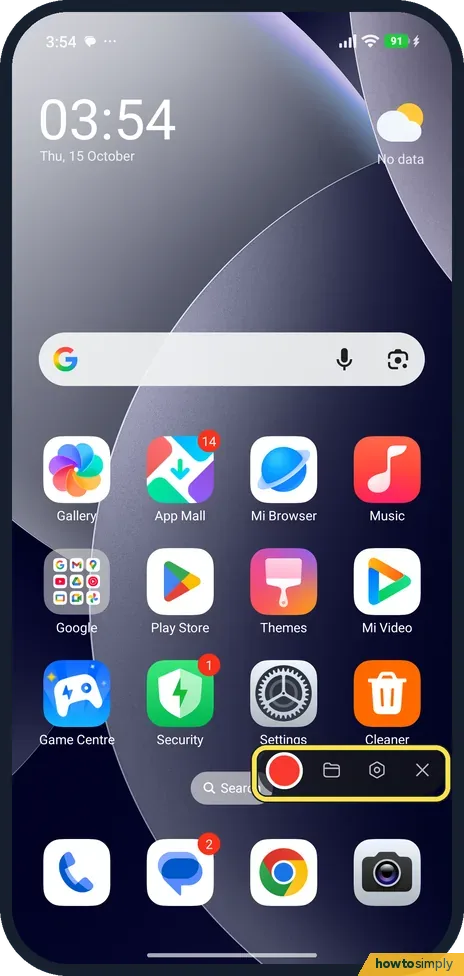
Tap Screen Recorder in Control Centre. Control Centre closes and a floating bar appears at the side of the screen: a red button, a folder, a gear and X.
- 3
Start and stop recording
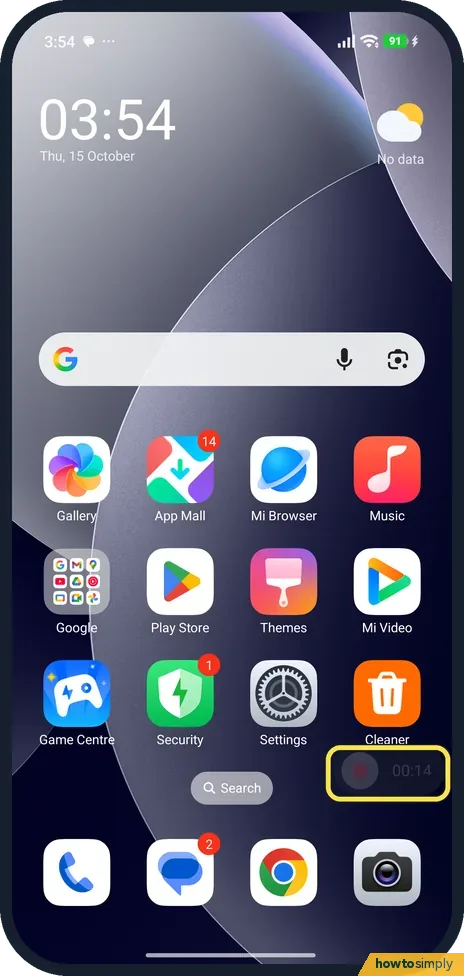
Tap the red button to start. A timer runs on the button while it records. Tap it again to stop and save. Here it shows 00:14. The folder on the bar opens your recordings and the gear opens settings.
- 4
Open Screen Recorder settings
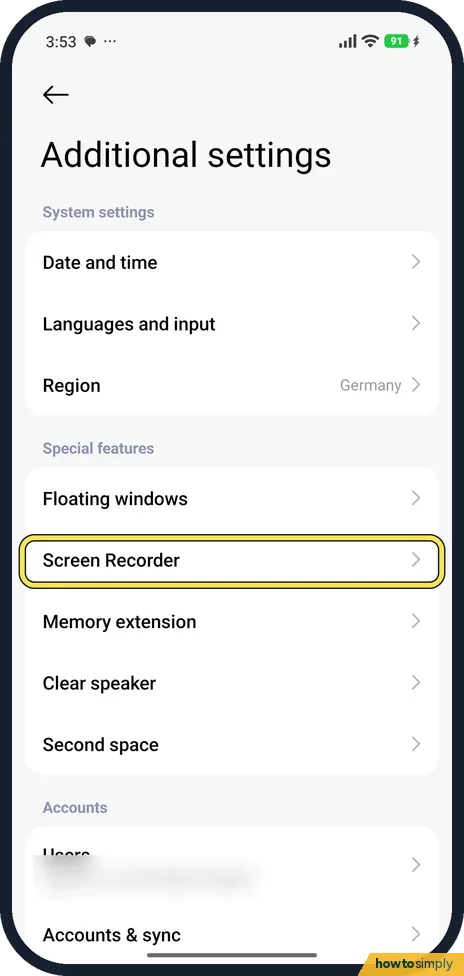
Go to Settings, Additional settings, Screen Recorder.
- 5
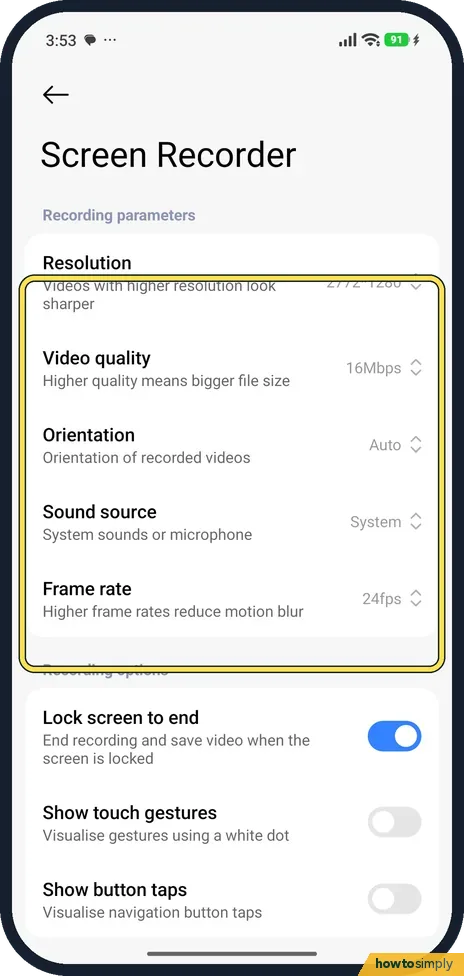
Check the settings
Ours recorded 2772x1280 at 16 Mbps and 24 fps, with Lock screen to end turned on: locking the phone stops and saves the recording.
- 6
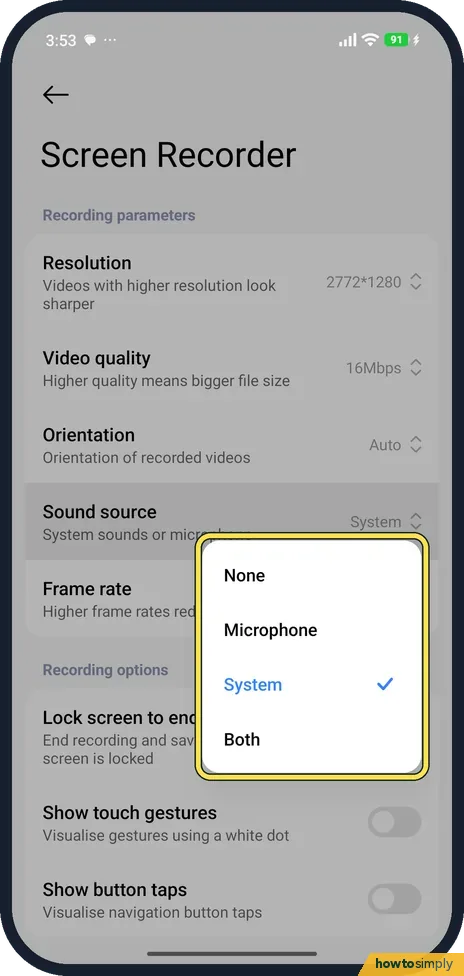
Choose the sound source
Tap Sound source. The choices are None, Microphone, System and Both. System, the default on ours, records the phone's sound but not your voice. Pick Both to record both.
If you do not see this option
- No Screen Recorder tile? Add it in Control Centre's Edit list (step 1). It was not there by default on our phone.
- Where is the recording? When we checked the phone's storage over USB, our test clip was in the Pictures, Screenshots folder, not DCIM. Tap the folder on the recorder bar to open your recordings.
If this does not work
- Recording has no voice? Set Sound source to Microphone or Both. System records only the phone's own sound.
- Recording stopped by itself? Lock screen to end was on: locking the screen ends and saves the recording. Turn it off in Screen Recorder settings.
- Notifications in the video? Xiaomi suggests turning on DND in Control Centre before you record.
- Video file too large to send? Xiaomi's HyperOS 3 guide says higher Video quality means a bigger file. Lower Resolution or Video quality in Screen Recorder settings before recording clips you plan to share.
- Taps not visible in a tutorial? Xiaomi's guide lists Show touch gestures, which shows your taps as a white dot, and Show button taps for the navigation buttons. Turn them on in Screen Recorder settings.
Good to know
Need a still picture instead? How to take a screenshot on a Xiaomi phone.
Recordings stay on the phone until you delete them and can take up a lot of space, especially at high resolution and frame rate. Xiaomi's guide says Gallery sorts them into the Screenshots and screen recordings album, which makes old clips easy to find and remove. If storage fills up, see Xiaomi storage full.
About this guide
- Device
- Android
- Shown on
- Xiaomi Redmi Note 15 Pro 5G (25080RABDG), HyperOS 3.0.308.0, Android 16
- Starts in
- Quick Settings
- Real screenshots
- 6 of 6 steps
- Checked
- October 2026
- Sources
- 1 official, linked below
Sources
Links checked October 2026. Menus and features can change with updates.Spotted a mistake? Menus change with updates, and we want every step to match your screen. Email us about this page or use the contact form. We read every report, and fixes are listed on What changed.
Liked this guide?
Follow us for new guides and short how-to videos.
Did this guide work for you?
Sorry about that. What happened?