GOOGLE PIXEL
How to screen record on a Google Pixel (Android 17)
Swipe down twice from the top of the screen and tap Screen record. Choose Single app or Entire screen, turn on Record device audio or Record microphone if you want sound, and tap Start. To stop, swipe down and tap Stop in the Screen recorder notification.

7 of 7 steps show a real screenshot from our Pixel 10a. Each step was checked against the maker's own instructions, linked at the end.
Steps
- 1
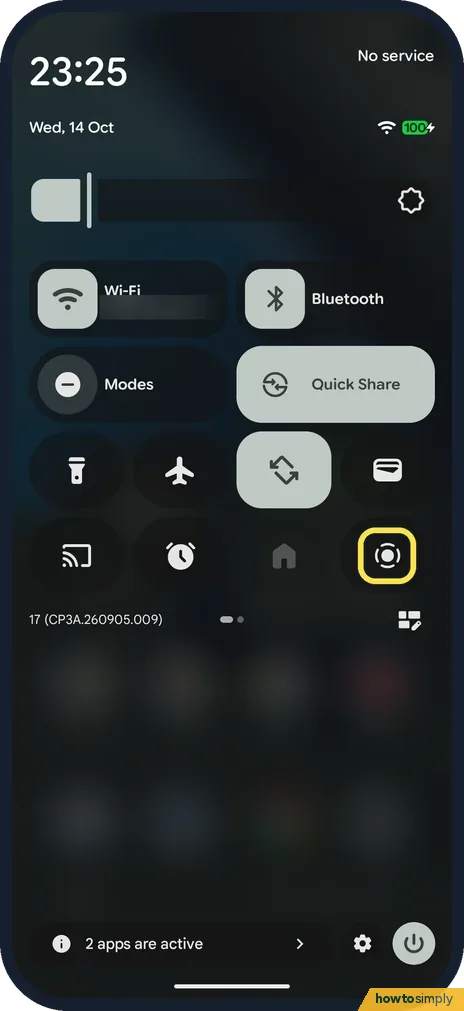
Open Quick Settings and tap Screen record
Swipe down twice from the top of the screen. Tap the Screen record tile. On our phone it was already there; if yours is missing, tap the edit icon at the bottom right of the panel and add it.
- 2
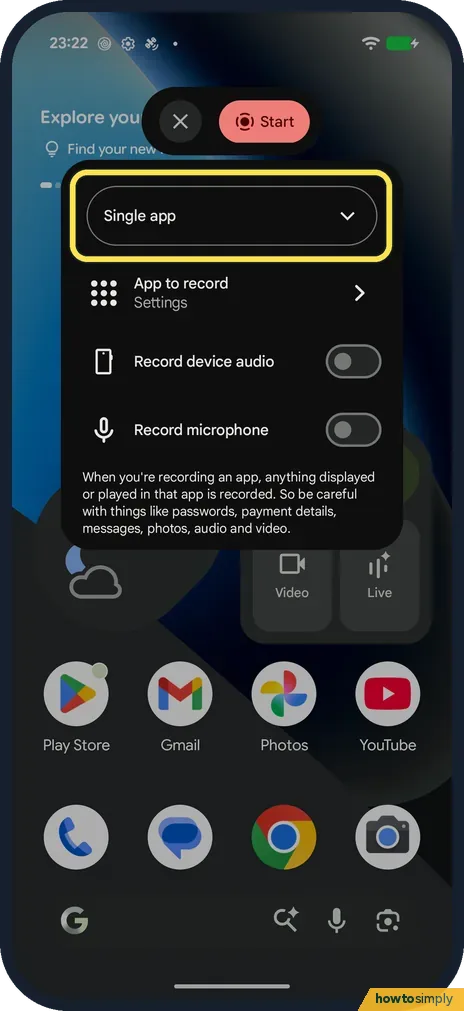
Tap Single app to change what is recorded
The Screen record panel opens with Single app chosen. Tap it to see the choices.
- 3
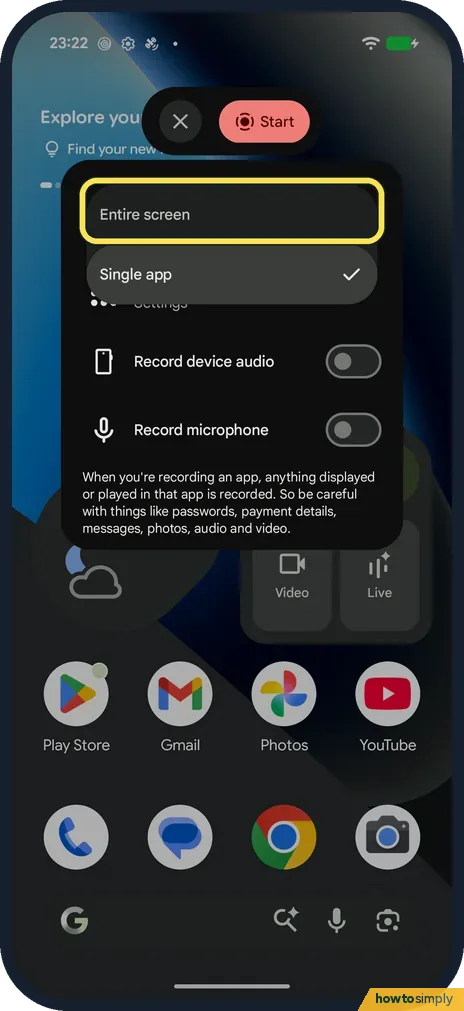
Choose Entire screen
Tap Entire screen to record everything on the screen. With Single app, you pick one app and only that app is recorded.
- 4
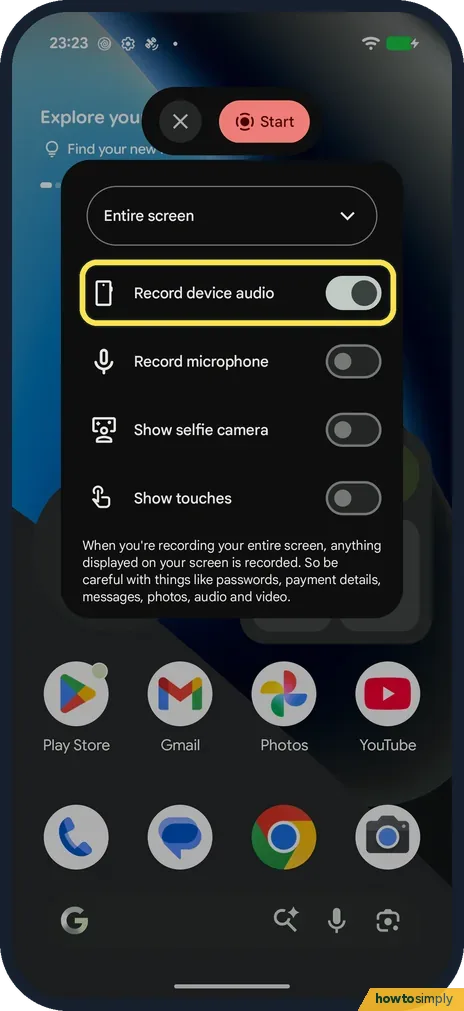
Turn on sound if you want it, then tap Start
Turn on Record device audio for the sound from your phone, Record microphone for your voice, or both. Show touches marks where you tap. Here Record device audio is on. Then tap Start at the top: the recording begins after a short countdown.
- 5
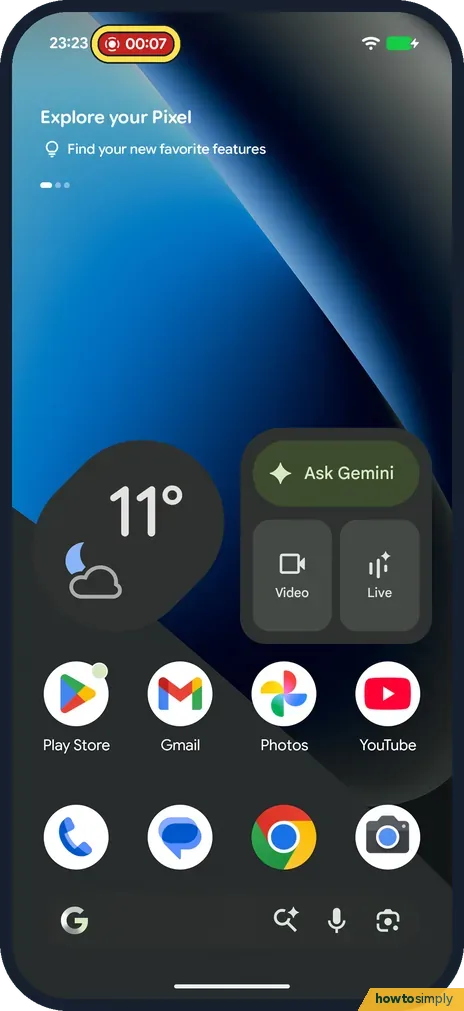
Look for the red timer
While it records, a red chip with the time sits at the top left of the screen.
- 6
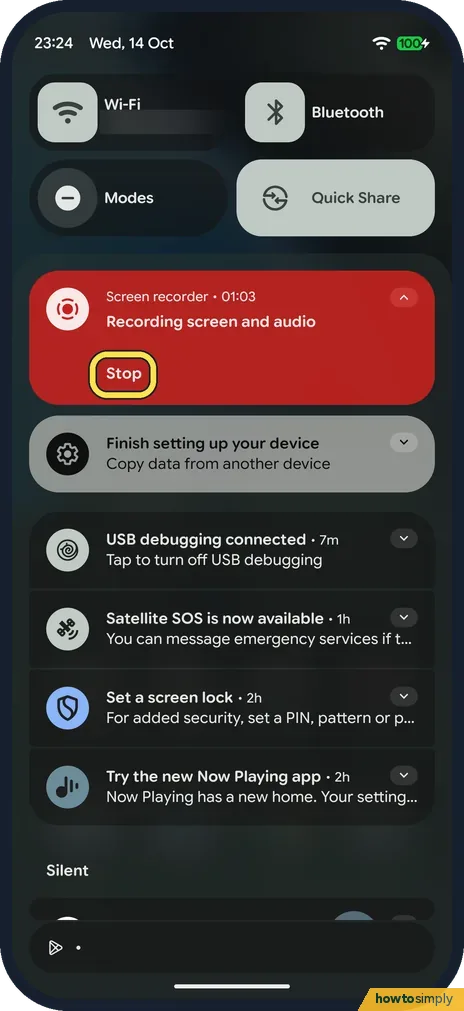
Tap Stop
Swipe down from the top. In the Screen recorder notification, tap Stop.
- 7
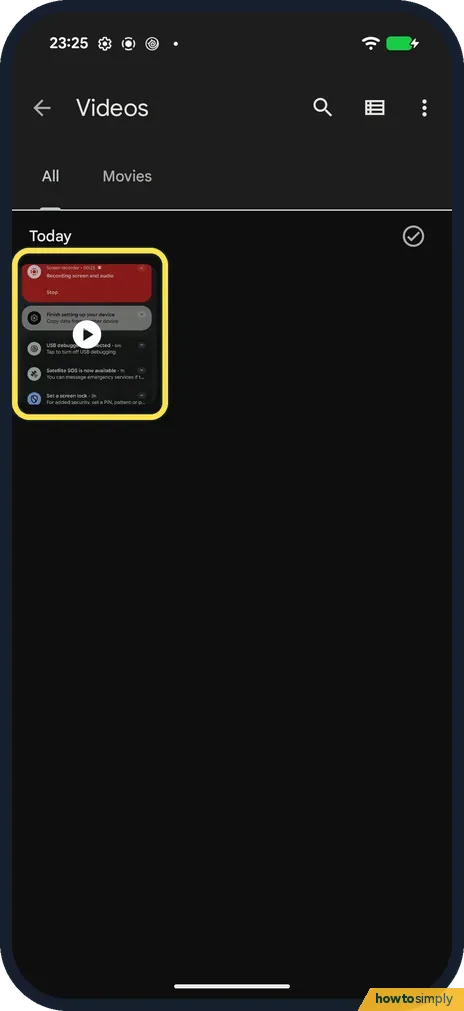
Find the recording
In Files by Google, tap Videos: the clip is in the Movies folder. In Google Photos it is under Collections, On this device, Movies.
If you do not see this option
- No Screen record tile? Swipe down twice, tap Edit and drag Screen record into your tiles, as Google describes. Source: Record your Pixel device's screen
- Looking for a sound source list? Older Android versions had a list. On our Android 17 Pixel there are just two switches: Record device audio and Record microphone.
- Want your face in the corner? Google's Pixel help describes a Show selfie camera switch in the Screen record menu, which adds a movable selfie bubble you can pinch to resize. Google notes it does not support front camera zoom. If your panel does not show the switch, your phone or version does not offer it. Source: Record your Pixel device's screen
If this does not work
- Recording has no sound? Record device audio and Record microphone are both off by default. Turn one on before you tap Start. Some apps block their sound from being recorded.
- Sound switches off again next time? On ours they did not stay on: each time we opened Screen record again, also straight after a recording, Record device audio and Record microphone were both off. Turn them on for every recording.
- Only one app was recorded? Single app is the default. Choose Entire screen in step 3.
- Recording menu vanished mid-recording? Google says the menu disappears once recording starts. Tap the recording indicator in the status bar to bring it back.
- Video too big to send? Google warns that video files can be too large for some services. Share a link from the Photos app instead.
Good to know
To capture a still picture instead: how to take a screenshot on a Google Pixel.
Recordings are ordinary video files, so long ones take a lot of storage and, if Google Photos backs up your phone, upload too. Delete test clips you no longer need. After you stop, Google lists Edit, Delete and Share as the options for the new recording, so you can tidy it up straight away.
About this guide
- Device
- Android
- Shown on
- Google Pixel 10a, Android 17 (build CP3A.260905.009)
- Starts in
- Quick Settings
- Real screenshots
- 7 of 7 steps
- Checked
- October 2026
- Sources
- 2 official, linked below
Sources
Links checked October 2026. Menus and features can change with updates.Spotted a mistake? Menus change with updates, and we want every step to match your screen. Email us about this page or use the contact form. We read every report, and fixes are listed on What changed.
Liked this guide?
Follow us for new guides and short how-to videos.
Did this guide work for you?
Sorry about that. What happened?