XIAOMI REDMI
How to scan for harmful apps with Play Protect on a Xiaomi phone (HyperOS 3)

In short
Search Settings for play protect and tap the result under Security status, then Google Play Protect. Tap Scan. Ours finished in seconds: No harmful apps found, Play Protect scanned moments ago. Going through the Play Store asked us to verify purchases first.
4 of 4 steps show a real screenshot from our Redmi Note 15 Pro 5G. Each step was checked against the maker's own instructions, linked at the end.
Steps
- 1
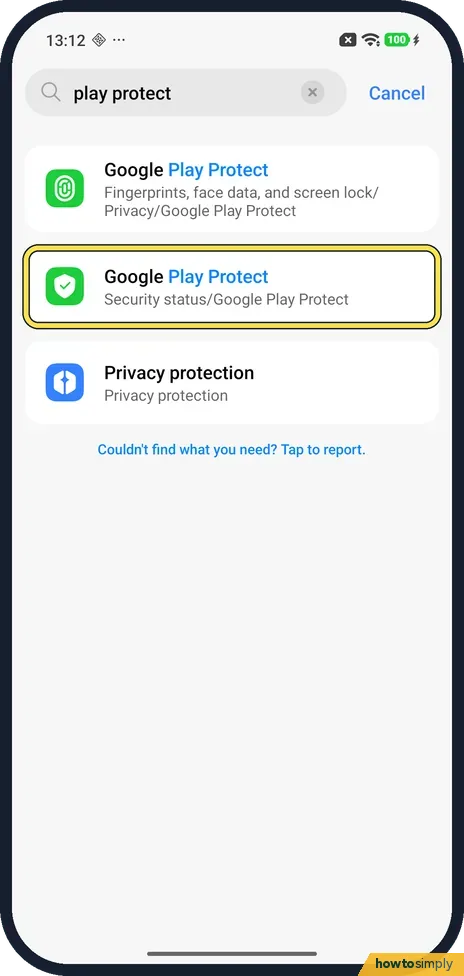
Search Settings for play protect
Open Settings and type play protect in the search box. Ours found Google Play Protect twice. Tap the second one, Security status/Google Play Protect.
- 2
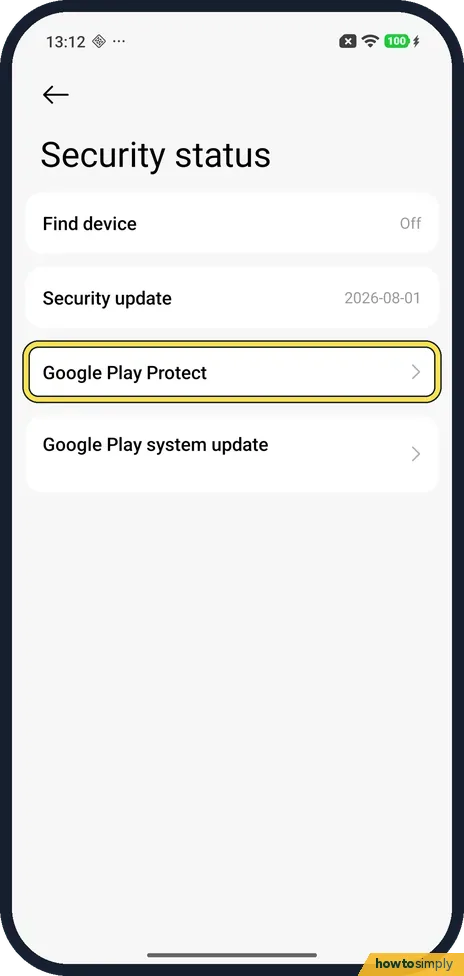
Tap Google Play Protect
The Security status page opens. It lists Find device (Off on ours), Security update 2026-08-01, Google Play Protect and Google Play system update. Tap Google Play Protect.
- 3
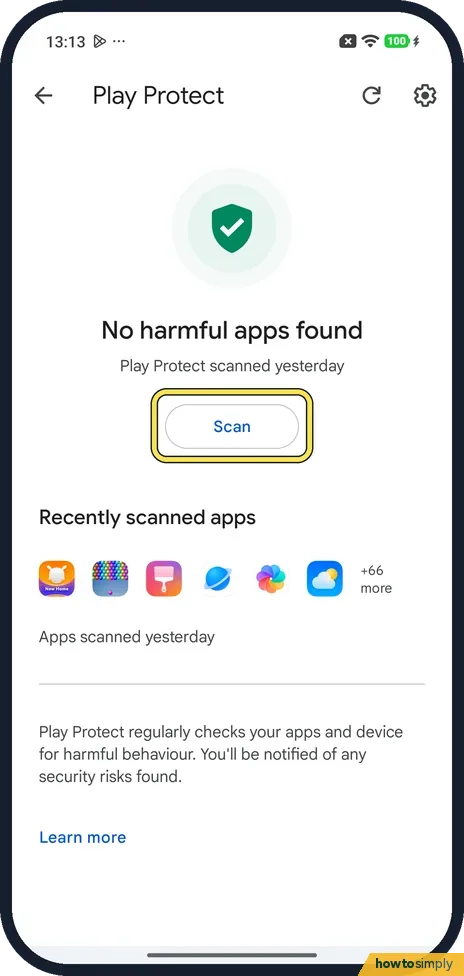
Tap Scan
The Play Protect page said No harmful apps found, Play Protect scanned yesterday. Tap Scan.
- 4
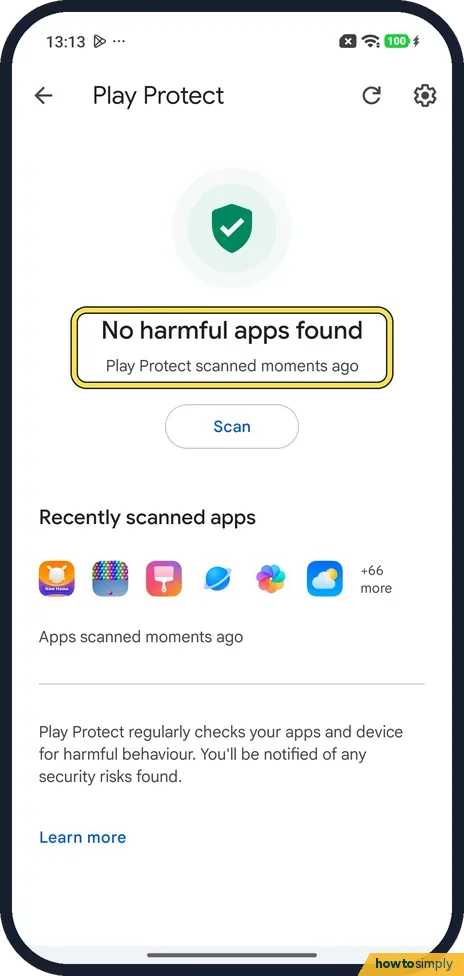
Read the result
Ours finished in a few seconds: No harmful apps found, Play Protect scanned moments ago. Below it, Recently scanned apps shows six app icons and +66 more.
If you do not see this option
- No Play Protect row in Settings? We found none in the main Settings list on ours: search for play protect. The other result, under Fingerprints, face data, and screen lock, Privacy, also names Google Play Protect; we used the Security status one.
- Want to check the scan settings? Google says Scan apps with Play Protect is in Play Protect's settings. Ours has a gear at the top right of the Play Protect page; we did not open it. Source: Use Google Play Protect to help keep your apps safe & your data private
If this does not work
- Play Store asks you to verify purchases? On ours the Play Store showed its first-run screens instead of the menu, then Verify your purchases instantly, with Use password and Use biometrics. We backed out and used the Settings search instead.
- Play Protect found a harmful app? Google says it may send a notification (tap it, then Uninstall), disable the app until you uninstall it, or remove it and usually tell you. Ours found none.
- Find device says Off? It did on ours, on the same Security status page. That is a separate setting: turn on Find device on a Xiaomi phone.
- Asked to scan an app you installed yourself? Google says Play Protect may recommend scanning an app it has not checked before. The app's details are sent to Google, and you then get a result saying whether it is safe or harmful.
- Device is not certified? Google's help says not to troubleshoot Play Protect itself for that message. Use the Fix device issue button it shows and follow the steps on screen.
Good to know
Installing an APK from outside the Play Store? Play Protect checks it too: allow installing apps from unknown sources. Keep the phone itself up to date: update a Xiaomi phone.
On a Pixel the scan is in the Play Store menu: scan for harmful apps with Play Protect on a Pixel.
Running a scan changes nothing on your phone unless something harmful is found. Play Protect keeps scanning in the background afterwards, so you do not need to repeat this often. Google's help also mentions an Improve harmful app detection setting, which sends unknown apps to Google for checking. If an app worries you but is not flagged, review what it can access in app permissions.
About this guide
- Device
- Android
- Shown on
- Xiaomi Redmi Note 15 Pro 5G (25080RABDG), HyperOS 3.0.308.0, Android 16
- App
- Settings
- Path
- Settings › Search: play protect › Security status › Google Play Protect
- Real screenshots
- 4 of 4 steps
- Checked
- October 2026
- Sources
- 2 official, linked below
Sources
Links checked October 2026. Menus and features can change with updates.Spotted a mistake? Menus change with updates, and we want every step to match your screen. Email us about this page or use the contact form. We read every report, and fixes are listed on What changed.
Liked this guide?
Follow us for new guides and short how-to videos.
Did this guide work for you?
Sorry about that. What happened?