XIAOMI REDMI
How to hide apps on a Xiaomi phone and find them again (HyperOS 3)

In short
Search Settings for hidden and tap Hidden apps (it is in the Security app). Turn on the switch next to an app to hide its icon. To see hidden apps again, spread two fingers apart on the Home screen. To lock an app instead, use Settings, Apps, App lock.
5 of 5 steps show a real screenshot from our Redmi Note 15 Pro 5G. Each step was checked against the maker's own instructions, linked at the end.
Steps
- 1
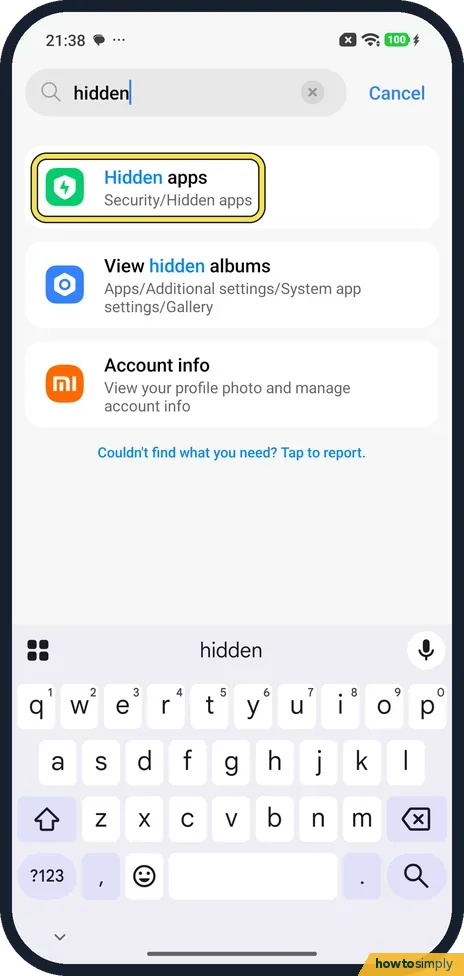
Search Settings for hidden
Open Settings, tap the search bar and type hidden. Tap Hidden apps (Security, Hidden apps).
- 2
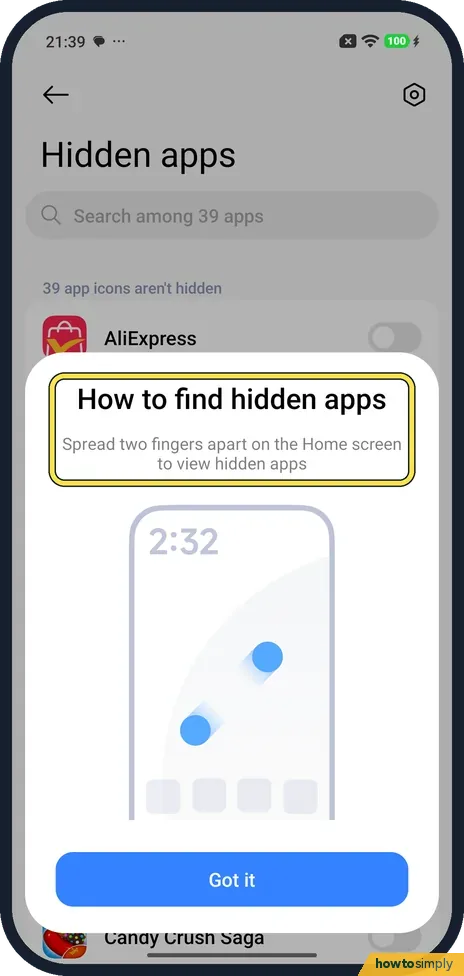
Read the hint
The first time, the phone explains how to find hidden apps: spread two fingers apart on the Home screen. Tap Got it.
- 3
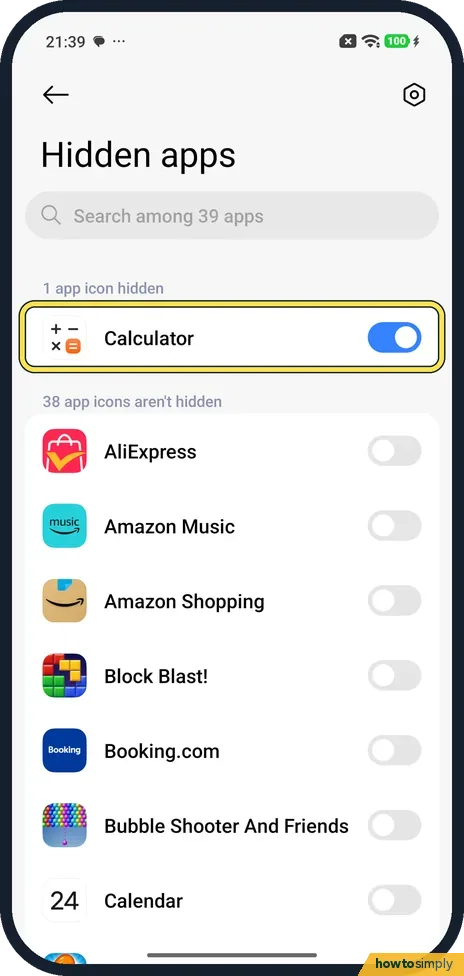
Turn on the switch next to an app
Each app has a switch. We turned on Calculator, and it moved to the top under 1 app icon hidden. No password was asked for.
- 4
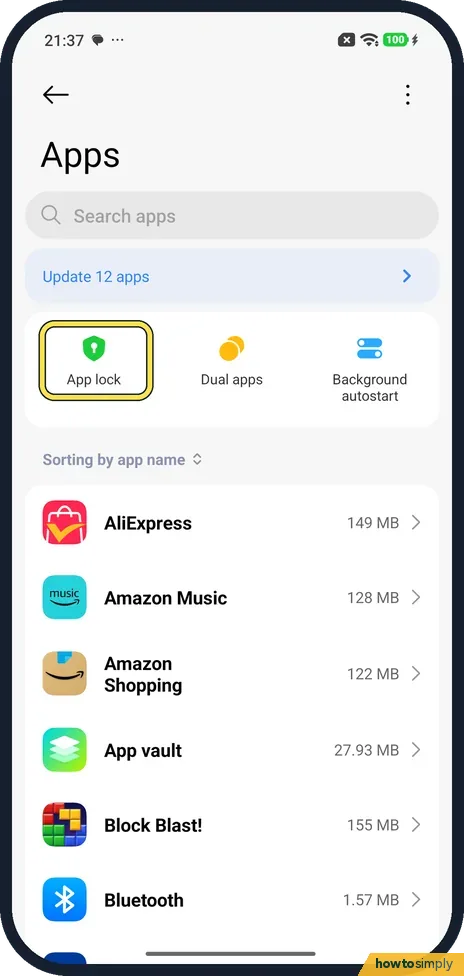
Or lock the app instead
Hiding only removes the icon. To ask for your screen lock when an app opens, go to Settings, Apps and tap App lock.
- 5
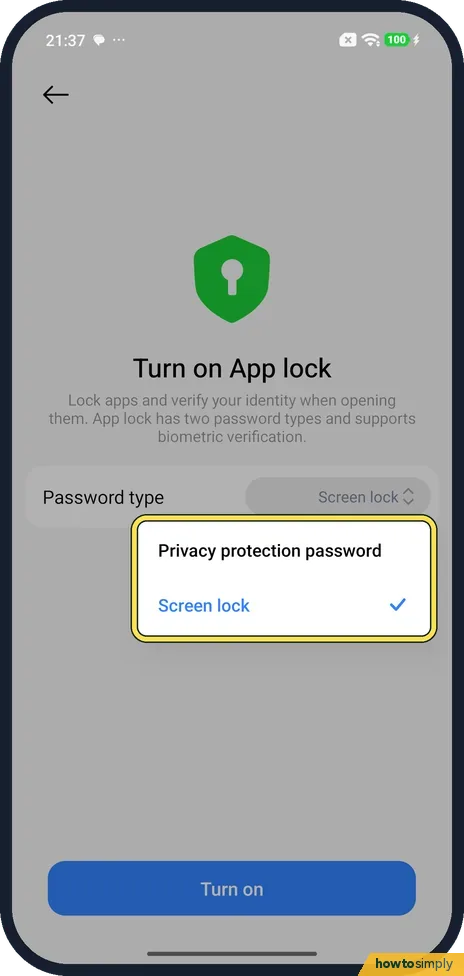
Choose the password type
App lock offers Screen lock or a separate Privacy protection password, then Turn on. We stopped here.
If you do not see this option
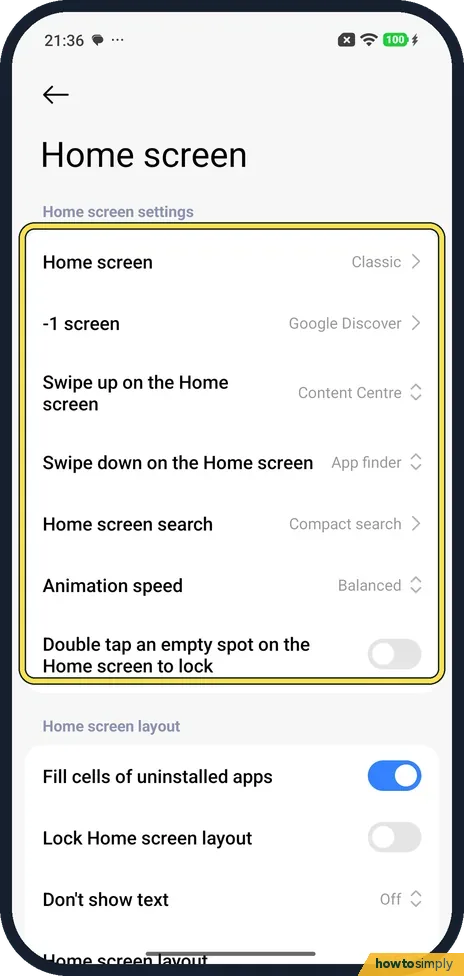
- Not in Home screen settings? Not on our phone. Home screen settings had no Hide apps row; use Settings search or the Security app.
If this does not work
- Hidden app still shows up? Hiding removes the Home screen icon only. The app still runs and still shows in Settings, Apps.
- Two-finger spread does nothing? Do it on an empty part of the Home screen, not on an icon or widget.
- Hidden folder asks for a password? Xiaomi's user guide says that if App lock is on, you enter its password to open the folder of hidden apps. Use the screen lock or Privacy protection password you chose for App lock.
- Notifications still reveal the app? Xiaomi's guide lists a Hide notifications option in the settings menu at the top right of the hidden apps screen. Turn it on so hidden apps do not announce themselves.
- Cannot find the app to unhide it? Open the same Hidden apps screen through Settings search. Hidden apps are listed at the top, so turn the switch off and the icon returns to the Home screen.
Good to know
To keep a whole separate set of apps: Second space and Dual apps.
To get rid of an app instead: uninstall or disable preinstalled apps.
Hiding changes nothing about how the app runs. It keeps its data, permissions, background activity and updates from Play Store, and it still appears in Settings, Apps and in battery and storage lists. Undo it at any time by turning its switch off again; the icon comes back, though not always in its old place. Xiaomi's guide also offers an App lock option in the hidden apps settings, so opening the folder needs a password. To stop a hidden app nagging you, see turn off notifications for an app.
About this guide
- Device
- Android
- Shown on
- Xiaomi Redmi Note 15 Pro 5G (25080RABDG), HyperOS 3.0.308.0, Android 16
- App
- Settings
- Real screenshots
- 5 of 5 steps
- What we did
- Performed: we made the change on our device and show the result
- Checked
- October 2026
- Sources
- 1 official, linked below
Sources
Links checked October 2026. Menus and features can change with updates.Spotted a mistake? Menus change with updates, and we want every step to match your screen. Email us about this page or use the contact form. We read every report, and fixes are listed on What changed.
Liked this guide?
Follow us for new guides and short how-to videos.
Did this guide work for you?
Sorry about that. What happened?