
howtosimply.com/guides/how-to-remove-objects-from-photos-in-snapseed-on-android/ · Checked October 2026 · build CP3A.261005.005 · Google Pixel 10a, Android 17
In this guide
Open Snapseed, tap ADD PHOTO and pick the photo. Tap Healing in the row at the bottom, and brush over the object with your finger. Snapseed fills it in from the area around it; tap the tick to keep the change.
5 of 5 steps with real screenshots · 3 official sources below
- Device
- Android
- Shown on
- Google Pixel 10a, Android 17 (build CP3A.261005.005)
- App
- Snapseed
- Real screenshots
- 5 of 5 steps
- Checked
- October 2026
- Sources
- 3 official, linked below
Step by step
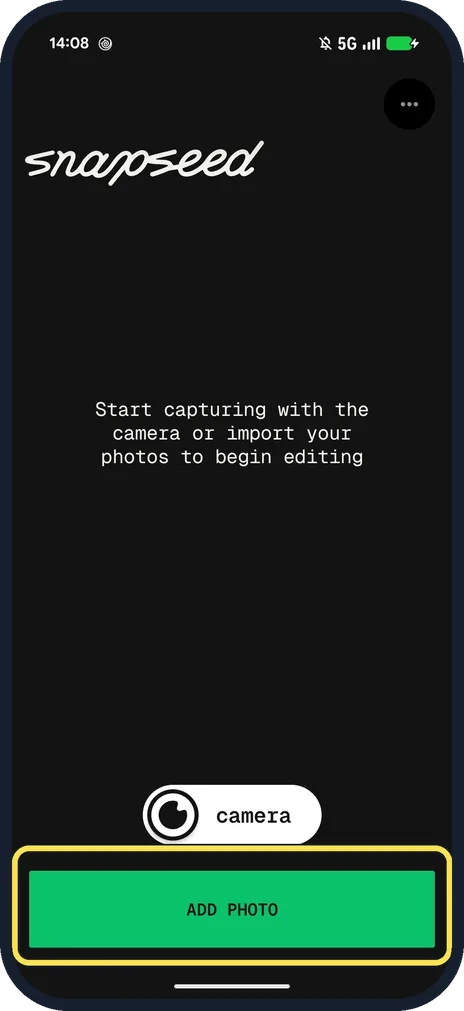
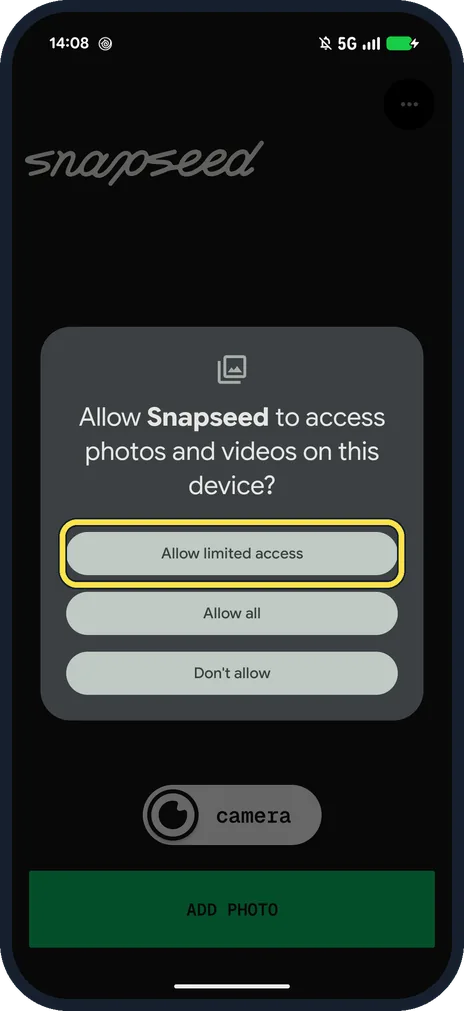
Open Snapseed and tap ADD PHOTO
The home screen says: Start capturing with the camera or import your photos to begin editing.
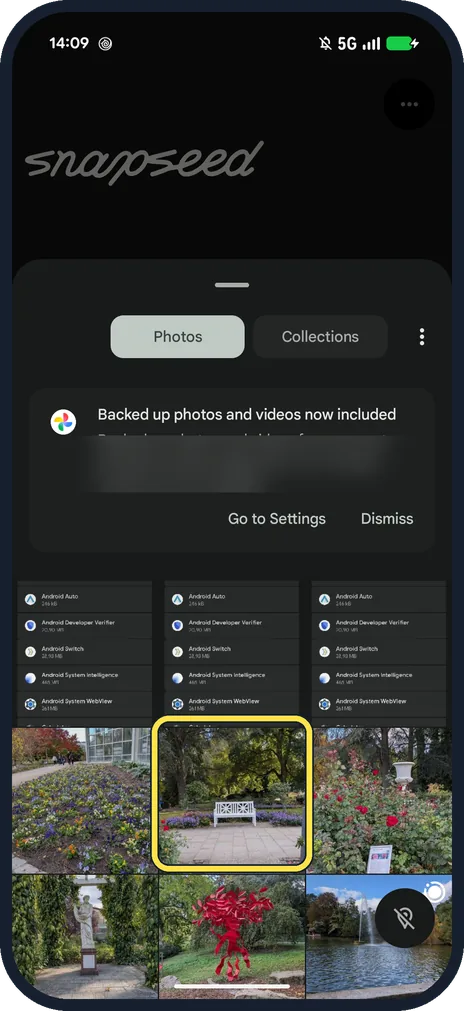
Pick the photo
Android's photo picker opens with Photos and Collections; the photo you tap opens in Snapseed.
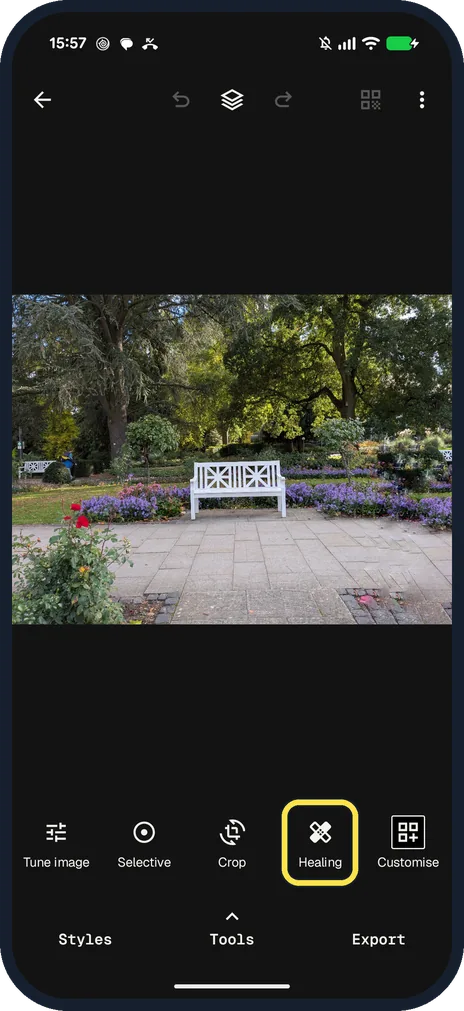
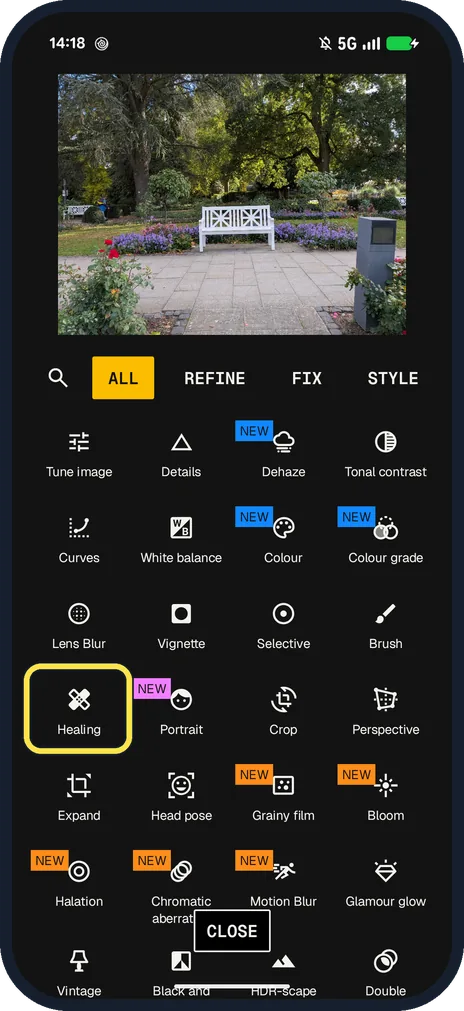
Tap Healing
The row at the bottom of the editor had Tune image, Selective, Crop, Healing and Customise on ours. Tools below it opens the full list.
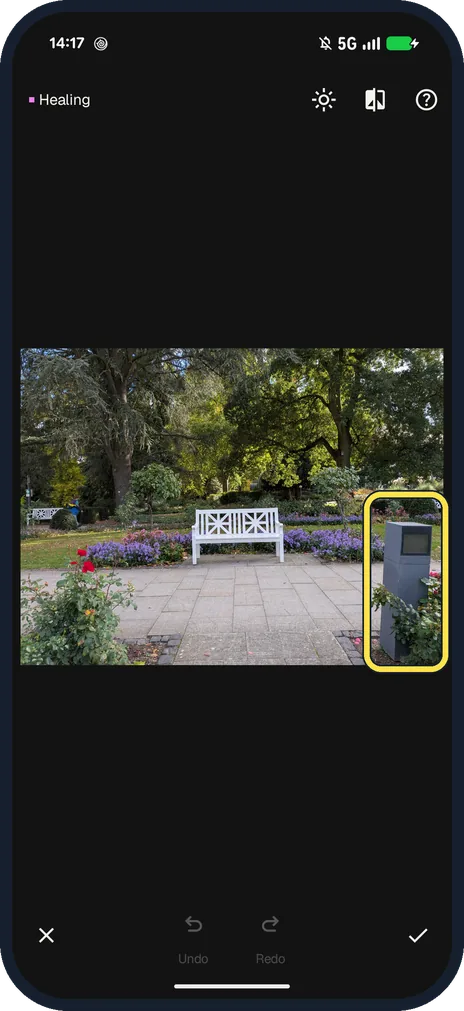
Brush over the object
Ours: the grey bin on the right. Undo and Redo stay grey until the first stroke.
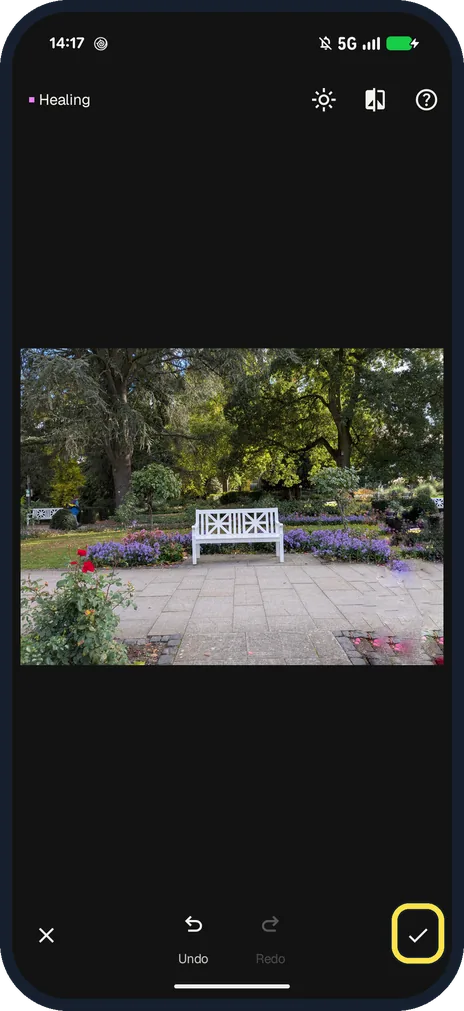
Check it and tap the tick
The tick is at the bottom right. Three strokes took the bin out and filled the gap from the plants and paving around it. Undo is at the bottom if it goes wrong.
If you do not see this option
- No Healing in the row? Tap Tools under the row: Healing is in the ALL list with Tune image, Details, Crop and the rest. Several tools, such as Dehaze and Portrait, were tagged NEW on ours.
- Asked about photo access? Android asks: Allow Snapseed to access photos and videos on this device? We chose Allow limited access, which shares only the photos you pick.
- Tools look different from Snapseed Help? Snapseed Help still describes older separate filters, such as Rotate/Straighten. On our 4.1 every tool sits in one list with ALL, REFINE, FIX and STYLE tabs, and the magnifier at the top left searches it. Source: Rotate/Straighten
- What does Google say? Snapseed Help says: brush or tap unwanted spots to watch them disappear, and tap Undo or Redo to change your mind. Source: Healing
If this does not work
- Smudge left behind? Tap Undo and brush again in shorter strokes. Snapseed Help says Undo and Redo work on any Healing edit. Source: Healing
- Object too big to heal? Crop it out instead. Snapseed Help says Crop can remove distractions so the subject is the main focus. Source: Crop
About this guide
Healing is free and needs no account. We used it on a grey bin in a park photo.
The screenshots are from our Google Pixel 10a with Android 17 and Snapseed 4.1 from the Play Store, taken on 25 October 2026. We cancelled the edit, so nothing was saved.
Good to know
To level a tilted horizon, see straighten a photo in Snapseed.
On an OPPO, see use AI Eraser on an OPPO phone.
In short: ADD PHOTO, Healing, brush, tick.
Links checked in October 2026. Menus and features can change after software updates. These steps match the version named at the top.
📷 See real photos from the Pixel 10a in our Camera Lab, next to 10 other phones.
Did this guide work for you?
Sorry about that. What happened?