
howtosimply.com/guides/how-to-straighten-a-photo-in-snapseed-on-android/ · Checked October 2026 · build CP3A.261005.005 · Google Pixel 10a, Android 17
In this guide
Open the photo in Snapseed, tap Crop in the row at the bottom, and drag the Angle slider under the photo until the horizon is level. Tap the tick to keep it. Crop also has Free, Original, Square, DIN, 3:2 and 4:3 frames and Rotate.
4 of 4 steps with real screenshots · 2 official sources below
- Device
- Android
- Shown on
- Google Pixel 10a, Android 17 (build CP3A.261005.005)
- App
- Snapseed
- Real screenshots
- 4 of 4 steps
- Checked
- October 2026
- Sources
- 2 official, linked below
Step by step
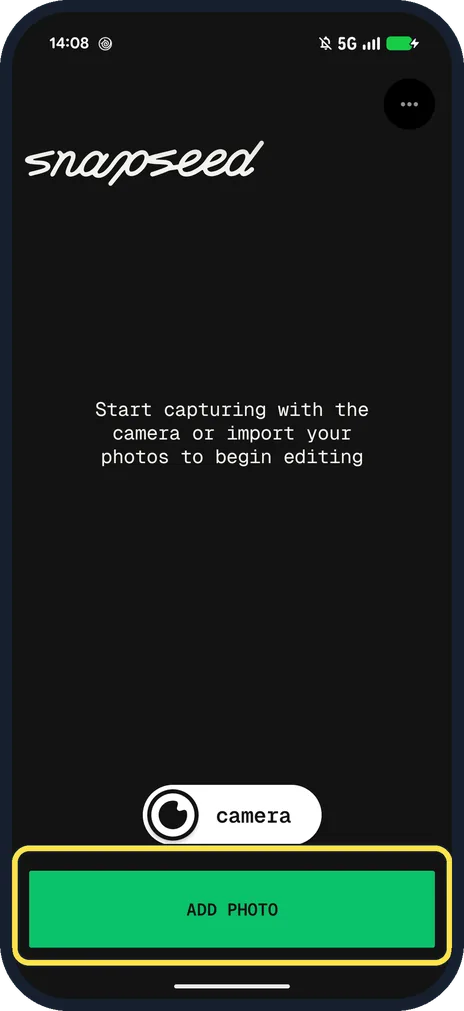
Open Snapseed and tap ADD PHOTO
Pick the photo you want to fix.
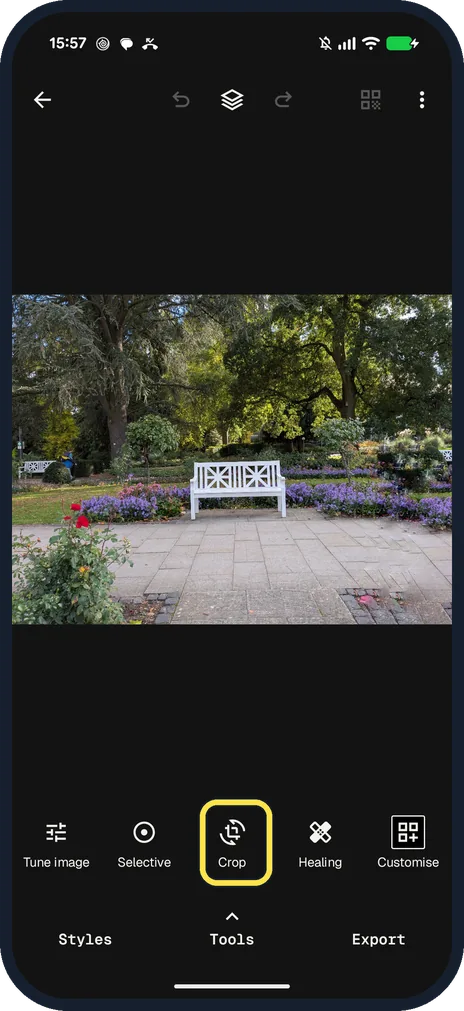
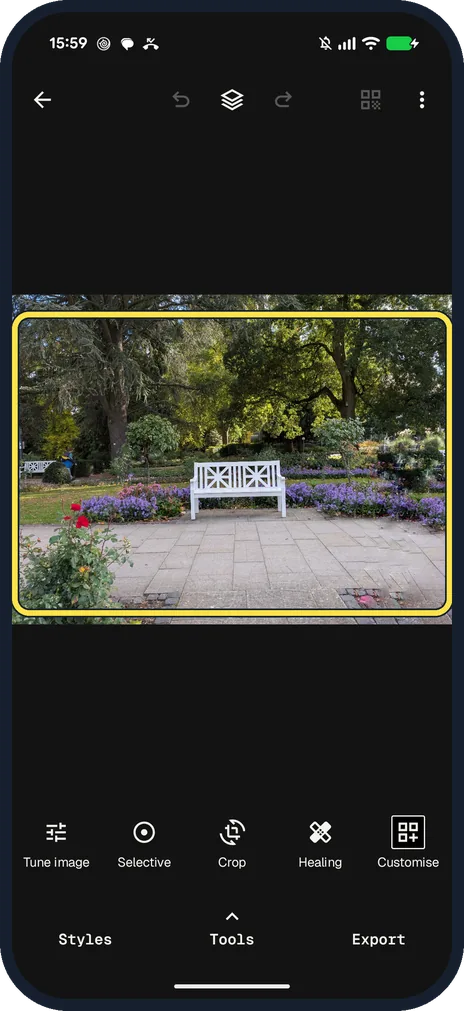
Tap Crop
It is in the row at the bottom of the editor, between Selective and Healing. Tools below it opens the full list, where Crop sits next to Portrait and Perspective.
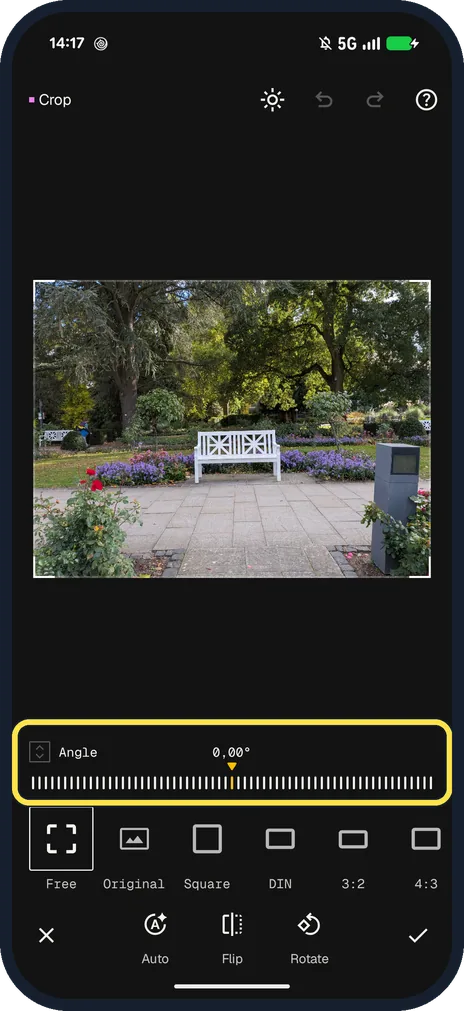
Find the Angle slider
It sits under the photo and starts at 0,00°.
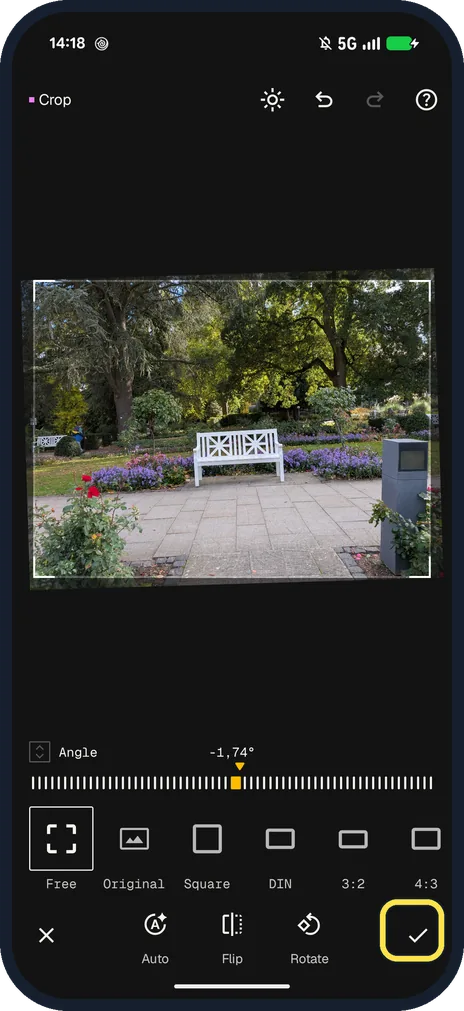
Drag it until the photo is level, then tap the tick
Ours went to -1,74°.
If you do not see this option
- Photo on its side? Tap Rotate at the bottom of Crop. Snapseed Help says Rotate turns the crop rectangle. Source: Crop
- No Angle slider, or a separate Rotate tool? That is the older layout: Snapseed Help describes a Rotate/Straighten tool where you swipe on the photo to straighten it by up to 10 degrees either way. On our 4.1 straightening is the Angle slider in Crop. Source: Rotate/Straighten
- Changed your mind? Tap the X at the bottom left of Crop. Ours went back to the editor with the original photo and nothing saved.
- Lines lean in, like a tall building? That is Perspective, next to Crop in the Tools list, not Angle.
If this does not work
- Edges cut off too much? Pick Free and drag the corners. Snapseed Help says Free lets you set the frame without a fixed shape. Source: Crop
- No Crop in the row? Tap Tools under the row and pick Crop from the ALL list, next to Portrait and Perspective.
About this guide
In Snapseed 4.1 straightening is part of Crop: the Angle slider tilts the photo in small steps.
The screenshots are from our Google Pixel 10a with Android 17 and Snapseed 4.1 from the Play Store, taken on 25 October 2026. The last shot shows the tick to tap; we then left with the X instead, so nothing was saved.
Good to know
To take something out of the picture, see remove objects in Snapseed.
In short: Crop, Angle slider, tick.
Links checked in October 2026. Menus and features can change after software updates. These steps match the version named at the top.
📷 See real photos from the Pixel 10a in our Camera Lab, next to 10 other phones.
Did this guide work for you?
Sorry about that. What happened?