
howtosimply.com/guides/how-to-make-a-gif-from-photos-on-a-samsung-galaxy/ · Checked October 2026 · Samsung Galaxy A57 5G (SM-A576B), One UI 8.5, Android 16
In this guide
In Gallery, touch and hold a photo, tap the others you want, then tap Create and GIF. Check the preview, add or remove pictures if needed, and tap Save. The GIF is saved in Gallery.
4 of 4 steps with real screenshots · 1 official source below
- Device
- Android
- Shown on
- Samsung Galaxy A57 5G (SM-A576B), One UI 8.5, Android 16
- Real screenshots
- 4 of 4 steps
- Checked
- October 2026
- Sources
- 1 official, linked below
Step by step
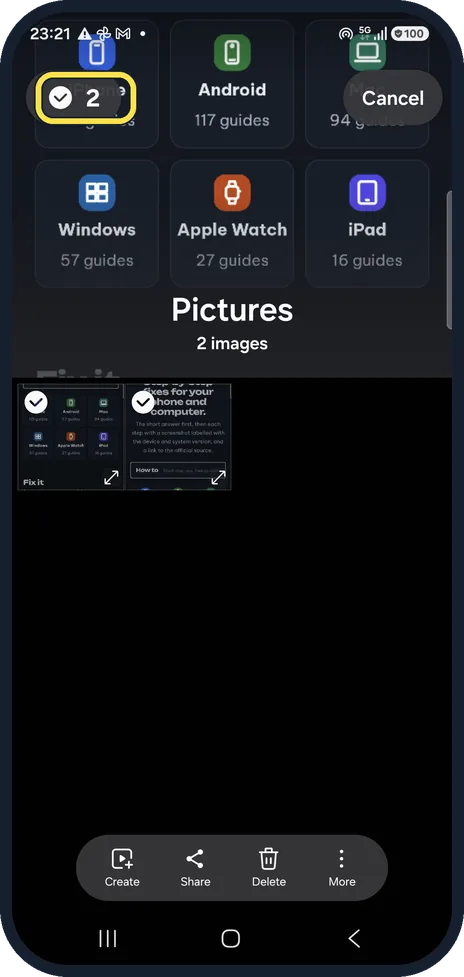
Select the photos
Open Gallery, touch and hold one photo, then tap the others.
The count at the top left shows how many are ticked. On our Galaxy we picked 2.
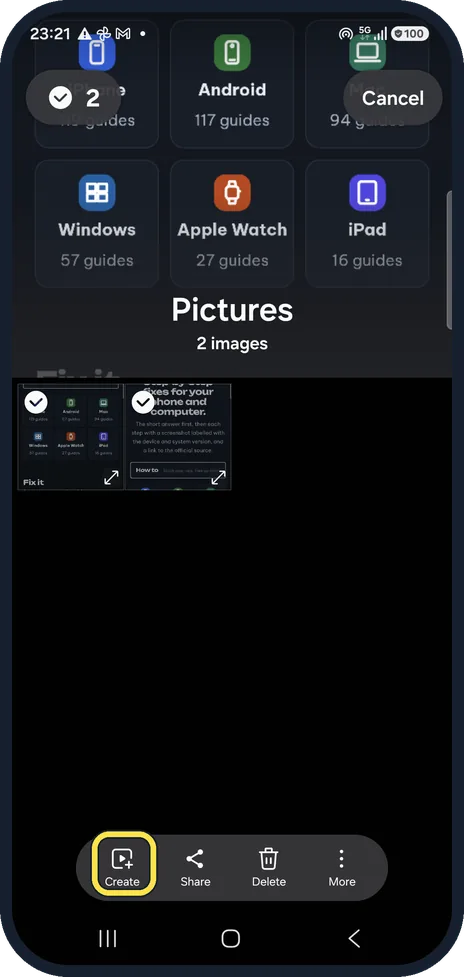
Tap Create
Tap Create in the bar at the bottom.
On our Galaxy the bar shows Create, Share, Delete and More.
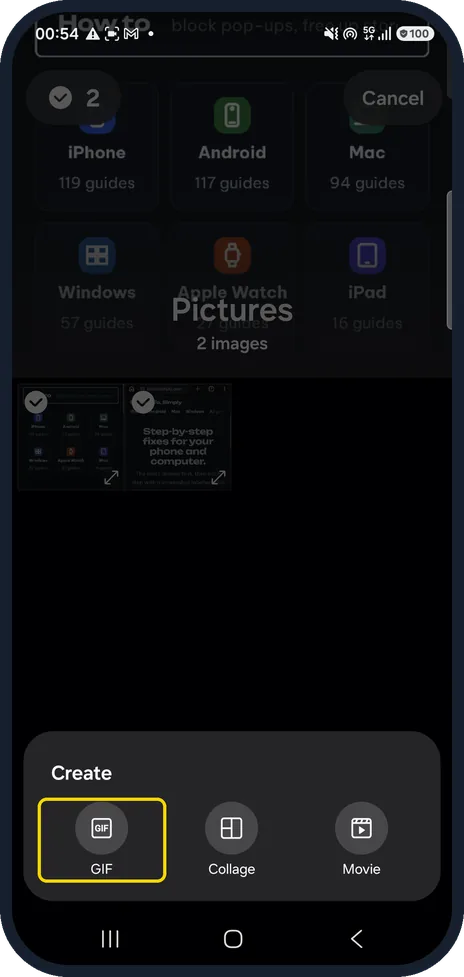
Tap GIF
A Create menu opens; tap GIF.
On our Galaxy the menu offers GIF, Collage and Movie.
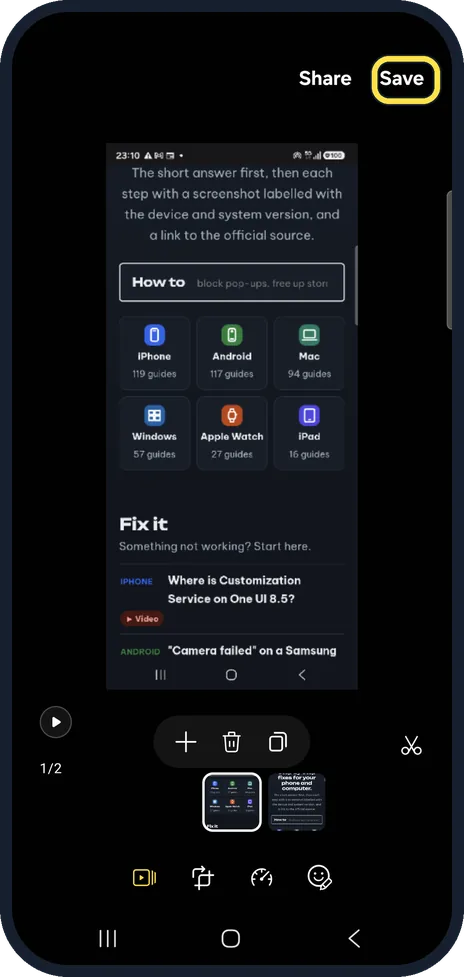
Check the GIF and tap Save
The editor shows the GIF with its frames in a row below. Use the buttons above the frames to add, remove or copy a picture.
Tap Save at the top right. On our Galaxy the GIF was saved as 20261011_005459.gif in DCIM/GIF and played in Gallery.
If you do not see this option
- No Create button Samsung's page shows the GIF option under the three dots on older phones. On our Galaxy the bar shows Create, Share, Delete and More. Source: How to create a GIF image from photos on your Galaxy phone
- No ticks on the photos Touch and hold one photo first. The count appears at the top left and Cancel at the top right.
- Cannot find the saved GIF On our Galaxy it was saved in DCIM/GIF and opens in Gallery like any other picture.
If this does not work
- Wrong photos picked Tap Cancel at the top right and select again, or remove a picture in the editor with the bin button above the frames.
- The GIF plays too fast or too slow Use the Direction and speed tool along the bottom of the editor before you tap Save.
- The GIF is not in Gallery It is only kept once you tap Save at the top right of the editor. Repeat the steps and tap Save.
About this guide
A GIF is a small looping animation made from a few photos, handy for sharing a short sequence in a chat. We made ours from our own test pictures.
The screenshots are from a Samsung Galaxy A57 5G with One UI 8.5 and Android 16, in Dark mode, using two test pictures we made for this guide. Samsung's page shows the GIF option under the three dots on older phones.
Good to know
Share at the top right sends the GIF straight to an app.
The play button at the bottom left plays the GIF; the counter next to it, 1/2 on ours, shows how many photos it holds.
The tools along the bottom of the editor cover Trim, Transform, Direction and speed, and Decorations.
In short: Gallery, touch and hold, tick the photos, Create, GIF, Save.
Links checked in October 2026. Menus and features can change after software updates. These steps match the version named at the top.
📷 See real photos from the Galaxy A57 in our Camera Lab, next to 10 other phones.
Did this guide work for you?
Sorry about that. What happened?