
howtosimply.com/guides/gmail-not-getting-new-emails-on-android-what-to-check/ · Checked October 2026 · Samsung Galaxy A57 5G (SM-A576B), One UI 8.5, Android 16
In this guide
In the Gmail app open Settings, tap your account and check that Sync Gmail is ticked. Then check Notifications, the Spam folder and the phone's notification settings for Gmail. Clearing the Gmail app's cache under Settings, Apps, Gmail, Storage is the last step.
6 of 6 steps with real screenshots · 1 official source below
- Device
- Android
- Shown on
- Samsung Galaxy A57 5G (SM-A576B), One UI 8.5, Android 16
- App
- Gmail
- Path
- Gmail › Settings
- Real screenshots
- 6 of 6 steps
- Checked
- October 2026
- Sources
- 1 official, linked below
Step by step
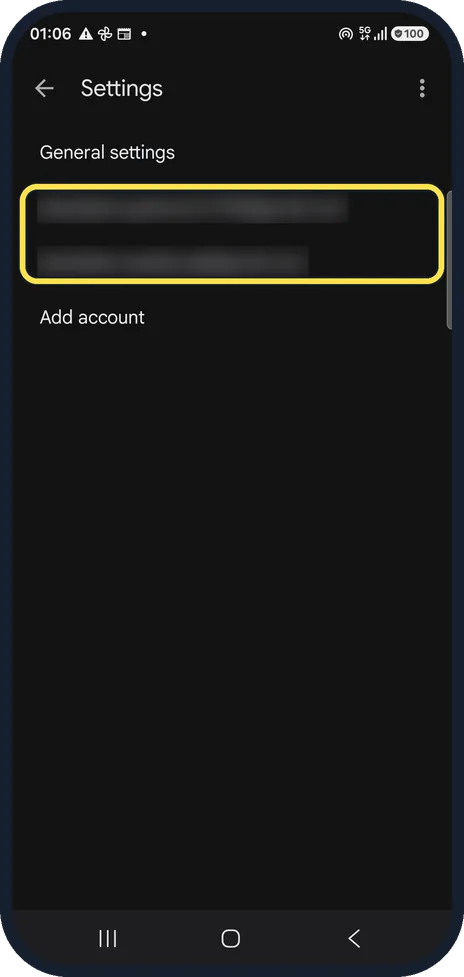
Open your account's settings
In Gmail tap the three lines at the top left, then Settings near the bottom, and tap your account. We blurred our addresses.
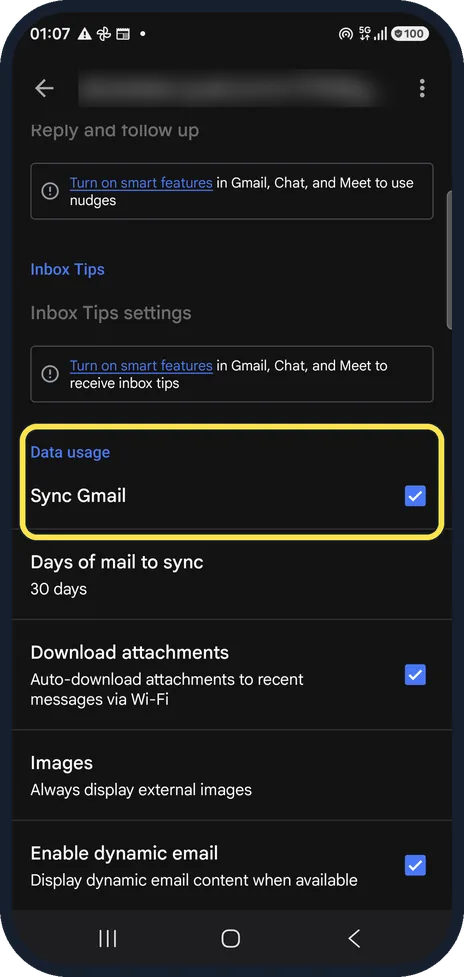
Check Sync Gmail
Scroll to Data usage. Sync Gmail must be ticked, or the app stops fetching mail. Days of mail to sync was 30 days on ours.
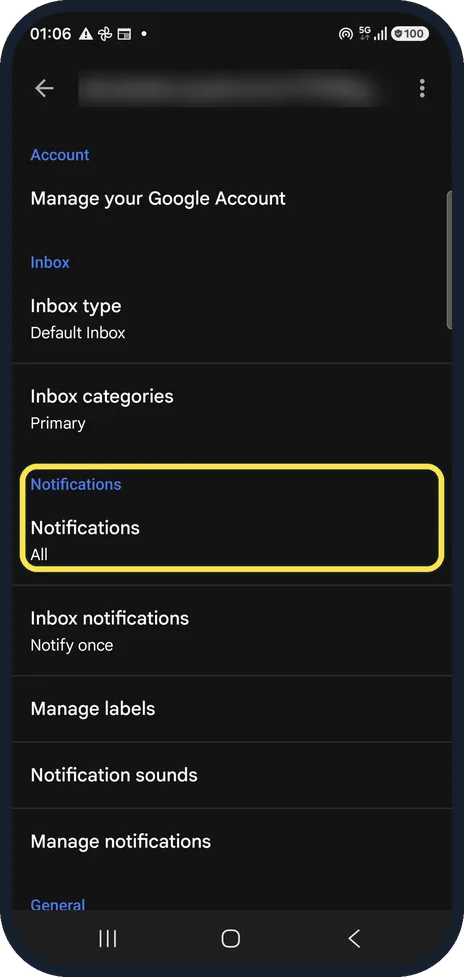
Check the notification setting
Under the Notifications heading, Notifications should be All or High priority only, not None. Ours was All. Inbox notifications sets whether it notifies once or for every message. Then tap Manage notifications, the last row in this group.
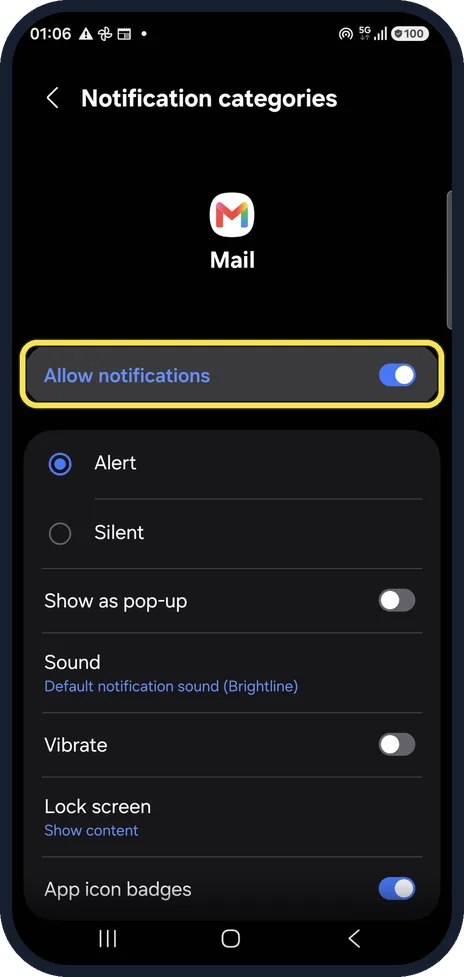
Check Android's notifications for Gmail
The phone opens its Notification categories page for Mail. Allow notifications must be on. Alert plays a sound; Silent does not. Show as pop-up is a separate switch, off on ours.
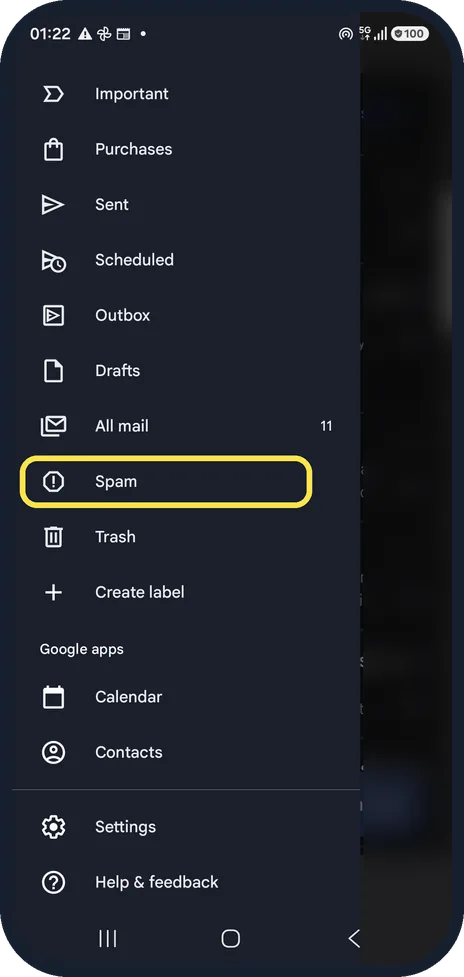
Look in Spam
Open the menu and tap Spam. If the mail is there, open it and tap Report not spam, a button inside the mail (not in this picture), so the next one lands in the inbox.
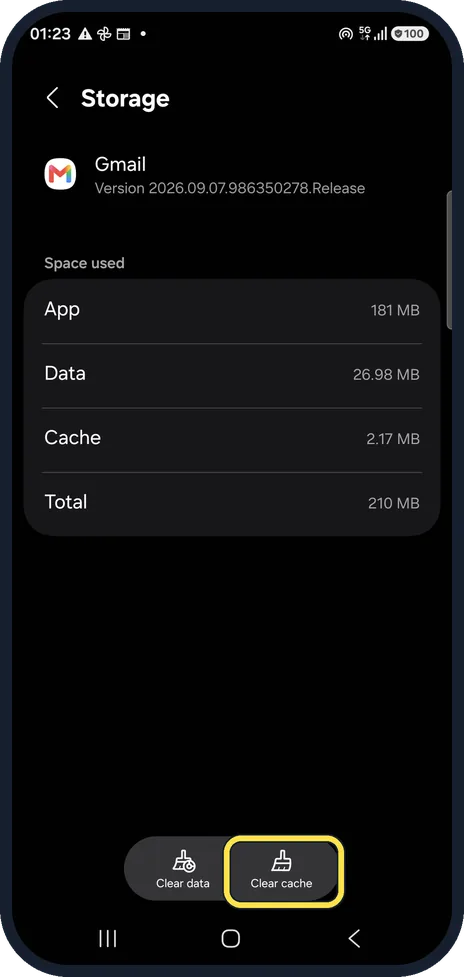
Clear the app cache
Open the phone's Settings, Apps, Gmail, Storage and tap Clear cache. Do not tap Clear data: it resets the app as if newly installed. Our Gmail used 2.17 MB of cache.
If you do not see this option
- Mail from Outlook or Yahoo is missing Google says to check for the mail on a computer first. If it is not there either, contact that email provider. Source: Fix sync errors with the Gmail app
- Account sync is somewhere else on your phone Google's route is Settings, About phone, Google Account, Account sync, then More, Sync now. On other phones Google says to ask the phone maker. Source: Fix sync errors with the Gmail app
If this does not work
- New mail takes a while to arrive Google says Gmail can take up to 15 minutes to sync, longer if the phone has not been used for a while. Swipe down in the inbox to sync by hand. Source: Fix sync errors with the Gmail app
- Still nothing Google also says to update the Gmail app, restart the phone and check the internet connection. Source: Fix sync errors with the Gmail app
About this guide
Mail arrives on your computer but not on the phone, or arrives without a notification. Work through the app's own settings first, then the phone's. Our Gmail account is a real one, so addresses, senders and subjects are blurred; the only mail we touched was a test message we sent to ourselves.
The screenshots are from the Gmail app on a Samsung Galaxy A57 5G with Android 16 and One UI 8.5, in dark mode. The app looks the same on other Android phones; only the phone's own settings screens differ by brand.
Good to know
A full Google storage quota also stops new mail arriving: Gmail storage full on Android: how to find big emails.
Filters made on a computer can skip the inbox or delete mail; they are only visible on the Gmail website.
In short: Gmail, Settings, account: Sync Gmail ticked, Notifications not None. Phone notifications for Gmail on. Check Spam. Clear cache, not data.
Links checked in October 2026. Menus and features can change after software updates. These steps match the version named at the top.
📷 See real photos from the Galaxy A57 in our Camera Lab, next to 10 other phones.
Did this guide work for you?
Sorry about that. What happened?